
Before you start
- The company is a legal entity, not inactive (a company being incorporated is offered, for its constitutive meeting), whose legal form is filled in: it is printed at the top of the notice.
- The agenda items exist in the Structure (chapter 3).
Creating a notice
Click New notice. The number is assigned by itself (CONV260001…), "Automatically generated".
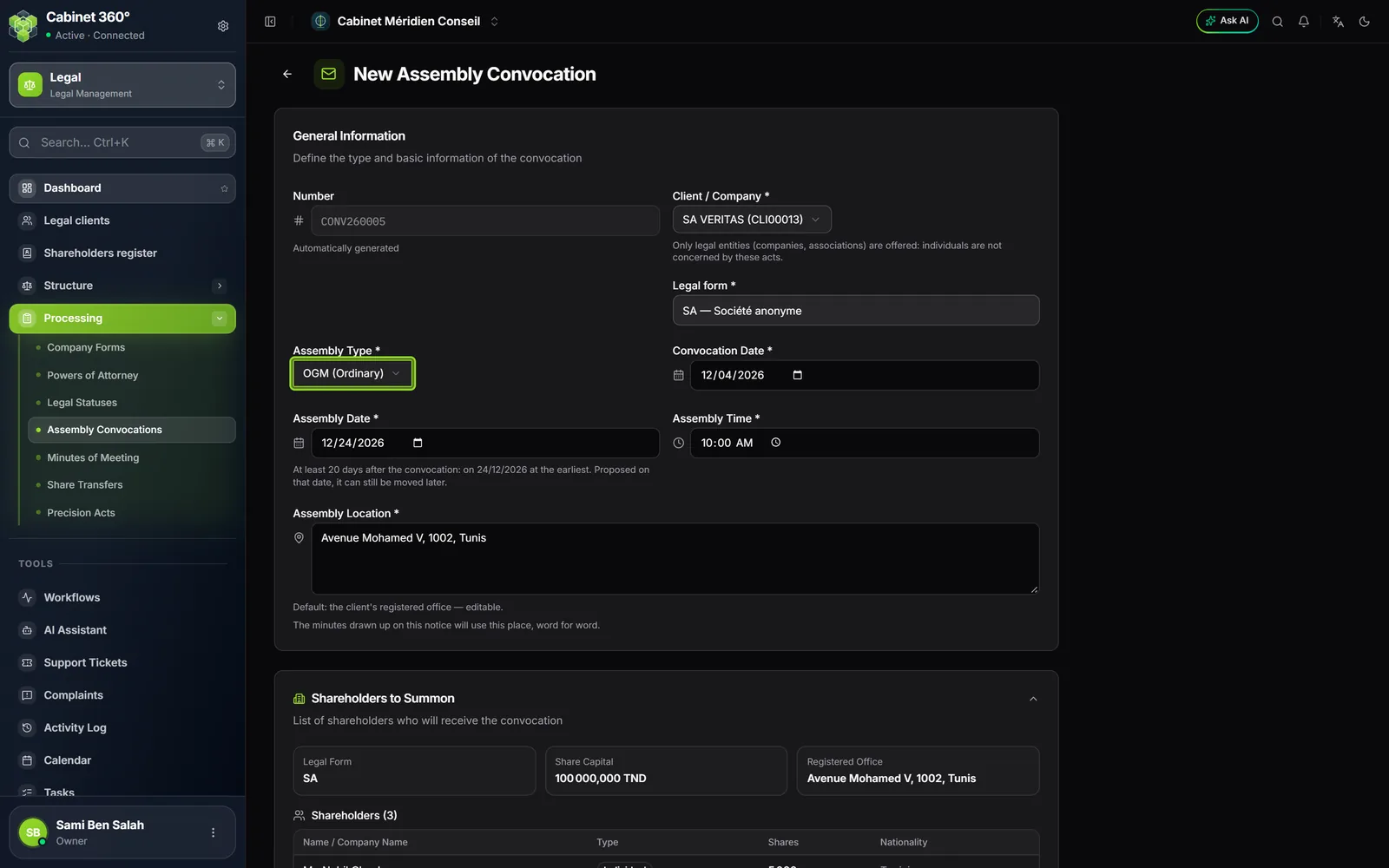
- Choose the Client / Company. Its Legal form shows below; if it is missing, the screen says so and leads to the client record ("Complete the client record"). The Shareholders to Summon block, read-only, recalls the form, the capital, the registered office, the managers and the associates on the record: all are summoned, there is nothing to tick.
- Choose the Assembly Type: OGM (Ordinary), EGM (Extraordinary) or Constitutive.
- Check the Convocation Date (today by default) and the Assembly Date, proposed twenty days later. Enter the Assembly Time.
- In Assembly Location, keep the proposed registered office, or type another place (at the notary's, at a hotel).
- Under Agenda, add the items and order them. Add, if needed, the Documents made available to the shareholders.
- Click Save: the notice opens as a Draft.
Twenty days at least
The meeting is held at least twenty days after the notice, in calendar days. The proposed date follows the notice date as long as you have not changed it by hand. A closer date is refused, under the field and by the server, which names the first possible day. A later date is accepted: it is a notice period.
The place
The client's registered office (address, postcode, city) is proposed and stays editable. If you change client, a place still holding the old office takes the new one; a place you typed is kept. The minutes drawn up on the notice will take over this place, unchanged.
The agenda and the documents
The agenda is not typed: its items are chosen in "Structure › Agendas", in the desired order. Each line has its arrows to move up or down, and its bin. At least one item is required, and an item can be chosen only once. The Documents (draft articles, management report…) are chosen the same way in "Structure › Meeting Documents"; they are optional.
The Internal Notes stay in the firm: the built-in template does not print them.
The notice's record
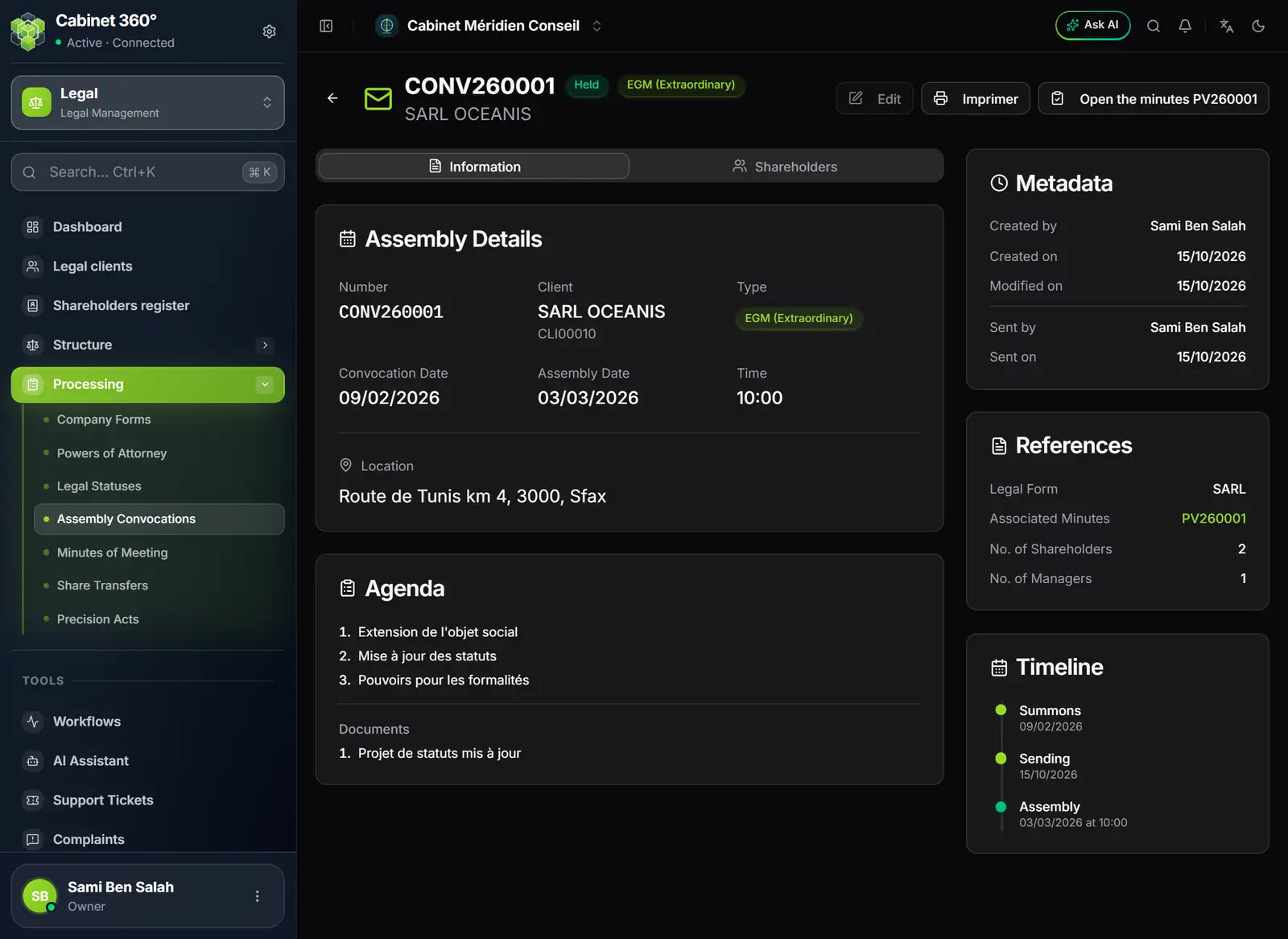
- 1. Number, status and type of the meeting.
- 2. Edit, Print, and Open the minutes once the minutes are drawn up.
- 3. Information and Shareholders: the two tabs.
- 4. Assembly Details: dates, time, place.
- 5. Agenda and documents, in their order.
- 6. References: legal form, linked minutes, number of shareholders and managers.
- 7. Timeline: notice, sending, meeting.
The notice's cycle
| Status | How you get there | What remains possible |
|---|---|---|
| Draft | on saving, or through Reopen | Edit, Print, Mark as sent, Cancel, Delete |
| Sent | Mark as sent | Edit, Print, Mark as Held, Generate the minutes, Cancel, Reopen |
| Held | the minutes are drawn up, or Mark as Held | Print, Generate the minutes (if they do not exist yet) or Open the minutes |
| Cancelled | Cancel | Print, Reopen |
Reopen puts a sent or cancelled notice back to draft, and clears the date and the author of the sending. A held notice cannot be reopened.
A sent notice can still be edited; the screen then warns that it is not sent again: inform the shareholders. Once the minutes are drawn up, the notice no longer moves: it can no longer be edited, cancelled, reopened or deleted.
Printing the notice
Print, on the row or on the record, produces the notice letter: the company's header, the meeting type and the number, the day, the date, the time and the place, the agenda, the documents made available, the signature and the recipients. Without a firm template, IntegraSys prints its built-in template (chapter 15).
Generating the minutes
After the meeting, click Generate the minutes, on the row or on the record. The button is greyed out on a draft ("Send the notice first: minutes are drawn up for a convened meeting.") or on a cancelled notice. The "New Minutes" page opens pre-filled, and what the notice announces is locked there:
- the client and the place;
- the meeting date and the start time;
- the minutes type given by the meeting type: OGM for an ordinary meeting, EGM for an extraordinary one; for a constitutive meeting, the type is chosen;
- the agenda, in its order, and the documents announced.
The resolutions of these agenda items are proposed and stay editable. The end time, the chairperson, the secretary, attendance and votes are known only after the session: you complete them (chapter 12). When the minutes are saved, the notice moves to Held and its button becomes Open the minutes.