
Before you start
- The company exists as a legal entity client (or association), not inactive. A company being incorporated is offered too. The Legal service is not required here: it only makes the company appear in "Legal clients".
- To send the form to the client, its record holds an e-mail address (chapter 8).
- The functions of the managers (Manager, Co-manager…) come from the Legal reference, Functions tab.
Creating a form
Click New form. The wizard opens on step 1, Data collection. Leave Action type on Creation: it is the case of an incorporation, and the only one that leads to articles. Amendment and Liquidation also exist, but their steps are not defined yet: the screen says so. Choose the Company type: Resident or Non Resident.
The client record fills the wizard
Choose the Client: the wizard takes over what its record already knows, step by step. Legal form, company name and trade name, capital, currency and nominal value, registered office and address, phone and e-mail, associates, managers and bank. A message under the client says how many details were taken over, and which.
The record proposes, you decide: everything stays editable.
- An empty field takes the record's value.
- An entry typed by hand is kept, and the message names it. Replace with the record replaces it on request.
- If you change client, what came from the old client follows the new one, or is emptied.
- Reload client record reads the record again and applies it.
What the record does not hold (the project, the CNSS scheme, the forecasts, the investment, the benefits) remains to be entered. The declarant is never guessed: you choose them at step 2.
The eleven steps
The bar at the top of the wizard shows the eleven steps. It leads to any of them; Previous and Next go through them in order. Save is offered at every step.
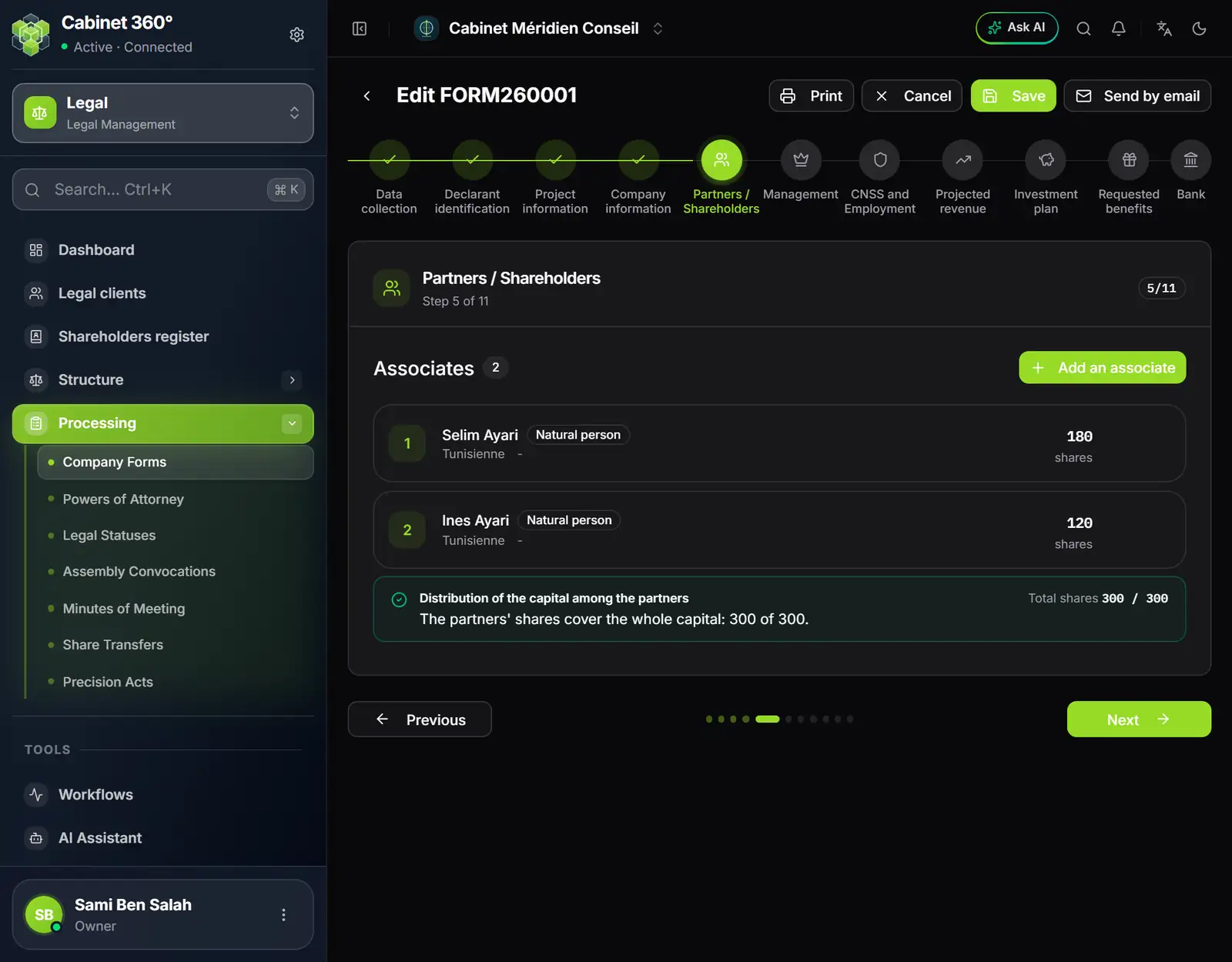
- 1. Print, Cancel, Save, Send by email: at the top of the wizard.
- 2. The bar of the eleven steps: a green tick on each step passed.
- 3. Add an associate at step 5.
- 4. Each associate's shares.
- 5. The distribution check: 300 shares of 300.
- 6. Next does not leave the step while the distribution is wrong.
| Step | What you enter |
|---|---|
| 1. Data collection | Action type, company type, legal form, client, name reservations, capital |
| 2. Declarant identification | The person who files, chosen among those on the record |
| 3. Project information | Nature of the activity, planned start date, project description, location area |
| 4. Company information | Registered office, address, city, postcode, phone, fax, e-mail, website; domiciled company and its address |
| 5. Partners / Shareholders | Each associate and their shares |
| 6. Management | Each manager, under their function |
| 7. CNSS and Employment | The CNSS scheme, then the planned direct and indirect jobs |
| 8. Projected revenue | The revenue of the first three years |
| 9. Investment plan | The project's cost and its financing |
| 10. Requested benefits | The benefits requested, one per line |
| 11. Bank | The blocked account for paying up the capital |
Step 1: the names and the capital
Name reservations. Enter your proposals of Company name, in French and Arabic, then, if the company will have them, of Trade name and Sign. Each reservation holds several proposals. Tick Refused on a reservation the registry rejected. Each proposal's button retains it; a second click unticks it.
The capital. Enter the Share capital, the Currency (TND, EUR, USD, GBP or MAD) and the Nominal value. The Number of shares is not typed: it is computed, capital ÷ nominal value. A share cannot be split: a capital that is not a multiple of the nominal value is refused, and the screen names both figures. For a non-resident company, the wizard also asks for the capital in foreign currency and the reference rate.
Step 2: the declarant
Choose the person who files among the managers and the natural-person associates on the record. The choice fills the whole block. The declarant's title, last name and first name are required to submit.
Step 5: the associates cover the whole capital
The associates' shares must cover exactly the number of shares of step 1. Under the list, a box says so: "The partners' shares cover the whole capital: 300 of 300." On a gap, Next does not leave the step while you are editing. A row opens the associate's record.
Step 6: the management
Each manager is placed under a function from the Legal reference (Manager, Co-manager…). Two rules apply as soon as you save:
- a function is given only once: the list shows it greyed out, "already given to manager no. 1";
- a person holds only one function, and it is their ID number that identifies them.
Take over a partner copies their identity, ID document and contact details. To submit, each manager has their function, first name, last name and ID number. An associate who is a civil servant does not manage.
Step 7: the CNSS scheme
Choose the company's CNSS scheme in the list served by the Legal module. It does not depend on the HR subscription.
Step 9: the investment plan
It is the plan of the administration's form: twelve cost lines facing twelve financing lines, then the programme of equipment to buy. The totals are computed, to the millime, and must be equal. The share capital in the financing is that of step 1 when it is in dinars. For an SARL, an SUARL or a sole proprietorship, a minimum capital is checked: 30 % of the cost above 1 000 000,000 DT, 10 % below.
Step 10: the benefits
Thirteen benefits are offered, from priority-sector grants to the project of national interest. Tick those the company requests.
Step 11: the bank
This step is filled in only if the associates open a blocked account to pay up the capital: without an account, it stays empty, and that is not an oversight. To create a public limited company (SA), the account is required: bank, branch and RIB (twenty digits).
Save, review, edit
Click Save. A refusal names each field, its step and its reason, in a box above the step, with Go to step n. Once created, the form opens on its record. Saved from the wizard, it goes back to read mode: nothing can be entered, and Next goes through the eleven steps. The first time, the form is a Draft; saved a second time, it moves to In progress.
- Edit reopens entry on the step you are on. Opened from the list or the record, a form always opens on step 1, to be reviewed from the start.
- Cancel goes back to the saved form without writing anything.
- Save goes back to read mode.
The list's Step column shows progress, the furthest step reached ("4/11"). A submitted or approved form shows "Completed".
Printing the summary
Print produces a PDF of the saved form, in A4: your firm's header (its logo and identity, as its company record holds them), the title according to the operation, the number and the status, the eleven steps numbered as in the wizard, the notes, the form's follow-up and the signatures. Each page's footer recalls the form and the page.
The button is greyed out before the first save, and while the entry differs from what is saved: the paper never contradicts the screen. If the browser blocks the print window, the PDF is downloaded, and the screen says so.
Submit, approve, refuse, reopen
| Action | From | Result | Right |
|---|---|---|---|
| Submit | Draft, In progress | Submitted | Edit |
| Approve | Submitted | Approved | Approve / refuse |
| Refuse (reason required) | Submitted | Refused | Approve / refuse |
| Reopen | Submitted, Refused | Draft | Edit |
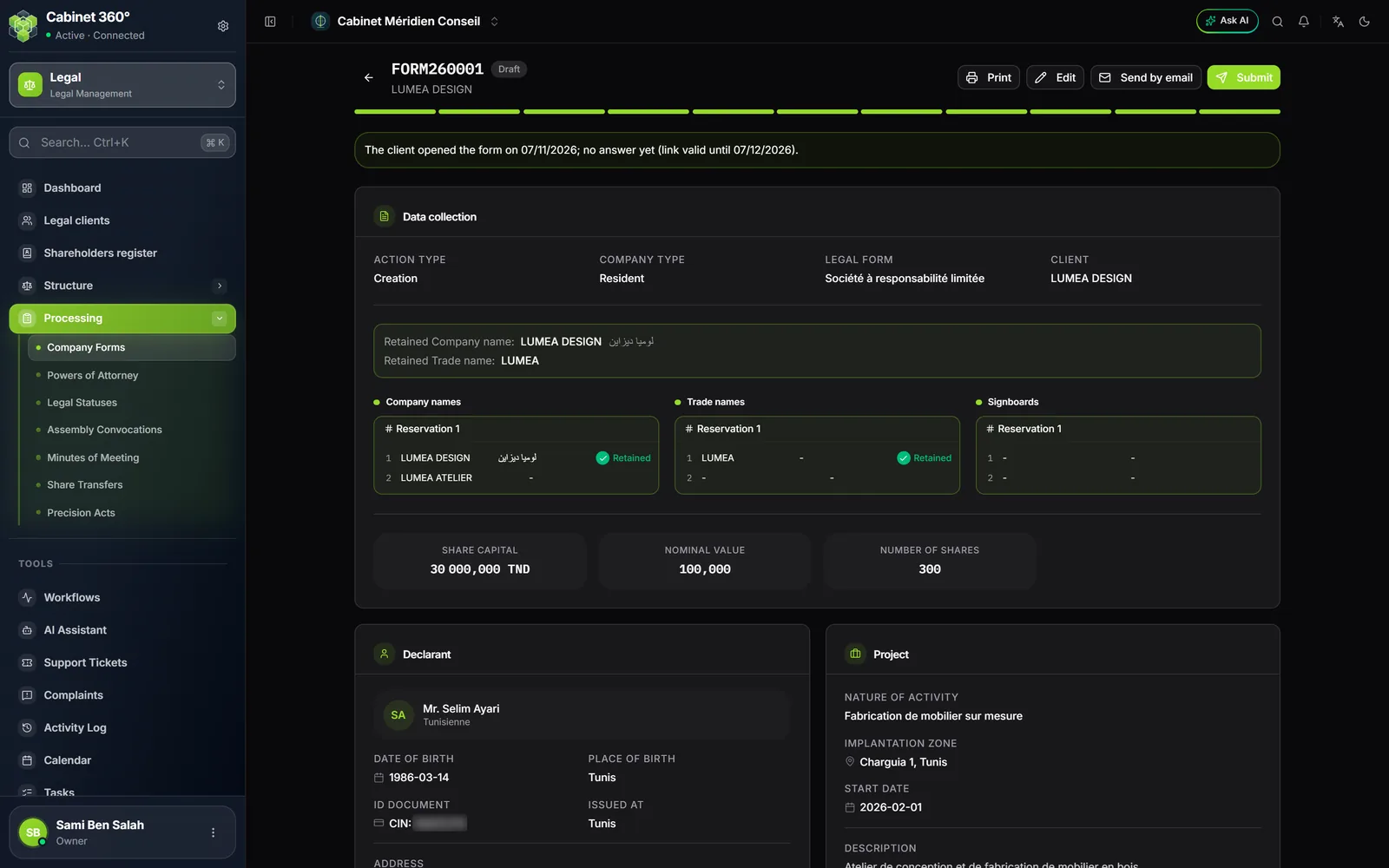
Submit checks the whole file. It requires a proposed company name, an identified declarant, associates who cover the capital, a complete management, a balanced investment plan and, for an SA, the blocked account. A refusal names each gap.
Refuse opens the "Refuse the form" window: the Reason for refusal is required, then Confirm refusal. The record then shows the reason, who gave it and when.
Approve and Refuse need a separate right, "Approve / refuse": the person who enters is not necessarily the one who decides. Without this right, both buttons are greyed out, with the reason on hover.
Setting the retained name
The registry answers after filing: it is on a submitted or approved form that you learn which proposal was accepted. On such a form, Edit does not open entry, which stays locked: it opens the Retained name window.
- On the record (or with the row's pencil), click Edit. The "Retained name — FORM…" window opens.
- For the company name, tick the accepted proposal. A refused reservation stays visible, greyed out; an empty proposal cannot be chosen.
- For the trade name and the sign, tick the accepted proposal, or "None — the company does not use one". This choice is a saved decision ("Decision saved" badge). The company name, for its part, offers no "None".
- Click Save: "Retained name saved". The record shows "Retained company name: …". Nothing else changes in the form.
The record also says so on a draft, with Set the retained name. Once the articles are generated, the name no longer changes: "Edit" is greyed out, and the number of the articles is named.