
The list of companies you follow
"Companies whose “Legal” service is selected on the client record: their event timeline, their past minutes." A company appears here when two conditions are met:
- Legal is ticked in the services of its client record (Operations tab);
- its status is not Inactive.
Each row gives the client (name and code), the contact, the status, the tax identifier (Tax ID), the Legal form and the Creation date. The Search a client… search and the pagination cover the whole firm. Next to the search, the list of account managers shows only one account manager's clients.
Two actions per row:
- View (the eye) opens the client's panel on the right. Clicking the row does the same.
- Configure (the wheel) opens the client record on its Legal tab: capital, managers, associates. Once the record is saved or abandoned, you come back to "Legal clients". This action needs the right to edit clients.
The "Client details" panel
The panel opens on the right without hiding the list. At the top: the avatar, the name, the status, the code and the type of the company. Then two tabs:
- Event timeline, open by default;
- Information: name, trade name, sign name, type, legal form, tax ID, status, share capital, creation date, e-mail, phone, address.
At the bottom, the Quick actions: Configure, Open record and Historical entry.
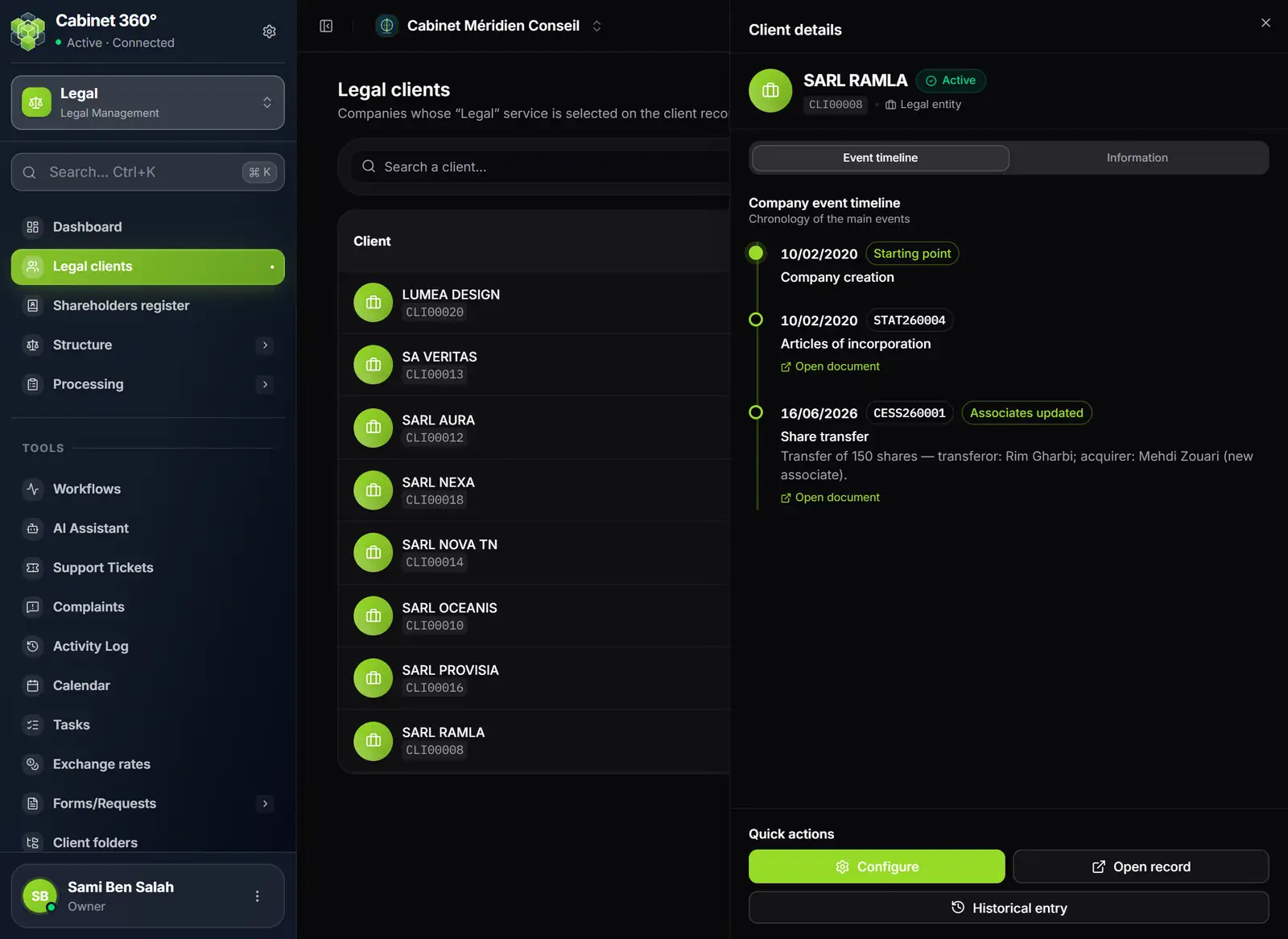
- 1. Event timeline and Information: the panel's two tabs.
- 2. Starting point: the company's creation, at the date on its record.
- 3. Articles of incorporation, with their number and "Open document".
- 4. A transfer told in words: shares, transferor, acquirer, and the "Associates updated" badge.
- 5. Quick actions: Configure, Open record, Historical entry.
The event timeline
"Company event timeline — Chronology of the main events."
The starting point
The timeline always starts with the company's creation, at the Creation date on the client record, marked "Starting point". If the date is missing, the event appears without a date, as a warning, with the Complete the client record link.
What enters the timeline
A draft has decided nothing: it does not enter the timeline. These do:
| Document | From | How it shows |
|---|---|---|
| Minutes | closed or archived | "Minutes" and their type, and their agenda items in one sentence |
| Minutes from "Historical entry" | when entered | the same story, "entered for the record" |
| Articles | validated, registered or archived | "Articles of incorporation" or "Statutes update" |
| Notice | sent or held | "Notice of meeting — OGM", "— EGM" or "— constituent assembly", and "Meeting of dd/mm/yyyy" |
| Share transfer | validated or registered | one sentence: shares, transferors, acquirers |
| Precision act | validated or registered | "Deed of clarification" |
A transfer is told in plain words: "Transfer of 150 shares — transferor: Rim Gharbi; acquirer: Mehdi Zouari (new associate)." The Associates updated badge says that validating the transfer updated the client record.
Every event, except the creation and historical minutes, has Open document.
Cases that need your attention
- An event dated before the creation is not slipped ahead of it: it is set apart, under "Earlier than the creation date". A date needs checking, on the record or on the document.
- A source your role cannot read is named: "Not shown, for lack of read access: statutes." A partial timeline never reads as a complete one.
- Nothing but the creation: the panel says so and reminds you that old minutes are entered through "Historical entry".
Historical entry
Historical entry adds to the timeline the minutes from before IntegraSys: type, date and agenda items, without number or attendance. The same dialog opens from the list of minutes. It is described in chapter 12. The button needs the right to create minutes.