
Before you start
- The company is a legal entity, not inactive, with its associates and their shares on its record: the chairperson and the attendees are chosen among them.
- The minutes types are common to all firms and maintained by IntegraSys: you read them in the Legal reference, "Meeting Minutes Types" tab.
- Your agenda items and resolutions exist in the Structure (chapter 3).
Creating minutes
If the meeting was called in IntegraSys, start from the notice: Generate the minutes pre-fills everything it announces (chapter 11). Otherwise, click New minutes. The planned number shows under the title: "N°: PV260003".
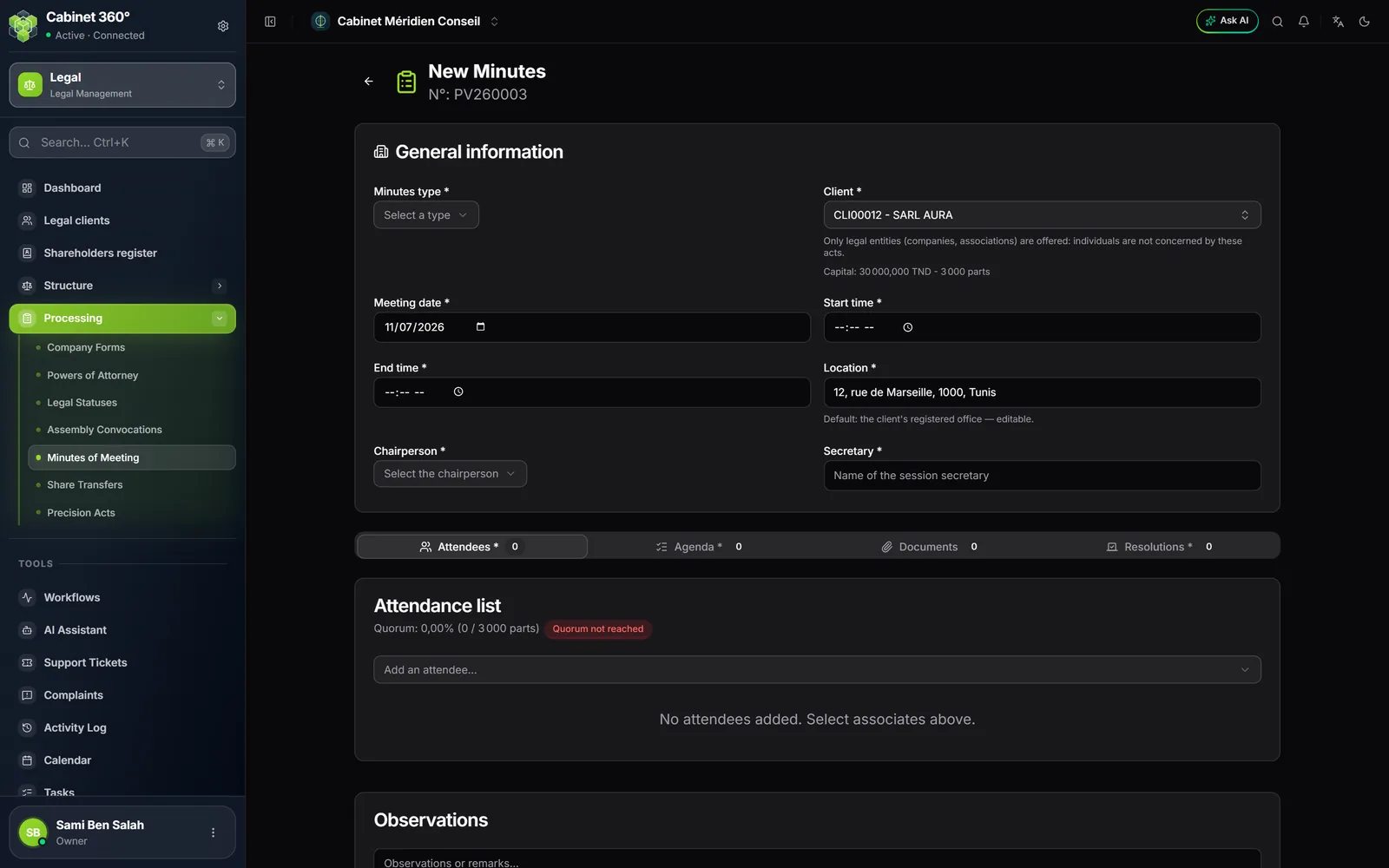
The required entries
Minutes are drawn up after the session: without one of their entries, they cannot be filed. These entries have an asterisk:
- the Minutes type, the Client and the Meeting date;
- the Start time and the End time;
- the Location;
- the Chairperson and the Secretary;
- at least one attendee, one agenda item and one resolution.
Documents stay optional. Nothing is red on opening: the first attempt to save lights the marks under each missing field, and a box lists them above the button.
The place and the chairperson
The Location takes the client's registered office, editable ("Default: the client's registered office — editable."). Use the registered office puts it back in one click. The Chairperson is chosen among the client's associates; the field is greyed out while no client is chosen, or if the client has no associate.
Attendance and quorum
In the Attendees tab, add each associate present with Add an attendee...: their shares show. If they are represented, tick By proxy and enter who represents them. Above the list, the quorum is computed as you add them: the shares of those present and represented, over the shares of the capital ("Quorum: 0,00% (0 / 3 000 parts)"). Above 50 %, "Quorum reached"; otherwise "Quorum not reached". This marker blocks nothing.
Agenda items and resolutions
In Agenda, choose the items in the Structure: on creation, the resolutions attached to them are added automatically in Resolutions (when editing, add them yourself). Add a resolution manually... adds another one. For each resolution, reread its text, then set:
- the Result: Adopted (default), Adopted unanimously, Adopted by majority, Rejected or Adjourned;
- the Votes for, Votes against and Abstentions.
In Documents, add the papers presented to the meeting. The Observations, under the tabs, stay a note of the firm.
Click Create minutes. If an entry is missing, nothing is saved: a message and a box name it. Otherwise, the record opens as a Draft.
The minutes' record
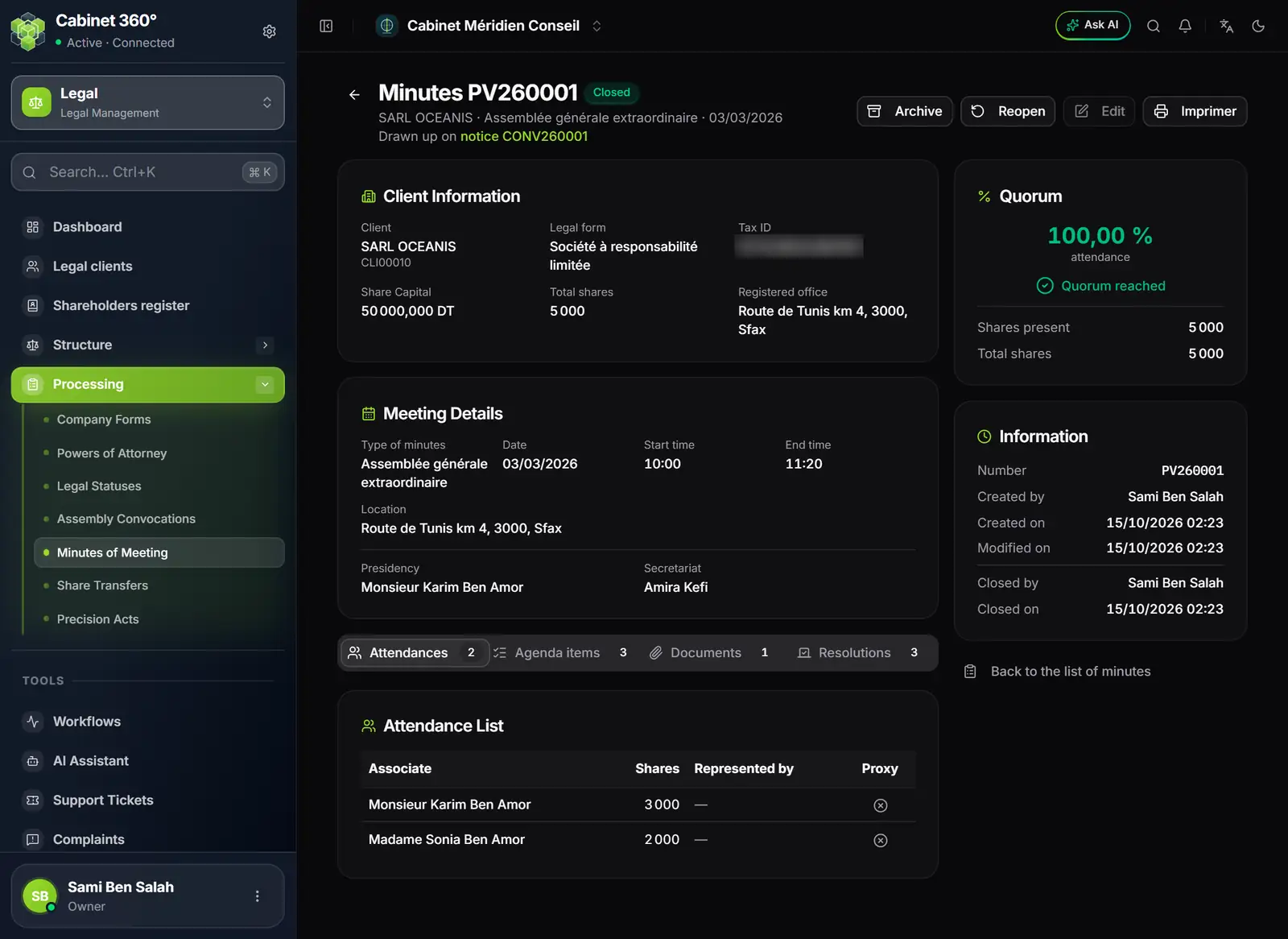
- 1. The number and the status, and the notice they come from.
- 2. Archive, Reopen, Edit, Print.
- 3. Client Information: form, capital, shares, registered office.
- 4. Meeting Details: type, date, times, place, chairperson, secretary.
- 5. Quorum: the attendance percentage and the shares present.
- 6. The four tabs, with their number of lines.
The minutes' cycle
| Action | From | To |
|---|---|---|
| Start the meeting | Draft | In progress |
| Close | In progress | Closed |
| Archive | Closed | Archived |
| Reopen | Closed | Draft |
Each action is confirmed in a window ("Start the meeting?", "Close the minutes?"…). Minutes can be edited as a draft and in progress; closed or archived, they can no longer be edited, and "Edit" stays visible, greyed out, with its reason: "Closed minutes can no longer be edited: reopen them from their page.", or "Archived minutes can no longer be edited." Only a draft can be deleted. Archived minutes cannot be reopened, and they stay in the list, under the "Archived" card.
Close checks the entries again
Close applies the rule of the required entries again. If one is missing, the button is greyed out, the reason shows on hover, and a box names each entry with Complete the minutes. The quorum does not block: the dashboard flags "minutes closed without quorum" separately.
To correct closed minutes: Reopen (they go back to draft, even though the confirmation window speaks of "In progress"), Edit, then Start the meeting and Close again.
Printing the minutes
Print, on the row or on the record, produces the minutes: the company's header, the title and the number, the date in words and the start time, the place, attendance, the quorum, the chairperson and the secretary, the agenda, each resolution and its vote, the closing time and the signatures. The built-in template does not print the minutes' Observations: they are a note of the firm. Without a firm template, IntegraSys prints its built-in template (chapter 15).
Finding minutes
The list of minutes covers all your clients. Besides the search, the status and the type, a second search row filters by client ("All clients": only those with at least one set of minutes, with their number) and by period, "Meeting from … to …", bounds included. Clear the period removes it. A reversed period is not sent: the screen says so. The free search also covers the type, the place and the secretary. The "Quorum" column gives each set of minutes' attendance percentage.
Historical entry: old minutes
To give a company's event timeline its past, enter its old minutes, those from before IntegraSys.
- Click Historical entry, at the top of the list of minutes (or in the "Client details" panel of Legal clients). The "Historical entry of minutes" window opens.
- Choose the Company.
- Under "New minutes", on the Minutes 1 line, choose the Type, the Date and at least one agenda item, in the desired order. Add minutes opens one more line.
- Click Save: everything is saved, or nothing if a line is refused. The refused line is named.
These minutes have no number, no attendance and no resolutions: they only join the event timeline, "entered for the record". The date can neither precede the company's creation nor be in the future. The same minutes (company, type, date) cannot be entered twice, even if they already exist among the module's minutes. Fifty lines at most are saved at once. The minutes "Already entered for this company" show above and can be removed on the spot. The button needs the right to create minutes.