
Correspondence tracking
Each letter received from the tax administration opens a case, with its date of receipt and its response deadline. The letters that follow on the same subject are added to the same case, each with its own response time and alert, up to the final notice that closes it.
Recording a letter received
- Click Add: the New correspondence window opens.
- Choose the Client, then the Nature of the letter.
- Enter the Received on date and the Response time (days).
- Read the Response deadline, which fills itself in.
- Set the Alert (days before deadline), 5 by default, and enter the Subject, 300 characters at most.
- Under Upload the notice, click Add to attach the letter received, as a PDF (4 MB at most per upload for now). The same window offers Upload the response, for your reply.
- Click Save: « Correspondence saved ».
The fields marked with a star are required: Client, Received on, Response deadline and Subject. While one is missing, Save stays greyed out.
| Nature | Response time proposed |
|---|---|
| Warning | to enter |
| Information request | to enter |
| Cross-check | to enter |
| Formal notice | to enter |
| Other (default) | to enter |
| The notification of the results of a limited tax audit (shown as Notification of limited tax audit results) | 10 days, can be changed |
For this notification, the screen writes « Suggested for this type: 10 days, editable. »; Apply 10 days takes it again if you changed it.
How the deadline is computed
Days are counted from the day after receipt. Example: a letter received on 01/10/2026 with a response time of 10 days. Day 1 is 02/10, day 10 is 11/10, a Sunday. The deadline moves to the next working day, Monday 12/10/2026, and the screen explains it: « Day 10 (11/10/2026) is a Sunday: moved to the next working day. »
Saturdays, Sundays and public holidays are moved the same way. The deadline stays a suggestion: you can type it yourself, and the explanation then disappears.
The module's public holidays
The same calendar serves the tracking grids, the client's tax calendar and the correspondence.
| Holiday | Date |
|---|---|
| New Year's Day | 01/01 |
| Independence Day | 20/03 |
| Martyrs' Day | 09/04 |
| Labour Day | 01/05 |
| Republic Day | 25/07 |
| Women's Day | 13/08 |
| Evacuation Day | 15/10 |
| Revolution Day | 17/12 |
| Eid al-Fitr (3 days), Eid al-Adha (2 days), Islamic New Year, Mawlid | According to the lunar calendar |
The list of correspondence
Three counters open the page: Correspondence, In progress and Alerting. The list gives, for each case, the client and its tax ID, the Received on date, the Response time, the Response deadline (that of the letter that awaits a reply soonest, in red once it has passed), the Alert, the number of letters exchanged and the Status. It shows twenty rows per page.
Type in Filter by client, dates, deadline, alert, status… what the table shows; Clear empties the filter. The nature and the subject are not in the list: open the case to read them. The list cannot be printed or exported.
The exchange thread
Click a case's row, or the eye, View: the Correspondence details panel opens on the right, on the Exchange thread tab.
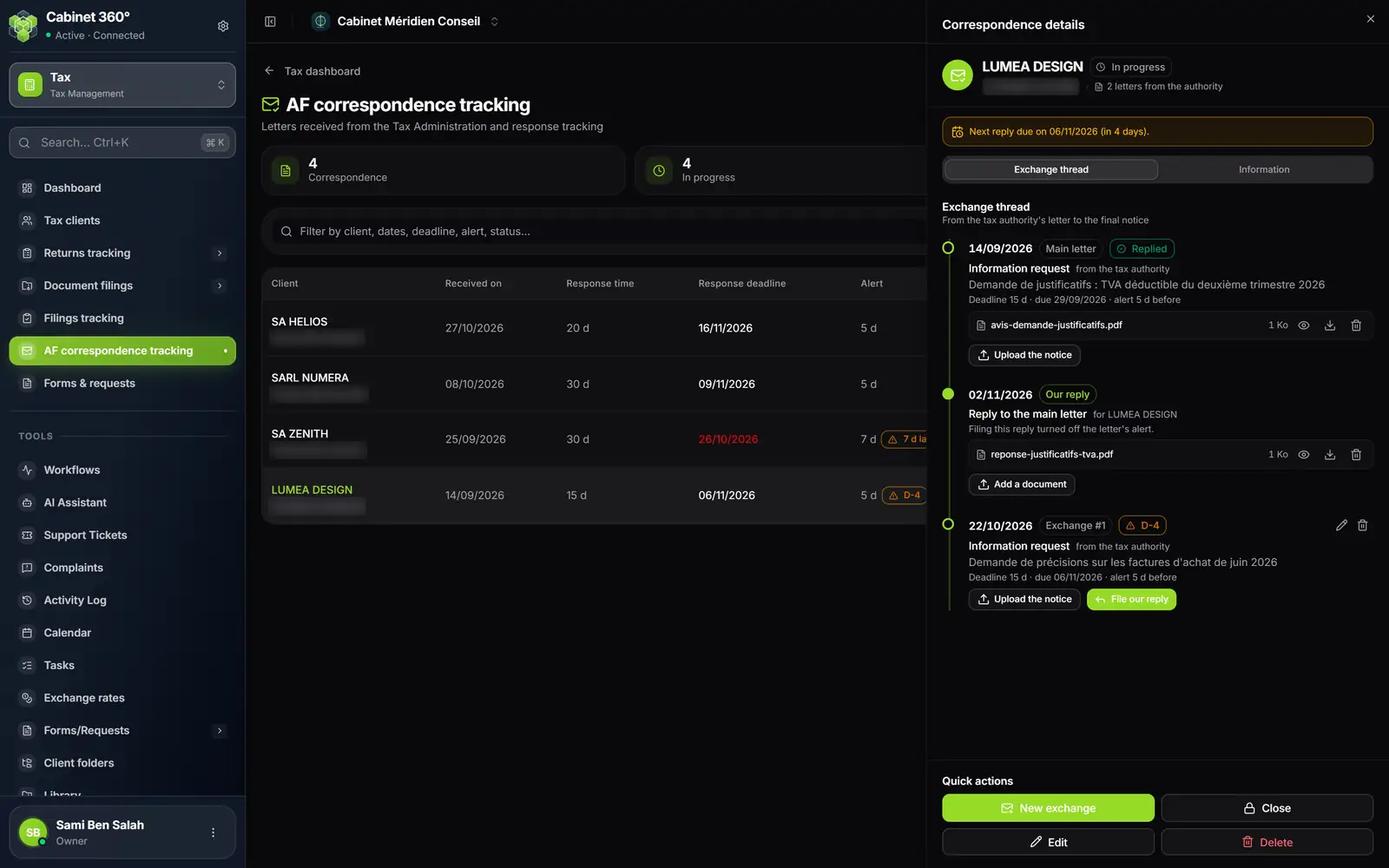
- 1. The counters: correspondence, in progress.
- 2. The filter: client, dates, response time, alert, status.
- 3. The next reply expected and the number of days left.
- 4. The main letter: nature, subject, response time, deadline, state.
- 5. Our reply: once filed, it turns off the letter's alert.
- 6. File our reply under an exchange that still awaits it.
- 7. The quick actions: new exchange, close, edit, delete.
Each letter from the administration appears there with its response time, its deadline and its state: Reply expected, « D-3 », « 2 d late » or Replied.
- Replying: click File our reply under the letter and choose the PDF. Its alert turns off. When every letter of the thread has its reply, the status becomes Filed.
- A new letter on the same case: click New exchange in Quick actions. Enter the date of receipt, the nature, the response time, the alert and the subject, attach the letter, then Save. The exchange opens its own alert.
- Reading or keeping a document: the eye, View, opens it in a new tab; Download (PDF) saves it on your computer, under its original name.
The alerts
The Alert column shows the number of days set, then a « D-3 » badge as the deadline nears, « 2 d late » after it. It concerns the letter of the thread that awaits your reply soonest, and disappears when every letter has its reply, or at closing. The Alerting counter adds them up.
The alert also reaches the bell of the people who see the client's file and have access to the Tax module: the team assigned to its accounting file, the owner and the firm's administrators, team members whose grade is supervisor, manager or partner. It comes back every day until the reply is filed. Anyone who has switched off the Tax category in My profile › Preferences does not receive it.
Closing at the final notice
- In the panel, click Close.
- Enter the Date of the final notice (today by default, never before the main letter) and choose the Settlement.
- Attach the notice under Final notice (PDF).
- Click Close: the status becomes Closed and the case's alerts stop.
| Settlement | What you enter |
|---|---|
| Single payment | The Notified amount and, if you know it, the Payment date. |
| Payment schedule | The instalments one by one, or Amount to split, Instalments and First instalment, then Split: the last instalment takes the remaining millimes. Then the tax natures. No instalment can come before the closing date; Instalments is 6 by default. |
| No reassessment | Nothing: there is nothing to pay. |
A payment schedule is filed at once under Tax debts, in the client's workspace.
To reopen a closed case, click Reopen the case in the panel. If the closing opened a payment schedule, reopening is refused as long as the schedule exists: delete it first under Tax debts. Reopening erases the closing's data (date, settlement, amount).
Filing a reply, closing or reopening a case need the right to edit.
The client's tax debts
A tax debt is a tax owed that the client pays in several instalments, whether it comes from a notice from the administration or from a payment arrangement. The page belongs to the client, not to a fiscal year: the fiscal year selector does not filter it.
- Click New tax debt.
- Enter the Subject (for example « VAT adjustment 2024 ») and the Debt date: both are required.
- Tick the Tax nature(s): Corporate income tax, VAT, PIT / Withholding tax, Other taxes.
- In Payment schedule, add one row per instalment with + Due date: the date, the amount. The Schedule total: gives the debt's amount.
- Attach an Attachment and Notes if needed, then save.
- At each payment, tick Paid (the Payment date then opens), enter it with the Receipt no., save, then attach the receipt.
Each instalment receives its receipt, as a PDF or an image: Attach receipt, then Open receipt (which downloads it), Replace receipt or Delete receipt.
A debt's total changes colour with the payments: red as long as nothing is paid, orange when part of it is, green when every instalment is paid.
A debt born from closing a correspondence case is called « Correspondance AF — » followed by the case's subject, and carries the mention « From a tax authority case ». As long as it exists, the correspondence case cannot be reopened; deleting the correspondence, on the other hand, leaves the debt in place, without the mention.