
The list of returns
The page shows at the top the Import a return (PDF) box, then the list of the fiscal year's returns: Period, Code, Status, Due date, Filing date and Total to pay.
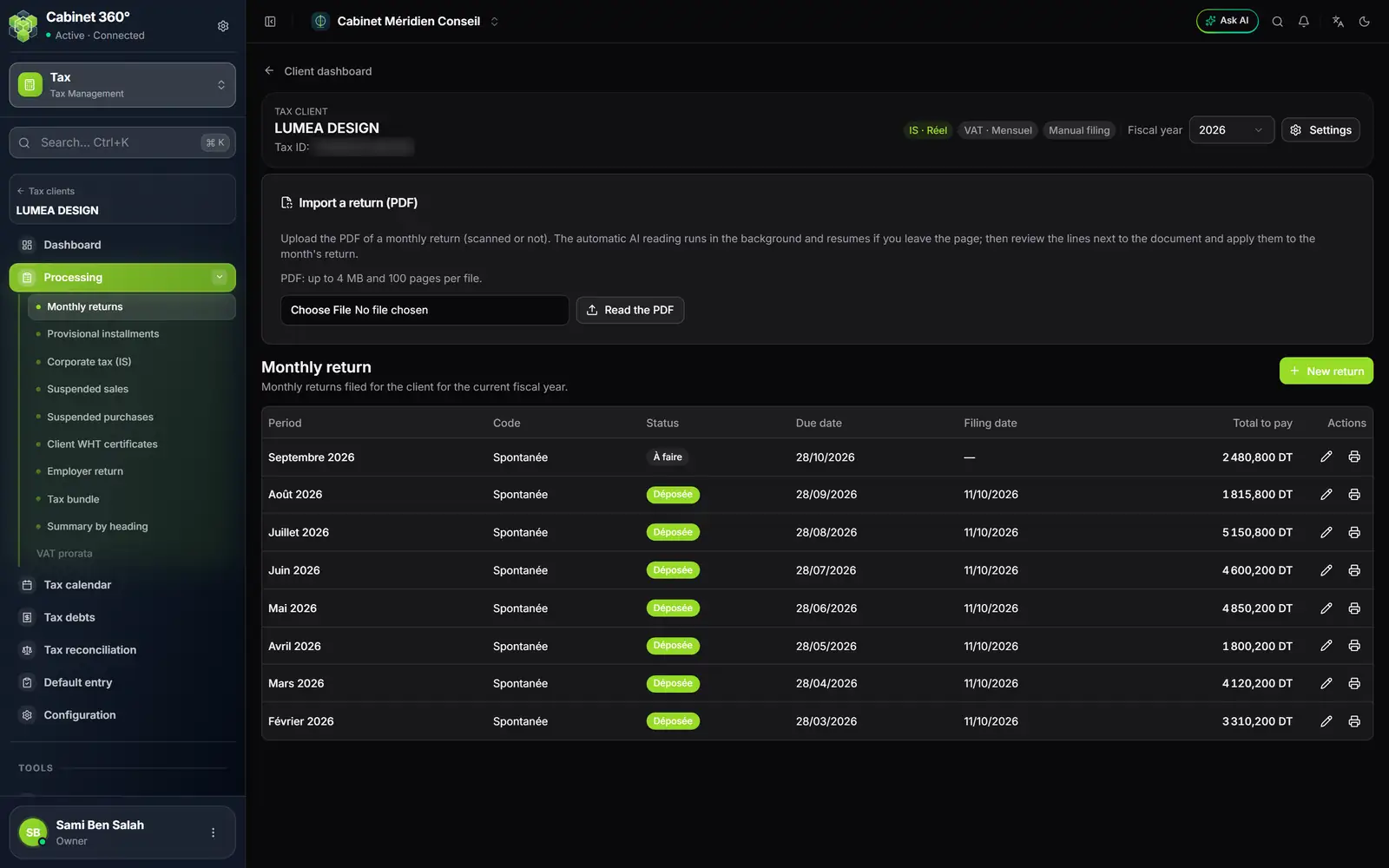
- 1. The client's banner: regimes, filing method, fiscal year shown.
- 2. Import a return (PDF): the automatic reading fills in the lines.
- 3. New return: the month is chosen in the form.
- 4. The status: To do, then Filed.
- 5. The due date: the 28th of the following month for this client, which files manually.
- 6. Edit or print a return of the list.
Click a row, or its pencil, to take up a return again. The row's printer prints the return as it is saved. The list has no delete button.
Creating the month's return
- Check the Fiscal year selector at the top: the return is written on the fiscal year shown.
- Click New return.
- In Identification, choose the Month. Tax ID, Name and Fiscal year are read-only; the Due date (filing deadline) computes itself.
- Keep the Return code 0 — Spontaneous: the taxes ticked are those of the client's profile, locked.
- Open each tax's tab and enter the bases: the taxes compute.
- Open SUMMARY, check the totals, enter the Late-filing penalties if needed.
- Choose the Status and, once the return is filed, the Reference / receipt.
- Click Save: « Return saved ».
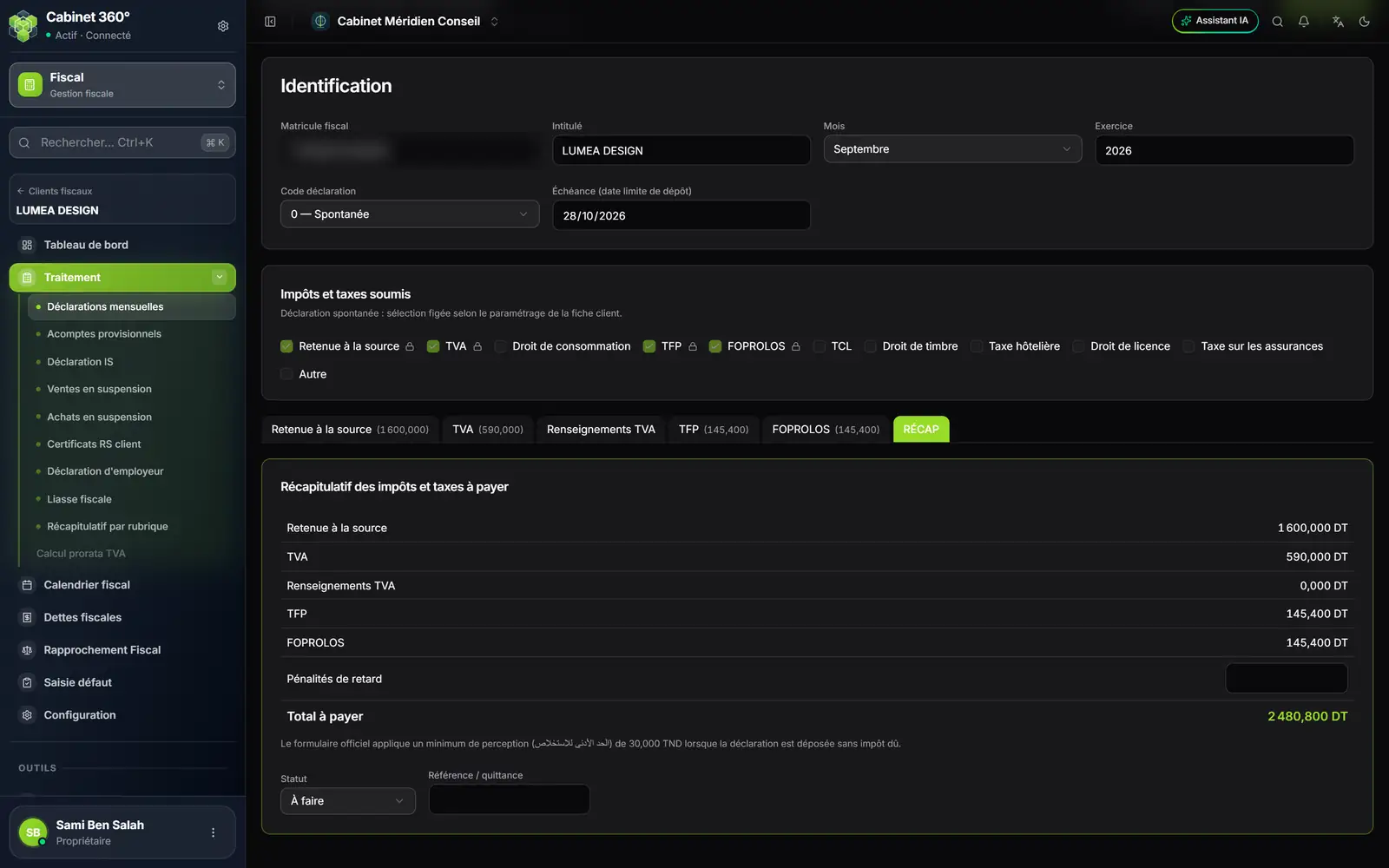
- 1. The month: the fiscal year stays the one in the banner.
- 2. Code 0 — Spontaneous: the taxes follow the client's profile.
- 3. The due date computes itself.
- 4. The applicable taxes, locked on a spontaneous return.
- 5. One sheet per tax: its amount to pay shows on the tab.
- 6. Late-filing penalties, to enter if needed.
- 7. Total to pay: the sum of the sheets and the penalties.
- 8. Status and Reference / receipt of the filing.
The due date is the 28th of the following month for a legal entity filing manually, the 20th by e-filing, the 15th for an individual; a non-working day moves it to the next working day.
The return codes
| Code | The taxes ticked |
|---|---|
| 0 — Spontaneous | Those of the client's profile, locked |
| 1 — Adjustment | To choose |
| 2 — Rectification | To choose |
| 3 — Automatic assessment | To choose |
| 4 — Cessation of activity | To choose |
A month accepts only one spontaneous return. To correct a month already filed, create a return with another code.
The entry sheets
Applicable taxes and levies offers eleven boxes: Retenue à la source (withholding tax), TVA (VAT), Droit de consommation (consumption duty), TFP, FOPROLOS, TCL, Droit de timbre (stamp duty), Taxe hôtelière (hotel tax), Droit de licence (licence duty), Taxe sur les assurances (insurance tax) and Autre (other). Each ticked box opens its tab, and the last tab is always SUMMARY. A sheet's amount to pay shows on its tab, in brackets; a sheet in credit shows nothing.
| Sheet | What it asks for |
|---|---|
| Retenue à la source | One line per heading: the base, the rate, the amount withheld. A line with no rate shown asks for the base and the amount. |
| TVA | The turnover per rate, the VAT due and the deductible VAT, the adjustments, then the credit carried forward. |
| Renseignements TVA (VAT information) | Information, outside the total: suspended purchases and sales, export, exempt turnover… |
| Droit de consommation | One line per product, with its rate typed by hand. |
| TFP and FOPROLOS | The base, the rate, the deductions, the exemption and the number of beneficiaries. |
| Autres taxes sur CA (other turnover taxes) | The headings ticked on the client's profile, and only those. |
| Assurances (insurance), Droit de timbre, TH (hotel tax), TCL, Droit de licence | The bases of each tax: bases, quantities, number of documents or premises. |
The previous month's credit
The TVA and TFP credit of the previous month's spontaneous return is proposed; what you type wins. On the TVA sheet, a table puts the previous month and the current month side by side: Credit received, Balance (P / R), Excess carried forward. If the previous month was corrected afterwards, an orange message flags the gap. Correct the credit line: nothing is changed automatically.
The summary
The SUMMARY tab, « Summary of taxes and levies to pay », takes the total of each sheet. A tax in credit shows « credit of … carried forward » and counts as zero: a credit is never offset against another tax. Then come the Late-filing penalties, then the Total to pay.
The Status offers To do, Filed, Late and Not applicable. Saving a Filed return does not fill in its Filing date: the tracking grid, or the import of a dated PDF, does.
What comes out
Print opens the return in a new window and starts printing: the client's identity, the period, the due date, the code, the status and the receipt, then one block per tax (base, rate, amount), each ending with its net to pay or its excess to carry forward, and finally the summary and the total to pay. Empty amount lines are not printed; information lines are always printed.
From the form, the printout takes what is on screen; from the list, what is saved. If nothing opens, your browser is blocking pop-up windows: allow them for the site.
Importing a return's PDF
A return already drawn up, scanned or not, is read automatically: the module fills in the lines, you check them next to the document, then you apply.
- In Import a return (PDF), choose the file (4 MB and 100 pages at most for now), then click Read the PDF. The reading goes on in the background, even if you leave the page.
- At « Reading complete », compare each line with the document, shown alongside. Correct the Value read, or set the line aside with Don't import this line. An amount the reading could not attach to any heading is dismissed one by one.
- Check the Month, the Year and the Return type. Filled in, the Filing date marks the return « filed »; left empty, only the amounts are imported.
- Click Review and apply…: the window compares the total Before and After. Tick what remains to confirm, then Confirm and apply.
The reading goes through several states: « Queued… », « Reading… », sometimes « Retry scheduled… », then « Reading complete » or « The reading failed. ». The review panel flags a printed total that differs from the computed total, and a tax ID to check. A PDF from another taxpayer is refused: open the right file. Review and apply… stays greyed out while a blocking point remains.
Each reading uses the firm's AI credits; reading the same PDF again for the same file takes up the first reading, with no new charge. A PDF that is too heavy is refused before it is sent: « File too large: 4 MB at most for now. » A period outside the open fiscal year blocks the application, in the review window: « This period is outside the open fiscal year: switch to the right fiscal year. »
When the save is refused
- « This return was changed in the meantime »: someone saved it since you opened it (a colleague, an applied PDF, another tab). Your save is refused so as not to erase their work. Click Back, reopen the return from the list, carry your changes over, then Save.
- A second spontaneous return for the same month is refused: reopen the first one, or change the code.
- On the Droit de consommation sheet, a base with no rate is refused: enter the rate.
- A closed fiscal year refuses any save: reopen it from the client's dashboard.
- For any other reason, the message under « The return could not be saved » says what is blocking. Followed by « (HTTP 403) », it points to a missing right.
The VAT prorata of a partially liable client
A client that is partially liable to VAT only deducts part of the VAT on its purchases: its prorata.
The months already declared fill in on their own from the monthly returns, marked filed, and update each time a return changes. The Sales 7% and Sales 19% columns are always there; the column of another rate appears as soon as a month carries an amount at that rate. Suspended, export and exempt turnover comes from the VAT information of each monthly return.
For a month with no return, enter the turnover at each rate (another rate is added with Other rate to enter:), the suspended and export turnover and VAT, and the Exempt sales, then click Save. The VAT, the Taxable sales incl. VAT, the Total sales incl. VAT and the prorata (Taxable sales incl. VAT divided by Total sales incl. VAT, as a percentage with two decimals) compute themselves. This final prorata becomes the deduction prorata of the following fiscal year.
The page shows two figures: the fiscal year's deduction prorata, with its origin, and the final prorata computed by the table. It has neither print nor export.
In the return for the last month of the fiscal year (December for a calendar year), an alert asks for the fiscal year's deduction percentage. In the TVA sheet, block Pourcentage de déduction (prorata) (deduction percentage), enter it, or click Use the computed prorata in the alert. The previous fiscal year's percentage, if it is not entered, takes the value stored for the client, and the Variation computes itself.