
The dashboard
The « Tax — Dashboard » page looks at the active clients you follow, tax-managed and not deactivated, over the current year and the previous one. Six tiles open the page:
| Tile | What it counts |
|---|---|
| Tax clients | The clients tracked, and the change in onboardings compared with last month. |
| Declarations due soon | The periods not filed whose deadline falls within 30 days. Below: the number of overdue periods over the two years. |
| Filings this month | The document filings dated this month, even those still in progress, compared with the previous month. |
| Open tax correspondence | The tax administration cases in progress, and how many are urgent. |
| Tax debts to follow | What remains due on unpaid instalments, in dinars, and the files at risk. |
| Incomplete files | The clients with at least one overdue period. |
Further down, cards detail the portfolio:
- Tax calendar: the deadlines of the next 30 days, with the number of clients concerned. See all opens the monthly returns grid.
- Activity by client: the most overdue files first, with their Overall status: Up to date (nothing late), Watch (one or two), Overdue (three to five), Critical (six and more), Not started (nothing is due yet).
- Declaration tracking: for each return, the share of due periods that are filed.
- Document filings, Status breakdown, Tax administration correspondence and Tax debts complete the view.
The tracking grids
The Returns tracking menu opens seven grids: Monthly returns, Provisional installments, Corporate tax (IS), Income tax (IRPP), Suspended sales, Suspended purchases and Employer return. Each shows one client per row and one period per column.
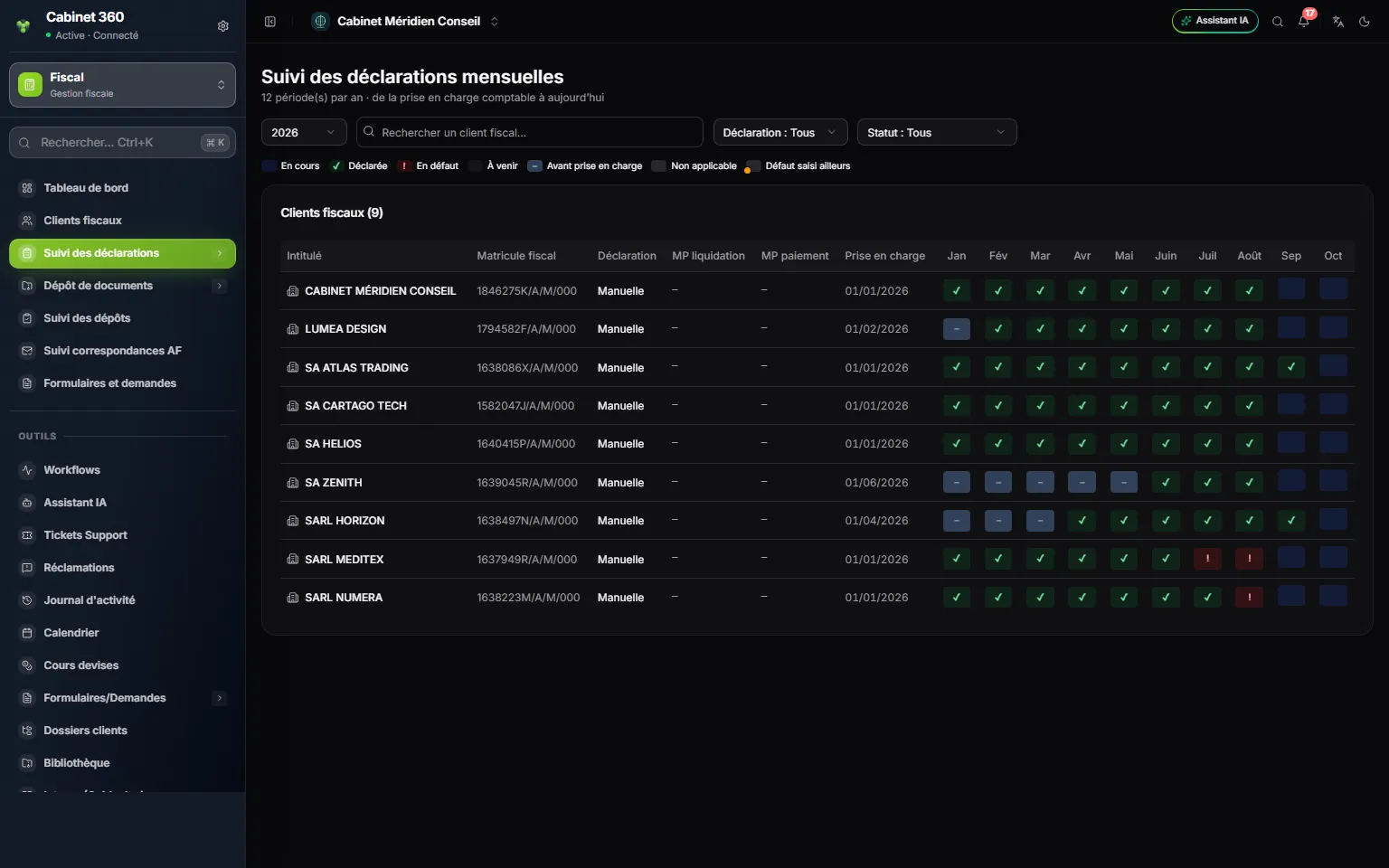
- 1. The year and the client search, by name or tax ID.
- 2. The filters: filing method, status.
- 3. The legend: one colour and one symbol per state.
- 4. The portal passwords, shown in clear for the team that files.
- 5. Onboarding: before this date, nothing is due.
- 6. One month per column: hover over a cell to read its period and deadline.
On the monthly, installment, IS and IRPP grids, three columns recall the Filing method and the Liquidation PIN and Payment PIN passwords; the Filing and Status filters are offered there. The monthly grid stops at the current month.
Columns and deadlines
| Grid | Columns | Deadline |
|---|---|---|
| Monthly returns | One month per column | The 28th of the following month for a legal entity filing manually, the 20th by e-filing; the 15th for an individual |
| Provisional installments | A1, A2, A3 | The 6th, 9th and 12th month after the previous closing: the 28th for a legal entity, the 25th for an individual |
| Corporate tax (IS) | Provisional, Final | The 25th of the 3rd and 6th month after the closing: 25/03 and 25/06 for a calendar year |
| Income tax (IRPP) | IRPP return | 25/04 of the following year, 25/05 for non-commercial income |
| Suspended sales, Suspended purchases | Q1, Q2, Q3, Q4 | 30/04, 30/07, 30/10 and 30/01 of the following year |
| Employer return | Annual | 30/04 of the following year |
A deadline that falls on a weekend or a public holiday moves to the next working day: the cell only turns Overdue after that day. The column header gives the standard date; the client's own deadline is read in the cell's tooltip.
Who appears in which grid
A client that is Deactivated, or not Tax-managed, appears in no grid. For the others:
- Corporate tax (IS) lists only legal entities, cooperatives included, and Income tax (IRPP) only individuals;
- an association appears neither in Corporate tax (IS), nor in Income tax (IRPP), nor in Provisional installments: it is not liable to them;
- the two suspension grids list only the clients that declare such operations. A quarter is only due if a monthly return carries suspended operations.
The subtitle of the IS, IRPP, installment and suspension grids recalls their rule.
The states of a cell
| State | Colour and symbol | What it means |
|---|---|---|
| In progress | orange (…) | The deadline has not passed, nothing is filed. |
| Filed | green (✓) | The return is filed. |
| Overdue | solid red (!) | The deadline has passed with no filing. |
| Upcoming | dotted blue | The period is not open yet. |
| Before onboarding | dark grey (–) | The deadline falls before the client's onboarding. |
| Not applicable | grey outline (NA) | The client has nothing to file for this period. |
The legend and the Status filter use these colours. A paperclip marks a cell that holds files.
Two fine points: a suspension quarter with no operation stays In progress even after its deadline; a Late status set by hand, or a recorded default, makes the cell Overdue before the deadline.
Setting a cell
- Click the cell. The window recalls the client, the period, the deadline and the filing date.
- Choose the Declaration status: To do, Filed, Late or Not applicable. The change applies at once: « Status updated ». Filed dates the filing today; any other status erases that date.
- Or attach the PDF under Declaration (PDF) or Payment receipt (PDF): choose its nature (Initial, Amended, After audit), then Add. Attaching the return sets a to-do or late cell to Filed.
A file's name opens it in a new tab. Its bin deletes it at once, with no confirmation. Deleting a PDF never sets the status back to To do: change it by hand.
A Before onboarding cell does not open, and a closed fiscal year refuses any change. Double-clicking the row opens the Tax client profile. The grids cannot be printed or exported.
Reading a grid only needs view rights on the module. Changing a cell or attaching a file also needs the right to create or edit.
Recording a default
A breach you found is recorded in the client's workspace.
- Choose the Fiscal year.
- Click the month of an obligation: the cell turns red (D). A second click clears it.
- Click Save: « Defaults saved. » Nothing is kept before that.
The page has two blocks, each with All in default and Clear all:
- Monthly obligations: one row per tax ticked on the profile. The current month and the following ones are greyed out. A tax removed from the profile that still carries defaults stays on screen, marked « (not configured) ».
- Annual obligations: Provisional installment (A1, A2, A3), the income tax (provisional and final for IS, the return for IRPP) and Employer return. Each cell shows its date and stays greyed out until then.
If the page says « No tax is configured for this tax client. », click Configure the client record: the grid follows the taxes ticked on the profile.
The client's tax calendar
« Due dates for » followed by the client's name: a calendar month by month, from Monday to Sunday, with the public holidays and the client's deadlines, the monthly return on its day and the provisional installments. The arrows change the month; today is circled in red. Deadlines that fall in the following year (IS, IRPP, employer, fourth quarter) do not appear, and the calendar shows dates, not the state of the filings: to know what is filed, open the tracking grids.