
One return per fiscal year
The page opens the fiscal year's initial return, or prepares one if the year has none. Under the title « Employer return » come the fiscal year, the due date and the state: « Not saved yet » at first, then the date of the last save and the total withheld.
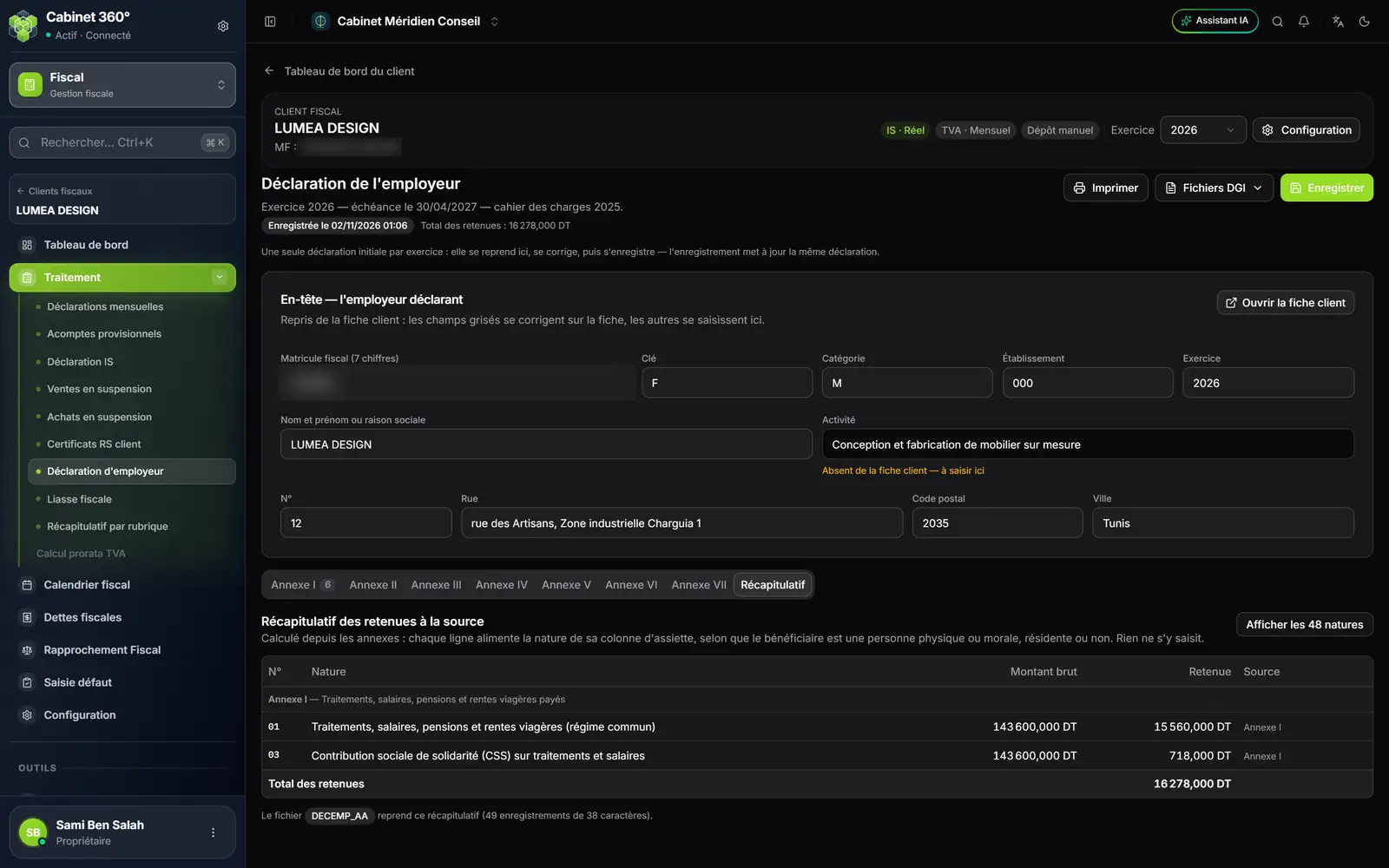
- 1. The fiscal year and the due date: here fiscal year 2026, to be filed by 30/04/2027 at the latest.
- 2. Print, DGI files, Save: the page's three actions.
- 3. Open the client record: greyed-out fields are corrected there.
- 4. A field missing from the record: it is entered here.
- 5. The tabs: annexes I to VII, then the summary.
- 6. Show all 48 natures: the full list, even the empty ones.
- 7. Total withholdings: the sum of annexes I to VI.
The employer's header
In Header — the declaring employer, the greyed-out fields come from the client record: tax ID, key, category, establishment, company name, address. To correct them, click Open the client record. The Activity comes from the record's Activity sector.
A field the record leaves empty is entered here; the screen writes it in orange: « Missing from the client record — enter it here ». Filling it in on the record fills it for all of the client's returns.
Annexes I to VII
Each tab, from Annex I to Annex VII, recalls its official title and its Data entry guidelines, above the table.
| Annex | What it holds (short title) |
|---|---|
| I | Wages, salaries, pensions and life annuities paid: one employee per line |
| II | Amounts paid to residents: fees, commissions, brokerage, rents, directors' fees… |
| III | Investment income, interest on special savings accounts and on loans |
| IV | Amounts paid to persons not resident or not established in Tunisia |
| V | Other amounts paid and subject to withholding tax |
| VI | Rebates, gaming winnings, sales to distribution intermediaries |
| VII | Amounts paid on behalf of others: your own payments go in annexes I to VI |
- Open the annex's tab.
- Click Add a beneficiary, fill in the window, then click Add.
- Repeat for each beneficiary.
- Click Save, at the top right.
Importing a workbook
Click Excel template, fill in the workbook, then click Import Excel. If the annex already has lines, choose Replace or Append. Export Excel puts your lines in a workbook.
A line imported with a mistake goes in anyway. A red triangle flags it, next to its number and on the annex's tab: hover over it to read the reason, then correct the line with its pencil.
Annex I taken from payroll
If the client has an HR file whose payroll year for that year is closed, annex I fills itself in: « Schedule I taken from the 2026 payroll, closed on … ». One line per employee, with the taxable income, the benefits, the withholding taxes and the social solidarity contribution from their payslips.
- These lines carry the Payroll mark. They are corrected in payroll, and the return then updates.
- They replace the lines typed for the same employees. A line typed for someone outside payroll is kept.
- Click Save to write the annex taken from payroll.
As long as the payroll year is open, the screen says so and the annex is typed by hand. Closing December is not enough: the payroll year must be closed.
The summary
The Summary tab adds up the annexes, nature by nature: nothing is typed there. Each line feeds the nature of its base column, depending on whether the beneficiary is an individual or a legal entity, resident or not. Show all 48 natures also shows the empty natures.
Withholdings that no line of the summary accepts are flagged under the table, but are not counted in the total. Annex VII does not go into it either.
What comes out
| Button | What you get |
|---|---|
| DGI files › Summary (DECEMP) | The summary's file, in the format of the DGI specification: DECEMP followed by the two-digit year, with no extension. |
| DGI files › Annex I (ANXEMP_1) | Annex I's file, the employees: ANXEMP_1, the year, then _1, with no extension. |
| The return on paper: the employer's identity, the summary (gross and withholding of each nature), then each filled annex. Annex I shows five columns there: taxable gross, common-regime withholding, foreigners' withholding, CSS, net paid. | |
| Export Excel (in each annex) | The annex's lines in a workbook. |
The page's subtitle names the specification followed, depending on the fiscal year: 2025 for the example's fiscal year 2026.
Only the summary and annex I have a DGI file; annexes II to VII are exported to Excel or printed. Both files start from what is on screen, with no prior save. Before each file, the module checks the fields: if one blocks, a report names the line or field to correct — chapter 13.
To correct a return already saved, reopen the page: it takes up the fiscal year's return. Correct it, then Save: there is only one initial return per fiscal year, and saving updates the same one.