
Bringing a client into the module
A client enters the Tax module when its client record has Taxation in its Active services. Its tax profile is then created on its own, onboarded the same day and with no rate at all: complete it at once. Bookkeeping alone is not enough: it opens Accounting, not Tax.
The Tax clients list gives, for each client, the Tax ID (unique identifier), the Type, the Filing method and the Defaults (Yes or No). Three tiles sit above it: Tax clients, Tax-managed, With auditor. The All account managers list shows only one account manager's clients, or those with No account manager.
At the end of each row, three icons:
- the folder, Open, offers the client's fiscal years, like a click on the row;
- the gear, Edit, opens the tax profile;
- the eye, View, opens a read-only summary in the client's name: identifier, type, onboarding date, filing method, regimes, statutory auditor, fiscal-year dates, and the badge Tax-managed: Yes or No. Its Settings button leads to the full profile.
The tax profile, block by block
Click the gear, Edit: the Edit tax profile window opens. It reads from top to bottom.
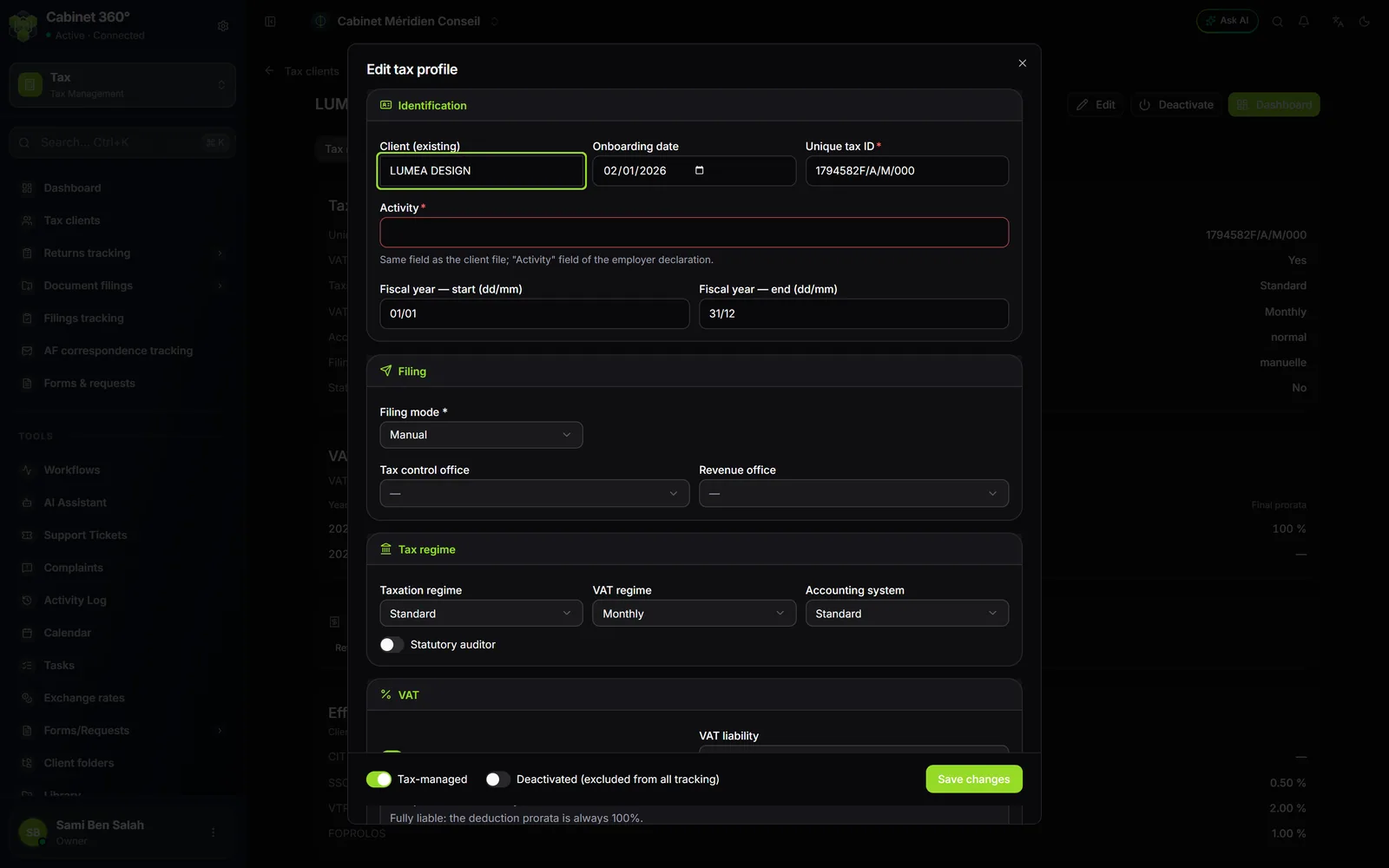
Identification
Check the Onboarding date, the Unique tax ID (seven digits and the check letter) and the dates of the Fiscal year, 01/01 and 31/12 for a calendar year. An invalid identifier is refused, with its reason under the field.
Filing
In Filing mode, choose Manual or E-filing. With e-filing, enter the Liquidation PIN (required) and the Payment PIN (optional): the passwords of the DGI portal. They also show in the tracking grids, for the team that files. Then choose the Tax control office and the Revenue office.
The filing method decides a legal entity's monthly deadline: the 28th of the following month for manual filing, the 20th for e-filing. For an individual, it is the 15th.
Tax regime
Set the Taxation regime, the VAT regime, the Accounting system and whether there is a statutory auditor. For an individual, also choose the Income category (individual — personal income tax): BIC or BNC.
VAT and prorata
If VAT-registered is on, choose the VAT liability:
- Fully liable: the deduction prorata is 100 %;
- Partially liable: the Creation date becomes required. If the company existed before its first fiscal year with the firm, also enter the Final prior-year prorata (%), which becomes its prorata for that first year. A company created during the year takes 100 %.
A client that is not VAT-registered has a prorata of 0 %. The following years of a partially liable client take the final prorata computed under Processing › VAT prorata — chapter 5.
Applicable taxes
Tick the client's taxes: Retenue à la source (withholding tax), TVA (VAT), TFP, FOPROLOS… Autres taxes sur le chiffre d'affaires (other turnover taxes) opens a list of headings: tick only the client's. This choice sets the sheets of its spontaneous monthly return, and the rows of its Default entry page.
Tax rates
Choose Taux IS (corporate tax rate), Taux CSS (CSS rate), Taux TFP (TFP rate) and Taux FOPROLOS (FOPROLOS rate). They are required while Tax-managed is on: if one is missing, the error message names it.
| Client | What the rates block shows |
|---|---|
| Company | The four rates, to choose. |
| Individual | Taux TFP and Taux FOPROLOS only. The individual is liable to personal income tax on the scale, and to the CSS of 0.5 % of the taxable base. |
| Association | Taux IS fixed at 0 % and greyed out: « Not subject to corporate tax, personal income tax or advance installments (association) ». |
| Cooperative | Liable to corporate tax like a company: choose its rate. |
Each list offers only a few values: Taux IS 0, 10, 15, 20, 25 or 35 %; Taux CSS 0, 1 or 3 %; Taux TFP 1 or 2 %; Taux FOPROLOS 1 %. A profile opened by hand pre-selects 25, 1, 2 and 1 %: check them. A profile created on its own from the client record has none: choose all four.
The profile's corporate tax rate is used by the tax computation in Accounting, if the accounting file does not set another one — chapter 7. The TFP and FOPROLOS sheets of the monthly return carry their own rates. Social rates (CNSS, work injury, CAVIS…) are set in the client's HR file, block Social contribution rates.
Entering tracking, or leaving it
At the bottom of the window, always visible, Tax-managed and Deactivated (excluded from all tracking) bring the client into the tracking grids or take it out. Then click Save changes: « Tax profile updated ».
The configuration page
The Configuration menu of the client's workspace opens its tax profile read-only, with the buttons Edit, Deactivate (or Reactivate) and Dashboard at the top; the last one leads to the client's dashboard. It reads in blocks: Tax identity, VAT prorata (for each fiscal year, the deduction prorata, its origin and the final prorata), Applicable taxes (one badge per tax) and Effective rates (the client's own or, failing that, the national reference rates).
A client that has Taxation but no profile yet shows « No tax profile for this client. »: Create a profile opens New tax profile. Choose the client, the onboarding date and the Filing mode, enter a valid identifier, then Save tax profile: « Tax profile created ».
The client's fiscal years
Click the client's row in Tax clients: the Select a fiscal year window lists its years, each Open or Closed. Click a year: the client's workspace opens on that fiscal year.
The fiscal years from the onboarding date to the current year are created with the profile. Each new year is then opened by hand: New fiscal year, choose the Year (a year that already exists is greyed out), check the Start date and the End date, proposed from the tax profile and editable, then Create fiscal year.
At the top of every page of the client's workspace, a banner recalls the client, its tax ID, its regimes (for example IS · Standard, VAT · Monthly, Manual filing, on a wide enough screen), the Fiscal year selector and the Settings button: the page works on the fiscal year shown.
The client's dashboard
The Dashboard of the client's workspace gives the overview of the fiscal year: the tiles Fiscal years, Returns to file, Overdue and Tax debts, the Upcoming deadlines, the Returns status, the debts, the tax profile, then the list of Fiscal years. Its return tiles only count the yearly returns saved: for the real state of filings, open the tracking grids.
Closing a fiscal year
In the Fiscal years list, a year's padlock closes it: « Fiscal year closed ». Its returns, tax bundle, filings, prorata and tracking-grid cells can be read but no longer changed, and every page of the year says so at the top. A save is refused with a message asking you to reopen the year from the client's dashboard.
The same padlock reopens it: « Fiscal year reopened ». The bin deletes an open fiscal year, with all its returns and filings, after confirmation; a closed fiscal year cannot be deleted.