The five filing registers
The Document filings menu opens five pages, one per type of filing: Commercial software, Accounting software, Financial statements, Auditor report and Tax bundle. Each shows the Filing history of all your clients: the company, the filing date, the software or the title, the status (In progress or Filed) and the Filing receipt.
| Page | Who can appear | What the row adds |
|---|---|---|
| Commercial software, Accounting software | All tracked clients | The software's name |
| Financial statements | Fiscal years that have ended | The fiscal year, the due date of 30/06 of the following year, the documents filed |
| Auditor report | Clients with a statutory auditor, ended fiscal years | Same |
| Tax bundle | Clients that e-file, ended fiscal years | The fiscal year and the due date |
A row whose deadline has passed with no filing carries the Overdue badge, from 30/06: that deadline is not moved to the next working day.
Recording a filing
- On the type's page, click New filing.
- Choose the client and the fiscal year: the most recent one is proposed; for the financial statements, the auditor report and the tax bundle, the current fiscal year is not offered.
- Check the date (today's, proposed) and the status, then enter the software's name or the title (« Document filing » is proposed).
- For the financial statements and the auditor report, tick the documents filed: États financiers (financial statements), Rapport du commissaire aux comptes (statutory auditor's report), Procès-verbal de l'assemblée générale (minutes of the general meeting), and name any others if needed. On the Auditor report page, the report is already ticked.
- Save.
- Once the receipt arrives, reopen the filing with its pencil and attach the Filing receipt: the filing becomes Filed.
A financial-statements filing that ticks the statutory auditor's report also appears on the Auditor report page. A row's bin deletes the filing, after confirmation.
The printed filing request
A row's printer, Print the filing request, prepares the letter to take to the administration:
- for software, a letter to the head of the tax control office, which hands over a medium holding a copy of the software in use, signed « P/ Le Gérant » (for the manager); the town is Tunis if the profile gives none;
- for the financial statements, the auditor report or the tax bundle, the Ministry of Finance form « Demande d'obtention d'un service » (request for a service), filled in with the client, its identifier, its address and the list of documents.
Read it before printing: some boxes (activity, trade register, ID card, business address, fax) stay empty, to complete by hand; for the tax bundle, the list of documents too.
Following the filings
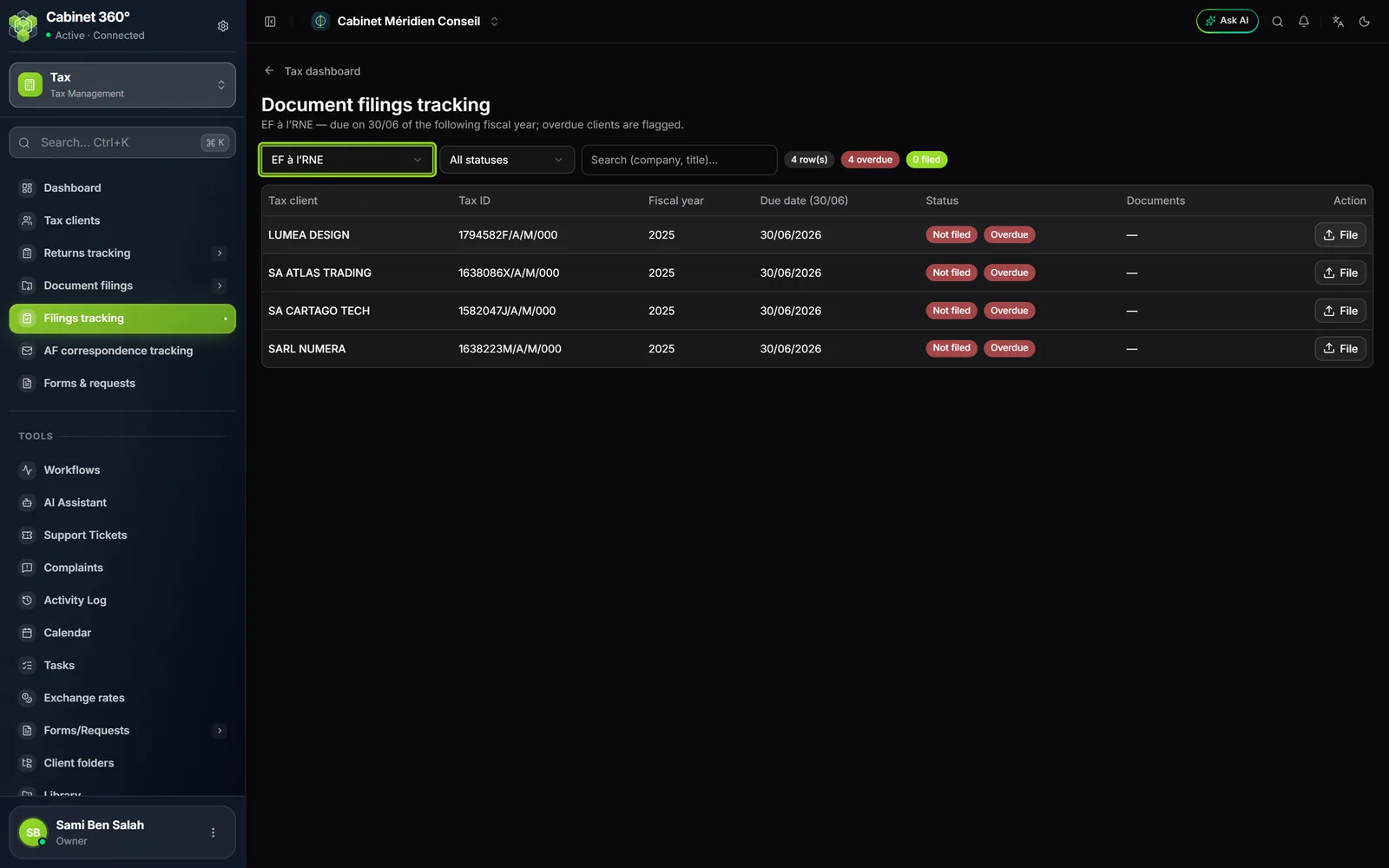
The « Document filings tracking » page opens on All types: every recorded filing. Choose a type and a status to see what remains to be done; the search covers the company and the title or, once a type is chosen, the name and the tax ID.
- For software, one row per active client that has no Filed filing yet, with its status: Not filed or In progress. File opens the form, already filled in for that client; on a row in progress, Filing receipt lets you attach the receipt. A software filed leaves the list for good.
- For the financial statements, the auditor report and the tax bundle, one row per ended fiscal year, with the due date of 30/06 of the following year and the Overdue badge if it has passed. Overdue rows come first; fiscal years already filed stay listed, with their counter. File or Complete opens the filing.
- All types lists every recorded filing; with the Not filed status, it lists the client and type pairs that have no filing yet.
Forms & requests
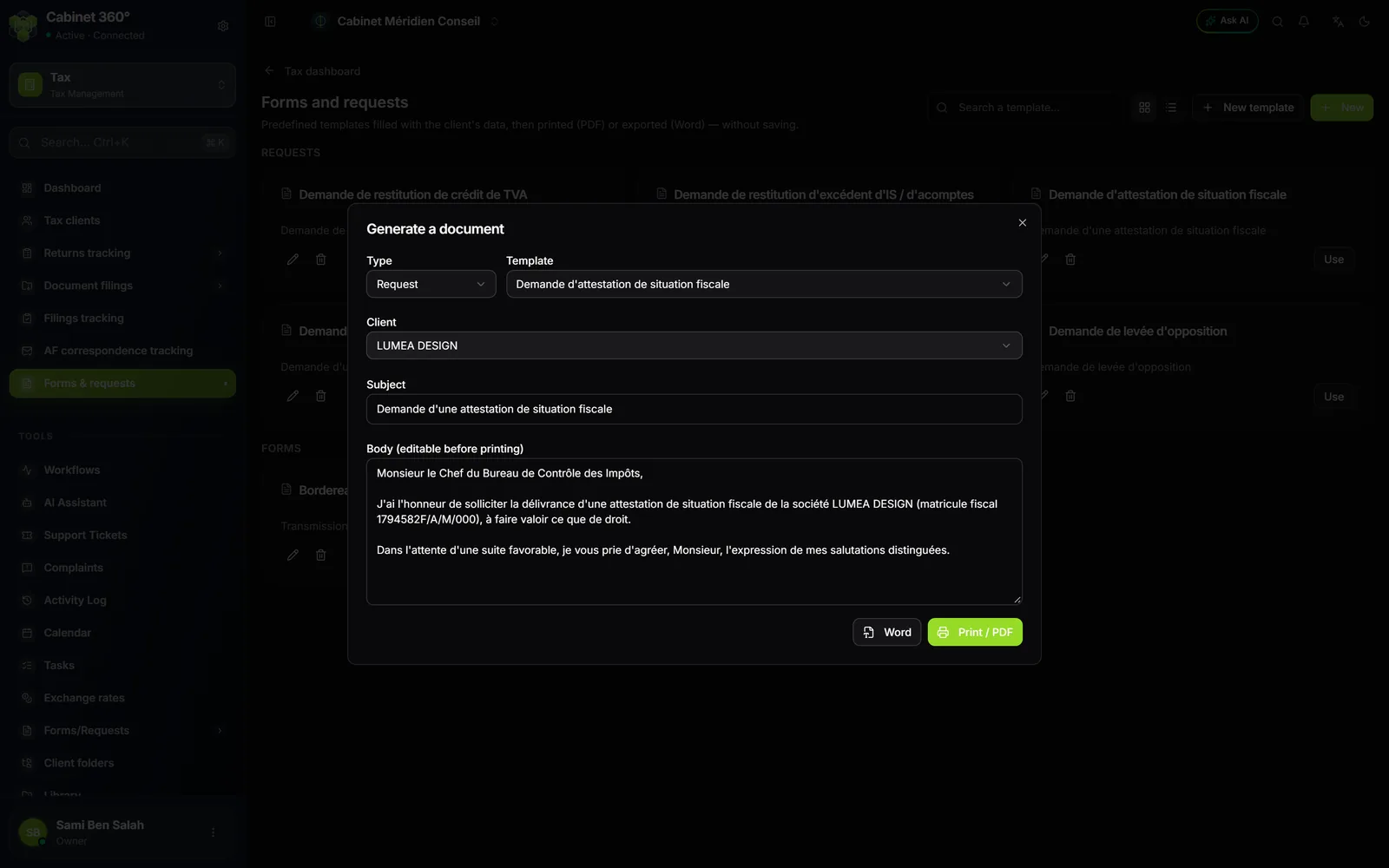
This page keeps templates of letters and forms addressed to the tax administration. It fills them in with the client's data, then prints them as PDF or exports them to Word, without saving anything.
Every firm receives seven templates from the start:
- six requests: refund of a VAT credit, refund of a corporate-tax or installment surplus, certificate of tax standing, payment plan (schedule), tax clearance, lifting of an attachment;
- one form: the transmittal slip for documents.
Generating a document
- Click Use under a template of the list.
- Choose the client: while it is missing, Word and Print / PDF stay greyed out.
- Read the subject and the body: the company name and the tax ID are filled in, and the text can still be changed before printing.
- Click Print / PDF to print it, or Word to download a .doc file.
The printed letter carries the client's name, tax ID and address, the town and the date, the subject, the body, then « Le représentant légal » (the legal representative). The footer is the one from your firm's settings, if you have the right to read them.
Writing your own templates
New template creates a template: its type, name, subject and body. In the body, tags between double braces are replaced when the document is generated: {{raison_sociale}}, {{matricule_fiscal}}, {{activite}}, {{adresse}}, {{telephone}}, {{email}}, {{forme_juridique}}, {{gouvernorat}}, {{date}} and {{date_longue}}. {{gouvernorat}} receives the client's town.