
When a list is due
A quarter is only due if a monthly return of that quarter carries an amount, on its Renseignements TVA (VAT information) sheet, on the line of sales under VAT suspension (or on one of the lines of purchases under suspension). With no operation, the quarter's cell does not turn overdue on its own (only a recorded default or a status set by hand turns it red); its tooltip says so: « no suspended-VAT transaction declared this quarter ». A client with neither operations nor a return does not appear in the Suspended sales and Suspended purchases tracking grids.
| Quarter | Months | List due by |
|---|---|---|
| T1 | January to March | 30/04 |
| T2 | April to June | 30/07 |
| T3 | July to September | 30/10 |
| T4 | October to December | 30/01 of the following year |
A non-working day moves the due date to the next working day.
Preparing the sales list
- In the client's menu, open Processing › Suspended sales, then click New declaration.
- Under Header (declarant), choose the Quarter. The other fields come from the client record: complete those still empty.
- Fill in the first row, then click Add an invoice for each following invoice.
- Enter the FODEC, DC and VAT rates: the three amounts compute themselves, rounded to the millime.
- Click Save. The message « Declaration saved: the .txt file can now be generated. » appears, and the page becomes Edit declaration — Suspended sales.
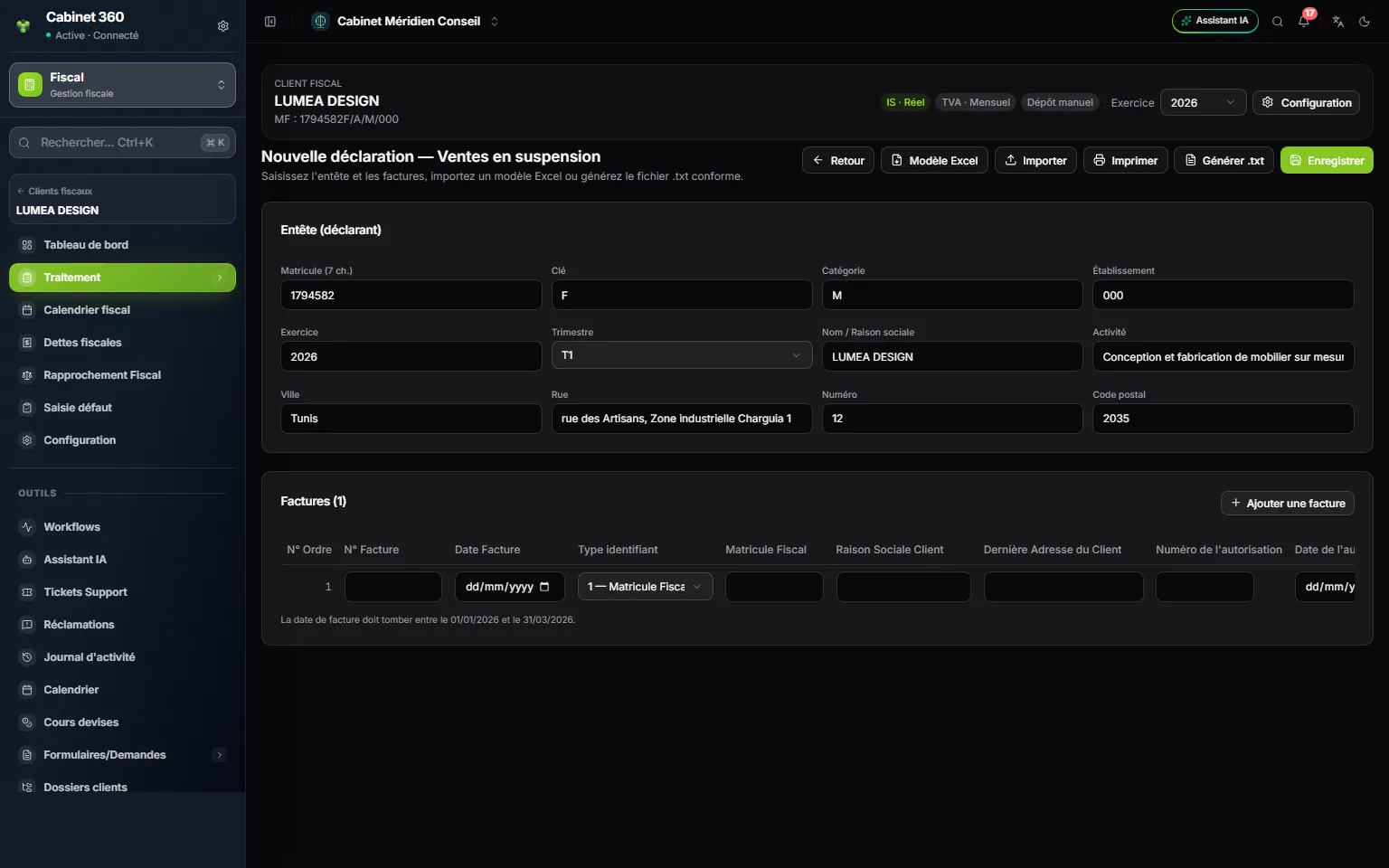
- 1. The list's buttons: Excel template, import, print, .txt file and save.
- 2. The declarant's header: taken from the client record, except the quarter.
- 3. The chosen quarter: here T1.
- 4. Add an invoice: one row per sales invoice.
- 5. The date reminder: the invoice date must fall within the quarter.
The date of each invoice must fall within the quarter. The table recalls it underneath, for example for the third quarter of 2026: « The invoice date must fall between 01/07/2026 and 30/09/2026. » While an invoice falls outside the quarter, Save stays greyed out and a red message gives the numbers of the rows concerned.
The amounts on each row are those of the .txt file and of the printout. The totals are the sum of the rows.
Each invoice carries its authorisation: Authorisation no. and Authorisation date. An authorisation dated after the invoice is flagged « to check », without blocking.
Importing a list kept in a workbook
- Click Excel template: an .xlsx workbook downloads.
- Fill it in, one invoice per row.
- Click Import and choose the file: an Excel or LibreOffice workbook, or a .csv.
- Read the report: it names each unreadable cell, with its row, column, value and reason. The invoice goes in anyway: correct it on screen.
Import replaces the rows already entered. Export Excel downloads the invoices shown in the same workbook, which can be imported again.
To remove several invoices, tick their boxes (the header's box ticks them all), click Delete selection and confirm. A row's bin removes that row alone. Removed rows only disappear when the declaration is saved.
The purchases list
Suspended purchases are prepared the same way, under Processing › Suspended purchases, with Add a row. Three differences: the dates are not checked against the quarter, the Suspended VAT is typed as an amount, and the import only shows the number of rows loaded. Each row carries the authorisation, the purchase order (number and date), the supplier (tax ID, name) and the invoice (number, date, price excluding tax, suspended VAT, subject).
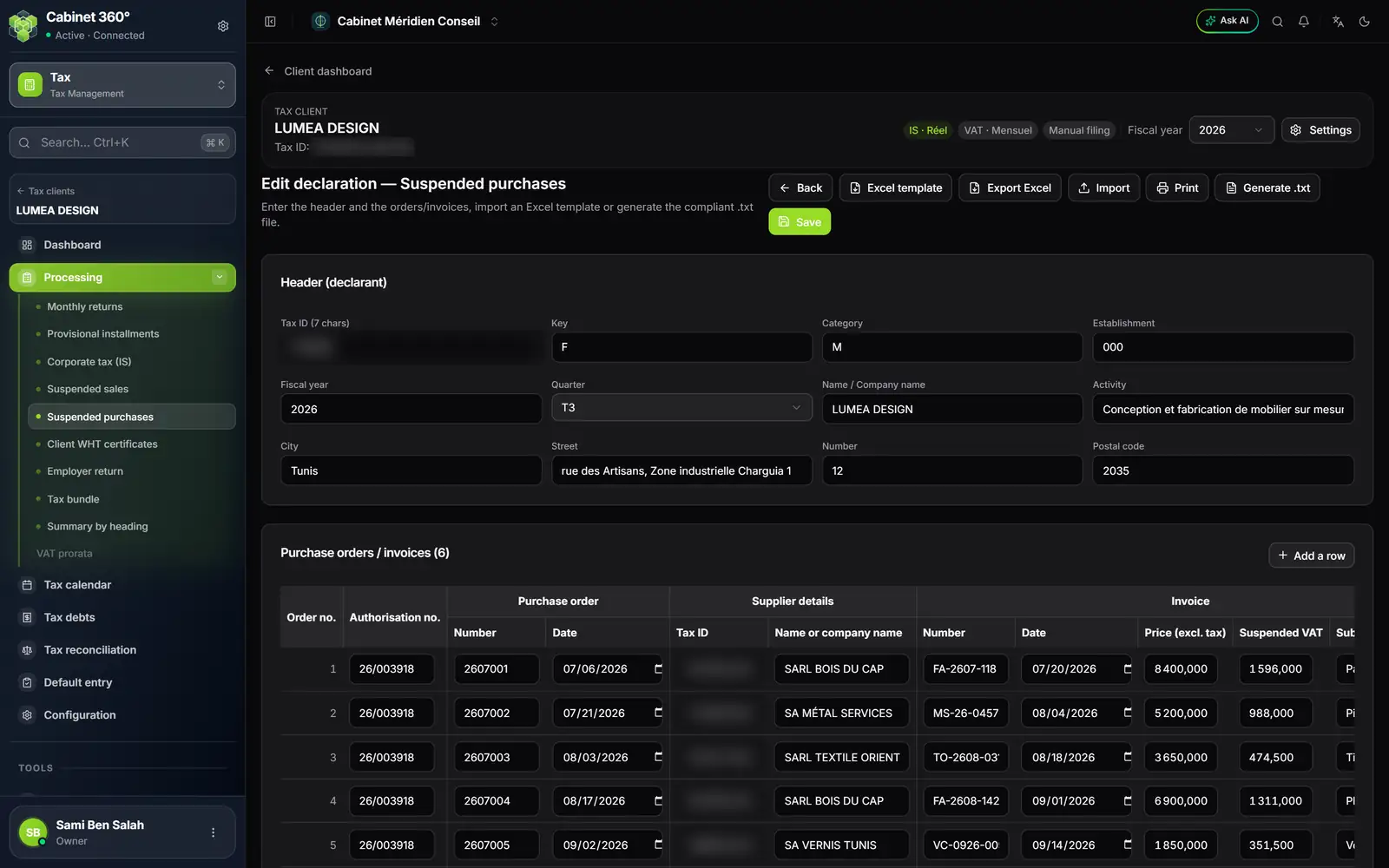
- 1. Generate .txt: active once the declaration is saved.
- 2. The quarter: T3, from July to September.
- 3. The purchase order: number and date.
- 4. The supplier: tax ID and company name.
- 5. The invoice: number, date, price excluding tax, suspended VAT.
Generating the file
Click Generate .txt. The button stays greyed out while the declaration is not saved, or if it was changed since: the reason shows under the buttons.
- If everything conforms, the file downloads. It is named FAC_03_26.txt for the sales of the third quarter of 2026, BCD_03_26.txt for the purchases.
- Otherwise, a report names the fields to correct. Correct, save, then generate again: chapter 13 details this check.
In the sales, a VAT rate that the platform does not open to the Tax module is flagged « to check », without blocking: the file declares the rate the invoice really carried.
Saving the list does not mark it filed. Once the file is filed, set the quarter's cell to Filed in the tracking grid — chapter 3.
What comes out
| Button | What you get |
|---|---|
| Generate .txt | The file to file with the DGI: FAC (sales) or BCD (purchases). |
| Print (in the form or on the row of the list) | The quarter's list: company name, tax ID, fiscal year and quarter, then each invoice (or purchase order) with its date, its price excluding tax and its suspended VAT, and a summary: number of documents, total excluding tax, total suspended VAT. |
| Export Excel | The rows shown, in the template's workbook. |
Back on the list (Back), each declaration shows its quarter, its number of invoices and its total excluding tax.