
The client's register
The page is titled « Liste des certificats de RS clients » (list of the clients' withholding-tax certificates). As long as nothing is entered, it says: « Aucun certificat saisi. L’état se dépose à zéro. » (no certificate entered; the statement is filed as nil).
Entering a certificate
- Click Ajouter un certificat (add a certificate): the Nouveau certificat (new certificate) window opens.
- In Le certificat et son bénéficiaire (the certificate and its beneficiary), enter the Date, the Identifiant fiscal (tax identifier), the Nom / raison sociale (name or company name), the Activité (activity) and the Dernière adresse (last address).
- Choose the Type d’opération (type of operation): the Taux de retenue (withholding rate) then offers the rates the scale links to that operation.
- In Les montants (the amounts), enter the Montant brut (gross amount), the Montant RS (amount withheld) and the Montant net payé (net amount paid).
- Click Enregistrer le certificat (save the certificate): the message « Return saved » confirms it.
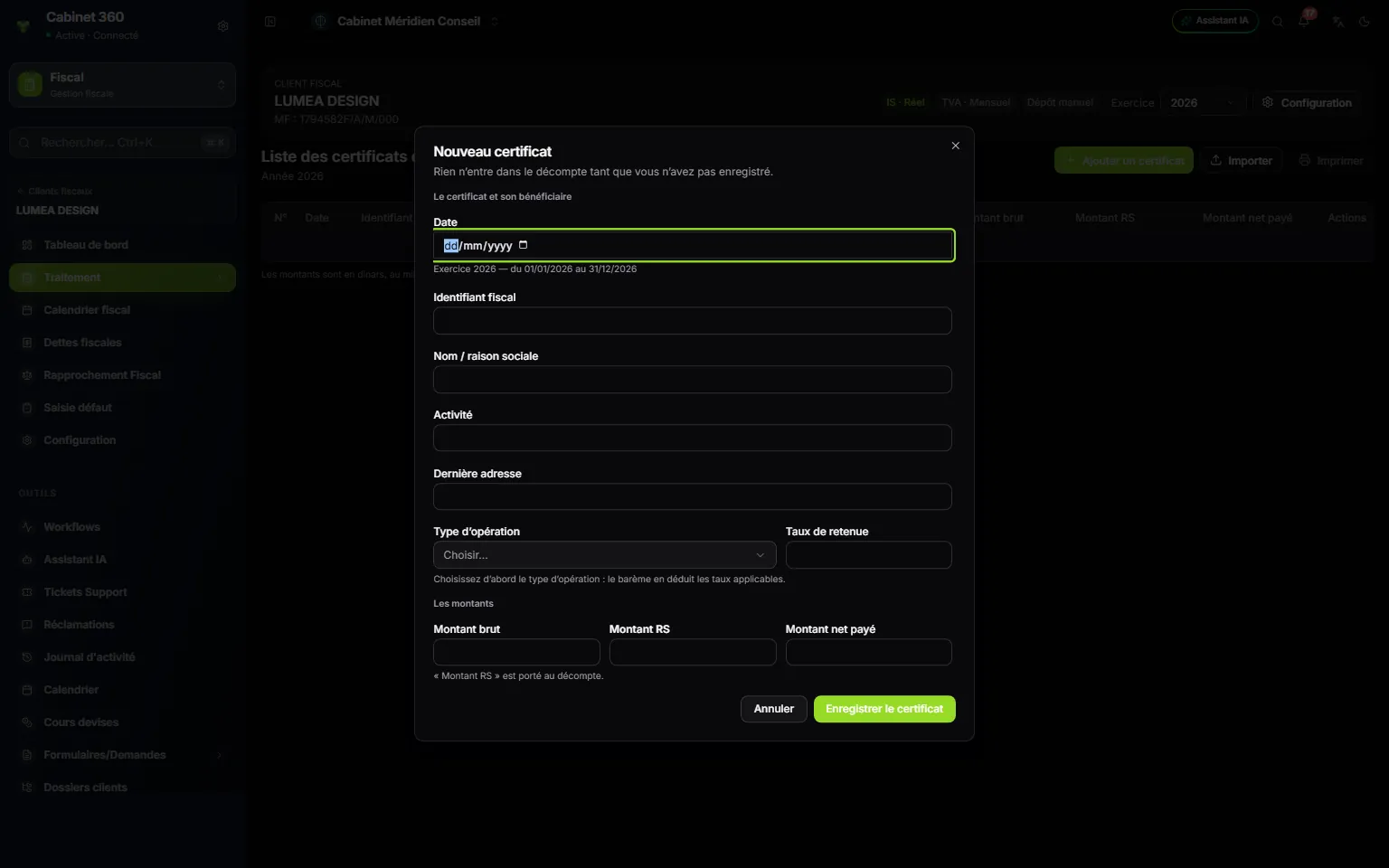
- 1. The date: it must fall within the fiscal year, recalled just below.
- 2. The beneficiary: tax identifier, name, activity, last address.
- 3. The type of operation first: the withholding rate follows from it.
- 4. The three amounts: gross, withheld, net paid.
- 5. Enregistrer le certificat: greyed out if the identifier or the date is wrong.
The Enregistrer le certificat button stays greyed out if the tax identifier is malformed (the check letter does not match the seven digits) or if the date falls outside the fiscal year: the reason is written under the field.
If the three amounts do not agree, a warning says so, for example « Net + retenue = …, mais le brut porte … » (net plus withholding gives one figure, but the gross shows another). It does not block: you save what the certificate shows.
The Type d’opération is chosen among: directors' fees and percentages, fees for non-commercial activities, sales of goodwill and buildings, investment income, dividends, rents, purchases of goods, wages and salaries, betting and lottery games.
Each certificate is saved at once, with no other button. A row's pencil reopens its certificate; the bin deletes it, after confirmation. A reopened certificate also offers Télécharger une copie (download a copy): the printout of that certificate alone.
Importing a workbook
- Click Importer (import), then Télécharger le modèle d’import (download the import template): a workbook to fill in downloads.
- Fill it in, one certificate per row.
- Click Importer un fichier (.xlsx, .ods, .csv) (import a file) and choose it.
- If the register is not empty, choose Ajouter à la suite (append) or Remplacer (replace). With Ajouter à la suite, a certificate already in the register, identical, is not taken again.
- Read the report: it names each rejected row, with its row, column, value and reason. The other rows go in anyway.
On import, a row is rejected if the tax identifier has a wrong check letter, if the date falls outside the fiscal year, if the operation or the rate is outside the scale, if an amount is unreadable or if the Montant RS is empty. Correct the file, then import it again.
What comes out
Click Imprimer (print), then PDF or Excel. The button stays greyed out as long as no certificate is entered.
The statement, in landscape, is titled « Liste des certificats de RS clients », followed by the year. It first gives the client's identity (name, tax identifier, number of certificates), then the detail in eleven columns: number, net amount paid, amount withheld, withholding rate, gross amount, type of operation, date, last address, activity, name or company name, tax identifier. The total row adds up the three amounts. The on-screen list shows neither the last address nor the type of operation.
The total of the Montant RS column is taken by the client's tax computation — chapter 7. The entry window recalls it: nothing enters the computation until the certificate is saved.