
The ANCC file
The file has twenty-one sections: Dashboard, ANCC settings, Reference balance sheet, the six Asset retreatments, the six Liability retreatments, then the Conclusion group. This chapter covers the first three; chapter 6 covers the rest.
The file's dashboard
The « Tableau de bord — dossier ANCC » (Dashboard — ANCC file) page has nothing to enter. It gives:
- four cards: Actif net corrigé (Adjusted net assets), Valeur retenue (Retained value, after premiums and discounts), Valeur par titre (Value per share) and Dossier (File: « Verrouillé », locked, « Validable », ready to validate, or the number of blocking points, with the version);
- a warning when the reference balance sheet does not balance, with the Corriger le bilan (Correct the balance sheet) link;
- three counters: Retraitements (Retreatments), Pièces justificatives (Supporting documents), Commentaires de revue ouverts (Open review comments);
- the Avancement du dossier (File progress): the twenty-one sections by group, each with its status and a link to its page.
The Synthèse → (Summary) button leads to the file's summary.
ANCC settings
| Field | Default | What to know |
|---|---|---|
| Taux IS — sociétés (%) (Corporate income tax rate, %) | The rate on the client's tax record, otherwise 15% | The default rate for deferred tax. A retreatment can carry its own |
| Nombre de titres (Number of shares) | 0 | A whole number; at zero, the value per share is not calculated |
| Arrondi (Rounding) | Au millime (To the millime) | Or Au dinar (To the dinar), applied to every figure of the calculation |
| Hypothèses retenues (Assumptions retained) | None | One sentence per assumption, in the report's order |
The IS rate is chosen from the same list as on the client's tax record. When the record carries another rate, the page shows it (« Fiche du client : … », Client record: …) and offers reprendre ce taux (use this rate).
For the assumptions, click Ajouter une hypothèse (Add an assumption) and write the sentence (« Going concern. »). Monter (Move up), Descendre (Move down) and Retirer (Remove) arrange them; a line left empty is not saved. They go into the summary and the report, in this order.
Click Enregistrer les paramètres (Save settings): « Paramètres enregistrés » (Settings saved). The page switches to reading mode; Modifier (Edit) reopens it, Annuler (Cancel) brings back the saved values.
Reference balance sheet
The page brings together two separate things:
- the financial statements entered, fiscal year by fiscal year: assets, equity and liabilities, income statement, cash flow statement, on the financial statement templates of the accounting module;
- the reference balance sheet, the last tab, with three sides (assets, equity, liabilities): it is the only thing the ANCC calculation reads.
The statements entered do not feed the calculation by themselves: you take them over into the reference balance sheet, with one click, when they are ready.
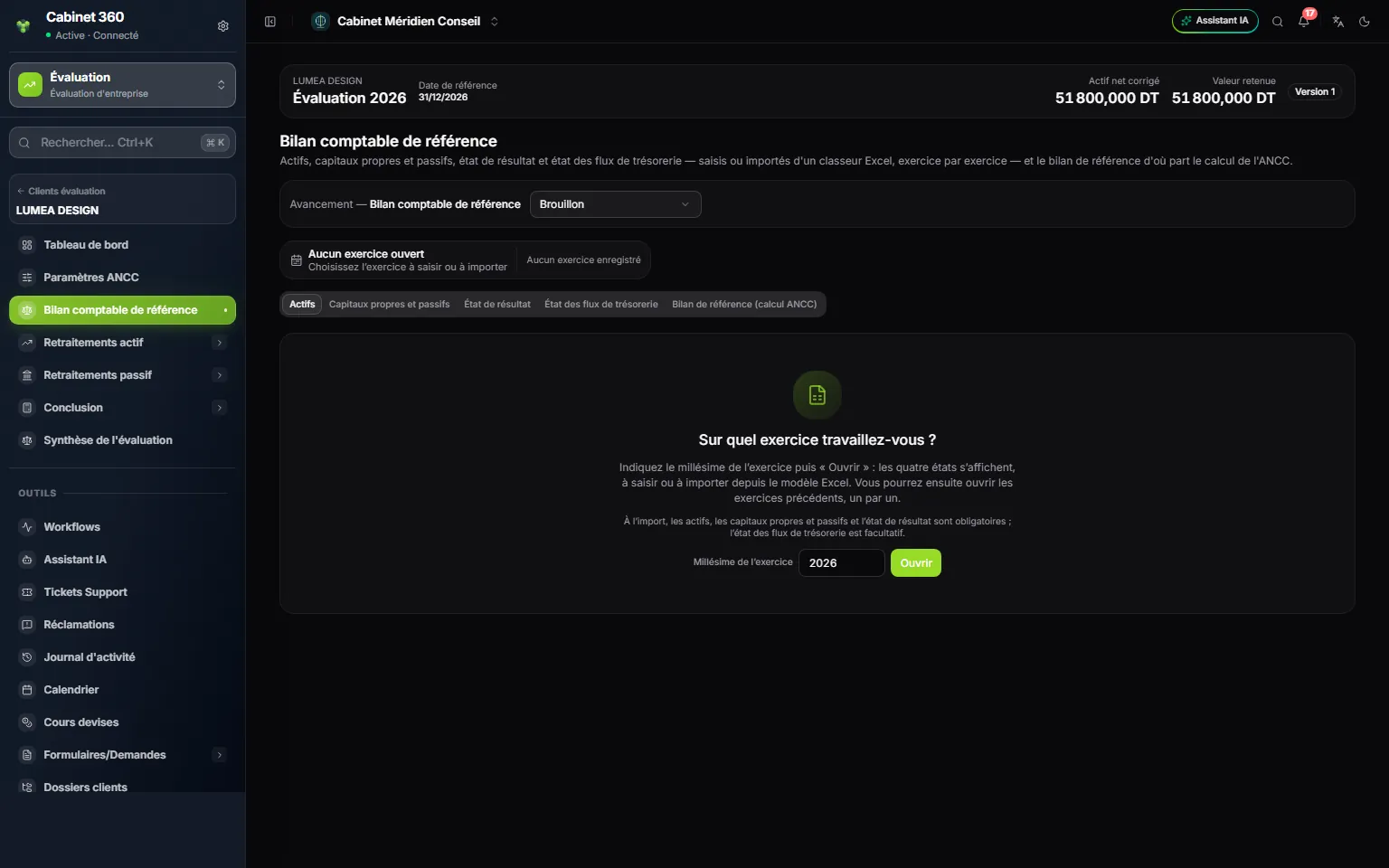
- 1. The file bar: adjusted net assets, retained value, version.
- 2. Avancement (Progress) of the section.
- 3. The fiscal-year bar: no fiscal year opened, none saved.
- 4. Five tabs: the four statements, then the reference balance sheet.
- 5. Millésime de l'exercice (Fiscal year), then Ouvrir (Open).
Opening a fiscal year
On the first visit, the « Sur quel exercice travaillez-vous ? » (Which fiscal year are you working on?) card suggests a year: the year of the reference date if it is a 31/12, otherwise the year before. Correct it if needed, then click Ouvrir. The four statements appear, ready for entry.
The fiscal-year bar then tells you where you stand: Non enregistré (Not saved), Modifications non enregistrées (Unsaved changes), Enregistré — contrôles à lever (Saved — checks to clear) or Enregistré (Saved), with the date and the author. On the right: the fiscal year's result, the list of fiscal years, Nouvel exercice (New fiscal year) and the bin.
The previous fiscal year makes the N-1 column. If it is missing, each statement offers Saisir l'exercice … (Enter fiscal year …), for the year before.
Entering the statements
- Modèle : (Template) chooses the financial statement template. By default: the template of the last saved fiscal year, otherwise that of the client's accounting file, otherwise the reference template.
- Each tab follows the columns of the accounting module's financial statement generation: Code, Rubrique (Heading), Note, the fiscal year, N-1 and the change.
- Only detail lines are entered; headings and totals are calculated.
Two checks judge the statements: Total des actifs = Total des capitaux propres et passifs (Total assets = Total equity and liabilities), and Résultat des capitaux propres = résultat de l'état de résultat (The result in equity = the result of the income statement). The cash flow statement is not checked. An empty balance sheet is not a balanced balance sheet: the balance card then says « Équilibre du bilan non vérifié » (Balance sheet balance not checked).
Saving
Click Enregistrer les états financiers (Save the financial statements). An entry that is partial or does not balance yet is saved: the message names the checks still to clear. There are only two refusals: an amount that cannot be read, or an entirely empty entry (to remove a fiscal year, delete it).
You cannot change the fiscal year or the template while an entry is not saved: the greyed-out button gives the reason when you hover over it. Annuler brings the grid back to its saved state.
Importing from Excel
- Click Modèle Excel (Excel template): a workbook
etats-financiers-YYYY.xlsxis downloaded, one sheet per statement, prefilled with the amounts already saved. - Fill in the white cells of the Montant (Amount) column, sign included. Headings and calculated lines are locked.
- Click Importer (Import) and choose the workbook.
- Read the report, check the grid, then click Enregistrer les états financiers.
| Statement | On import |
|---|---|
| Assets | Mandatory |
| Equity and liabilities | Mandatory |
| Income statement | Mandatory |
| Cash flow statement | Optional: left empty, it does not replace the statement on screen |
A workbook in which a mandatory statement is missing or holds only zeros is refused, and the message names each statement and what it lacks: « Classeur incomplet — … » (Incomplete workbook — …). The import reads, it saves nothing: until you click Enregistrer les états financiers, nothing is written. Excel workbook formats and .ods are accepted; a CSV is refused.
Exporting to PDF
Exporter PDF (Export PDF) prints the fiscal year's saved statements: etats-financiers-YYYY.pdf, the same document as the accounting module's financial statement generation, with a mention of the valuation file and of the balance sheet's balance. The button is greyed out on an unsaved fiscal year or while an entry is in progress. Chapter 12 details it.
Taking over as the reference balance sheet
On a saved fiscal year whose two checks pass, click Reprendre comme bilan de référence (Take over as reference balance sheet). The window shows a preview:
- the assets, taken over at their net value (the gross and its depreciation or provisions combined);
- the equity: the lines that come before the « PASSIFS » (Liabilities) heading of the statement; everything after it is liabilities;
- the totals of each side, and the balance.
Click Reprendre comme bilan de référence (or Remplacer le bilan de référence, Replace the reference balance sheet, if it already carries lines). The page switches to the Bilan de référence (calcul ANCC) (Reference balance sheet, ANCC calculation) tab.
The button stays greyed out, with the reason on hover, on an unsaved fiscal year, while an entry is in progress, when the checks do not pass, or on a locked file.
The reference balance sheet by hand
In the Bilan de référence (calcul ANCC) tab, you can also lay down the balance sheet line by line: choose the side (Actif (Assets), Capitaux propres (Equity) or Passif exigible (Liabilities)), type the Poste (Item), the Compte (Account, optional) and the Montant, then click Ajouter (Add). Afterwards, only the amount can be corrected in place.
The top card gives Total actif (Total assets), Capitaux propres, Passif exigible and the Équilibre (Balance): « Le bilan balance » (The balance sheet balances), or « Écart de … » (Difference of …). While the reference balance sheet has no line, the card shows « Le bilan balance », but the blocking check fails.