
Valuation clients
The page lists the clients whose Valuation service is switched on in their record, and who are not inactive. Columns: Client (name and number), Contact, Statut (Status), IF (Tax ID) and Actions.
- Search a client… filters the list as you type.
- All account managers shows only the clients of one account manager, or those with No account manager. The account manager is chosen on the client's record.
- Click the client's row, or the Open client icon: its page shows its engagements.
No client is created here. If the list shows « No valuation client », open the client's record in Operations and switch on Valuation in the Services & start of service card.
A client's page
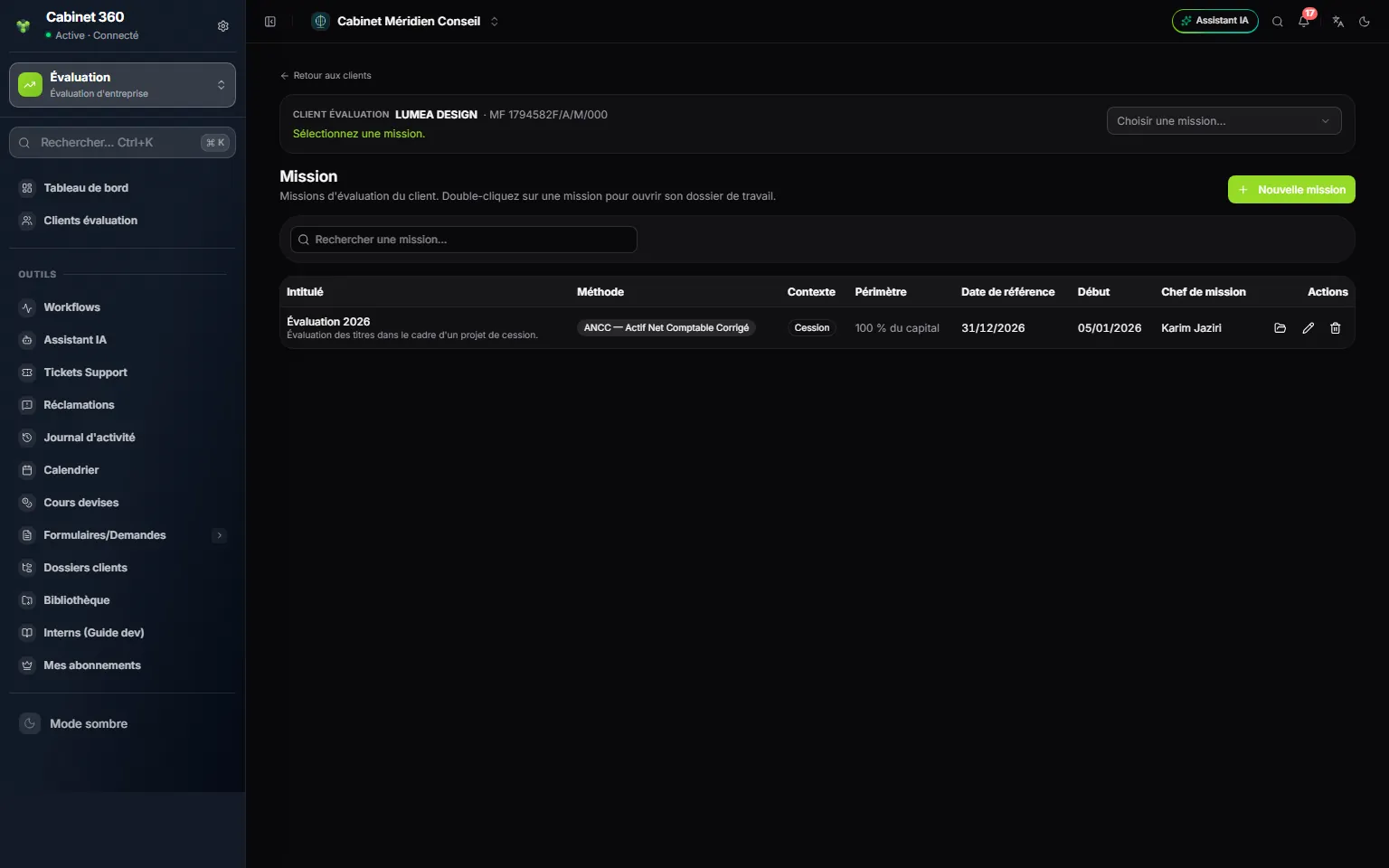
- 1. Back to clients takes you back to the list.
- 2. The client: its name and its tax ID.
- 3. Choose an engagement… opens the chosen engagement's file directly.
- 4. New engagement opens the creation window.
- 5. Double-click an engagement to open its working file.
- 6. The three icons: open the file, edit the engagement, delete it.
The engagements table gives for each one its Title (with the purpose below it), its Method, its Context, its Scope, its Reference date, its Start and its Engagement manager. The most recent comes first. Search an engagement... filters on the title, the purpose, the method and the engagement manager.
Creating an engagement
- On the client's page, click New engagement. The « New valuation engagement » window recalls the client: it comes from the page, it is not chosen.
- The engagement block: type the Engagement title, for example « ALPHA SA valuation — disposal ». The Purpose of the valuation is optional: what the engagement must establish.
- The valuation block: choose the Valuation reference date and the Valuation method. Choose the Valuation context, if needed the Scope, then the Currency.
- Schedule and team block: type the Engagement start date. Choose the Engagement manager and tick the Team members, among the firm's users.
- Click Save. The message « Engagement created » appears and you stay on the list, where the engagement already appears.
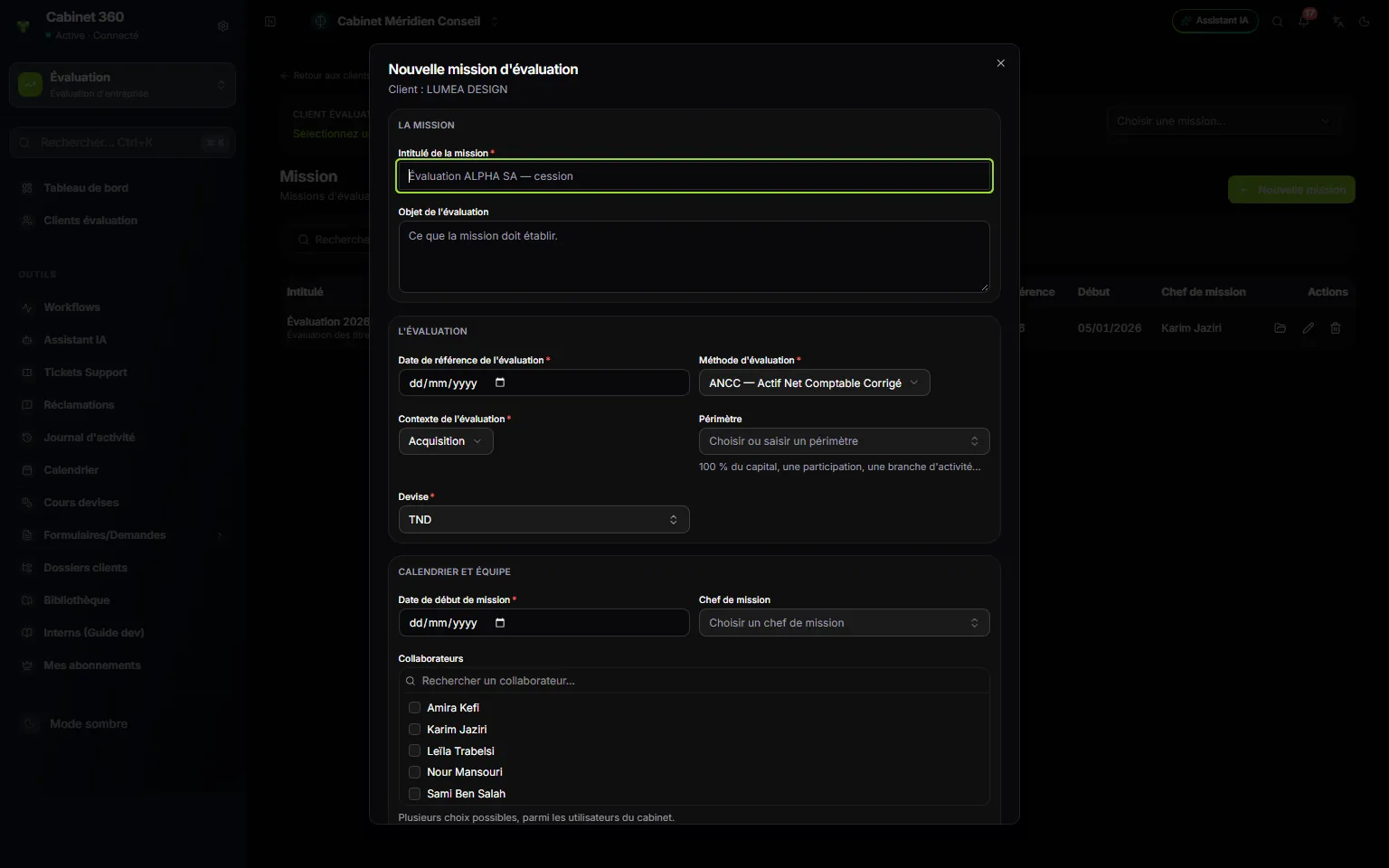
- 1. The engagement: the title is mandatory, the purpose optional.
- 2. Reference date: the date at which the company is valued.
- 3. The method decides the working file: ANCC, DCF or Multiples.
- 4. Scope: choose from the list or type your own.
- 5. Engagement manager: they or the management validate the work.
- 6. Team members: several choices, with a search.
The eleven fields
| Field | Mandatory | What to know |
|---|---|---|
| Engagement title | Yes | The engagement's name in the lists, the files and the report |
| Purpose of the valuation | No | What the engagement must establish |
| Valuation reference date | Yes | It suggests the fiscal year of the balance sheet and the last historical year of the DCF |
| Valuation method | Yes | ANCC — Actif Net Comptable Corrigé (Adjusted net book value; the default choice), DCF — Discounted Cash Flows or Multiples |
| Valuation context | Yes | Acquisition (the default choice), Cession (Disposal), Augmentation de capital (Capital increase), Restructuration (Restructuring), Succession (Inheritance) or Autre (Other) |
| Scope | No | 100 % du capital (100% of the share capital), Participation majoritaire (Majority shareholding), Participation minoritaire (Minority shareholding), Branche d'activité (Business line), Fonds de commerce (Business and its goodwill), or your own text (« 60% of the shares ») |
| Currency | Yes | TND by default; EUR and USD are offered, and you can type another currency |
| Engagement start date | Yes | It places the engagement in the dashboard's periods |
| Engagement manager | No | None is suggested by default: an engagement is not signed in the name of someone who did not take it on |
| Team members | No | Several choices allowed |
| Client | — | Taken from the page: an engagement cannot be set up on another client |
In Currency and Scope, type your text, then click Use “…” to keep it.
Opening the working file
Three gestures open an engagement's file:
- double-click its row;
- click its title or the Open the working file icon;
- choose it in Choose an engagement…, at the top of the page.
The file opens on its Dashboard, and the menu becomes the file's menu. The first opening creates the file: from then on it counts as « opened » for the summary.
Editing an engagement
Click the Edit icon on the row. The « Edit engagement » window shows what the engagement carries; correct it, then click Save: « Engagement updated ».
Changing the method
The method is changed in the same window. The new method's file is created the first time it opens. The old method's file is not erased: it keeps its figures, and the engagement's summary still reads its value. Its screens, however, no longer open: they show « Cette mission est menée en … » (This engagement is carried out with …). To go back to it, set the original method again.
This is how one engagement brings together two or three methods in its summary: you carry out one file, change the method, carry out the next one. Chapter 11 shows what follows.
An engagement with no working file
An old method, « Autre méthode (retirée) » (Other method, retired), has no file. An engagement that still carries it does not open: its title is not a link, the open icon does not appear, and the selector greys it out with the note « no working file: edit the engagement to choose its method ». Click Edit: the method shows empty; choose one and save.
Deleting an engagement
Click the Delete icon, then confirm in « Delete the engagement? ».