
The file bar
At the top of each page, a bar stays visible: the client's name (which takes you back to Valuation clients), the engagement's title and its Date de référence (Reference date). On the right, the file's key figures and a version badge:
| File | Figures in the bar |
|---|---|
| ANCC | Actif net corrigé (Adjusted net assets), Valeur retenue (Retained value) |
| DCF | Scénario (Scenario, which you choose), WACC, Enterprise Value, Equity Value |
| Multiples | Comparables retenus (Comparables retained), the headline multiple (EV / EBITDA if it is retained), Equity Value |
The badge says Version 1, Version 2… or, with a padlock, Verrouillé — version 1 (Locked — version 1).
The progress of a section
Under the title of each page, except the dashboard, the Avancement — (section) (Progress) card carries the section's review status. Choosing a status saves it at once: « Avancement enregistré » (Progress saved).
| Status | What it means |
|---|---|
| Brouillon (Draft; ANCC) or Non commencé (Not started; DCF, multiples) | Nothing has been prepared |
| En cours (In progress) | The section is being prepared |
| À revoir (To review) | A reviewer must go over it |
| Corrections demandées (Corrections requested) | The reviewer asks for corrections |
| Révisé (Reviewed) | The section has been reviewed |
| Validé (Validated) | The engagement manager or the management approves it |
The software records who prepared, reviewed and validated, and when. A section counts as done when it is « Révisé » or « Validé »: this is the progress that the file's dashboard and the module's dashboard show.
A section in « Corrections demandées » is a blocking point of the checks: the file cannot be locked while it stays there. In the ANCC, « À revoir » blocks too.
The review: comments and documents
At the bottom of some pages, two panels sit side by side:
| File | Pages that carry the panels |
|---|---|
| ANCC | The twelve retreatment sections |
| DCF | Financial data, Assumptions, Revenue, Free cash flow, WACC, Terminal value |
| Multiples | Every section, except the dashboard, the checks, the summary, the notes and the report |
Review comments
The Revue — n ouvert(s) (Review — n open) panel receives the remarks on the section. Write in « Une observation à porter sur cette rubrique… » (A remark to make on this section…), then click Poser (Post). Each comment carries its status, Ouvert (Open), Résolu (Resolved) or Réouvert (Reopened), its author and its date. The Résoudre (Resolve), Rouvrir (Reopen) and Supprimer (Delete) icons move it along.
In the ANCC, open comments are a warning in the checks: they do not prevent locking, but they are read. In the DCF and the multiples, no check counts them. A comment remains possible on a locked file: the lock protects the figures, not the discussion that challenges them.
Supporting documents
The Pièces justificatives (n) (Supporting documents) panel keeps the section's documents: an expert's report, management's business plan, a comparable's annual report. Give a Nom du document (Document name), otherwise the file's name is used, then click Déposer une pièce (Upload a document) and choose the file. A document is downloaded or deleted from its line.
The checks
The Checks and validation page (ANCC) or Controls and lock page (DCF, multiples) says what must be true to sign.
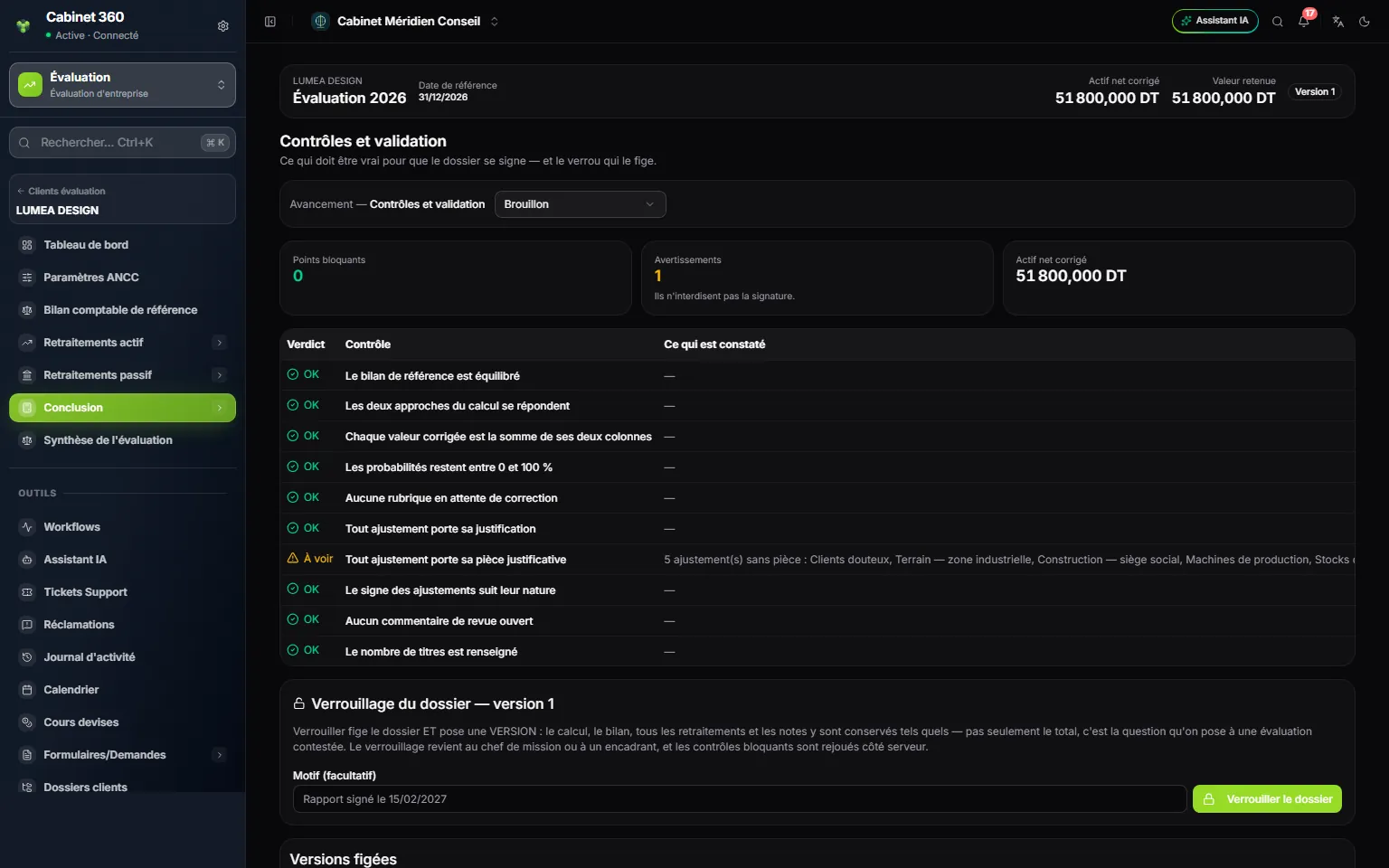
- 1. Points bloquants (Blocking points): they prevent locking.
- 2. Avertissements (Warnings): they are for reading, and do not prevent signing.
- 3. Verdict of each check: OK, Bloquant (Blocking) or À voir (To check).
- 4. Ce qui est constaté (What is found) names what is missing, item by item.
- 5. Motif (facultatif) (Reason, optional), then Verrouiller le dossier (Lock the file).
| File | Checks | Blocking | Warnings |
|---|---|---|---|
| ANCC | 10 | 5 | 5 |
| DCF | 21 | 12 | 9 |
| Multiples | 18 | 9 | 9 |
Each failed check carries its message: a check that is red and silent could not be corrected. The checks can also be read on the file's dashboard: in the DCF and the multiples, the Prochaine action recommandée (Next recommended action; DCF) or Prochaine action (Next action; multiples) card names the first point to deal with.
Locking the file
- Clear the blocking points: the Verrouillage du dossier — version n (Locking the file — version n) card names them above the button.
- Type a Motif (facultatif), for example « Report signed on 15/02/2027 ».
- Click Verrouiller le dossier. The server runs the checks again: « Dossier verrouillé — version 1 » (File locked — version 1). In the DCF, locking always judges and freezes the base case, whatever scenario is chosen in the bar.
Locking belongs to the engagement manager or the management. The frozen version keeps the calculation and the verdict of the checks at that moment; the Versions figées (Frozen versions) table lists it with its date, its author and its reason. Its content does not open on screen: the version serves as proof.
On a locked file, the server refuses any write to the figures: « Le dossier … de cette mission est verrouillé (version n). Déverrouillez-le pour le corriger : la correction ouvrira la version suivante et conservera celle-ci. » (This engagement's … file is locked (version n). Unlock it to correct it: the correction will open the next version and keep this one.) Most boxes still accept typing: it is the saving that is refused, with a red message.
Reopening for correction
Type the Motif de la réouverture (Reason for reopening), which is mandatory, then click Rouvrir pour correction (Reopen for correction). The next version opens (« Dossier rouvert — version 2 », File reopened — version 2); the previous one stays in Versions figées. The reason is the only trail that will explain the difference between two signed versions. Reopening also belongs to the engagement manager or the management.
The file log
Every creation, change and deletion in the file is written to the Journal du dossier (File log): when, who, which section, the value before and the value after. It is shown below the valuation report, read-only: nobody changes it, not even the management. It is not printed.
Notes for the report
The Report notes page prepares what the report will say besides the figures: the basis of the valuation, the procedures performed, the limits.
- Type the Titre (Title), which is mandatory (« Procedures performed »).
- Choose the Rubrique liée (Linked section), or leave Aucune (None).
- Write the note's text, then click Ajouter la note (Add the note).
The title and the text are corrected in place. Untick Retenue (Retained) to take a note out of the report without losing it. In the DCF and the multiples, Monter (Move up) and Descendre (Move down) set the order in the report; in the ANCC, notes follow their order of creation.
Entering data in the module
- Amounts are written 1 234 567,890 (by default). An amount box that cannot be read gets a red outline: correct it before saving. In a retreatment's window, it would count as zero.
- Rates are entered in points: 15 for 15%, -20 for a 20% discount.
- A number of shares is a whole number: a decimal is truncated, never rounded.
- Most boxes are saved when you leave them (Tab, a click elsewhere or Enter); Esc brings back the previous value. Pages that have an Enregistrer (Save) button write nothing before the click.
- A refusal from the server shows as a red message, with its reason and its code (« HTTP 403 » for a missing right).