
Before closing
- Post your year-end entries in Year-end works: stock, depreciation, provisions (chapter 11).
- Check the figures: in the Trial balance, the Trial balance totals balance (chapter 10); in Consistency checks, deal with the controls in Anomalie (chapter 9).
- There is no draft to validate: an entry saved, imported or posted from the OCR inbox is already validated.
- You need the Create right on the Year-end closing screen.
The fiscal years page
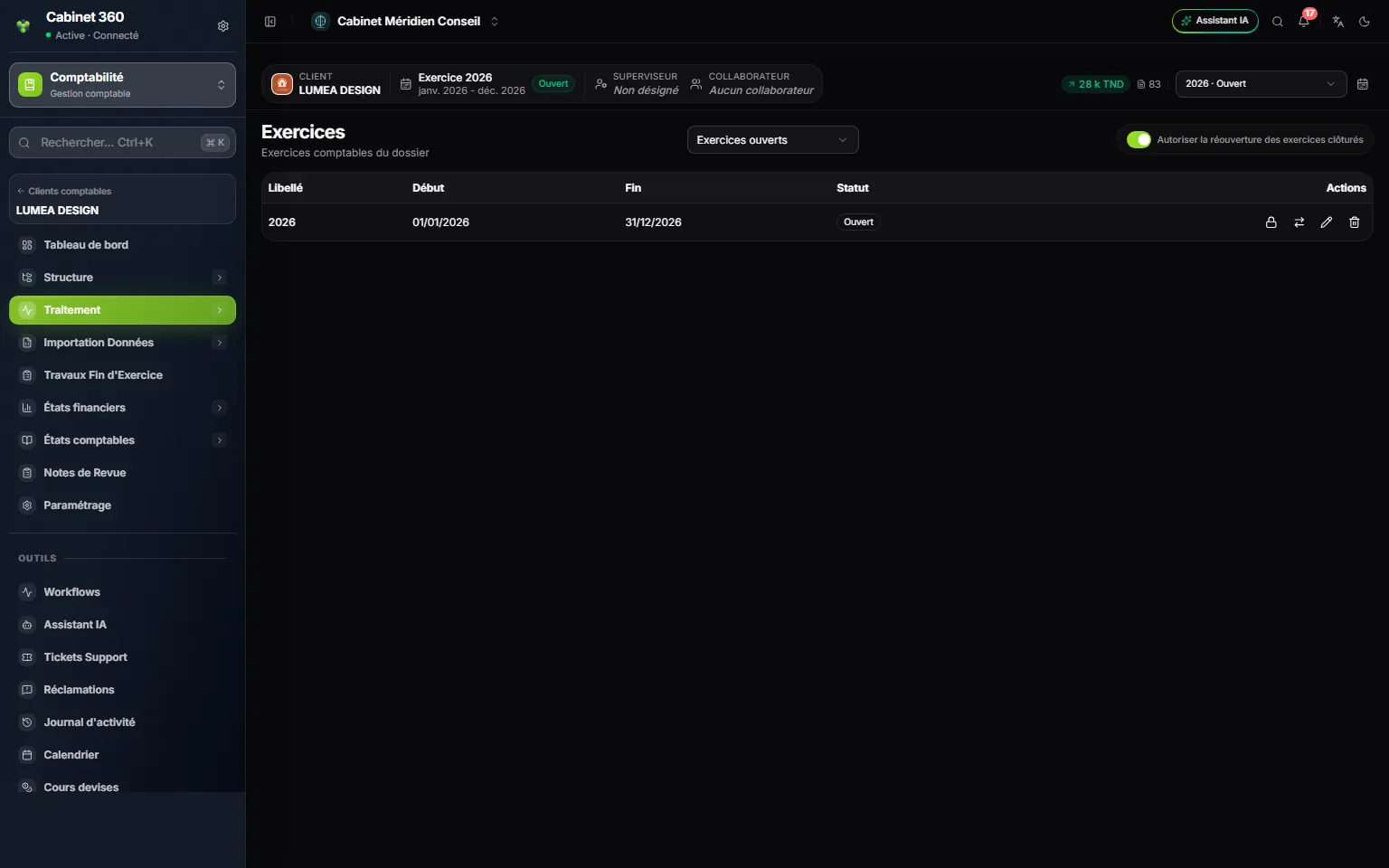
- 1. Open periods or Closed periods: the list to show.
- 2. Allow reopening closed fiscal years: the setting that allows reopening.
- 3. The status of the fiscal year: Open or Closed.
- 4. The actions: the Close padlock, then the carry-forward on its own, View, editing, deletion.
A fiscal year carries a Start and an End. The end is always the file's closing date (for example 31/12): any other end is refused. Entries are only saved between these two dates.
Closing and carrying forward
Click the row's Close padlock. The wizard has three steps.
- Closing: read the reminder (the books must be balanced, debit = credit), then click Next.
- Next fiscal year: keep Create next. Its dates follow the file's accounting year. If the next fiscal year already exists, the screen says so and the carry-forward goes into it.
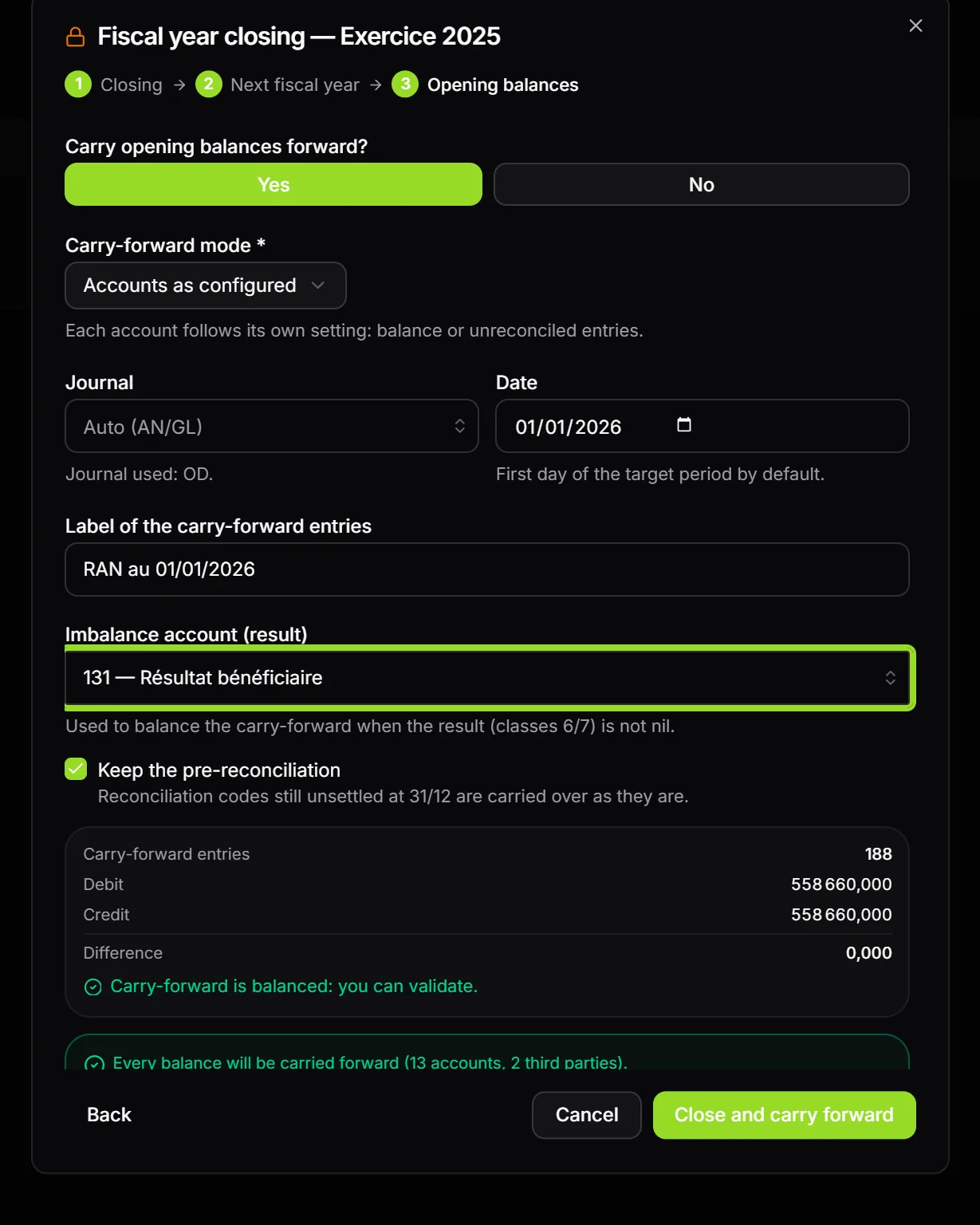
- Opening balances: leave Yes at “Carry opening balances forward?” (No closes with no opening entry, and the button becomes Close without carry-forward), then set the carry-forward (below).
The carry-forward settings
| Field | What it does |
|---|---|
| Carry-forward mode | Accounts as configured (proposed: each account follows the Carry forward field of its record), Carry balances forward or Carry unreconciled entries forward |
| Journal | A journal of type General. Auto (AN/GL) takes the journal of the carry-forward already posted, otherwise AN, otherwise RAN, otherwise the first general journal; “Journal used: …” names it |
| Date | The first day of the new fiscal year |
| Label of the carry-forward entries | The label of the carry-forward entry |
| Imbalance account (result) | The result account that receives the difference |
| Keep the pre-reconciliation | Ticked: pre-matchings move into the new fiscal year with their letter |
Only balance-sheet accounts are carried forward: an expense or income account is Do not carry forward, by default.
The check before validating
The preview gives the Carry-forward entries, the Debit, the Credit and the Difference. Below, a check compares the fiscal year's balance with what the carry-forward will write, account by account and third party by third party: “Every balance will be carried forward (3 accounts, 2 third parties).”, or “Incomplete carry-forward: …” with the accounts that differ. The fiscal year's anomalies (an unbalanced entry, an entry dated outside the fiscal year, a line on an account removed from the chart…) are listed without blocking; an imbalance of the whole fiscal year, on the other hand, blocks. Download PDF and Download Excel save this check.
When “Carry-forward is balanced: you can validate.” appears, click Close and carry forward. The fiscal year turns Closed. The carry-forward becomes entry 00001 of the new fiscal year, and the check is run again on what the next fiscal year contains: “Every balance has been carried forward (… accounts, … third parties).”
The closing report
If a step is refused, the wizard stops on the Closing report: each step (Closing of fiscal year …, Next fiscal year, Carry-forward) with done, refused or not attempted, and under the refused step the reason and the entries concerned. If the carry-forward is written without holding every balance, the wizard stops on Closing report — incomplete carry-forward, with each gap, for example “Compte 4110000 / tiers C0001 : solde N 1 234,000 débit, reporté 1 200,000 débit — écart 34,000” (account 4110000 / third party C0001: balance N 1 234,000 debit, carried 1 200,000 debit, a gap of 34,000). The report downloads as PDF, Excel or text; Fix and try again resumes without closing again or recreating the fiscal year.
Reopening and closing again
- Choose Closed periods, click the open padlock Reopen, then confirm. Only the firm's owner and administrators can, and only if Allow reopening closed fiscal years is switched on. For the others, the padlock is greyed and its tooltip says why.
- Correct, then run the wizard again. At the Opening balances step, a box compares with the carry-forward already posted: “already up to date”, or “The carried-forward entry will replace the existing opening entry…”, or “You must reopen the next fiscal year to import the new opening balance”. In that last case, reopen the next fiscal year too.
- If matched lines of the next fiscal year come from the carry-forward, the screen asks, when you click Close and carry forward: “Unmatch every matched entry related to the opening balance”. Yes unmatches then replaces the carry-forward; No abandons without changing anything.
What remains possible in a closed fiscal year
Viewing, account inquiry, printing the reports, editing and generating the financial statements. No entry and no correction: entry, matching, imports, works and attachments are refused: the screen shows “Fiscal year closed.”, the server answers “Exercice clôturé, veuillez le réouvrir.” (fiscal year closed, please reopen it).