
Loading the documents
The page is titled “OCR — Pre-accounting”. You need the Create right on the OCR (Pre-accounting) screen, and a purchases, sales or bank journal depending on your documents.
- Choose the Document type: Purchase invoice, Sales invoice or Bank statement. For a statement, the Bank journal can stay empty: it is then recognised from the statement's RIB, matched against the client's banks.
- Select one or more files: PDF, PNG, JPG or WEBP, 4 MB at most for now, 50 files per upload.
- Click Analyse. A single file opens on its entry. Several stay in the inbox, with a report: “Upload finished: 11 loaded, 1 already there, 0 refused, 0 not sent.”
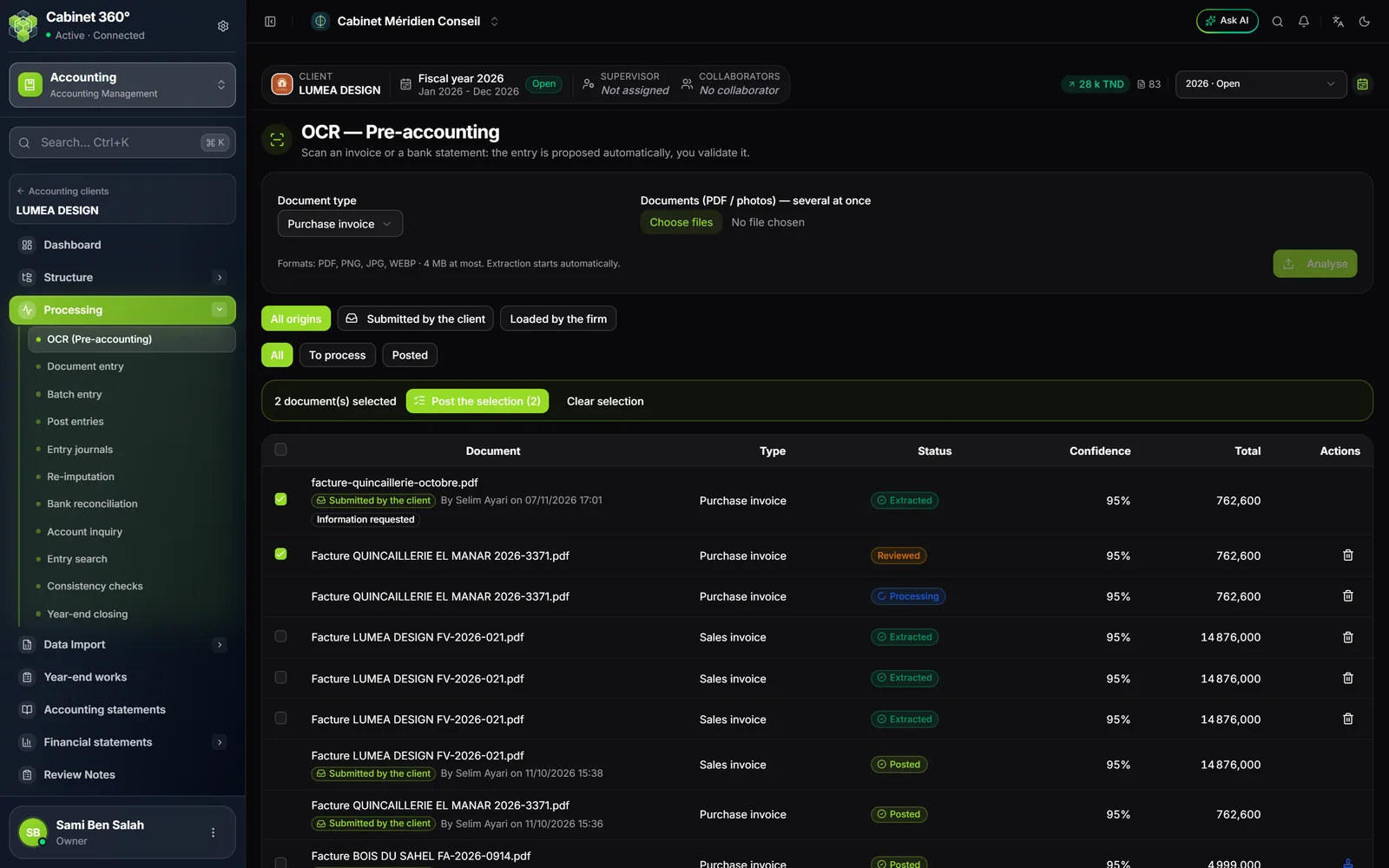
Each document moves from one status to the next:
| Status | What it means |
|---|---|
| Pending | The document is waiting to be read |
| Processing | The reading is under way |
| Extracted | Read: ready to check |
| Reviewed | You have corrected the fields read |
| Posted | The entry is in its journal, validated and numbered |
| Failed | The reading failed: the screen gives the reason and offers Retry |
A few seconds are enough for an invoice. A long statement is read in parts at the same time (“Reading: 2 of 4 part(s)”): allow up to a minute. The filters All origins, Submitted by the client, Loaded by the firm, then All, To process and Posted sort the inbox.
Checking and posting an entry
Click a line. The scan shows on the left; on the right, Fields read (type, third party, invoice no., date, totals) and the Proposed entry.
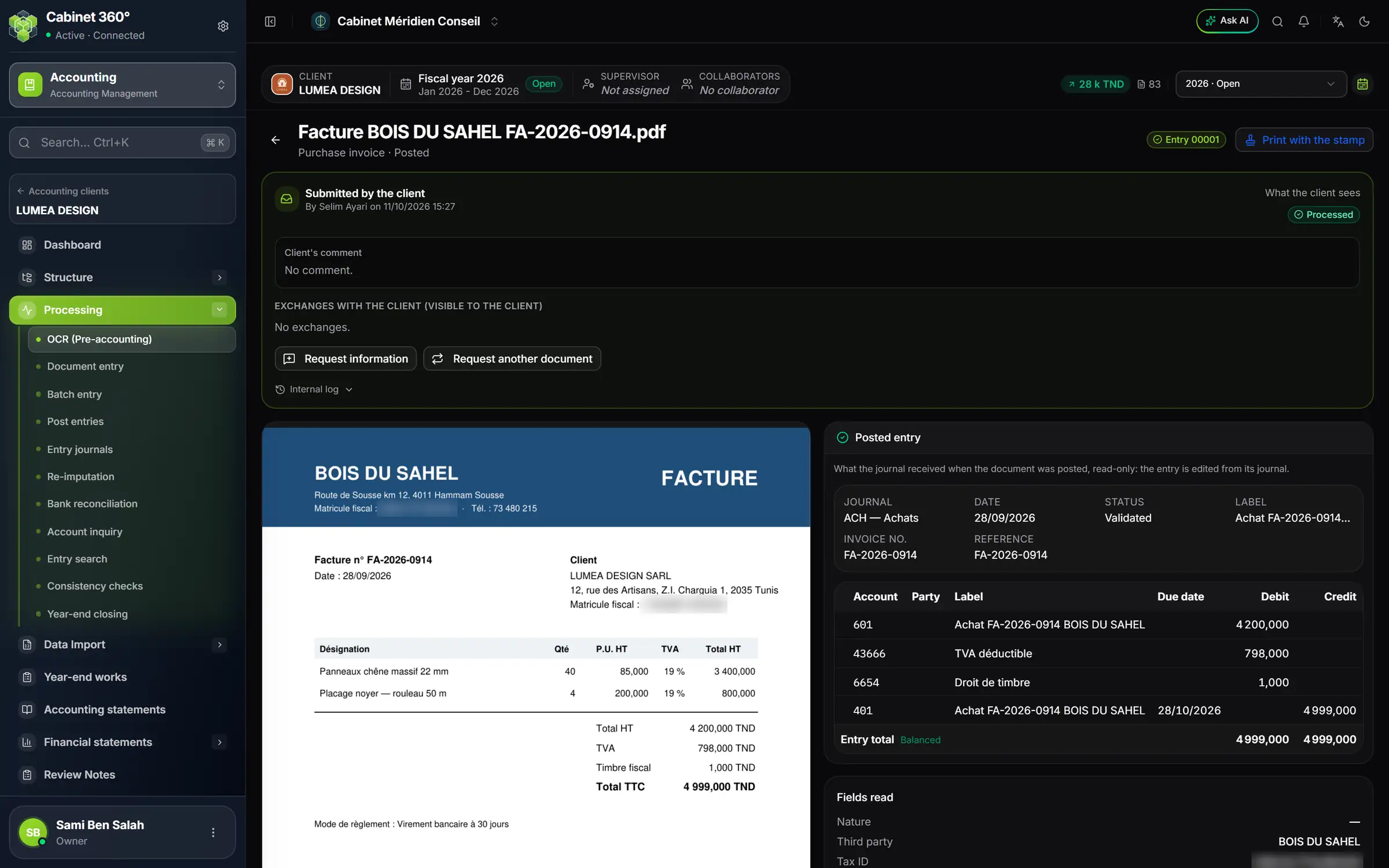
- 1. Submitted by the client: who deposited it, and when.
- 2. What the client sees: the status shown on their portal.
- 3. Request information or Request another document: a message the client reads on their portal.
- 4. The entry number received at posting.
- 5. Print with the stamp: the scan comes out marked “COMPTABILISÉ”.
- 6. The scan: it also becomes the entry's image in the journal.
- 7. Posted entry: the entry as the journal received it, read-only.
- 8. Fields read: what the reading found on the document.
- Read the Fields read. A warning sign marks an uncertain reading. Click Correct, fix it, then click Save corrections: the proposed entry is recalculated.
- Check the Nature: Invoice, Credit note or Other document. A credit note is proposed in the opposite direction to an invoice (same accounts, debit and credit swapped) and carries a warning.
- Check the grid, which must be Balanced. As long as it is not, Post stays greyed and the screen gives the difference.
- Choose the Fiscal year and the Journal. If the third party does not exist yet, tick Create the third party (supplier/customer) if it does not exist.
- Click Post. The message gives the number: “Voucher validated: ACH 00012 — copy this number onto the paper document.”
The document can then be read but no longer edited: Posted entry shows the entry as the journal received it. It is corrected from its journal (chapter 4). The scan becomes the entry's image: the ledger's eye shows it.
A scanned bank statement
For a statement, each movement becomes an entry. The Accounts to choose box, above the grid, lists the groups of movements, for example “COMMISSION” and “70 movements · 70,000”. Type the group's New description and click Apply; choose the account just once: it goes on each empty counterpart of the group (“Account 6278000 set on 70 lines “COMMISSION”.”), with Undo. As for the Excel statement (chapter 7), the choices are remembered and come back in green on the next statement; an allocation rule proposes an account in blue when nothing is remembered.
The statement is checked: opening balance + credits − debits = closing balance. If it does not add up, the screen shows “Inconsistent balance” and names, when it can, the movement probably read on the wrong side. The movements are numbered in the order of their dates.
Posting a whole batch
Tick the documents in the inbox, click Post the selection (N), choose the journal, then Post. Only safe entries go through: a proposal with no warning, a balanced entry, a date read and inside the fiscal year, no probable duplicate, no client deposit. They are numbered in the order of their dates. The others stay in the inbox: the summary lists them under Held back, with their reason and an Open link.
The COMPTABILISÉ stamp
Print with the stamp (the blue icon at the end of the line, or Print with the stamp (N) for a selection) prints the scan with a blue COMPTABILISÉ stamp (posted), the journal code and the number, for example “ACH - N° 000012”. The original file is never changed.
Client deposits
A client can deposit their purchase and sales invoices from their portal. They reach their file's OCR inbox, marked Submitted by the client. Nothing is posted without the firm.
Deposits are opened client by client, with the switch Allow accounting document submission, on the list of portal clients or on the client's record. They only work with the “Client Portal” and “Accounting” subscriptions, an active client who has the Bookkeeping service and an open accounting file: otherwise the switch says Allowed but not operative, with the reason.
On arrival, the file's team receives a notification: “Documents déposés par …” (documents deposited by …). On the document, the Submitted by the client block shows the client's comment, the Exchanges with the client (visible to the client) and the status they read on their portal (Received, Being analysed, To be checked by the firm, Action needed, Processed…).
| Button | When | What it does |
|---|---|---|
| Request information | Deposit open | A message to the client, with an optional date |
| Request another document | Deposit open | The client deposits a replacement document |
| Withdraw request | Waiting for the client | Withdraws the current request |
| Not retained | As long as nothing is posted | Sets the deposit aside; the client reads the reason |
A deposit is never deleted: it is classed Not retained. A deposit replaced by the client can no longer be posted: the replacement document is posted instead. The Internal log, which unfolds under the exchanges, keeps the deposit's history and is never visible to the client. The book “Client Portal” shows the same deposit from the client's side.