
Consistency checks
The checks pass the fiscal year's entries through the OECT controls: the same engine as the audit engagement. They change nothing: they flag. This screen is shown in French in every language for now.
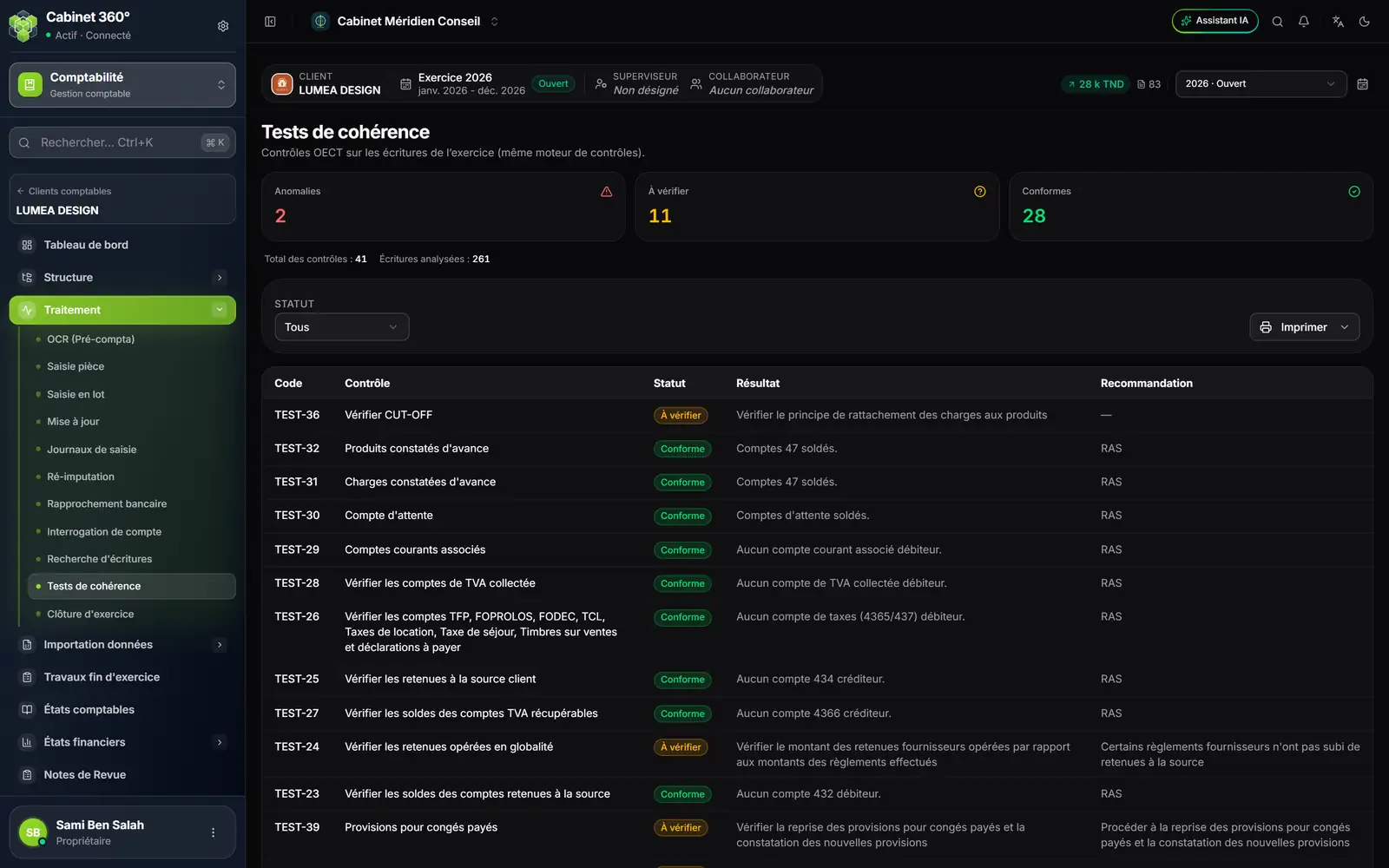
- 1. Anomalies: what must be corrected.
- 2. À vérifier (to check): a judgement control, to look at by hand.
- 3. Conformes (compliant): nothing to do.
- 4. Statut (status): filters the screen; the printout always carries every check.
- 5. Imprimer (print): PDF or Excel.
- 6. The status of each control, its result and the recommendation.
| Status | What it means |
|---|---|
| Anomalie (anomaly) | The result names the accounts or amounts found; the recommendation says what to correct |
| À vérifier (to check) | A control that calls for your judgement: accruals principle, provisions… |
| Conforme (compliant) | Nothing to correct; the recommendation says “RAS” (nothing to report) |
A few controls among others: legal reserve and its ceiling, excess depreciation of fixed assets, opening and closing stock, suppliers in debit, doubtful customers, balances of the VAT accounts, suspense account, prepaid expenses and deferred income, cash in credit, internal transfers, revenue in debit, opening balance.
Three controls look further than the balance:
- Solde du relevé bancaire = solde comptable du mois (relevés lus par OCR) (statement balance = the month's book balance, statements read by OCR): for each statement read by OCR and posted, the closing balance is compared with that of the bank account at the end of the same month;
- Encaissements en espèces de 5 000 DT ou plus portés sur l'annexe VI de la déclaration de l'employeur (cash receipts of 5 000 DT or more reported in annex VI of the employer's return): their total is compared with the sales paid in cash in annex VI of the same year;
- Paiements en espèces de 5 000 DT ou plus (risque de pénalité de 8 %) (cash payments of 5 000 DT or more, risk of an 8 % penalty): each payment of that amount is listed, with the penalty incurred.
Withdrawals and deposits between the bank and the cash register do not count in the cash controls.
Review notes
A review note is a remark from management to a file's team: a missing supporting document, a bank to reconcile, a provision to calculate. It carries a status, Not handled or Handled, and a comment thread.
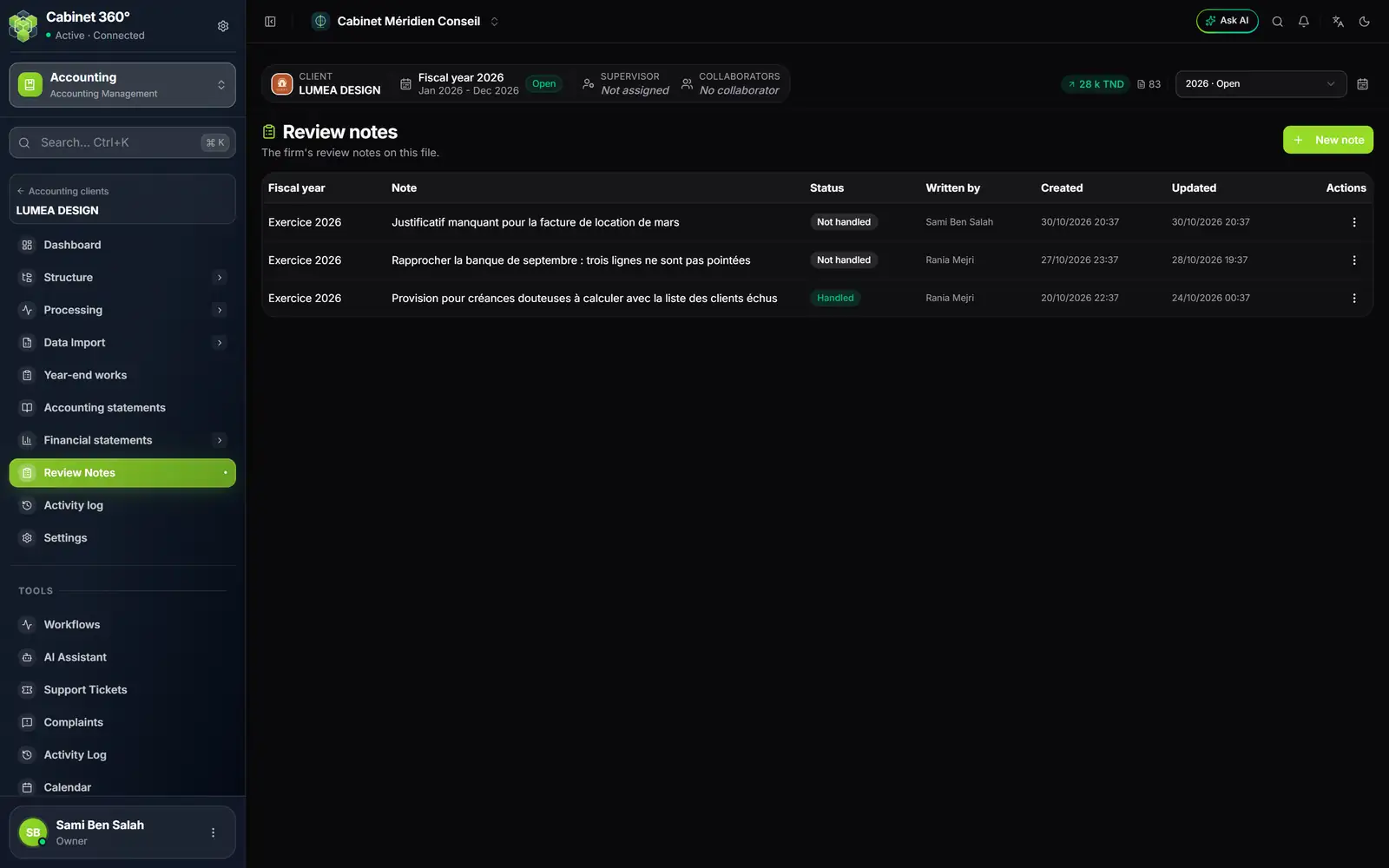
- 1. New note: on the fiscal year chosen in the file's bar.
- 2. The note: the text of the remark.
- 3. The status: Not handled or Handled.
- 4. Written by, then the creation date and the last update.
- 5. The row's menu: update, mark as handled, delete.
- Click New note. The New review note window takes the file and the fiscal year; write the Note, then click Write the note.
- To answer, click the row: the Update the review note window opens. Type in Add a comment… and press Enter. Each comment keeps its author, its date and its time.
- When it is settled, tick Handled (supervisor) and click Save, or choose Mark as handled in the row's menu.
In a file, the page lists all its notes, all fiscal years together. The module menu also has its Review notes page: the administrator reads the notes of every file there, with filters by file, by fiscal year and by status, and can write a note on the Whole file, without a fiscal year. Another user first chooses a file there, then a fiscal year.
Notes not handled also show on the file's dashboard (Review Notes In Progress) and count in the Open review notes indicator of the firm's dashboard.
The activity log
The activity log tells who entered, edited, deleted, imported, matched or closed, and when. Nobody can edit or erase a line of it. Each deleted entry keeps its lines there: it explains the gap left in its journal's numbering.
It records entries created, edited or deleted, imports (one summary line per import or per wizard), Sage synchronisations, images added or deleted, each match, pre-match and unmatch, re-imputations and recodings, structure imports, closing, reopening and carry-forward, and the records of the year-end works. An operation that was refused or cancelled leaves no trace.
- Set the filters: Period (From … to), User, Action type, Journal and Search (summary, entry no., user). Clear filters resets them.
- The Deleted entries button shows only the deletions.
- Show details unfolds a line: the entry's lines, the before and after of each field changed, the old and the new code.
- Export gives the selection in Excel or in PDF, 20 000 lines at most.