
The firm's dashboard
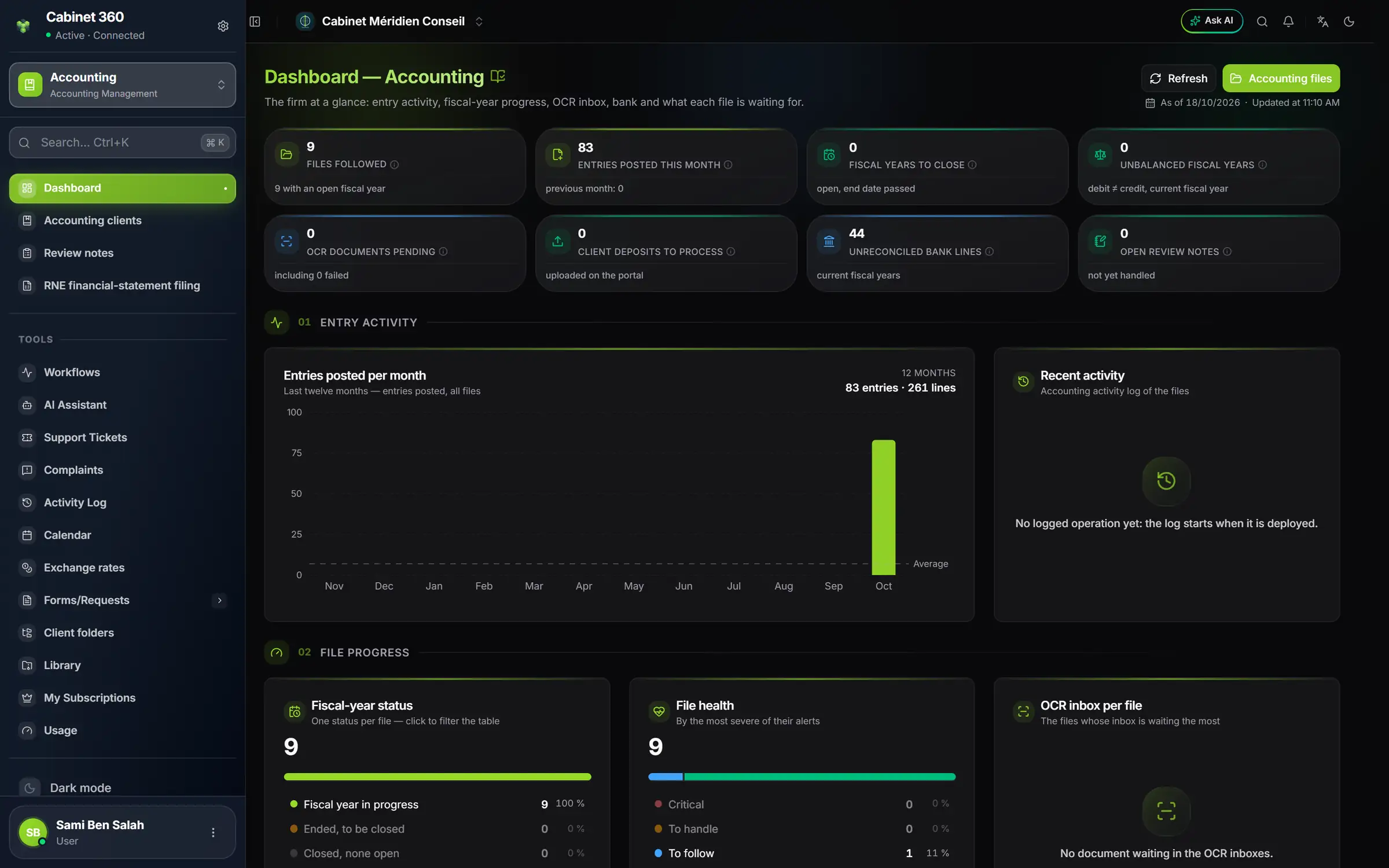
- 1. Refresh and the time of the calculation: “As of … · Updated at …”.
- 2. The eight indicators: a click filters the list of files, or leads to the entry activity.
- 3. OCR documents pending and Client deposits to process.
- 4. Unreconciled bank lines and Open review notes.
- 5. Entries posted per month, over twelve months, all files.
- 6. Recent activity: the latest operations from the activity logs.
- 7. Fiscal-year status: in progress, ended, closed.
- 8. File health: Critical, To handle, To follow.
The dashboard counts the module's files: the clients that have bookkeeping, neither inactive nor deleted. A staff accountant only sees the files assigned to them. The figures are recalculated at most every three minutes; Refresh forces a new calculation.
| Indicator | What it counts |
|---|---|
| Files followed | The files, including those that have an open fiscal year |
| Entries posted this month | The entries created this month, entry, imports and OCR included, compared with the previous month |
| Fiscal years to close | The open fiscal years whose end date has passed |
| Unbalanced fiscal years | The files whose current fiscal year has a debit different from the credit |
| OCR documents pending | The documents to read, to post or in failure |
| Client deposits to process | The portal deposits not yet posted |
| Unreconciled bank lines | The lines of the bank accounts with no reconciliation |
| Open review notes | The notes not yet handled |
Further down, the page reads in four parts: 01 Entry activity, 02 File progress (with the OCR inbox per file), 03 To do and shortcuts (each line of To do opens the screen that solves it; Shortcuts leads, for a chosen file, to entry, import, the OCR inbox or the reports), and 04 Files, the table of every file: alerts, current fiscal year, last entry, bank, matching, balance. Export (Excel) exports this table.
Configuring a client's file
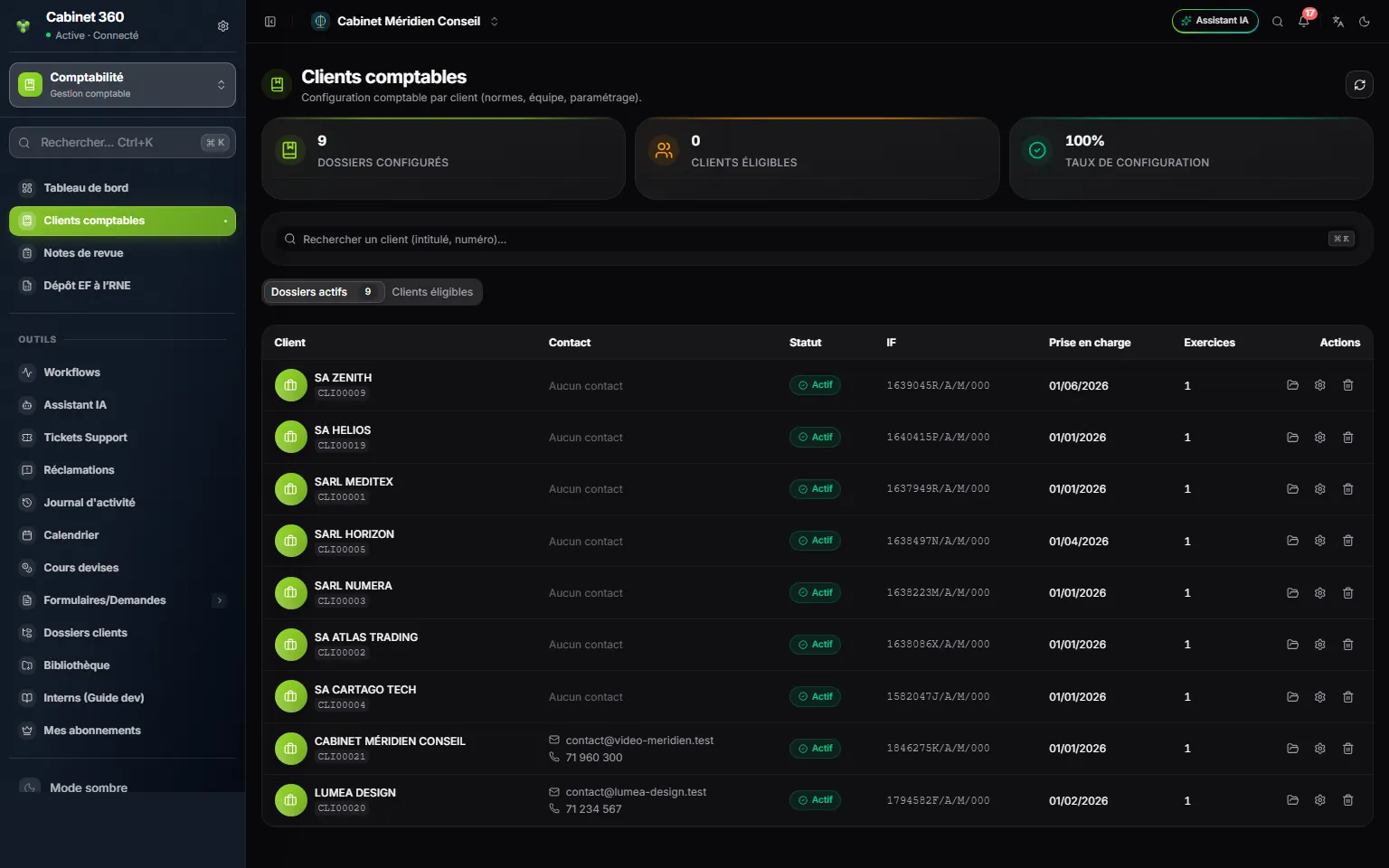
- 1. Configured files, Eligible clients and the configuration rate.
- 2. The search, by name or by number.
- 3. Active files: the files already opened. A click on a row opens the file.
- 4. Eligible clients: the clients ready to be followed, each with Configure.
- 5. The row's actions: open the file, its record, delete it.
A client becomes eligible when their record carries Bookkeeping in its Active services; a tax ID that needs correcting is flagged there and must be fixed before configuring. The Eligible clients tab is for the administrator, for agents whose position is Engagement lead, Supervisor, Manager or Partner, and for anyone who supervises at least one file.
- In Eligible clients, click Configure on the client's row. If the button reads Tax ID to correct, the client record opens first.
- In the Accounting configuration section, check the proposed sizes (General account digits 6, Customer account digits 6) and the closing on 31/12, then enter the Onboarding date.
- In Team, tick at least one Supervisor and at least one Staff accountant.
- In Conventions and accepted accounting principles, tick at least one principle: the bundle only quotes what is ticked here.
- Click Configure, at the top of the page. The message “File created” appears.
The first fiscal year
Go back to Active files and click the client's row. The Select a fiscal year window says “No fiscal year for this dossier. Create one to get started.” Click New fiscal year and enter the Start (for example 01/01/2026): the End fills in by itself with the file's closing date, and the label is given automatically, “Fiscal year 2026”. Click Save: you are in the file's workspace, on the fiscal years page.
After that, a click on the client's row opens Select a fiscal year: choose the fiscal year you want. The following fiscal years are created at closing (chapter 12).
The file's record
The Settings entry of the file's menu reopens its record. Edit saves it and leads back to the list of files, on the file's row. The record has three tabs.
General
Its sections unfold with a click on their title, one at a time:
| Section | What it sets |
|---|---|
| Company presentation | The client's logo (saved at once) and the text printed as note A of the bundle |
| Accounting configuration | Account sizes and prefixes, currency, Standards applied, FS template, Template type, onboarding date, closing day and month |
| VAT prorata | Read-only: whether the client is liable to VAT and each fiscal year's prorata, as their tax record decides |
| Team | The supervisors (the first one ticked is marked Lead) and the staff accountants |
| Conventions and accepted accounting principles | The bundle's paragraphs on the accounting framework and methods |
| Client bank accounts | The client's bank accounts: bank, RIB, currency |
Data import settings
At the top, the switch The client works with third-party accounts, on Yes by default. On No, no entry requires a third-party account any more: the general account is enough, and the third-party chart, the third-party mapping and the reports by third party leave the menus. You can switch back to Yes at any time; past entries keep their third party.
Below, one section per import family: Supplier withholding taxes, Client withholding taxes, Collections, Disbursements, Cash (the Receipts journal code and the Expenses journal code), Financings and Taxation (the Corporate tax rate (tax computation)). Sales and purchases are set in Data Import › 1. Import settings instead (chapter 6). The + of a field creates the missing account or journal, without leaving the record.
Profitability
The tab only appears to the firm's owner and administrators: it shows each staff member's daily cost.
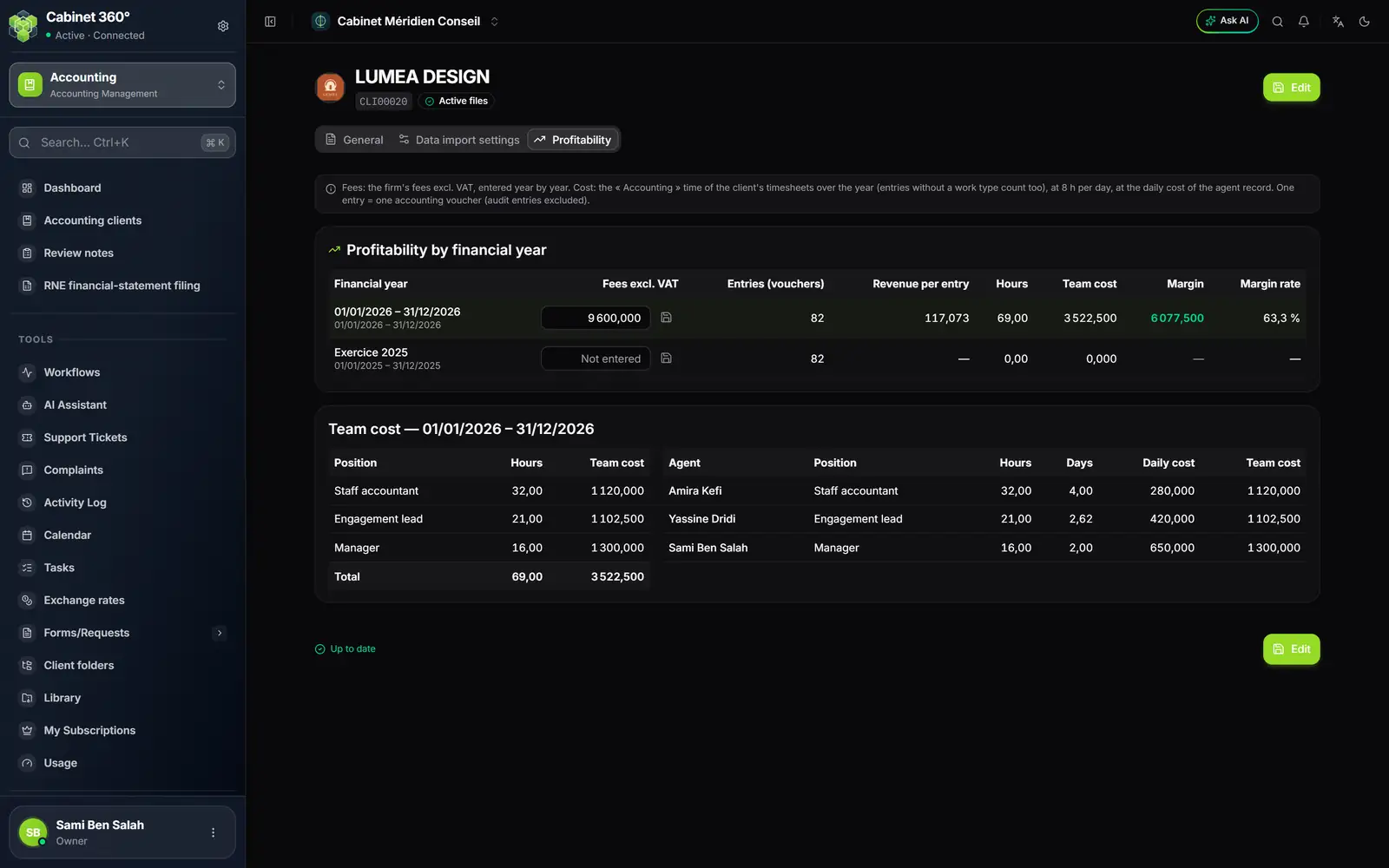
- 1. Profitability: the record's third tab.
- 2. Fees excl. VAT: the fiscal year's fees, typed by hand.
- 3. Margin and Margin rate: fees minus the team's cost.
- 4. Team cost: by position, then by agent.
One row per fiscal year: Fees excl. VAT (type them, then press Enter), Entries (vouchers), Revenue per entry, Hours, Team cost, Margin (in red when negative) and Margin rate. The cost comes from the timesheets: the time of type Accounting entered on this client during the fiscal year, at 8 hours a day, at the Daily cost on each agent's record.
The file's bar
It stays at the top of every screen of the file (see the screen in chapter 1):
- the client, with their logo;
- the fiscal year, its period (for example January to December 2026) and its status Open or Closed;
- the team, depending on who reads: the owner and the administrators see supervisors and staff accountants; a supervisor of the file sees the staff accountants; a staff accountant does not see the team. A missing name shows as “Not assigned” or “No collaborator”;
- the result of the fiscal year (class 7 income minus class 6 expenses), in green or in red, and the number of entries;
- the fiscal-year selector: the fiscal year chosen applies to every screen of the file;
- the calendar icon, which opens the fiscal years page.
On a closed fiscal year, a banner under the bar says so: “Fiscal year closed. Viewing, account inquiry, printing and financial statements remain available; no entry and no correction of journal entries.”
The file's dashboard
Dashboard, at the top of the file's menu, gives for the chosen fiscal year the Entries count and the Revenue/Entry, the Expenses & Revenue Trend month by month, the Accounting Balance (Total Expenses, Total Revenue, Result and its margin), the Entries by Journal and Month grid, the Summary by Journal and the Review Notes In Progress, with See all. The grid by journal and by month shows a forgotten month at a glance.