
The path of the imports
Data Import unfolds into two entries, in the order of the work:
- 1. Import settings: the accounts and journals of each wizard, set once for the file;
- 2. Imports: the tile page, one tile per import.
Both pages carry the same tabs at the top: you go from one to the other without the menu.
Every import template (the workbook you fill in) has its column headers in French, in every language: keep them as they are. This chapter gives each header in French, then its meaning.
Import settings
- Sales: the Local sales card (Journal code, Customer account (incl. VAT), Stamp duty account), the Revenue lines (one per template column, each with its Rate and its Account), the Output VAT of each rate used, the Taxes and disbursements to switch on (FODEC, tourist tax, car rental tax, disbursements), then the Export sales card.
- Purchases: the Local purchases card (Journal code, Supplier account (incl. VAT), Stamp duty account, Recoverable VAT account) and the Foreign purchases card, each with its Purchase types: one line per template column, each on its own account.
- Other templates: withholding taxes, receipts, disbursements and cash are set on the file's record. Their Configure card opens it in a new tab, on the right section; saving it closes the tab.
Under each card, Template columns shows the headers of the file's import template. Click Save.
Imports
| Tile | What it imports |
|---|---|
| Entry import | The entries of a CSV or Excel file, validated as soon as they are imported |
| Bank Statements | Bank statements in Excel or CSV, or read by OCR (chapter 7) |
| Sales | Sales invoices, checked then posted to the sales journal |
| Purchases | Local and foreign purchase invoices, in two tabs |
| Cash | Cash receipts and expenses |
| Withholding Tax | The withholdings of suppliers and of customers |
| Receipts, Disbursements | Payments received from customers, paid to suppliers |
| Internal transfers | Clearing a 58… account by reversing its entries, then matching them |
| Prior-year general balance, Prior-year subsidiary balance | The previous fiscal year's balance, for the comparison |
In the firm's own accounting file, the Entries import tile is added at the top as soon as Accounting integration is in service; it turns red when generated entries are waiting (see further down).
Each wizard carries a Settings button: it opens in a window the settings this import reads, or the third-party chart, the chart of accounts, the journal codes. The import in progress stays underneath. Once everything is posted, the screen returns to the tile page by itself; Back to Data Import leads there at any time.
Sales
The Sales wizard reads a workbook of sales invoices. It handles, as you choose, Local sales (in dinars) or Export sales (in currencies). It asks for no account: it takes those of the sales settings. If one is missing, a red Sales settings incomplete banner names it; Open the sales settings opens them in a new tab, and Check again rereads the settings once completed.
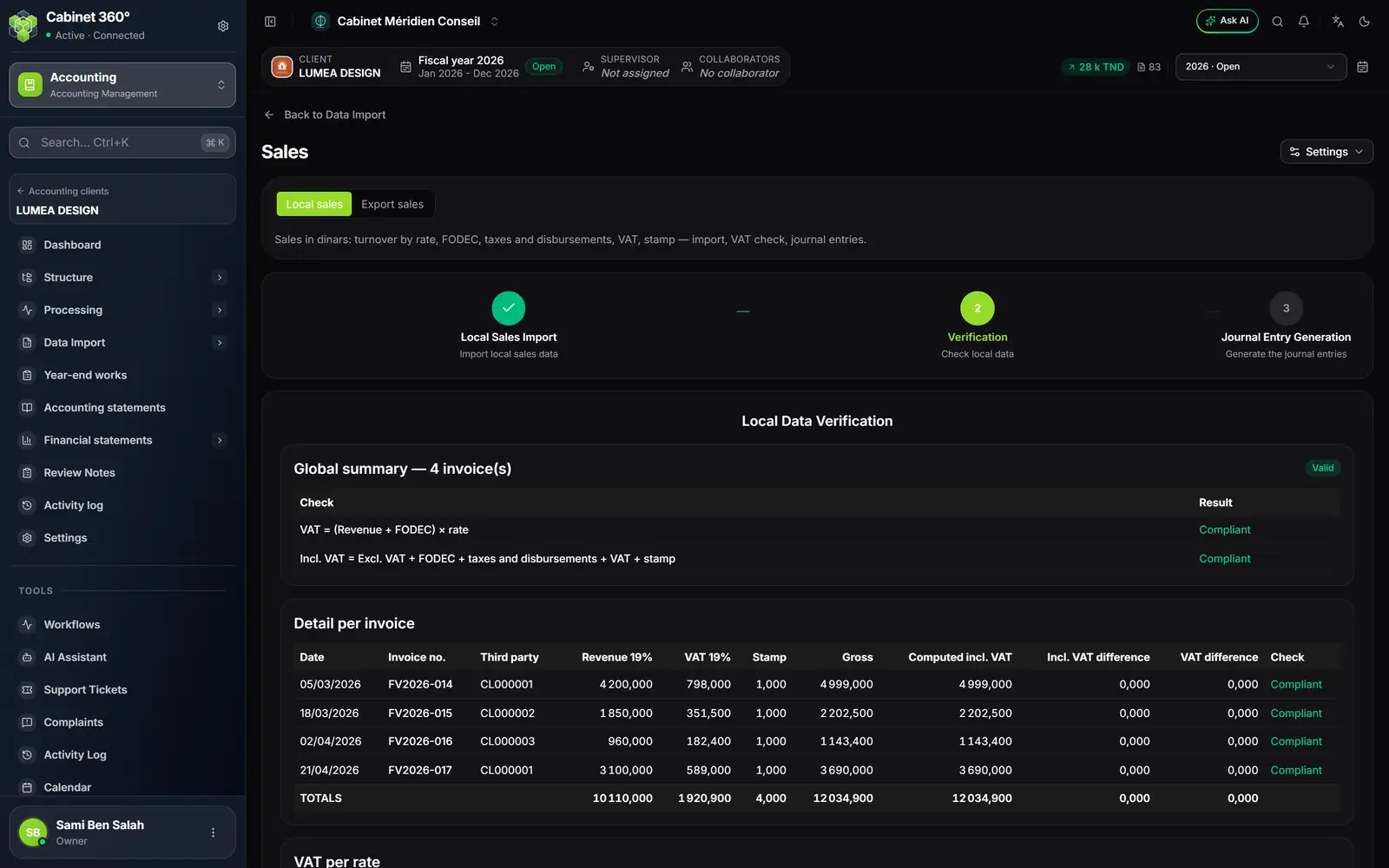
- 1. Local sales or Export sales: two processes, each with its template.
- 2. Settings: the sales settings or the third-party chart, in a window.
- 3. The three steps: import, verification, generation of the entries.
- 4. The checks: VAT = (revenue + FODEC) × rate, and gross = net + FODEC + taxes and disbursements + VAT + stamp.
- 5. The badge: Valid, or Discrepancies.
- 6. The detail per invoice: each template column, the computed gross and the differences.
- At the Local Sales Import step, click Export template. The template carries the columns of the file's settings: Date, N°Facture, Tiers, one column per revenue line (CA 19%, CA 7%…), the taxes switched on (FODEC, Taxe de séjour, Taxe location voiture, Débours), the VAT of the rates used, Timbre, TTC, Échéance (date, invoice no., third party, revenue at 19 %, at 7 %, FODEC, tourist tax, car rental tax, disbursements, VAT, stamp, gross, due date). Fill in one line per invoice, then click Import file.
- At the Verification step, read the Checks table and the Valid or Discrepancies badge. The Detail per invoice shows the Computed incl. VAT, the Incl. VAT difference and the VAT difference of each invoice.
- At the Journal Entry Generation step, the preview of the entries is generated. Read the Pre-generation checks: a single failed check blocks everything, and What blocks the generation names each failure, with a link to the place to correct.
- If the file covers several months, choose the Month to generate: one month at a time.
- Click Post entries. The message gives the summary, for example “12 validated voucher(s) · 60 line(s)”.
Export sales have their own second step, Exchange Rate: enter the rate of each sale, or one rate for all the sales in the same currency. No VAT and no FODEC on exports.
Labels always follow the same pattern, written in French: “Facture N° F001” for the customer and the revenue, then “TVA/ Facture N° F001”, “Timbre/facture N° F001”… One rate can be split over several revenue accounts: add a line with a Label in the settings (“Ventes pièces”); the template then gets a column “CA 19% — Ventes pièces”.
Purchases
The Purchases screen has two tabs: Local purchases for invoices in dinars, Foreign purchases for those in currencies. Switching from one to the other loses nothing.
- Local purchases: the template carries Date, N°Facture (the supplier's number, which becomes the Document no. of the entries), Référence (your own number, optional), Tiers (third party), Achat HT (net purchase) and one column per purchase type, TVA, Timbre, TTC, Échéance (VAT, stamp, gross, due date). At the Allocation step, each invoice shows the General account from the settings, which can be changed invoice by invoice or for a whole supplier. FODEC is counted in Achat HT, and TVA is an amount.
- Foreign purchases: the template carries CA Import (en devises) (amount in currency), the Devise (currency), the Cours (rate) and the TTC (TND) (gross in dinars), the last two optional. At the Exchange rate assignment step, each purchase has its Rate, with six decimals at most: the file's, otherwise the BCT's for the day of the operation or for the first publication after it. The Source column says so: “File”, “BCT of 25/05/2026” or “Entered”. The amount posted is the net in currency × the rate.
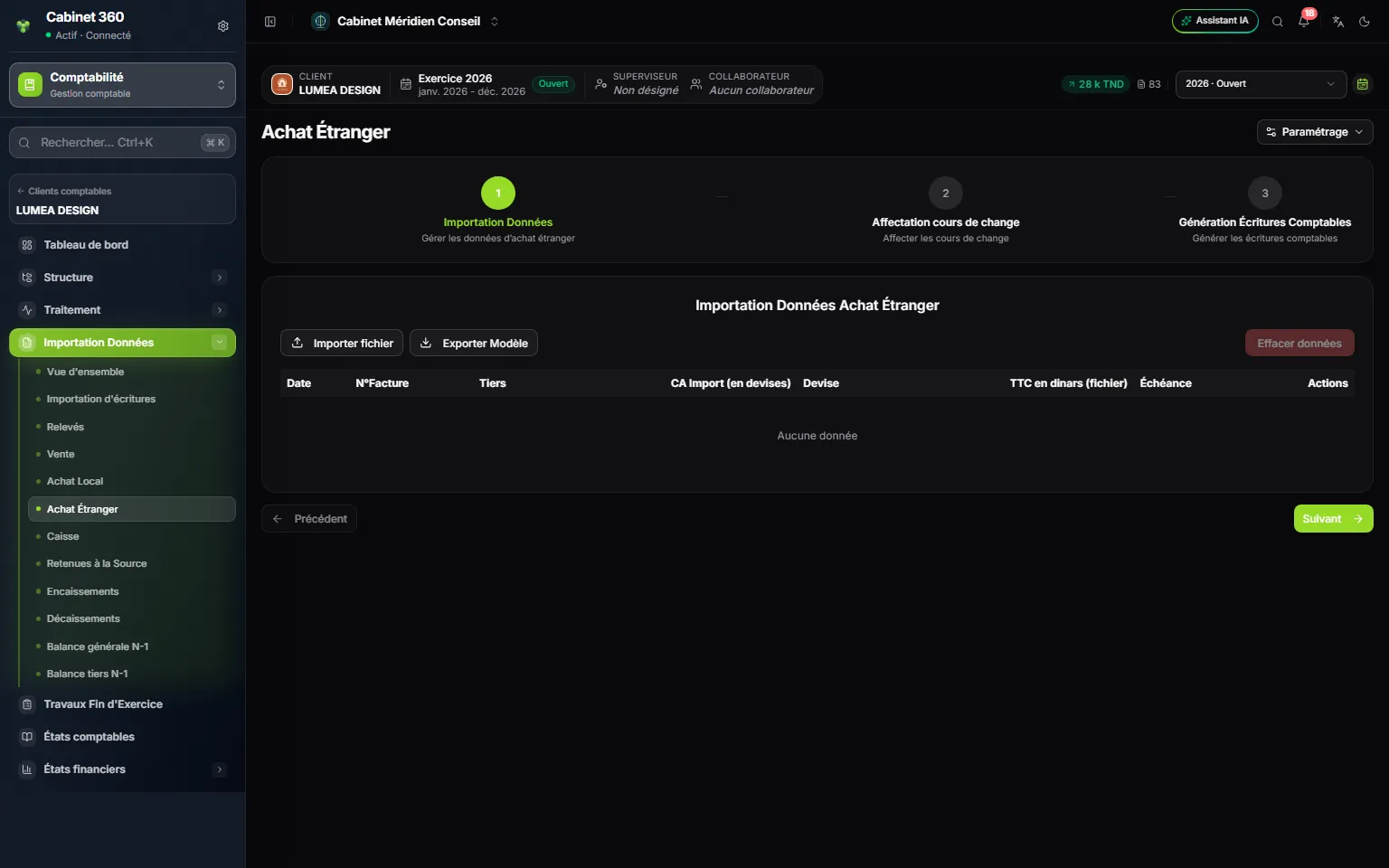
- 1. Data Import: the file of the invoices in currencies.
- 2. Exchange rate assignment: the rate of each purchase, proposed by the BCT.
- 3. Import file and Export template.
- 4. The columns: amount in currency, currency, gross in dinars, due date.
A credit note in a file
Write the credit note on its own line, with its own number, and all its amounts negative: revenue or purchase, VAT, taxes, TTC (gross), and the Timbre (stamp) if there is one. Its entry is the invoice's, reversed, under the label “Avoir N° …”. A line that mixes positive and negative amounts is refused: the Signes des montants check (signs of the amounts) names it.
A third party missing from the third-party chart
A customer or supplier code in the file that the third-party chart does not know triggers, before anything goes in, the question “Third-party account “F001” does not exist — do you want to create it?”. Yes — create it opens the New third party record already filled in (the file's code, the type, the collective account from the settings): enter the Name and save; the import continues. No — ignore the import abandons the file. The question applies to sales, purchases, withholdings, receipts, disbursements and cash receipts.
Cash
Two tabs: Receipts (money that came into the cash register) and Expenses (money that left it). Each one posts its entries to its own journal, set on the file's record: Receipts journal code and Expenses journal code. Each journal must be an active cash journal, with its cash account (54…) as counterpart. Otherwise, a red Cash settings incomplete banner blocks the import and names what is missing.
- The receipts template carries Date, Référence, Compte général, Code tiers, Libellé, Montant (date, reference, general account, third-party code, label, amount); the expenses template, the same columns without the third-party code.
- The account comes from the file: a line without an account is refused, never guessed.
- Each operation becomes a two-line entry: for a receipt, the cash account on the debit and the file's account on the credit; for an expense, the reverse.
Withholding taxes
Two tabs, each with its own journal and accounts, set on the file's record:
- Supplier withholdings: the withholdings the client makes on their suppliers. The template carries Date, Référence, Code Tiers, Montant Brut, Taux, Retenue (date, reference, third-party code, gross amount, rate, withholding). The Data Check flags a rate outside the scale (1, 3, 10, 15 %) or a withholding different from gross × rate. The entry debits the supplier's collective account and credits the withholding account of its rate.
- Client withholdings: the withholdings customers make on the client, according to their certificates. The template carries Date, Référence, Compte Tiers, Retenue (date, reference, third-party account, withholding). The entry debits the Withholding tax account and credits the customer's account.
Add withholding enters a line by hand: a certificate often arrives on its own, by post.
Receipts and disbursements
Two screens of the same shape, each in two tabs, Cheques and Bills. The template carries Date, Référence, Tiers, Échéance, Montant (date, reference, third party, due date, amount). These screens do not touch the bank: a cheque or a bill received moves the customer's receivable to the Cheque account or the Draft account (on the debit, with the due date), against the customer's account on the credit. Disbursements do the reverse, on the supplier side. The accounts and journals are set on the file's record, sections Collections and Disbursements.
Internal transfers
An internal transfer account (58…) must end up cleared. The wizard clears it in two steps:
- Select entries: choose the Internal transfer account to clear (the list only shows the 58… accounts that carry open entries), if needed a journal and dates, then tick the entries to reverse. Choose the Target journal, a bank or cash journal.
- Generate accounting entries: one entry per entry ticked, the 58… on the opposite side, against the counterpart of the chosen journal. Post entries posts the entries and matches each pair, all or nothing.
Prior-year balances: taking over a file mid-way
You take over a client who kept their books elsewhere: you have their balance from last year, not their entries. Import it: it feeds the prior-year column of the mapping, of the comparative trial balance and of the financial statements.
- Click Import template. The general balance carries Compte général, Intitulé, MVTS débit, MVTS crédit, Solde débiteur, Solde créditeur (general account, name, debit movements, credit movements, debit balance, credit balance); the third-party balance adds Code tiers and Type (third-party code, type).
- Click Import. Nothing is written: the grid fills in. An account missing from the chart triggers “Account … does not exist. Do you want to create it?”.
- Check the grid (a double-click corrects a line), then click Save.
An unbalanced general balance is not saved, and the message gives the difference. As soon as the previous fiscal year carries entries, they are the ones that feed the comparative column: the prior-year tiles turn grey and say so.
Entries generated by your documents
When the firm has put Accounting integration in service (in the firm's settings), the sales invoices and credit notes it validates in Exploitation generate their entries in the firm's own accounting file. In Manual mode, each one waits for your validation; in Automatic mode, only those that could not go through wait.
In that file, Data Import turns red, with a blinking number, and the Entries import tile is added at the top of the imports. The screen lists the Pending entries; Show lines unfolds each one. A No account line is completed with Choose the account…: this choice is kept in the firm's settings and also completes the other pending entries. Tick the entries that are ready and click Validate N entries. The report says, for each one, Validated with its entry number, or Refused with the reason. Reject sets an entry aside; Regenerate recalculates it from its document.
Taking over the entries of another software
This import takes over, in one go, the entries of another software or of a workbook. Each line of the file becomes a line of an entry, filed in its journal. The journals and accounts named must exist in the file, and the fiscal year must be open.
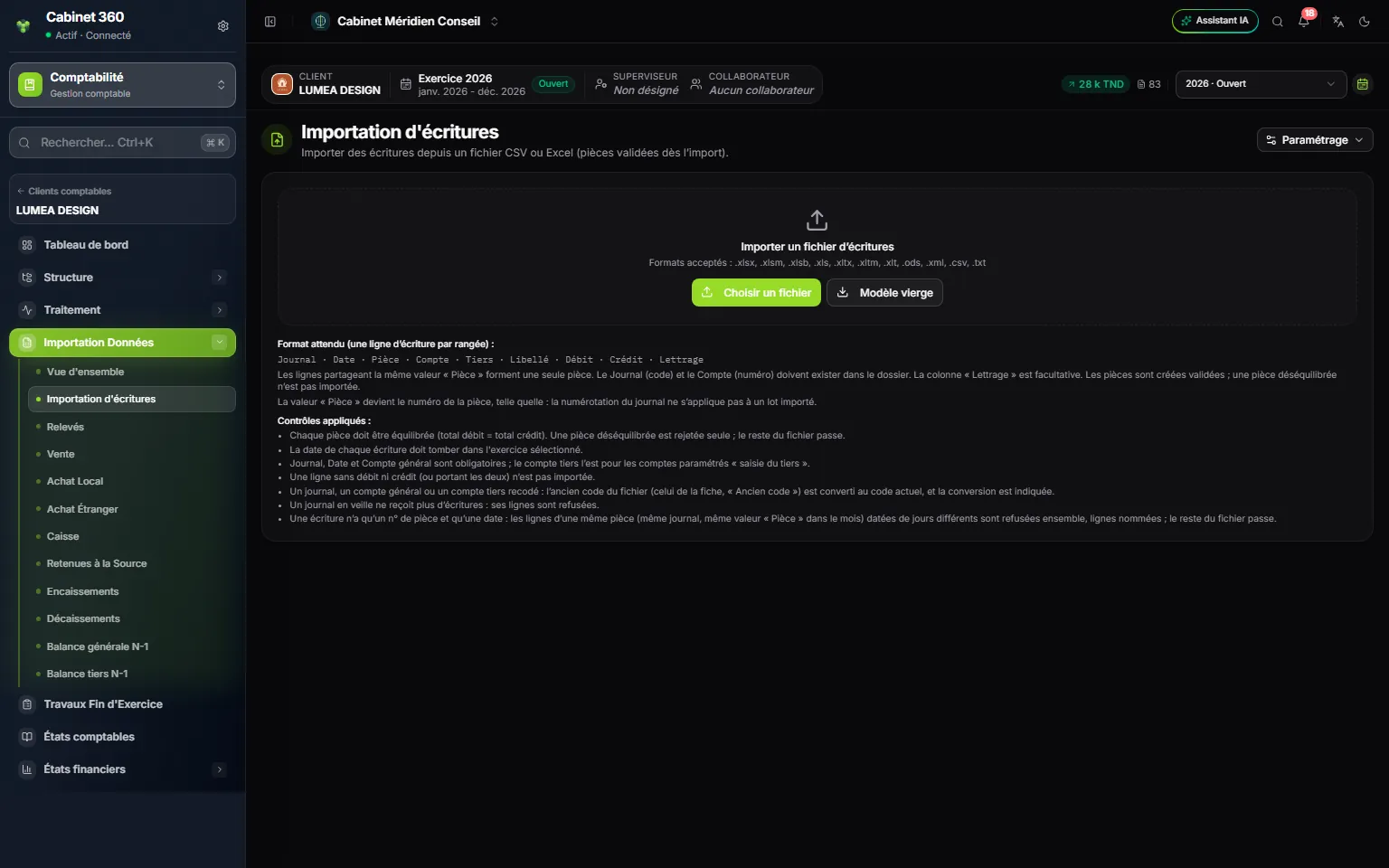
- 1. Choose a file: the import starts at once.
- 2. Blank template: the template workbook.
- 3. The expected format: one entry line per row.
- 4. The checks applied to the file.
- 5. Settings: the chart of accounts, the journals or the third-party chart, in a window.
- Click Blank template. Its columns: Journal, Date, Pièce, Référence, N° document, Compte, Tiers, Libellé, Débit, Crédit, Lettrage, Échéance, Montant devise, Devise and Cours (journal, date, entry number, reference, document no., account, third party, label, debit, credit, matching, due date, amount in currency, currency and rate).
- Fill in one row per entry line. Journal, Date (dd/mm/yyyy, inside the fiscal year), Pièce, Compte and an amount are required. Lines with the same journal and the same entry number, in the same month, form a single entry, which must balance and carry a single date.
- Click Choose a file. The message “Import completed” gives the summary, for example “12 voucher(s), 48 line(s) · 0 error(s)”.
A line dated outside the fiscal year refuses the whole import, and the message names the lines. An unbalanced entry is refused on its own, with its difference, under “Unbalanced vouchers — NOT imported”: the rest of the file goes through. Imported entries are validated at once. Their number is the file's, as it is; entry then continues after the highest number.