
What the module does
Accounting keeps double-entry books for each client company, under the Tunisian chart of accounts. Each client has their accounting file: its chart of accounts, its journals, its fiscal years and all its entries. Several people at the firm work in it, each according to their role.
Documents come in through four doors, which all lead to the same journal:
- entry at the keyboard, one document at a time or in a batch;
- the OCR inbox, which reads a scanned invoice or statement and proposes its entry;
- imports of Excel or CSV files: sales, purchases, cash, withholding taxes, bank statements, entries from another software;
- the client's deposits on their portal, which reach the file's OCR inbox.
At year end, the same entries give the ledgers, the balances, the year-end works, the closing, then the balance sheet, the income statement, the cash-flow statement and the intermediate management balances, and finally the filing of the financial statements with the RNE.
The path of a file
| Step | Where | Chapter |
|---|---|---|
| Open the file and its first fiscal year | Accounting clients | 2 |
| Set up the chart of accounts, the third parties and the journals | Structure | 3 |
| Enter the documents | Processing › Document entry, Batch entry | 4 |
| Post the scanned documents | Processing › OCR (Pre-accounting) | 5 |
| Import the client's files | Data Import | 6, 7 |
| Tick the bank, match the accounts | Bank reconciliation, Account inquiry | 7, 8 |
| Check the file | Consistency checks, Review Notes | 9 |
| Print journals, ledgers and balances | Accounting statements | 10 |
| Post the year-end works | Year-end works | 11 |
| Close and carry forward the opening balances | Processing › Year-end closing | 12 |
| Produce the financial statements | Financial statements | 13 |
| File with the RNE | RNE financial-statement filing | 14 |
Two menus
Open the workspace with the module selector, top left, on Accounting.
While no file is open, the menu is the module's: Dashboard (the firm at a glance), Accounting clients (the list of files), Review notes (the administrator reads the notes of every file there) and RNE financial-statement filing.
As soon as you open a file and choose its fiscal year, the menu becomes the file's. At the top are the client's name and the Accounting clients link, which leads back to the list.
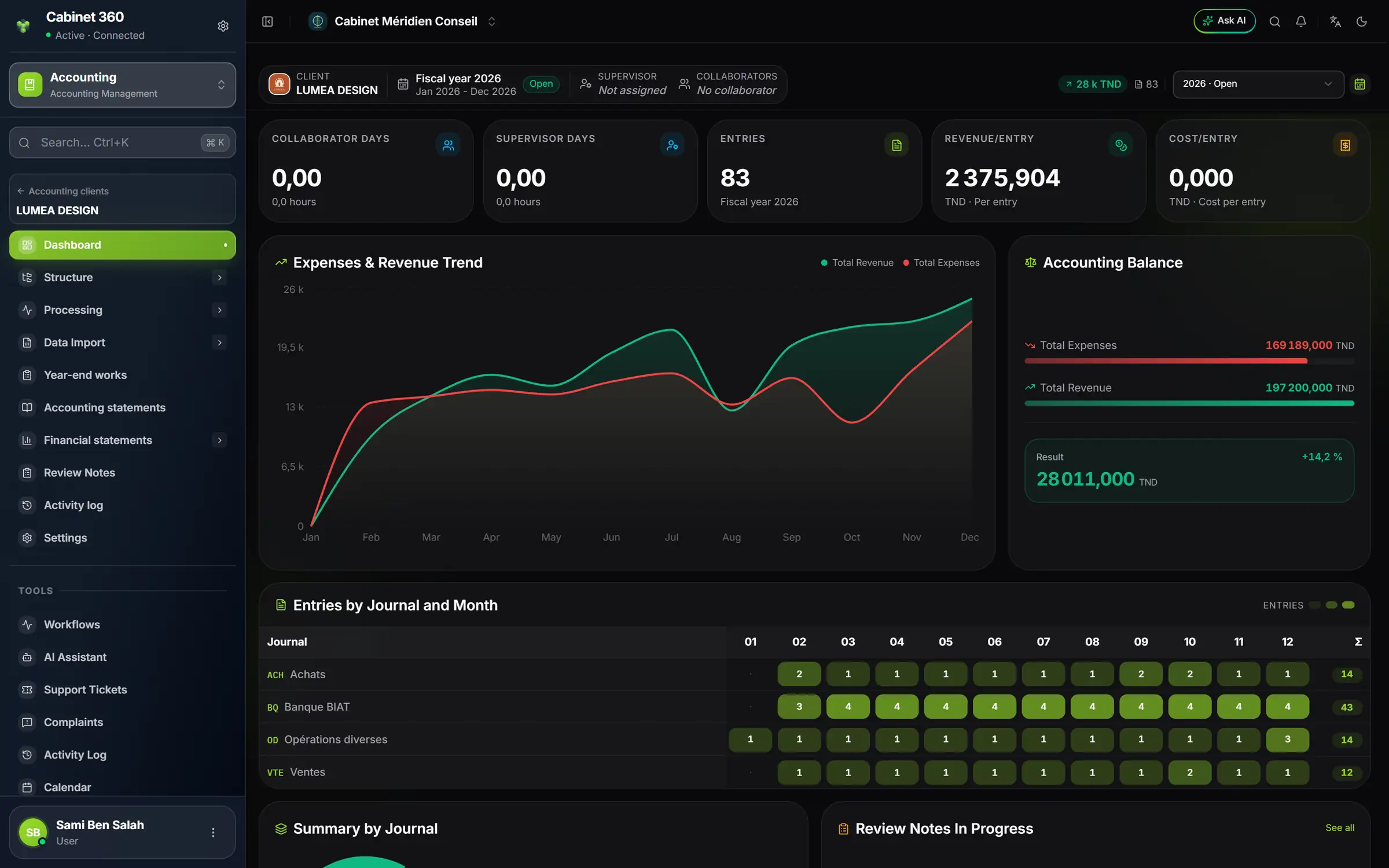
- 1. The file's bar: the client, the fiscal year and its status, the team. It stays at the top of every screen of the file.
- 2. The working fiscal year: every screen of the file uses the fiscal year chosen here.
- 3. The open file: its name, and the link to the list of files.
- 4. Structure: chart of accounts, third parties, journals, templates, fixed assets.
- 5. Processing: OCR, entry, journals, bank, matching, checks, closing.
- 6. Data Import: the import settings, then the imports.
- 7. Accounting statements and Financial statements: what comes out of the file.
- 8. Settings: the file's record.
The file's menu, in order:
- Dashboard: the file's figures for the open fiscal year;
- Structure: Chart of Accounts, Third Parties, Journal Codes, Entry templates, Subscription templates, Asset families, Fixed assets;
- Processing: OCR (Pre-accounting), Document entry, Batch entry, Post entries (the recoding page), Entry journals, Re-imputation, Bank reconciliation, Account inquiry, Entry search, Consistency checks, Year-end closing;
- Data Import: 1. Import settings, then 2. Imports;
- Year-end works, Accounting statements;
- Financial statements: Sub-ledger balance mapping, General balance mapping, Cash-flow mapping, SIG mapping, FS notes, Cash-flow notes, Generate financial statements;
- Review Notes, Activity log, Settings.
Who sees which file
Each file has its team, chosen on its record when the file is opened: at least one supervisor and at least one staff accountant. The position set on each person's agent record decides what they see:
- the owner, the administrators and agents whose position is Supervisor, Manager or Partner see every file of the firm;
- an agent whose position is Staff accountant or Engagement lead only sees the files whose team they belong to. Otherwise, they read “No file is assigned to you.”
What they can do in a file depends on their role's rights, screen by screen (View, Create, Edit, Delete). These rights are set in Rights per screen: see the book “Firm setup”.
The rules that apply everywhere
Amounts are shown in dinars, with three decimals: 1 234 567,890 DT. Dates are written dd/mm/yyyy.