
The Accounting statements page
The page shows one tile per report. Each one carries the PDF and Excel badges; those that can also be read on screen carry Also on screen. Each report covers the fiscal year chosen in the file's bar; the comparative balance and the consistency tests choose their fiscal years in their window.
| Tile | What it produces | On screen |
|---|---|---|
| Journal | The entries by journal and by period, in summary or in detail | — |
| General ledger | The movements of each general account, with their running balance | — |
| Third-party ledger | The movements of each customer or supplier | — |
| Trial balance | The movements and balances of each account, basic or in six columns | Yes |
| Third-party balance | The movements and balances of each third-party account | Yes |
| Comparative balance | The balances of two or three fiscal years, account by account | Yes |
| Consistency tests | Each control, its verdict, what it found and the recommendation | Yes |
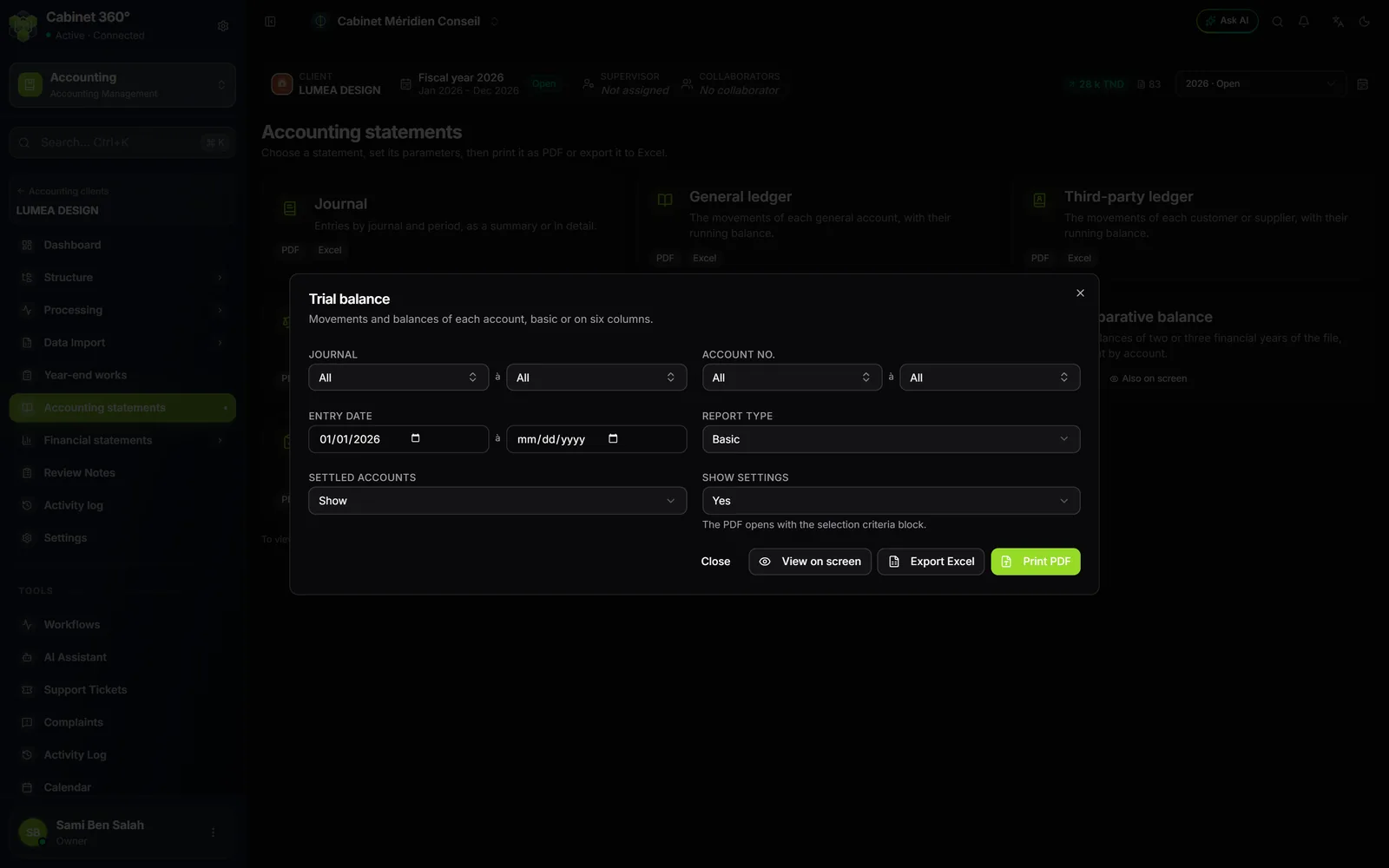
A file without third-party accounts does not have the two third-party tiles. A click on a tile opens its settings window. At the bottom: Close, View on screen (balances and tests), Export Excel and Print PDF. The page remembers each report's last settings: the window takes them up at the next opening.
The journal
Choose the Journal (or All journals), the dates from and to (pre-filled with the fiscal year's limits), then the Layout:
- Summary by period: the number of entries and the totals by journal and by month;
- Entry detail: the journal line by line, in date order.
A journal chosen on its own loses the columns that would repeat it. The Excel workbook of the detailed journal holds 1 000 lines at most, the PDF up to 5 000; a message says so.
The ledgers
The General ledger is set by Journal, Account no. (from… to…), Entry date and Matched. The Third-party ledger replaces the accounts with the Third party (from… to…) and adds a General account. For a single account, choose it in both lists: the end list only offers the start account and those after it. A date outside the fiscal year shows a red message and greys the buttons.
Here, Unmatched only sets aside any line that carries a letter, even a lower-case one. The totals only cover the lines kept. To read an account on screen and open its entries, use Account inquiry (chapter 8).
The balances
The Trial balance is set by Journal, Account no. and Entry date, each with a start and an end. The Report type is Basic, or 6 columns (opening balances, movements, closing balances). Hide, in Settled accounts, removes the accounts whose closing balance is zero.
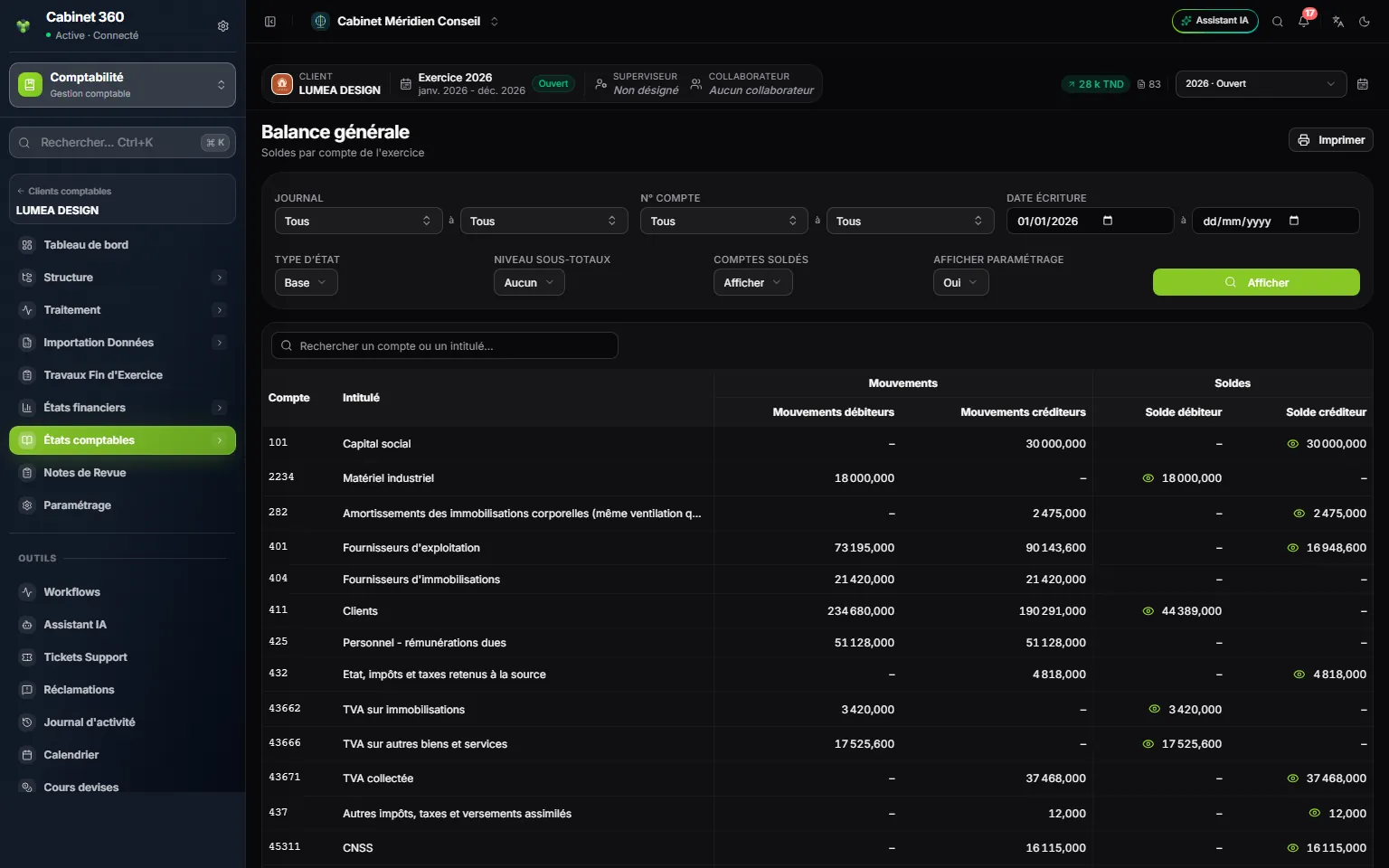
- 1. Report type: Basic or 6 columns.
- 2. Subtotal level: by class, sub-class or account, on screen.
- 3. Settled accounts: show them or hide them.
- 4. Show settings: the criteria block at the top of the PDF, or not.
- 5. Movements: the fiscal year's debit and credit movements.
- 6. Balances: debit and credit.
- 7. The eye opens the account's ledger, within the balance's selection.
- 8. Print: PDF, Excel or CSV.
On screen, the header takes two rows: Movements (debit, credit) and Balances (debit, credit). At the bottom, Trial balance totals is followed by Balance-sheet accounts result and Income-statement accounts result, in green for a profit, in red for a loss.
Next to an account's balance, the eye opens its ledger in a window, with a search field, sorting and Print. It starts with the Opening balance (entries before the period). A settled account has no eye. A search typed in the table only acts on the screen; the PDF takes the whole selection. Back to accounting statements leads back to the tile page.
The Third-party balance is set in the same way, with Partner no.. On screen, the By type level groups customers, suppliers and others.
The comparative balance
Choose Fiscal year N, Fiscal year N-1 and, if needed, Fiscal year N-2 (optional). Each fiscal year has its debit and credit balances, and the Change compares each fiscal year with the previous one. The file needs at least two fiscal years. For a file taken over mid-way, an imported prior-year balance plays the part of the previous fiscal year (chapter 6).
What a printed report carries
Printed reports carry French titles and headings in every language for now.
| Element | Content |
|---|---|
| Title | “Grand Livre Général” (general ledger), “Balance générale” (trial balance), “Journal des écritures” (journal of entries)… |
| Subtitle | The file and the fiscal year |
| Critères de sélection (selection criteria) | The journal, the accounts, the period, when Show settings is on Yes |
| Footer | The file, the title, the fiscal year, and the page number “1/12” |
| Amounts | 1 234 567,890; a zero amount stays blank |
| Format | A4, portrait; landscape for the balance in 6 columns, the comparative balance over three fiscal years and the consistency tests |
A very long report stops at 5 000 lines and says so. Then narrow the selection: one account, one period. A selection with no movement is not an error: “No movement for this selection: nothing to export.”