
Assigning new leads automatically
The Automatic lead assignment page decides who becomes the owner of a lead that arrives without an owner: entered as Unassigned, imported, coming from the website or from a Meta ad. An owner chosen by a person is always kept.
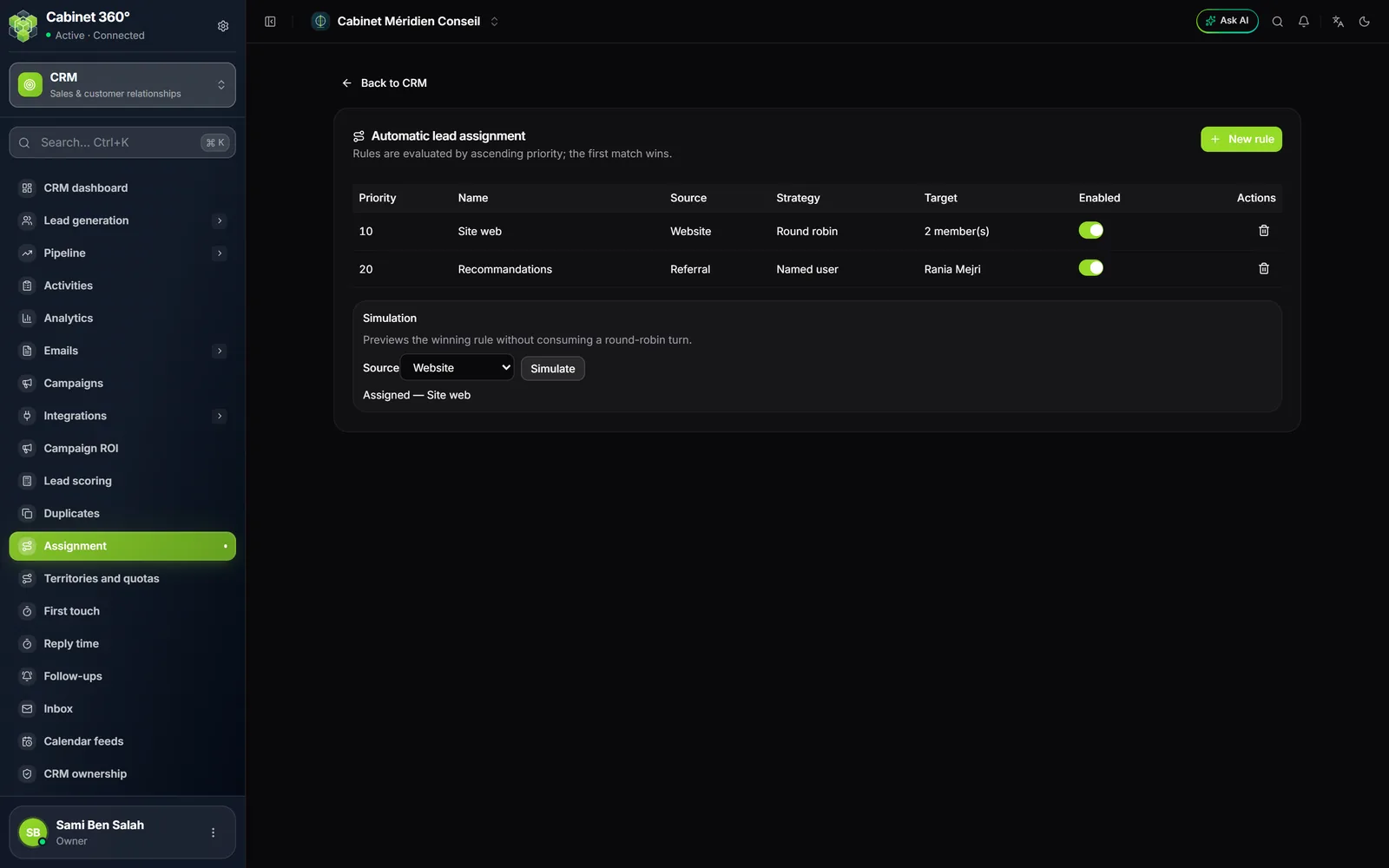
A rule has a Name, a Priority, a source (or Any source) and a Strategy:
- Named user: the lead always goes to the same person;
- Round robin: the leads go in turn to the people in the Round-robin pool, in the chosen order.
- Create a rule: its Name, its Priority (the smallest number goes first), the source it targets.
- Choose the Strategy and the people. Only the firm's active staff are offered, never a client-portal access.
- Tick Rule enabled and save.
- Test with Simulate: choose a source, and the result says who would receive the lead (« Assigned », « No rule matched », « Rule matched, pool empty »…). The simulation does not use up a round-robin turn.
The rules are read by ascending priority: the first one that matches wins. If no rule gives an owner, the territories decide (below). If nothing fits, the lead stays Unassigned.
Territories and quotas
Territories
A territory assigns the leads according to their country and their city, after the assignment rules.
- Enter the territory's Name, for example « South ».
- Choose its Owner, the staff member who will receive its leads.
- Enter the Countries and the Cities, separated by commas, for example « Sfax, Gabès, Médenine ».
- Click Add territory.
An empty list means « any ». If the countries and the cities are both filled in, the lead must match both. Capital letters do not count, but accents do: « Gabès » is not « Gabes ». A lead with no country and no city is never assigned by a territory. If several territories fit, the first in alphabetical order wins. A territory with no owner assigns nothing.
Quotas
A quota sets a salesperson the amount of deals to win over a period.
- Choose the Rep and the Period: Monthly, Quarterly or Yearly.
- Enter the Target (the amount), the Start and the End.
- Click Add quota.
The table tracks the Achieved and the Attainment: the amount of the deals won by this salesperson whose close date falls within the period, in the same currency.
Teams
The Sales teams page groups your salespeople into teams. It is designed for visibility limited to the owner (chapter 2): a team's manager would then see the records of their members.
- Enter the Team name, then click Create.
- Click Details to open Team members.
- In Member to add, choose a person from the firm; a person already in the team is greyed out, with the words « (already in the team) ». Click Add.
The banner at the top reminds you whether owner scoping is on or off.
Automation
An automation takes an action in your place when a situation arises: alerting the owner of a forgotten lead, creating a follow-up task before a close date. The CRM automation page gathers them.
A rule has a Rule name, a Trigger, a number of Days and an Action.
The triggers: Lead unassigned for N days, Open lead untouched for N days, Open opportunity untouched for N days, Opportunity closing within N days, Activity past its due date.
The actions: Notify the record owner and Create a task in “Tasks” (if the firm has the Tasks module) go with every trigger; Assign the lead using the routing rules only goes with « Lead unassigned for N days »; Create a follow-up task goes with all of them, except « Activity past its due date ».
The rules run once a day, in the morning around 7:30. A rule acts only once per record, and on 50 records at most per day: the rest are handled on the following days. The notifications it sends arrive in the bell, with the rule's name (chapter 7).
The same page lists separately, read-only, the suspended rules of the other modules (invoices, agreements, stock): it is the only screen that shows them, with their reason, Take over and the bin.
Frequently asked questions
A lead stays Unassigned although I have a rule.
Check that the rule is enabled and that its source matches the lead's source. For a round robin, the pool must have at least one active staff member. Test with Simulate.
I want a manager to see all the leads of their salespeople.
As long as the team manager cannot be set from the screen, give this manager the CRM - All records › View right (setting by permission groups, chapter 2): they will see every record, even when visibility is limited.