
What each role can do at the start
The CRM follows your firm's roles, set in Settings › Team. Without a custom role, each person starts with:
| Role | In the CRM |
|---|---|
| Owner, Administrator | Everything, with no exception. |
| Manager (supervision), an older role | View, create, edit and delete leads, contacts, accounts, opportunities, pipelines, activities, emails and campaigns. |
| Member | View, create and edit. Neither delete nor merge. |
| Viewer | View only. |
Some rights are kept for the owner and the administrators, whatever the base role. To give them to someone else, you need a custom role that ticks them:
- the CRM settings: CRM ownership, Lead scoring, Assignment, Territories and quotas, Teams, Custom fields, Automation, Web forms;
- the reports: Analytics, First touch, Reply time;
- the amounts: the pipeline value, the column totals, Campaign ROI;
- the export of lists;
- Personal data and the Meta Ads integration.
The rights each action asks for
Rights are ticked screen by screen, in Settings › Team › Roles, the ⋯ menu of a role, Rights per screen, module CRM. Each screen has four boxes: View, Create, Edit, Delete.
Most actions follow their name. A few are surprising: they ask for Create, because they make something.
| Action | Box to tick |
|---|---|
| See a list, open a record | View on the screen |
| Enter a lead, import a file | Leads › Create |
| Convert a lead (it creates the contact, the account and the opportunity) | Leads › Create |
| Assign leads in bulk | Leads › Create |
| Correct a lead, change its owner on the record | Leads › Edit |
| Delete a lead, or merge two leads | Leads › Delete |
| Create an opportunity, move it on the board, win it, lose it, add a line to it | Opportunities › Create |
| Create the client record of a won deal, with its button | Opportunities › Create, plus Create on Operations clients (automatic conversion does not ask for it) |
| Send an email, add or verify a sending domain | Create on an Emails screen |
| Choose the from address | Sending settings › Edit |
| Remove an unsubscribed address or a domain | Delete on an Emails screen |
| Run campaign attribution | Campaigns › Edit |
| Read the reports | Analytics, First touch, Reply time (viewing screens) |
| See the amounts | Campaign ROI (viewing screen) |
Two rights are not in Rights per screen. They are given in the role's setting by permission groups:
- CRM - Operational reports, action Export: export lists as CSV, Excel or PDF, and the audit log;
- CRM - All records, action View: see every record even when visibility is limited to the owner (see below).
The CRM ownership page
The CRM record ownership page holds four switches, all off at the start. You need the right to edit the CRM settings to change them; without it, the page says « You can view this setting but not change it. ».
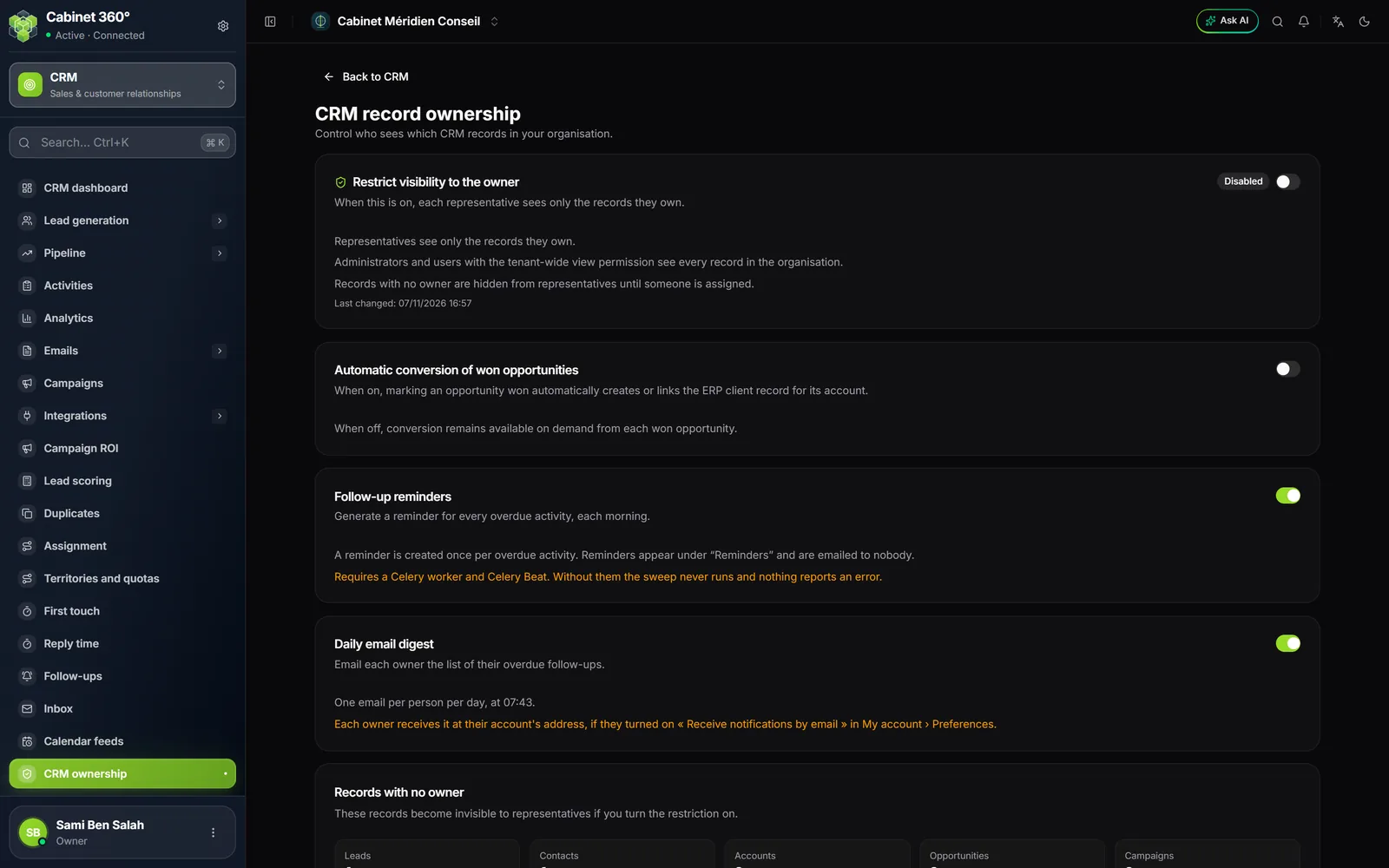
Restrict visibility to the owner
Off, each staff member sees every record in the CRM. On, each person only sees the leads, contacts, accounts and opportunities they own. The lists, the dashboard and the reports follow.
These always see everything: the owner, the administrators, and the roles that hold the CRM - All records right.
Automatic conversion of won opportunities
On, each won opportunity at once creates the Operations client record of its account, or links it to a client who already carries this tax ID, like the Create the client record button (chapter 6). The win itself is refused, with the reason, if the opportunity has no account, if the account's tax ID or phone is longer than 20 characters, or if two clients carry this tax ID: correct it, then win again.
Follow-up reminders and 4. Daily email digest
These two switches bring overdue activities back to you. They are explained in chapter 7. The digest stays greyed out while the reminders are off, and turning the reminders off also turns the digest off.
What is already ready in a new firm
- A « Ventes » pipeline in six stages: Nouveau (10%), Qualifié (30%), Proposition (50%), Négociation (75%), Gagné (100%) and Perdu (0%). You can keep it as it is or adapt it (chapter 6).
- Sending emails works straight away, from an IntegraSys address. To write under the firm's name, verify your domain (chapter 8).
- The lead score follows a default scale, which your own rules complete (chapter 12).
In short
- Check that the subscription includes Operations, and give each staff member a role that opens the screens they need.
- If your salespeople must only see their own records: first assign the records with no owner, then turn on Restrict visibility to the owner.
- To get follow-ups: Follow-up reminders, then Daily email digest (chapter 7).
- To write under your name: Sending domains, then Sending settings (chapter 8).