
Finding and merging duplicates
The same person sometimes enters the CRM twice, for example through manual entry and a form. The Duplicates page looks for the records that resemble the one you are keeping, lets you compare them field by field, then merges them. Nothing is ever merged automatically. The import already skips known emails (chapter 4): this page is for the other cases.
Searching
- In Type, choose Lead, Contact or Account.
- In Record N°, name or email, type at least two characters of the record to keep: its number as the list shows it (for example CRM00012), its name or its email.
- Click the record in the list that appears below, then Search.
- The table lists the similar records, 50 at most, with their Signals and their Confidence.
| Signal | What it means |
|---|---|
| Same email | The same email address. |
| Same phone | The same number, of at least 8 digits. |
| Same fiscal ID | The same tax ID (accounts only). |
| Similar name (review only) | A close name. On its own, it is never enough to suggest a record. |
The Confidence is High when the email, the phone or the tax ID match, Review otherwise.
Comparing and merging
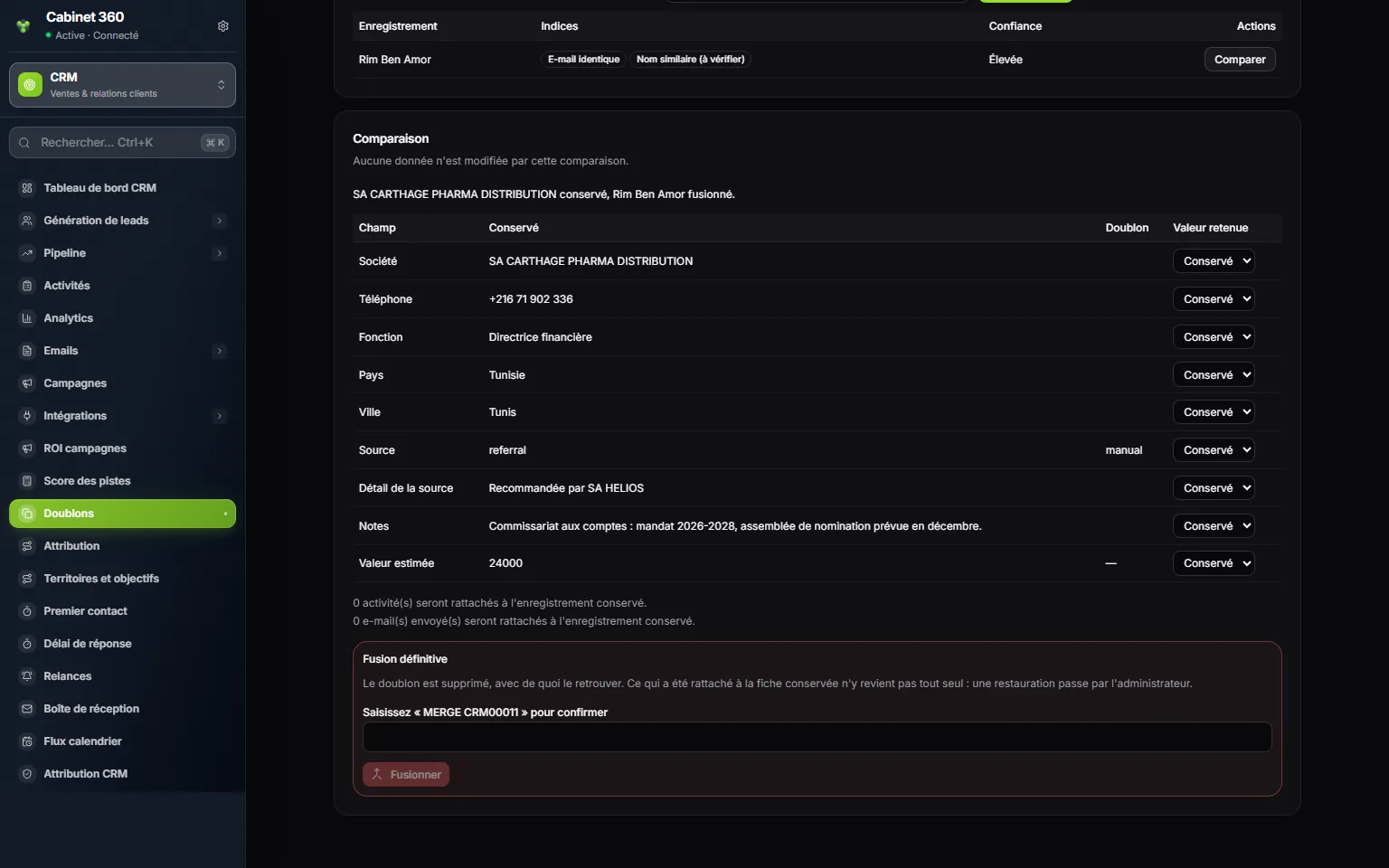
- 1. The similar record found by the search.
- 2. The signals: here, the same email and a close name.
- 3. Confidence: High.
- 4. Compare: opens the comparison, without changing anything.
- 5. Who stays, who goes: « … kept, … merged. »
- 6. Value to keep: for each field, the value to keep.
- 7. What will be moved: the duplicate's activities and emails.
- 8. The phrase to type to confirm.
- 9. Merge.
- On the duplicate's row, click Compare. The Comparison card opens and states which record is kept (the record you searched for) and which is merged (the duplicate).
- The table shows each field that differs, including a field filled in on one side only. In Value to keep, choose Kept (the default choice) or Duplicate.
- Under Permanent merge, type the requested phrase: MERGE followed by the duplicate's number.
- Click Merge. « Merge complete » appears, with the number of items moved.
The kept record takes over the duplicate's history: its activities and its sent emails; for a contact, its opportunities; for an account, its contacts and its opportunities. The duplicate leaves the lists. An Operations client record is never touched: Protected relations points it out. If the duplicate is the account linked to a client record, that link is not carried over: keep that account instead.
Sharing segments
A segment, or saved view, keeps sorting criteria, not a fixed list: each time you open it, the list applies the filter to the records of the moment. You create them from the lists with Save filters (chapter 3); the Segments and saved views page gathers them and lets you share them.
- Choose the Record type: Leads, Contacts, Accounts or Opportunities.
- Enter the View name.
- Choose the Field, the Operator (equals, contains, is empty…) and the Value.
- Click Create.
The table shows each view with its Name, its Criteria and its Author. The share icon makes it visible to your colleagues (Shared badge); the bin deletes it. Only the author of a view can change or delete it.
Setting the lead score
The score ranks your leads from 0 to 100: the higher it is, the more the lead deserves a quick call. A default scale always applies:
| Criterion | Points |
|---|---|
| Email filled in | 20 |
| Phone filled in | 20 |
| Company filled in | 30 |
| Source Meta Lead Ads | 30 |
| Source Website or Referral | 20 |
| Source social networks (Instagram, Messenger) | 15 |
Your own rules are added to this scale, then the total is bounded between 0 and 100.
- Click New rule.
- Enter the Label, for example « City: Sfax ».
- Choose the Field, the Operator (Is set, Is empty, Equals, In list, Greater than…) and the Value.
- Give the Points, from −100 to 100: a rule can also take points away.
- Set the Order (the rules are read in ascending order), then Save. A new rule is on: the switch in the list's Enabled column turns it off or back on.
After a change, the leads are recalculated in the background, in batches of 1,000 per hour, the oldest first. Simulate a sample lead calculates the score of an example lead (with an email, a phone, a company and the Website source), without saving anything.
Adding your own fields
Missing a box, for example « Number of employees » on a lead or « Financial year end » on an account? Create it.
- Choose the Record type: Leads, Contacts, Accounts or Opportunities.
- Enter the Key: it starts with a letter, holds only lowercase letters, digits and underscores (never two in a row), 40 characters at most, for example
nb_employees. It can never change afterwards. - Enter the Label, the one your colleagues will read.
- Choose the Field type: Texte, Texte long, Nombre, Oui / Non, Date, Liste or Liste multiple (these names are shown in French). For a list, give the Choices (comma separated).
- Click Create.
The field appears at once on the records and the forms of the chosen type. On each row, Usage counts the filled-in records, Hide removes it from the records without losing the values (Show again brings it back), Delete erases it. A field that still holds values cannot be deleted: hide it. A record type accepts 50 fields at most.
Frequently asked questions
The duplicate search finds nothing although I can see two identical records.
The CRM compares the email, the phone and, for an account, the tax ID. The name alone is never enough: complete the record, then start again.
My record does not appear under the search field.
Type at least two characters, and check the Type: a contact is not found among the leads.