
What the CRM does
The CRM (customer relationship management) sorts your sales into four steps, always the same:
- The lead: a person or a company interested in your services, with no commitment. It arrives through manual entry, a file, the form on your website or a Meta ad.
- The contact and the account: when the lead is serious, you convert it. The CRM creates the person (the contact), their company (the account) and the deal to follow.
- The opportunity: the deal itself, with its amount. It moves from stage to stage on a board, until « Gagné » or « Perdu ».
- The client record: a won deal becomes an Operations client record, ready for your quotes and invoices, through the Create the client record button, or on its own if automatic conversion is turned on (chapter 2).
Around this chain, the CRM logs your calls and meetings, reminds you when a due date passes, sends emails from templates and measures what your campaigns bring in.
Opening the CRM space
The CRM has its own space, with its own menu.
- In the starting navigation style (« Classic »), click CRM in the list of modules in the left bar. In the « New » style, open the module switcher at the top of the menu and choose CRM, subtitled « Sales & customer relationships ».
- The space opens on the CRM dashboard.
- The CRM menu replaces the menu of the previous module. To go back to another module, use the same list or the same switcher again.
Reading the dashboard
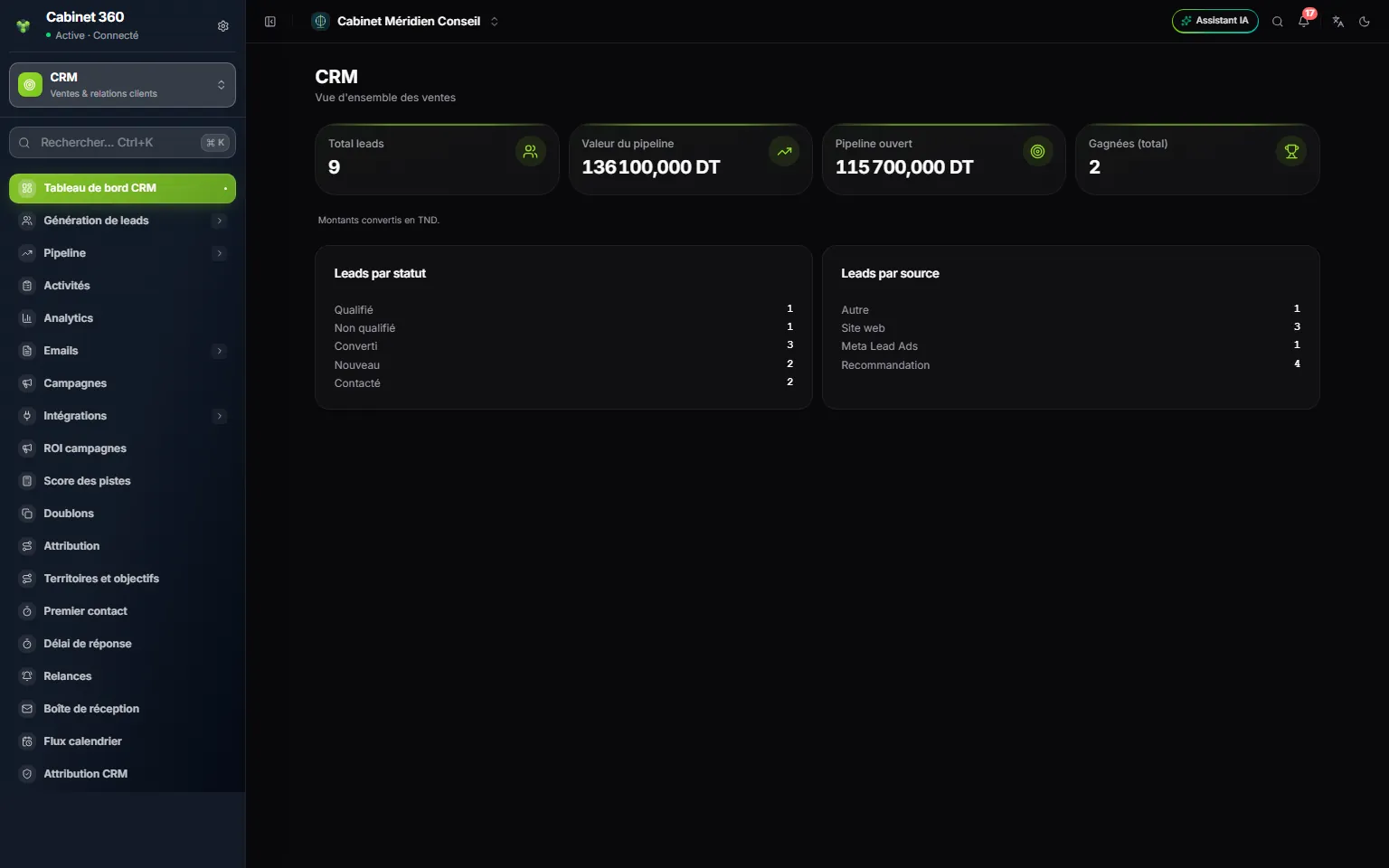
- 1. The open module: CRM, « Sales & customer relationships ».
- 2. Total leads: all your leads, whatever their status.
- 3. Pipeline value: the amount of all your opportunities, won and lost included.
- 4. Open pipeline: only the opportunities still to close.
- 5. Won (total): the number of won opportunities.
- 6. Leads by status: the statuses that hold at least one lead.
- 7. Leads by source: Website, Referral, Meta Lead Ads…
Amounts in euros or dollars are converted to the firm's currency (« Amounts converted to TND. »). The dashboard only counts what you are allowed to see. If the firm limits each salesperson's view to their own records (chapter 2), each person reads their own figures.
Two messages can appear under the cards:
- « Partial total »: some opportunities are in a currency with no exchange rate available. They are not counted.
- « Exchange rate is … days old. »: the last known rate is a few days old. The amounts are only a guide.
The dashboard updates itself. When a lead arrives, entered by hand, sent by the form on your website or by a Meta ad, a « New lead received » message appears on every open CRM page. Leads imported from a file do not show this message. A won opportunity shows « Opportunity won! ».
The menu map
The CRM menu is long. Here are its entries, grouped by use, and the chapter that explains them.
| Menu entry | What it is for | Chapter |
|---|---|---|
| CRM dashboard | The key figures, above | 1 |
| Lead generation › Leads | Enter, qualify, import and export your leads | 3 and 4 |
| Lead generation › Contacts, Accounts | The people and companies you follow | 5 |
| Pipeline › Opportunities | Your open deals, on a board with columns | 6 |
| Pipeline › Pipelines | The stages of this board | 6 |
| Activities | Your calls, meetings and to-dos (« My tasks ») | 7 |
| Analytics | Sales performance in eight blocks | 11 |
| Emails › Templates, Send log, Unsubscribed | Write to your contacts and follow each send | 9 |
| Emails › Sending settings, Sending domains | Write under your firm's name | 8 |
| Campaigns, Campaign ROI | Your marketing actions and what they bring in | 10 |
| Integrations › Meta Ads | Receive the leads from your Facebook and Instagram ads | 4 |
| Lead scoring, Duplicates, Segments, Custom fields | Keep a clean, well-sorted base | 12 |
| Assignment, Territories and quotas, Teams, Automation | Organise the sales team | 13 |
| First touch, Reply time, Inbox | Measure how fast you respond | 11 |
| Follow-ups, Calendar feeds | Forget nothing | 7 |
| CRM ownership | Who sees what, follow-ups, automatic conversion | 2 and 7 |
| Web forms | Receive the leads from your website | 4 |
| Entitlement, Audit log, Personal data | Control and protect | 14 |