
Writing a template
The Email templates page lists your templates. A template marked Inactive stays in the list but is no longer offered for sending.
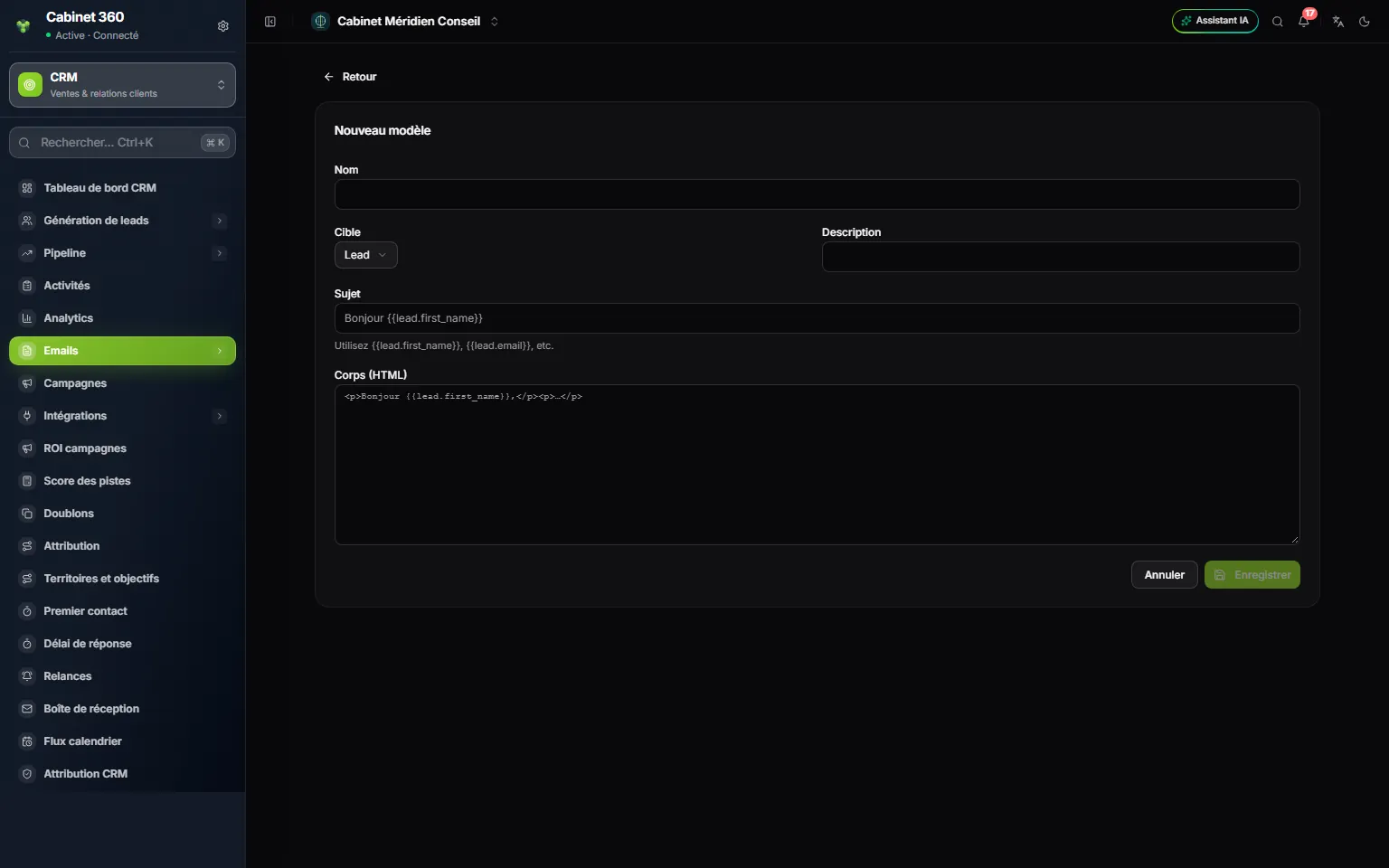
- 1. Name: to find the template again in the send window.
- 2. Target: Lead or Contact, depending on who you will write to.
- 3. Subject: the email's subject line, with its variables.
- 4. Body (HTML): the message, formatted in HTML.
- 5. Save stays greyed out as long as the template is incomplete.
- Click New template.
- Enter the Name and, if you wish, a Description.
- Choose the Target: Lead to write to leads, Contact to write to contacts.
- Write the Subject, for example
Hello {{lead.first_name}}. - Write the message in Body (HTML). The greyed-out example shows the expected form:
<p>Hello {{lead.first_name}},</p><p>…</p>. - Click Save.
Variables
A variable is written between double curly brackets. When the email is sent, it is replaced by each recipient's value. It starts with the target's word: lead for a template whose target is Lead, contact for a template whose target is Contact.
| For a lead | For a contact | Replaced by |
|---|---|---|
{{lead.first_name}} | {{contact.first_name}} | the first name |
{{lead.last_name}} | {{contact.last_name}} | the last name |
{{lead.full_name}} | {{contact.full_name}} | the first name and the last name |
{{lead.email}} | {{contact.email}} | the email address |
{{lead.phone}} | {{contact.phone}} | the phone number |
{{lead.job_title}} | {{contact.job_title}} | the job title |
{{lead.company_name}} | {{contact.account_name}} | the company (for a contact, the name of their account) |
{{lead.city}}, {{lead.country}} | — | the city, the country |
A new template is always active. To correct it, click its pencil in the list: the Edit template page also has the Template active box. Untick it to remove the template from the send window without deleting it.
The bin deletes the template, after the question « Delete this template? ». Emails already sent stay in the send log, without the template's name.
Sending from a list or a record
You write to leads or to contacts, from their list or from their record.
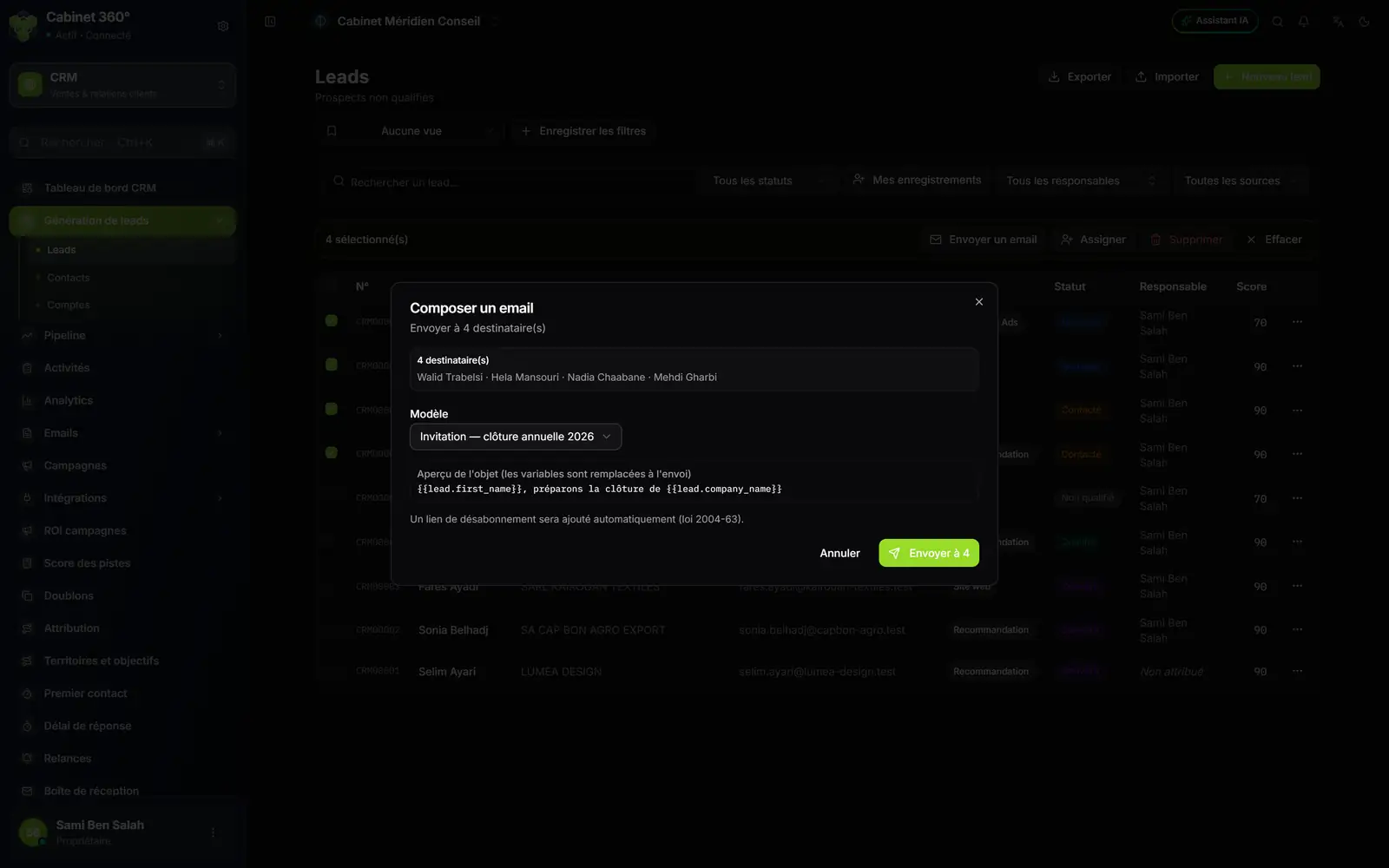
- 1. The selection bar: « 4 selected » appears as soon as you tick rows.
- 2. Send email opens the send window.
- 3. The recipients, named one by one.
- 4. Template: an active template, or « No template (free text) ».
- 5. The subject preview: the variables are replaced when the email is sent.
- 6. The unsubscribe link is added to every email.
- 7. Send to 4: the number of recipients is on the button.
- Open Lead generation › Leads (or Contacts) and filter the list if needed.
- Tick the rows you want to write to. The « … selected » bar appears. For a single person, you can also open their record: the Send email button shows there when the record has an email address (on a contact's record, you also need the right to edit contacts).
- Click Send email. The Compose email window opens and names the recipients.
- In Template, choose your template. Without a template, keep No template (free text), then fill in Subject and Body (HTML).
- Click Send to ….
- The window gives the outcome: « … email(s) queued », then Skipped — no email address and Skipped — unsubscribed. Close it.
Each queued email also leaves an activity of type Email on the recipient's record, in your name, even if it ends up Failed or Unsubscribed. Sending needs the Create right on an Emails screen: without it, the button shows but the send is refused. The record's history thus shows what was written, and when.
Sending limits
- 500 emails per hour for the firm. As soon as your firm has queued 500 emails in the past hour, any new send is refused and the window shows an error. Try again an hour later. A send started just before the limit goes out in full.
- The warm-up of a new domain caps the number of emails that leave each day for the first five weeks (chapter 8). Beyond the day's cap, the email waits as Queued.
- A person who has unsubscribed is never written to: they are counted in Skipped — unsubscribed.
Tracking every send
The Send log page has one line per recipient, the most recent at the top.
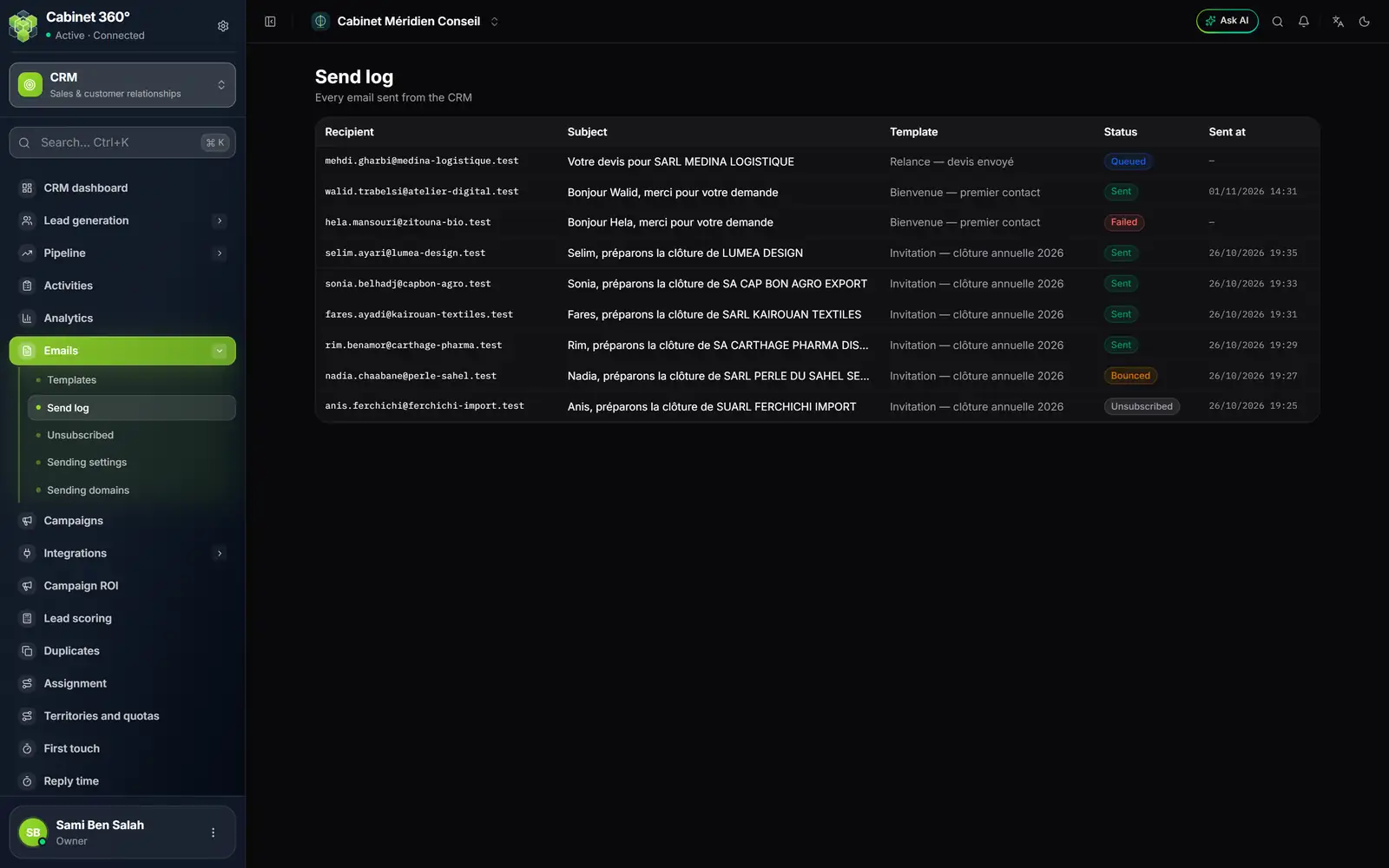
- 1. Recipient: the address the email was sent to.
- 2. Subject: as it went out, with the variables replaced.
- 3. Template: the template used.
- 4. Queued: the email is waiting its turn.
- 5. Failed: the email could not be sent.
- 6. Bounced and Unsubscribed: refused by the recipient's server, or an unsubscribed address.
- 7. Sent at: the date and time it left.
| Status | What it means |
|---|---|
| Queued | The email is waiting its turn: the day's limit is reached, or it leaves in the next few minutes. |
| Sending | The email is leaving now. |
| Sent | The email has left IntegraSys; it can still be refused afterwards (Bounced). |
| Failed | The email could not be sent: the mail service refused it, sending was no longer allowed, or it waited more than two days under the warm-up cap. |
| Bounced | The recipient's server refused the email. If the refusal is permanent, the address joins the suppression list. |
| Unsubscribed | The address unsubscribed after the email was queued: nothing was sent. An address already unsubscribed at send time, or a recipient with no address, has no line at all. |
The suppression list
Every CRM email ends with a Se désabonner link (in French: unsubscribe). The recipient who clicks it lands on a page in French, Confirmer le désabonnement, with a Me désabonner button. Once they confirm, they read « Vous êtes désabonné » (you are unsubscribed) and their address enters the Suppression list. The CRM no longer writes to them: emails still waiting for them as Queued change to Unsubscribed and are not sent.
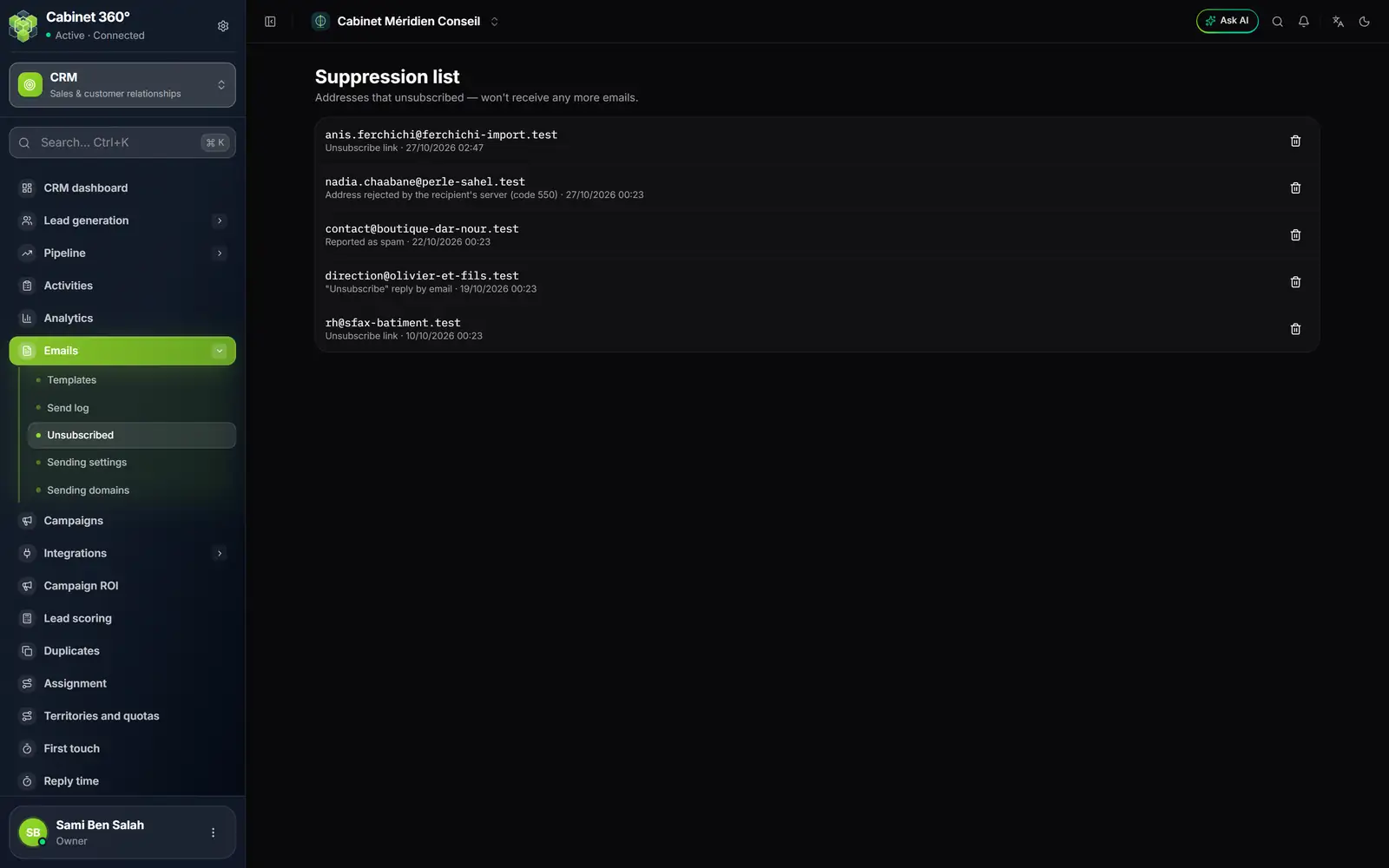
- 1. Unsubscribe link: the person clicked « Se désabonner ».
- 2. Address rejected by the recipient's server: the address does not exist or accepts nothing (the refusal code is given).
- 3. Reported as spam: the person marked your email as spam.
- 4. "Unsubscribe" reply by email: the person asked for it by replying.
- 5. The bin removes the address from the list.
An address enters this list in five ways: the Se désabonner link, a reply asking to unsubscribe, a spam report, a permanent refusal from the recipient's server, or the erasure of the person's personal data (chapter 14).
Frequently asked questions
My template does not appear in the send window.
Only active templates appear there. Open it with its pencil, tick Template active, then Save. A template whose target is Account or Opportunity cannot be sent from the lists: the send is refused.
Why do my emails stay Queued?
In the first days, the warm-up limits the number of emails that leave per day (chapter 8). The rest waits and is retried every hour, for about two days, then changes to Failed. Send in batches that fit within the cap.
Can I write to an account or to an opportunity?
Not directly: the send window opens from leads and contacts. For a company, write to its contacts.