
Converting a lead
Before converting
- You need the Create right on the Leads screen: conversion creates three records. Without it, Convert appears neither in the row's menu nor on the record.
- Read the record again: with no Company, no account is created, and the deal can never become a client record; with no first or last name, no contact.
- A pipeline must exist, with its stages. A new firm already has the « Ventes » pipeline (chapter 6).
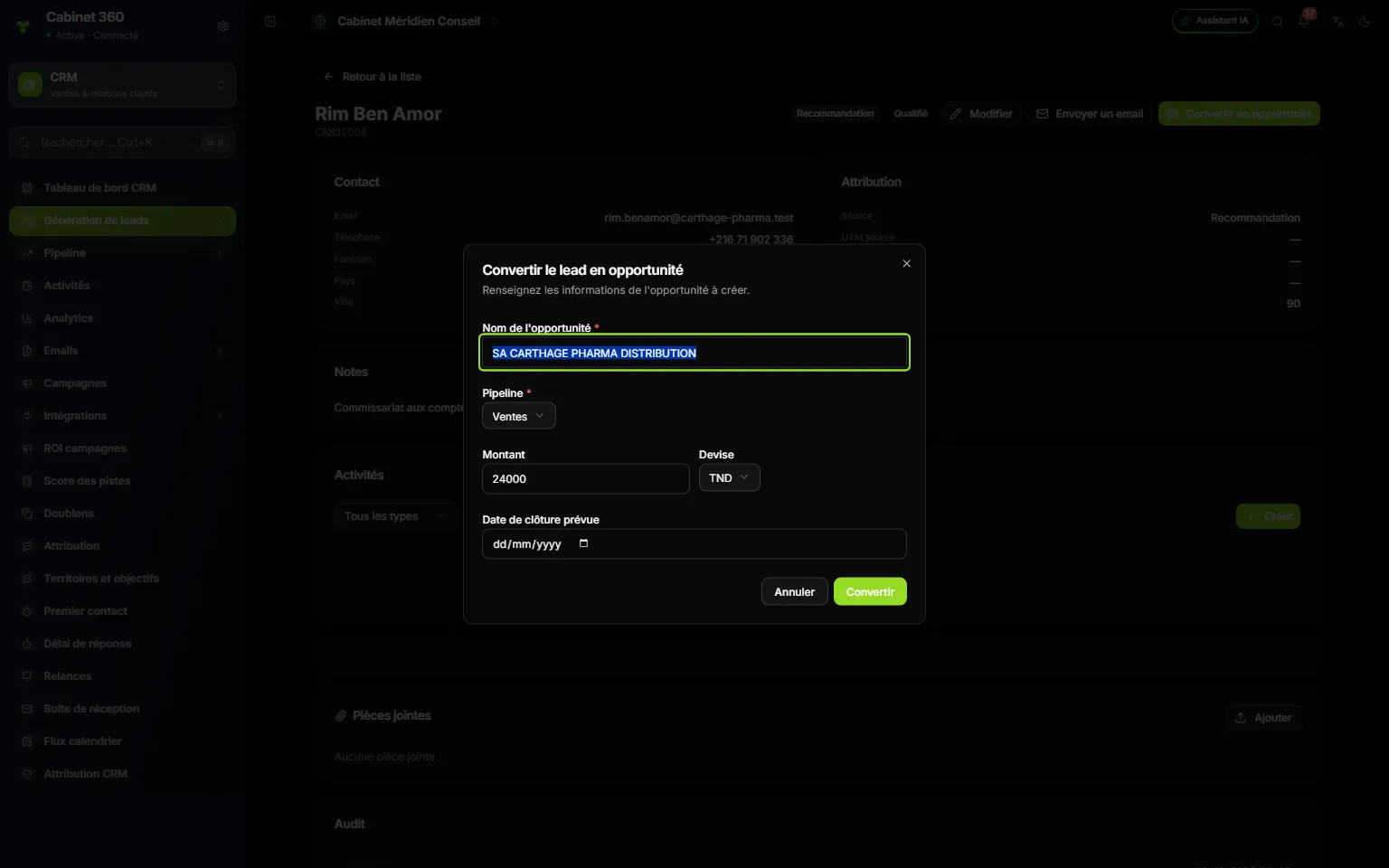
- 1. The conversion window, opened from the lead record.
- 2. Opportunity name: taken from the lead's company, otherwise from its name.
- 3. Pipeline: the default one is already chosen.
- 4. Amount: taken from the lead's estimated value.
- 5. Currency: TND, EUR or USD.
- 6. Expected close date: optional, but useful for forecasts.
- 7. Convert: the three records are created in one go.
- Open Lead generation › Leads, then the lead record. The row's ⋯ menu also offers Convert: it opens this same record.
- Click Convert to opportunity. The « Convert lead to opportunity » window opens.
- Check the Opportunity name and the Pipeline.
- Check the Amount and the Currency (the currency always starts on TND).
- Enter the Expected close date if you know it.
- Click Convert. The message « Lead converted to opportunity » appears and the opportunity's page opens.
Go back to the lead: its status is Converted, and a box says « This lead has already been converted. », with the View opportunity button.
What conversion creates
| Record | What it takes from the lead |
|---|---|
| The account | The lead's company, email, phone and owner (failing that, you). |
| The contact | The first name, last name, email, phone and job title; it is linked to the account. |
| The opportunity | The name, amount and date chosen in the window, the lead's source and owner. It enters the pipeline's first « Open » stage. |
The lead's calls, meetings and notes also appear on these records. The lead's Notes, country, city, attachments and custom fields stay on the lead.
Accounts
An account is a company you follow. It is not a client yet: it becomes one when a won deal is converted, on its own if automatic conversion is turned on, otherwise through Create the client record (chapter 6).
The list of accounts shows the Name, the Industry, the Email, the Phone, then the number of Contacts and Opps (opportunities) of each one.
- Click New account.
- Enter the Name, the only mandatory field.
- If needed, complete the Industry, the Website (full address, with https://), the Email, the Phone, the Tax ID, the Annual revenue, the Employee count, the Address, the Notes and the Owner.
- Click Save.
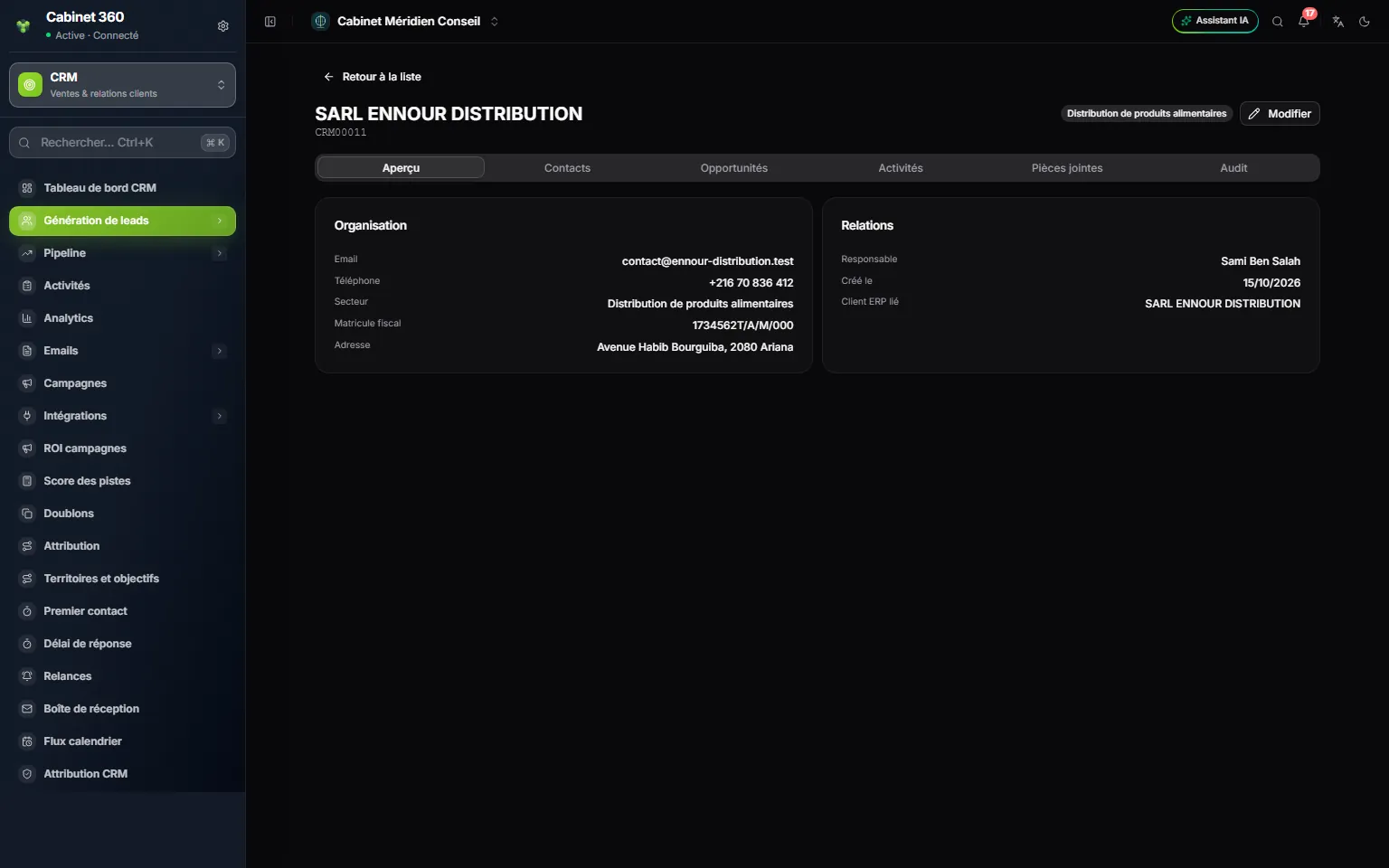
- 1. The name and the number of the account.
- 2. Edit: correct the record.
- 3. The tabs: Overview, Contacts, Opportunities, Activities, Attachments, Audit.
- 4. Organisation: email, phone, industry, tax ID, address.
- 5. Relations: the owner and the creation date.
- 6. Linked ERP client: the Operations client record, once the deal is won.
The account's tax ID, address, email and phone will go as they are onto the client record: take care of them now. If an Operations client already carries this tax ID, the account is linked to it, with nothing copied.
Contacts
A contact is a person, usually linked to an account.
- Click New contact.
- Enter the First name and the Last name, which are mandatory.
- Choose their Account in the list (— if they have none; the list only offers the first 100 accounts), their Job title and their Language (French, English or Arabic).
- Click Save.
The list of contacts shows the Name, the Email, the Phone, the Account and the Job title. A contact's record has the same tabs as an account's, without the Contacts tab.
What the two lists have in common
- The search, My records and All owners, as for leads.
- The selection: tick rows to Assign (choose an Owner) or Delete (type DELETE to confirm). Contacts add Send email (chapter 9).
- Export: the list as CSV, Excel or PDF, with the export right (chapter 2).
- The Audit tab of the records: the history of changes, visible to the owner and the administrators.
Frequently asked questions
Can a contact exist without an account?
Yes: leave — in Account. You will link it later with Edit.
Can accounts and contacts be imported?
Not directly: import only concerns leads. Import your leads, then convert them: each one creates its account and its contact.
I created the same company twice.
The Duplicates screen searches for duplicate records, compares them and merges them (chapter 12).