
The audit log
The CRM audit log lists every change recorded on your firm's CRM records: leads, contacts, accounts, opportunities and campaigns.
| Column | What it says |
|---|---|
| Date | The moment of the change. |
| Action | Created, Updated, Deleted, Converted, Assigned, Stage change or Export. |
| Type | The record type, written as a code: lead, contact, account, opportunity or campaign. |
| Record | The record's internal identifier (not its number). |
| Actor | Who made the change; « System » for an automatic action or for a user with no first name or last name. A merge of duplicates shows as « Converted ». |
| Changed fields | The names of the fields touched. |
The From, To, Action and Type filters, the record identifier and the actor identifier narrow the list; Clear filters brings everything back. Export as CSV downloads the filtered log.
Each record also has its Audit tab or block, which shows the same thing for that record alone, to the same people.
A person's data
A person asks you what you know about them, or asks you to erase everything? Organic Law No. 2004-63 on the protection of personal data gives them that right. The Personal data console answers in three steps: analyse, export, erase.
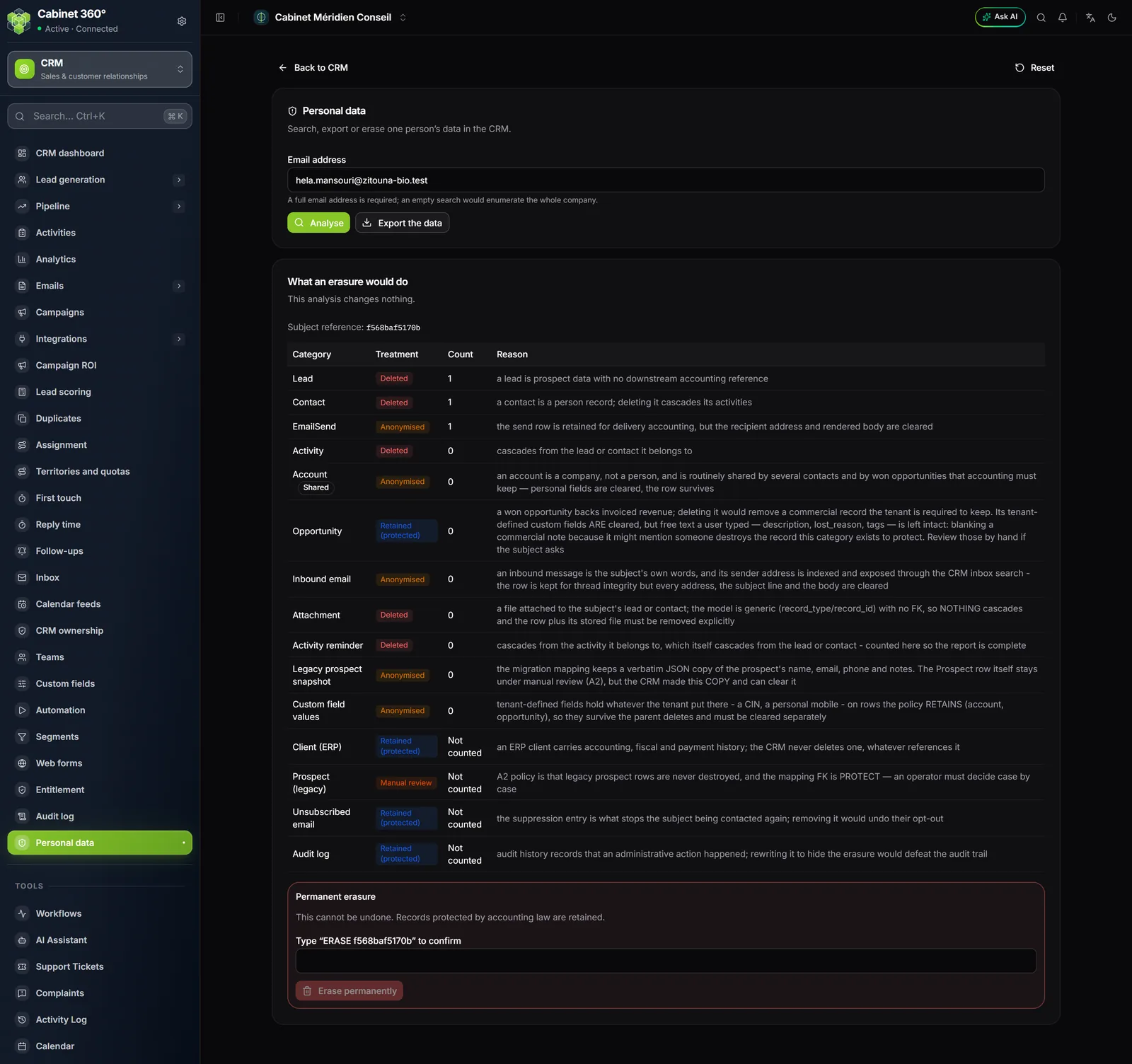
- Enter the person's full Email address. A partial address is not accepted: it would list the whole firm.
- Click Analyse. The What an erasure would do table shows, category by category, what an erasure would do: Deleted, Anonymised, Retained (protected) or Manual review. Nothing is changed at this stage.
- To answer an access request, click Export the data: a file gathers what the CRM keeps about the person.
- To erase, read the Permanent erasure card, type the requested phrase (it starts with ERASE), then click Erase permanently.
- The result says what was deleted, anonymised or retained.
The Entitlement screen
The CRM module entitlement screen shows a simulation: « What the application would decide if entitlement enforcement were switched on ». It blocks nothing and has no buttons.
Frequently asked questions
A staff member sees « Audit log » in their menu but cannot open it.
That is normal: the entry follows the right to read leads, but the log requires being the owner or an administrator.
A person asks for erasure: should they also be unsubscribed?
No: the erasure itself puts their address on the suppression list.