
Logging an activity
An activity is a call, a meeting, a task or a note, linked to a CRM record: a lead, a contact, an account or an opportunity.
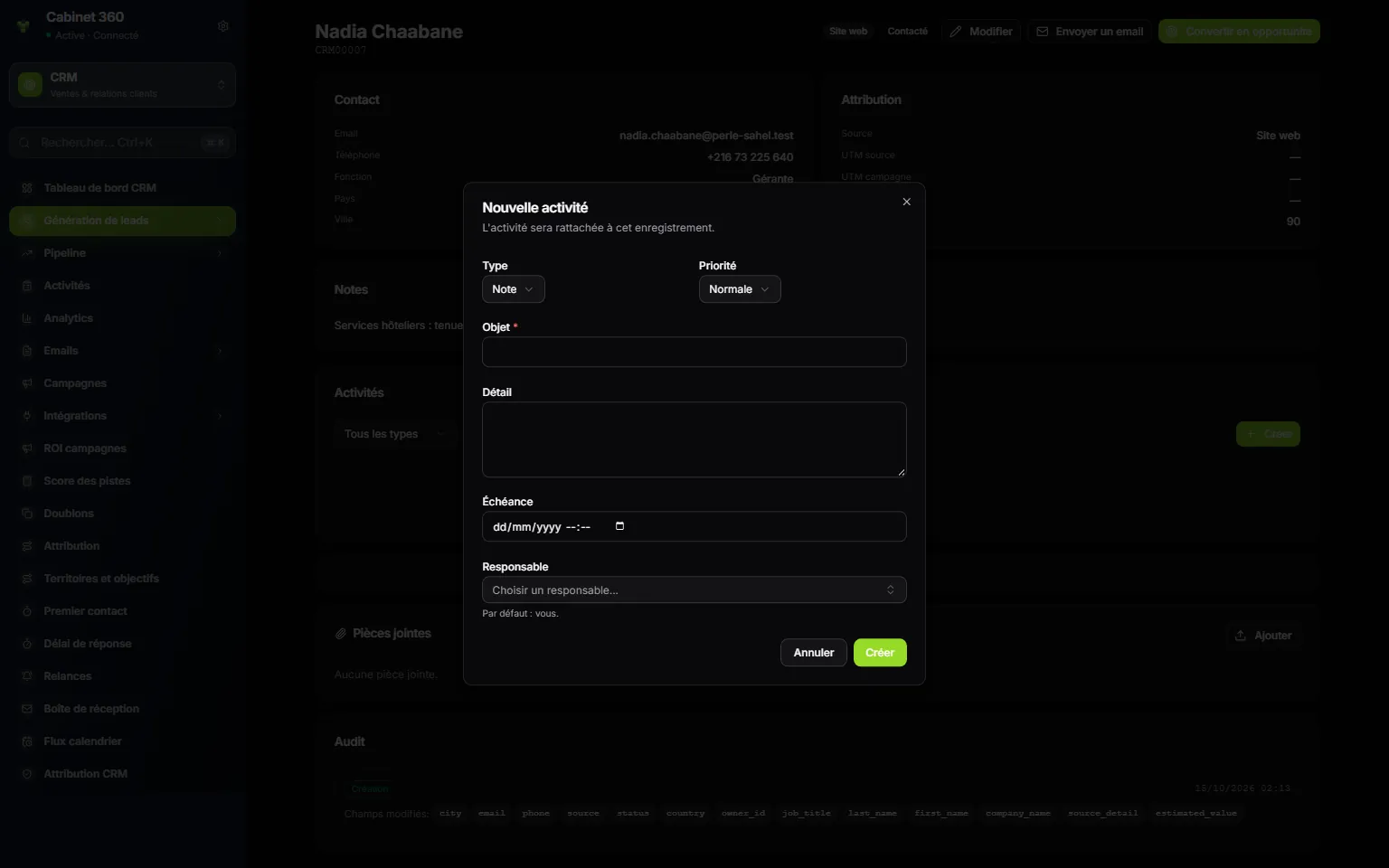
- 1. New activity: « The activity will be linked to this record. »
- 2. Type: Call, Email, Meeting, Note, Task, SMS, WhatsApp or Meta DM.
- 3. Priority: Low, Normal, High or Urgent.
- 4. Subject: mandatory; it is what you will read in your lists.
- 5. Details: the report, if needed.
- 6. Due: the date and time. With no due date, no follow-up.
- 7. Assignee: by default, you.
- 8. Create.
- Open the record concerned. In the Activities block (the Activities tab for a contact or an account), click Create.
- Choose the Type and the Priority.
- Enter the Subject, then the Details if needed.
- Set the Due date and the Assignee. The list only offers the firm's active staff members.
- Click Create. The activity appears on the record, with its type, its due date and the person assigned.
On an activity's row, the check mark marks it Completed and a circular arrow reopens it; the pencil edits it, the bin deletes it for good. The All types and All lists filter by type, then by state: Open, Completed, Overdue.
My tasks
The My tasks page (« CRM tasks to complete ») lists your activities not yet completed, by due date, the oldest first. Nothing is created there: activities are born on the records. As the list does not show the record concerned, always give a clear Subject, for example « Call Mr Gharbi back about the payroll quote ».
Follow-ups
A follow-up is a reminder that an activity has passed its due date.
Turning follow-ups on
Follow-ups are off at the start. An administrator turns them on:
Then, every morning around 7:25, the CRM creates a follow-up for each overdue activity that meets three conditions: it is not completed, it has a past due date, and it has an active assignee who can read activities. Only one follow-up per activity and per missed due date: if you push the due date back and miss it again, a new follow-up is born.
Handling your follow-ups
The Follow-ups page (« Your overdue activities, to handle or defer ») only shows your own follow-ups. Each one has a state: Pending, Read, Dismissed or Snoozed.
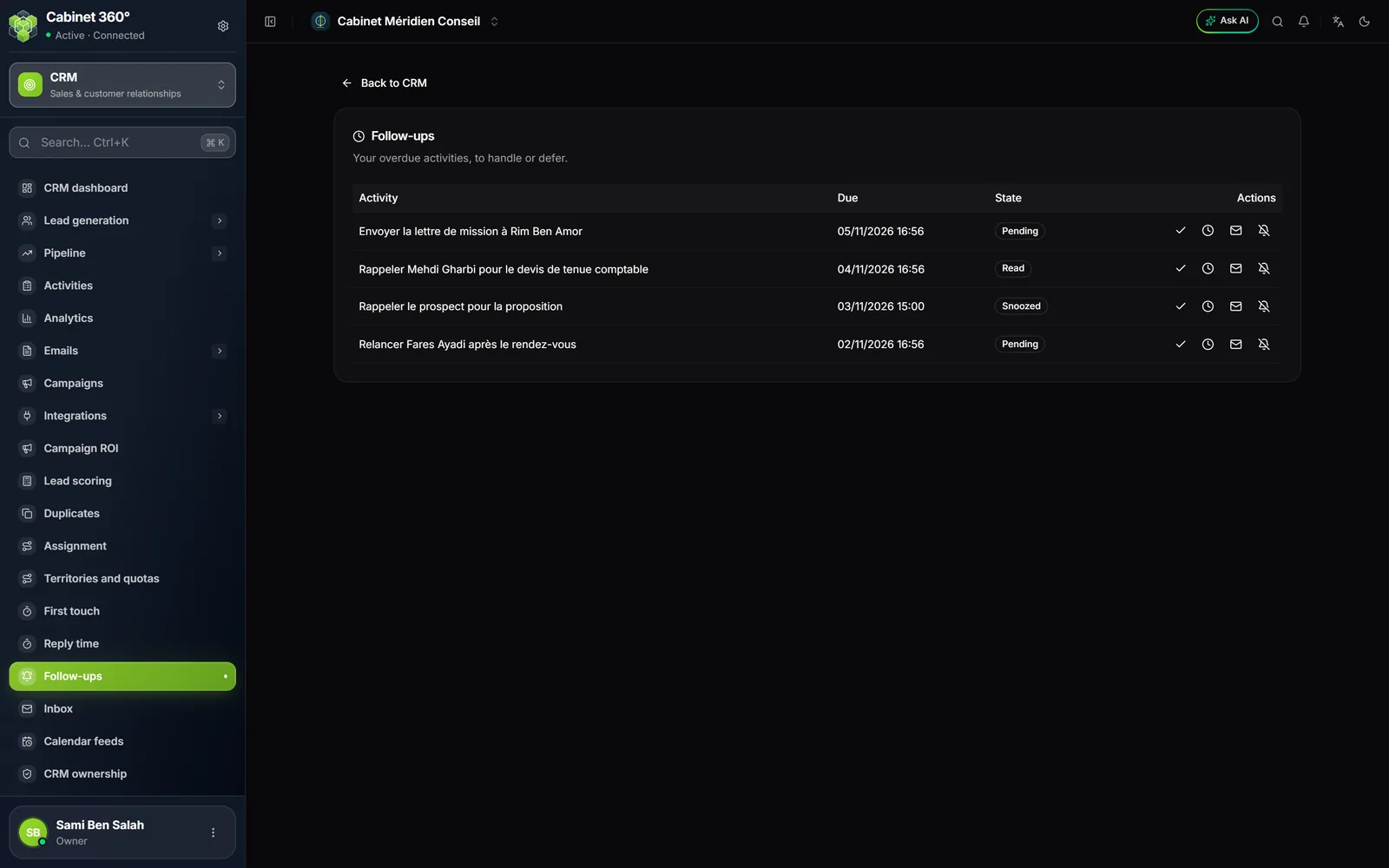
| Action | What it does |
|---|---|
| The check mark (Complete) | Completes the activity itself. |
| The clock (Snooze) | Puts the follow-up off until later: 1 hour, 4 hours, 1 day or 3 days. The activity's due date, for its part, does not change. |
| The envelope | Marks the follow-up as read. |
| The crossed-out bell (Dismiss) | Sets the follow-up aside for good. |
The daily email digest
One by one, follow-ups stay in the application. But each staff member can receive, once a day, an email that lists their overdue follow-ups. It takes three switches, all off at the start:
| Switch | Where | Who sets it | |
|---|---|---|---|
| 1 | Follow-up reminders | CRM › CRM ownership | an administrator |
| 2 | Daily email digest | CRM › CRM ownership, just below | an administrator |
| 3 | Email notifications | Settings › My account, Notifications card | each person, for themselves |
Number 2 only turns on once number 1 is on, and turning number 1 off also turns number 2 off. Number 3 is the person's consent: an administrator cannot turn it on in their place. It applies to every firm the person is a member of.
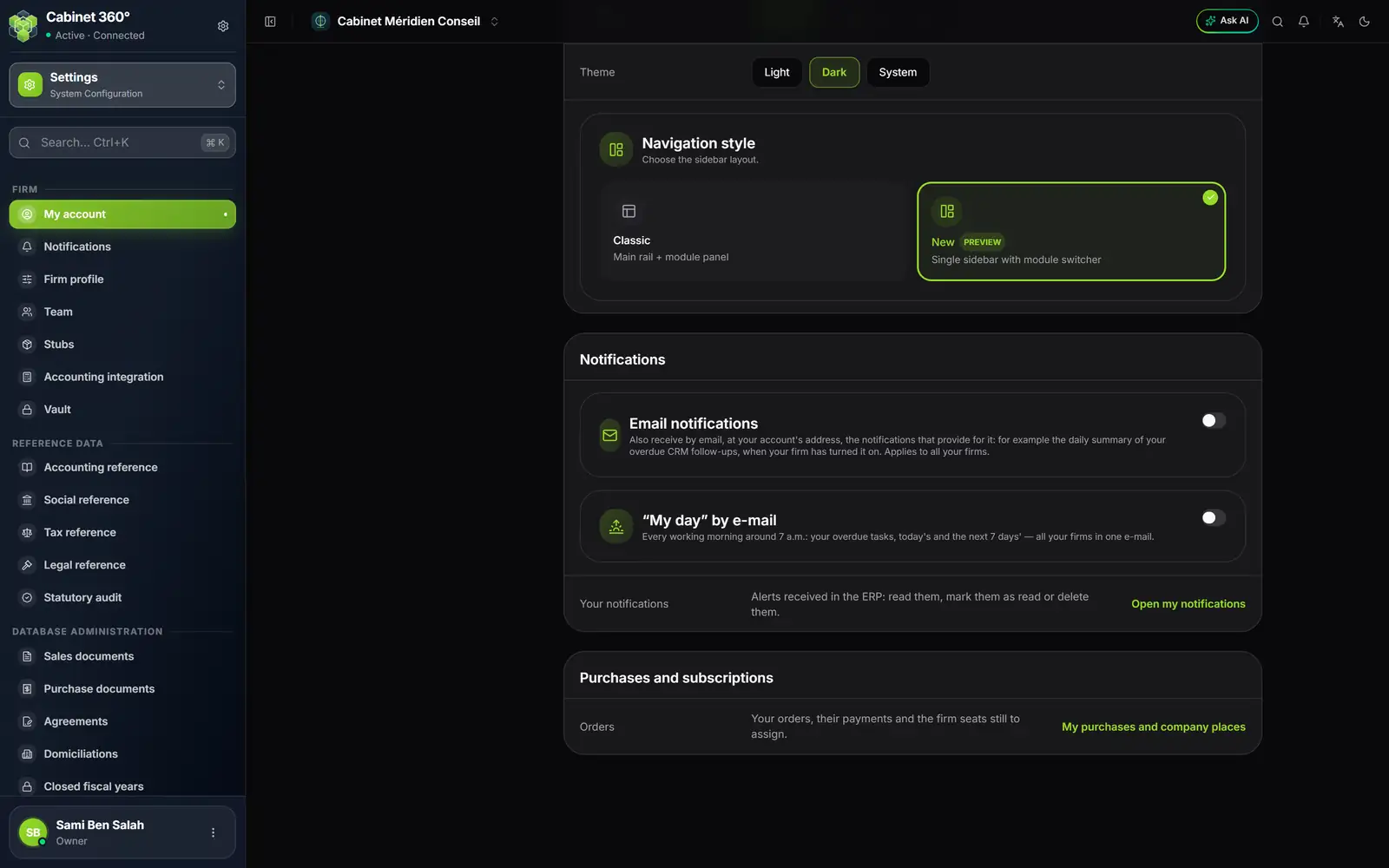
- 1. My account, in the Firm group of the Settings menu.
- 2. The Notifications card.
- 3. Email notifications: receive by email, at your account's address, the notifications that provide for it.
- 4. The switch: your consent, for all your firms.
- 5. Open my notifications: the bell's page.
- Open Settings › My account (or, from the menu under your name at the bottom left, Profile).
- Scroll down to the Notifications card.
- Turn on Email notifications. The message « Email notifications turned on. » confirms it.
The digest is sent every morning around 7:45, to your account's email address, from the IntegraSys mail service: the firm has nothing to set up for this. Its subject is « IntegraSys CRM — 3 relances en retard » (in French: 3 overdue follow-ups; « 1 relance » for a single one); it lists each activity with its due date. It only includes follow-ups still Pending that have not already been sent: a follow-up snoozed or read before 7:45 is not in it. It is only sent to active members who can still read activities in each firm concerned. On a day with no new follow-up, nothing is sent.
The notifications bell
The bell, at the top right, keeps the CRM notifications:
- « Relance en retard » (in French: overdue follow-up), for each follow-up created in the morning;
- the messages of your automation rules (chapter 13);
- « Règle d'automatisation suspendue » (in French: automation rule suspended), sent to the owner and the administrators when a rule can no longer run.
To read the CRM notifications in the bell, you must be able to view leads.
Other messages only appear live, on open CRM pages, and do not stay in the bell: « New lead received », « Opportunity won! » and « Some opportunities have been idle — consider re-engaging », which the CRM sends every morning around 8:10, to their owner only, for open deals with no change at all for 14 days.
The calendar feed
See your activities in your calendar (Google Calendar, Outlook, your phone's calendar).
- Open Calendar feeds. In Create a feed, give a Label (optional), for example « Phone », then click Create.
- Copy the Feed address: it will never be shown again. Click I have copied it.
- In your calendar, add a calendar « by address » (or « from URL ») and paste it.
The feed shows your activities in this firm, from the last 90 days to the next 365, 500 at most. Each person manages their own feeds: no particular right is asked for.
Frequently asked questions
My tasks is empty even though I created an activity.
The list only shows the activities assigned to you and not yet completed: check the Assignee.
I receive no follow-up.
Check that Follow-up reminders is on, and that the activity has an assignee and a past due date. The follow-up is created in the morning, only once per missed due date.
I do not receive the email digest.
The three switches must be on, including yours in My account. The digest is only sent if there are new follow-ups that day. Also look in your junk mail.