
The opportunity board
The Opportunity pipeline opens in Kanban view: one column per stage, one card per deal. Drag a card from one column to another to move the deal forward.
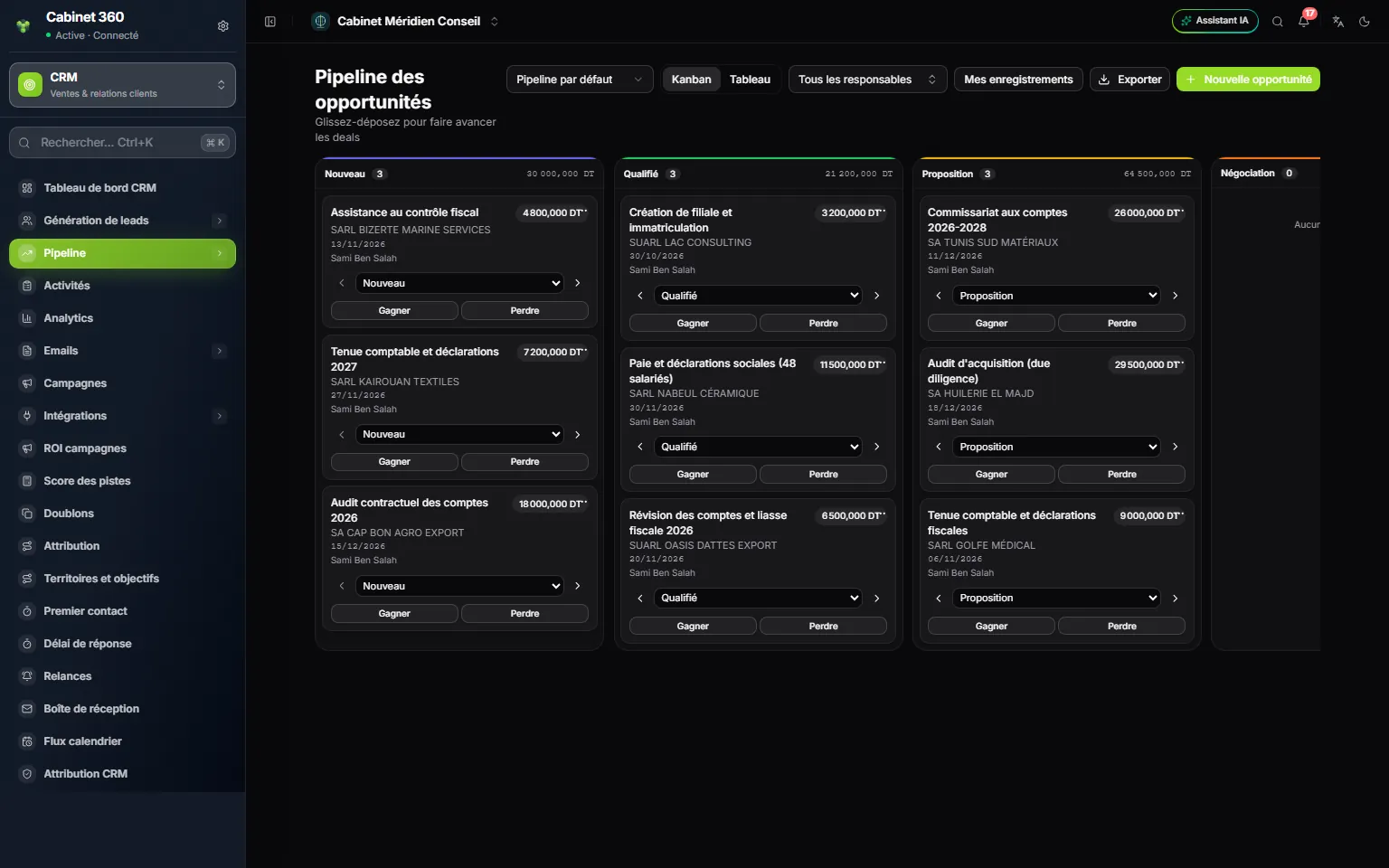
- 1. The pipeline shown: « Default pipeline », or another one by its name.
- 2. Kanban or Table: the columns, or a list you can filter.
- 3. New opportunity.
- 4. The column header: the stage, its number of deals and their total.
- 5. The card: the name, the amount, the account, the expected close date, the owner.
- 6. The arrows and the stage list: move the card without dragging it.
- 7. Won.
- 8. Lost.
- The column total only appears to the roles that hold the « revenue-reports » permission, and only if it is not zero.
- My records and All owners filter the cards, as in the lists. Export exports the opportunities as CSV, Excel or PDF.
- Table shows the same thing as a list: No., Opportunity, Account, Contact, Pipeline, Stage, Owner, Amount, Probability, Expected close, Status (Open, Won, Lost), Updated. Its filters: pipeline, stage, status, close dates, minimum and maximum amount, currency. Tick rows to Assign or Delete.
Creating an opportunity
A converted lead already has its opportunity (chapter 5). For a deal that did not go through a lead:
- Click New opportunity.
- Enter the deal's Name.
- Choose the Pipeline, then the Stage.
- Choose the Account, then enter the Amount and the Expected close date.
- If needed, complete the Source, the Description and the Owner.
- Click Save, greyed out while the name or the stage is missing. The deal's record opens.
The opportunity record
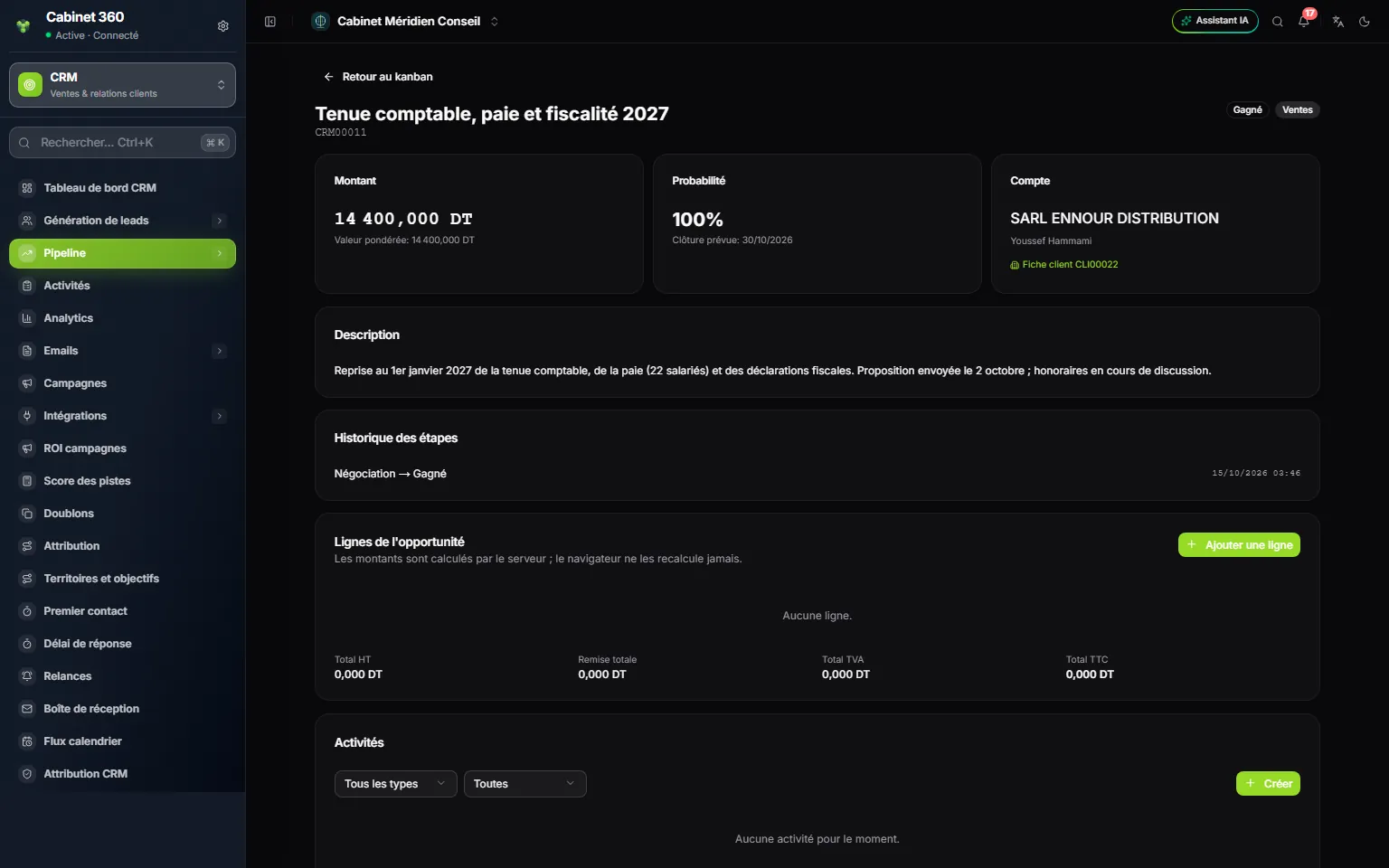
- 1. The name and the number of the deal.
- 2. The badges: the stage and the pipeline.
- 3. Amount and Weighted value (the amount multiplied by the probability).
- 4. Probability and Expected close.
- 5. Account and its contact.
- 6. Client record: the link to the Operations record, once created.
- 7. Stage history: the last five moves, with their date.
- 8. Opportunity lines: the priced detail of the offer.
- 9. Add a line.
- 10. The totals: subtotal, discount, VAT, total.
- 11. Activities: the deal's calls and meetings.
The record has no Edit button: to change the name, the account or the amount of a deal, open the ⋯ menu of its card (or of its row in Table), then Edit. The Probability override (%) field sets the probability of this deal alone there, instead of its stage's.
Pricing the offer: the lines
- In Opportunity lines, click Add a line.
- Enter the Description, the Quantity and the Unit price.
- Enter the Discount (a percentage) if there is one, and choose the VAT (19% at the start).
- Click Save.
The Subtotal, Total discount, Total VAT and Total are computed on their own. The deal's Amount becomes the total of its lines before tax.
The list of VAT rates follows the IntegraSys national reference list: the Tunisian rates are 0, 7, 13 and 19%. A line keeps the rate it was saved with, even if that rate is withdrawn later.
Win, lose, create the client record
Winning a deal
When the client signs, click Won, on the card or on the record. The message « Opportunity won » appears.
- Won acts at once, with no confirmation.
- Today's date becomes the close date.
- The deal moves into the pipeline's first Won stage. A card dragged into a won column is won in the same way.
- If Automatic conversion of won opportunities is turned on (chapter 2), the client record is created in the same action.
Losing a deal
- Click Lost, or drag the card into a lost column.
- In « Mark opportunity as lost », choose the Loss reason: Price too high, Lost to a competitor, Bad timing, No budget available, No response from prospect, Need not qualified or Other.
- Add Details (optional).
- Click Mark as lost. With no reason, the card stays where it was.
Today's date becomes the close date. Loss reasons feed your reviews: choose the real reason, not Other because it is easier.
Creating the client record
A won deal linked to an account can become an Operations client record, ready for your quotes and invoices.
- Open the won deal. Under Account, click Create the client record.
- In « Create the ERP client record? », click Create the record.
- The « Client record » link followed by its number replaces the button.
The client record takes from the account its name (the company name), its tax ID (the fiscal identifier), its address, its email and its phone. It is created as a legal entity, with the active status. If a client record already carries this tax ID, the account is linked to it instead of creating a second one: the message says « Linked to an existing client record ».
Setting up pipelines and their stages
A pipeline is the series of stages a deal goes through. Each stage has a name, a probability and a type: Open, Won or Lost. These settings make the board's columns and the weighted value of your deals.
The Pipelines page shows one card per pipeline, with the Default badge, its number of stages and its state. New pipeline creates another one (name and description); then add stages to it before using it. The default pipeline is the one that New opportunity and lead conversion offer first.
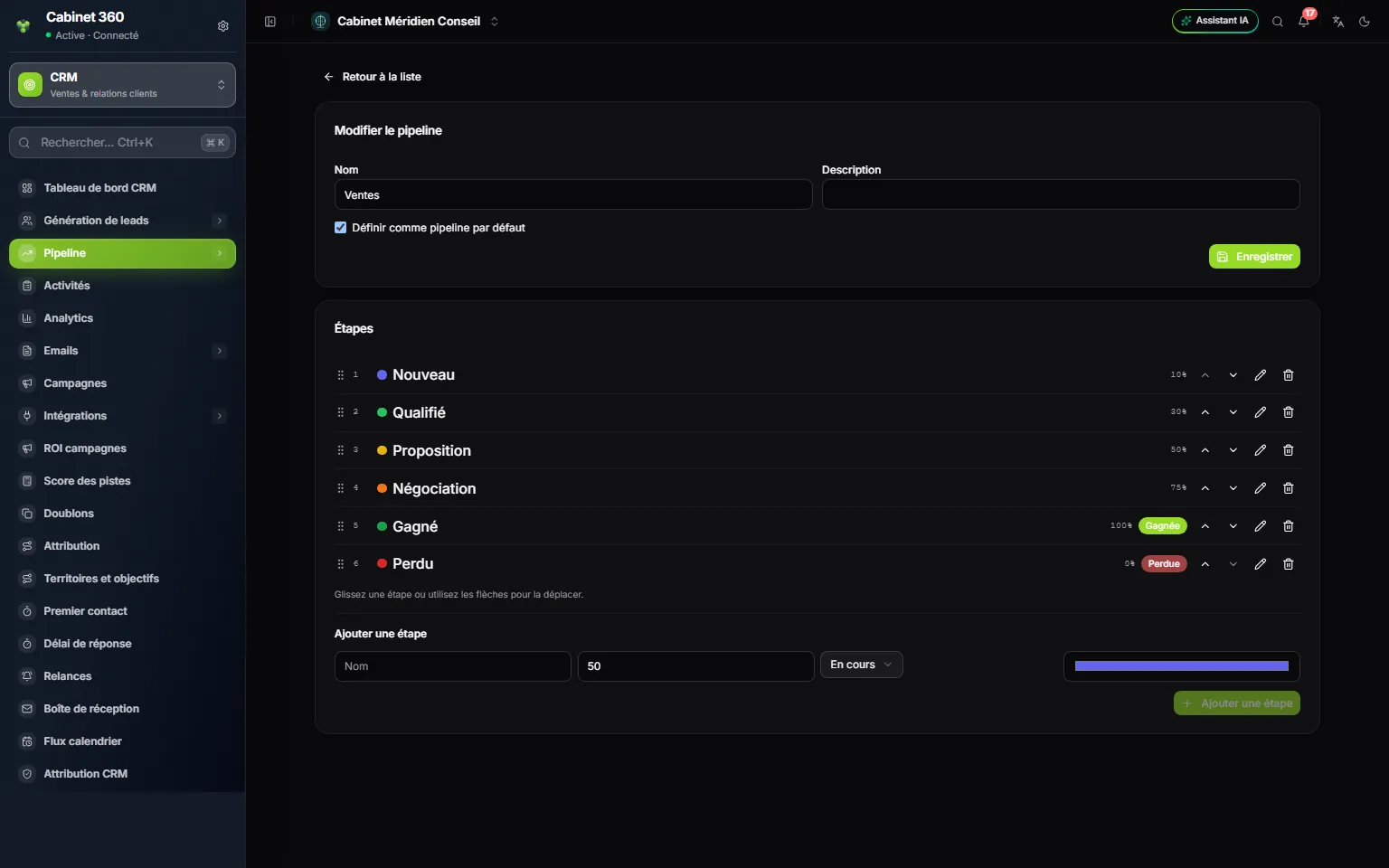
- 1. Name and Description of the pipeline.
- 2. Set as default pipeline: only one per firm.
- 3. Save the name and the default choice.
- 4. The stages, in the board's order.
- 5. The probability of each stage.
- 6. The type: Won or Lost (no badge: Open).
- 7. The arrows, the pencil, the bin: move, edit, delete the stage.
- 8. Add stage: name, probability, type, colour.
- 9. The Add stage button.
- Click the pencil on the pipeline's card. The Edit pipeline page opens.
- To add a stage: under Add stage, enter the name and the probability in %, choose the type and a colour, then click Add stage. The stage goes last: move it up above the won and lost stages.
- To set up a stage, click its pencil: the window offers the name, the probability (from 0 to 100) and the type. The colour, for its part, is chosen at creation.
- To change the order, drag the stage or use its arrows. The board follows this order.
- To remove a stage, click its bin, then Delete.
Changing a stage's probability changes the weighted value of all its deals, except those that have their own probability. Won needs a Won stage in the pipeline, Lost a Lost stage: without it, the button is refused and the message says so.
Frequently asked questions
The Create the client record button does not appear.
You need a won deal, linked to an account, and the right to create clients. If the account already has a client record, the Client record link replaces the button.
The win is refused even though the deal is signed.
Automatic conversion may be turned on, and the client record cannot be created: the message gives the reason (often a tax ID that is too long on the account). Correct the account, then win again.
How do I follow another pipeline on the board?
Choose it in the list at the top: Default pipeline shows the pipeline marked as default, the name of another pipeline shows only its stages.