
What the app is
The IntegraSys app opens the client's portal on an Android phone: their invoices, the documents you share, their requests, their contracts, their HR entries and their notifications. It signs in with the same account as the web portal and reads the same data: what changes on the web shows on the phone.
Installing the app
- On their phone, the client opens the Android page of the IntegraSys website: integrasys-erp.com/android. The page gives the version, the file size, the compatibility and the architecture.
- They tap Download the Android APK.
- They open the downloaded file. If Android asks, they allow installation from this browser, then install.
- They open the app, enter their Email address and Password, then tap Sign in.
- If the Two-step verification screen appears, they enter the 6-digit code from their authenticator app; the code goes off by itself at the sixth digit.
Forgot your password?, on the sign-in screen, opens the website page that renews it.
Home
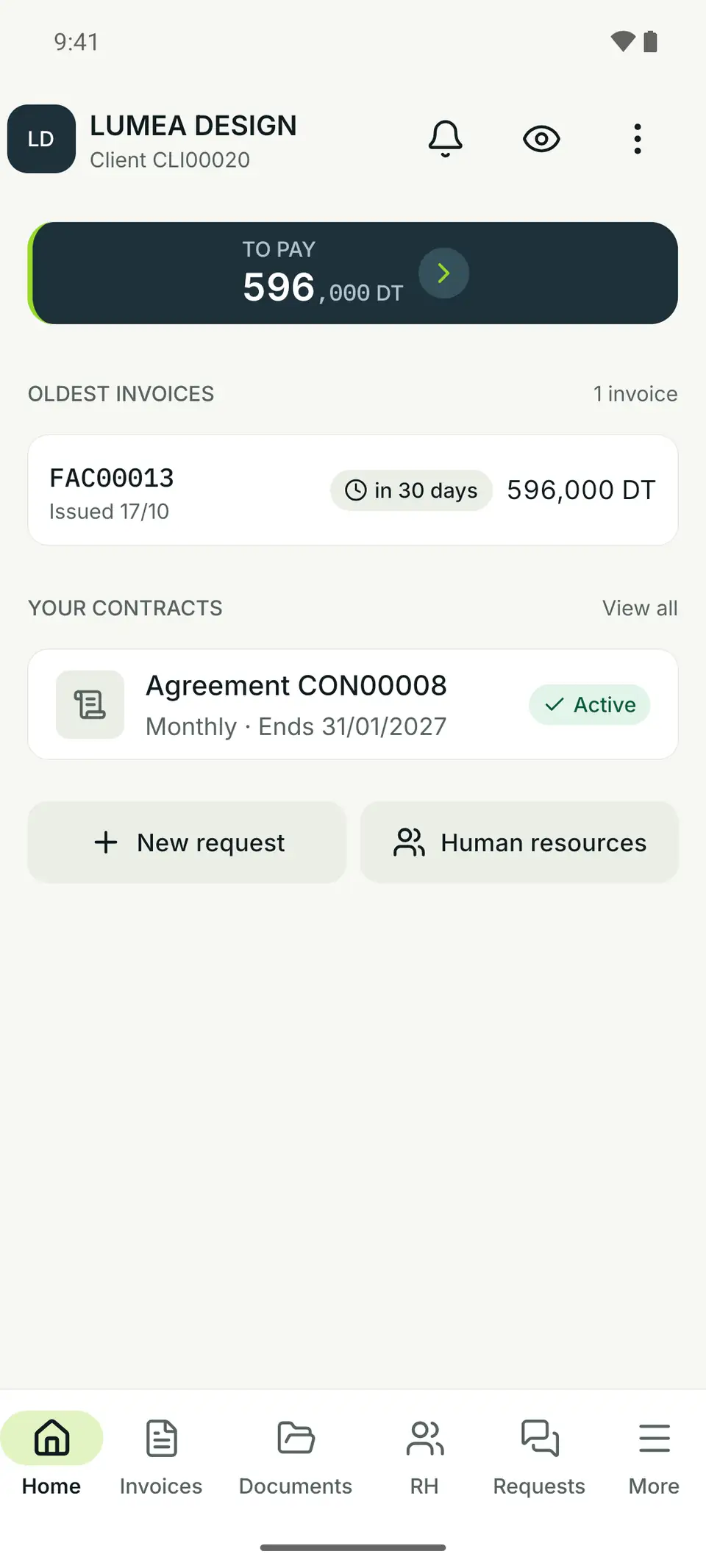
- 1. The client's company and its client number.
- 2. The bell opens the notifications; the eye hides the amounts.
- 3. To pay: the total the client still owes.
- 4. Oldest invoices: their three oldest invoices still to pay, with their due date.
- 5. Your contracts: agreements and registered office contracts, with their status.
- 6. New request and, with the HR service, Human resources.
- 7. The six tabs.
From top to bottom, Home brings together:
- the new version notice, if there is one;
- the To pay band;
- Your firm is waiting: up to three requests waiting for their reply, each with Reply;
- Oldest invoices: their three oldest invoices still to pay;
- Recent documents: the three latest documents shared;
- Your contracts, if they have any;
- the New request and Human resources buttons.
The eye hides amounts on this phone only: on Home, in the invoices and in the text of notifications. Handy when showing the screen to someone.
The six tabs
| Tab | What the client does there | Signal |
|---|---|---|
| Home | The summary of their situation | |
| Invoices | Their invoices and credit notes | A red dot if an invoice is overdue |
| Documents | The folders you share | |
| HR | Their employees' HR entries | Only if the HR service is active |
| Requests | Their tickets | The number of requests waiting for their reply |
| More | The rest: notifications, contracts, preferences, password, help, sign out | A dot when an update exists |
Invoices
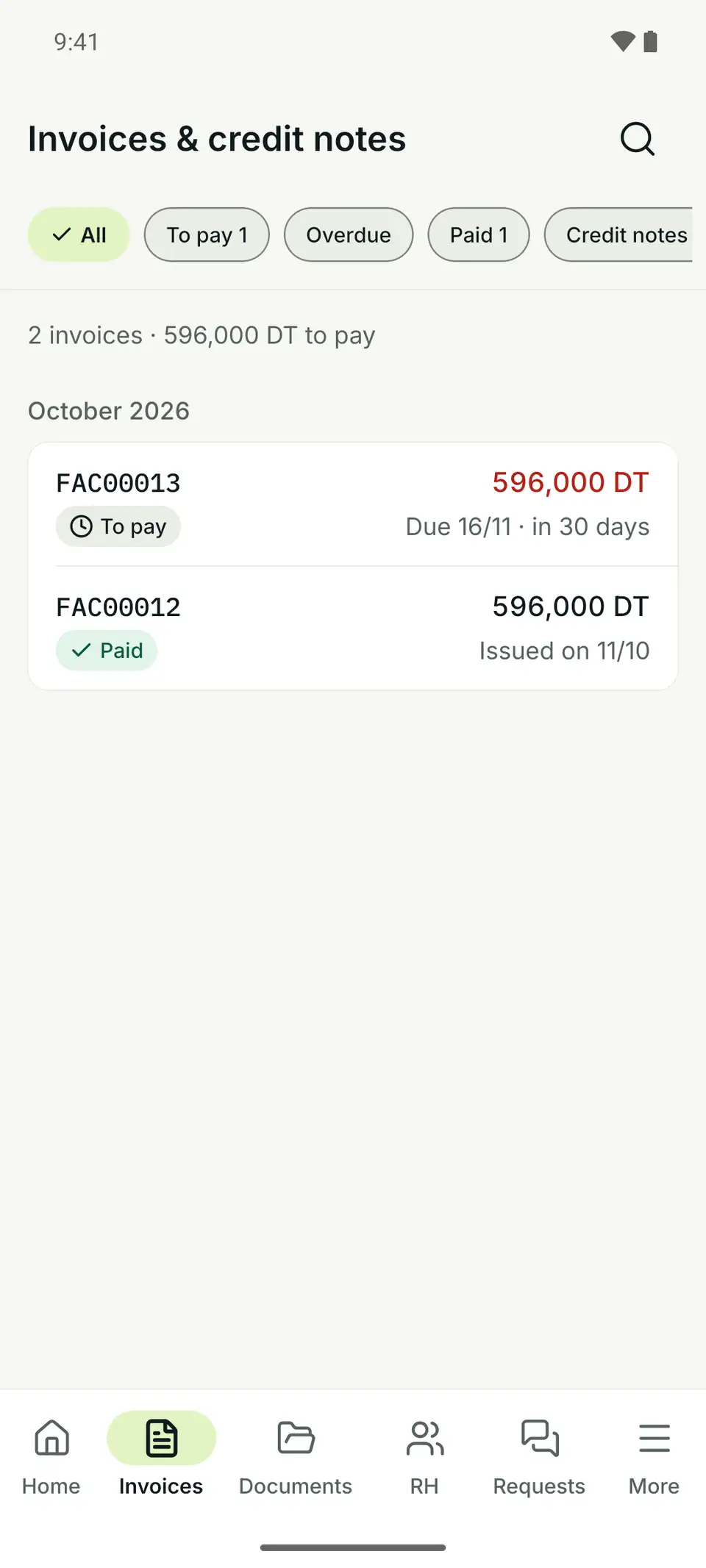
- 1. The filters: All, To pay, Overdue, Paid, Credit notes, with their counts.
- 2. The summary: the number of invoices and the total to pay.
- 3. An invoice to pay: its amount, its due date and the days left.
- 4. A paid invoice.
Invoices are grouped by month. The magnifying glass searches a number; the Filters panel chooses the currency. An invoice is Overdue when its due date has passed and something is still to pay, even after a partial payment; without a due date it is never overdue. Red is kept for overdue invoices and amounts due; « To pay » stays neutral.
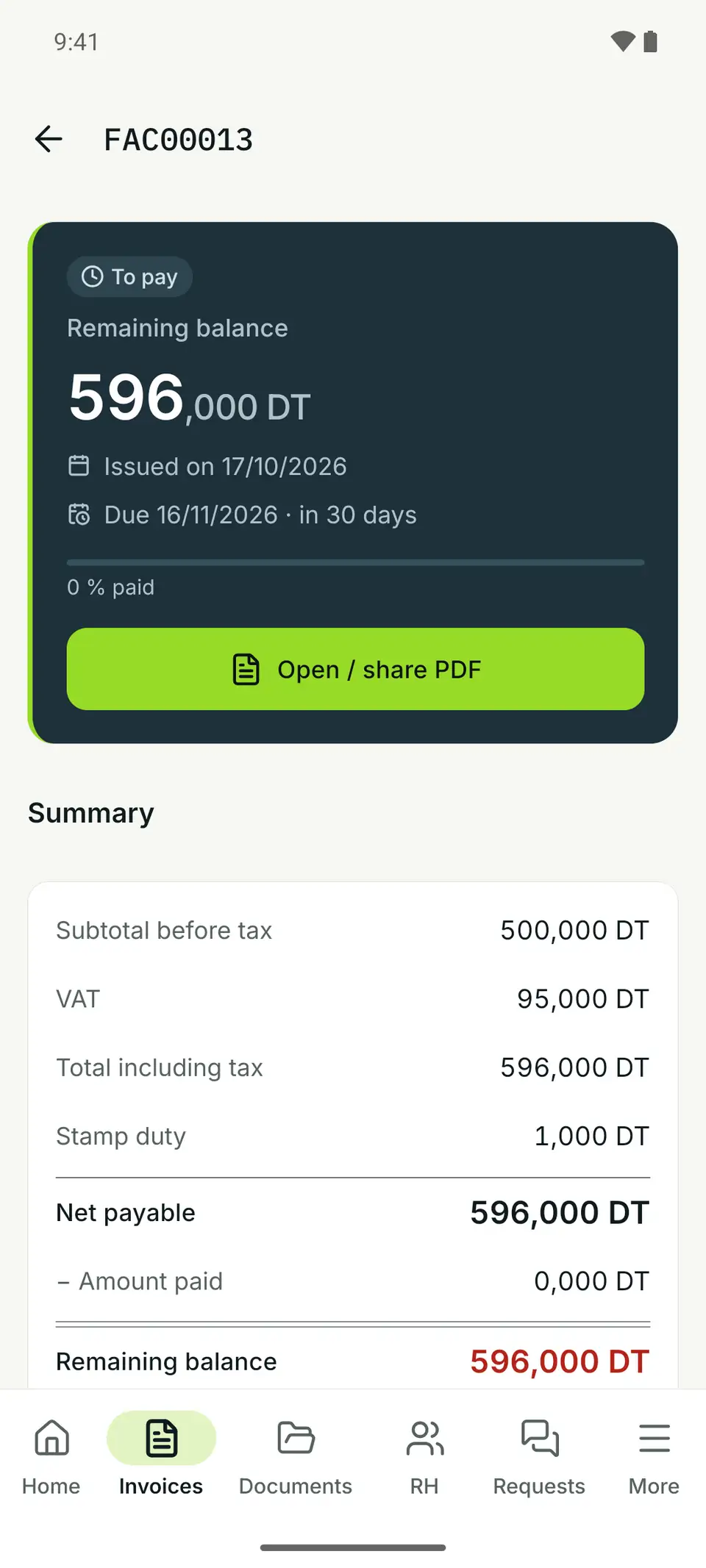
- 1. Remaining to pay, in large type, with the issue date, the due date and the share paid.
- 2. Open / share PDF: the invoice as a PDF, to open or send to another app.
- 3. Summary: total excl. tax, VAT, total incl. tax, stamp duty, net to pay, amount paid and remaining to pay.
Further down, the detail lists the Services and the Payments (date, amount, method, reference). A PDF over 20 MB is downloaded from the web portal.
Documents
The Documents tab shows the same folders as the web portal, as Folders or Files, sorted by name, date or size; Search documents finds a file. On a file, Download file, then Open / share file sends it to another app. Above 20 MB, the button stays greyed out: the client downloads the file from the web portal.
Requests
The Requests tab gathers the client's tickets. The Awaiting your reply filter isolates those you have set to Awaiting client.
- New request: Subject, Description, Category, Priority, then Send request. No file at creation.
- In a request, the client replies in Write a reply…, attaches a file with the paperclip (10 MB at most from the app), then Send. A file attached by the firm opens with Open / share file.
- A finished request says so: « This request is closed. »
HR
With the HR service, the HR tab groups nine entries: Absence and leave (leave, absences), Pay and advances (advances, loans, salary deductions, bonuses, overtime, travel expenses) and Discipline (sanctions). The client chooses the employee, fills in the entry and sends it. They follow the status (Pending, Approved, Rejected…); only an entry still Pending can be edited or deleted.
More
In order: the client's profile, Notifications, My contracts (agreements and registered office contracts), Human resources if the service is active, Preferences (language, hiding amounts), Password, Help (Ask your firm a question and the app version) and Sign out.
The profile is read only: « Need to change these details? Contact your firm. »
Notifications
The bell on Home, or More › Notifications, opens the list. The client filters with Unread or by category (Message, Invoice, Document, Reminder), and View opens the invoice or the document. Mark all as read clears the counter.
To also receive alerts on the phone, they turn on the switch under Notifications on this phone, then allow notifications when Android asks: « Notifications enabled ». These alerts only work if IntegraSys has turned them on for your firm; otherwise the screen says « Push notifications will be available after service configuration. »
Updates and signing out
When a new version exists, a « New version … available » box appears on Home. Download opens the browser; the client then opens the downloaded file. Hide for 7 days puts it away. The app never installs itself.
Sign out first asks: « Sign out your devices? » After confirmation, the account is signed out on this phone and on their other devices.
What stays on the web portal
| Web only | Why the client goes there |
|---|---|
| My accounting documents | Submitting their purchase and sales invoices |
| My financing | Following their loans and reporting a payment |
| The full Human resources space | Mission orders, leave permits, dashboard, employees, reports, social report |
| Adding a file to Documents | Impossible everywhere: a file is attached to a request |