
Where submissions arrive
In the Accounting module, open the client's file from Accounting clients, then:
Each submission becomes a document of the OCR — Pre-accounting inbox of the client's file, with the same automatic reading and the same proposed entry as one of the firm's scans. Above the list, three buttons sort by origin: All origins, Submitted by the client and Loaded by the firm.
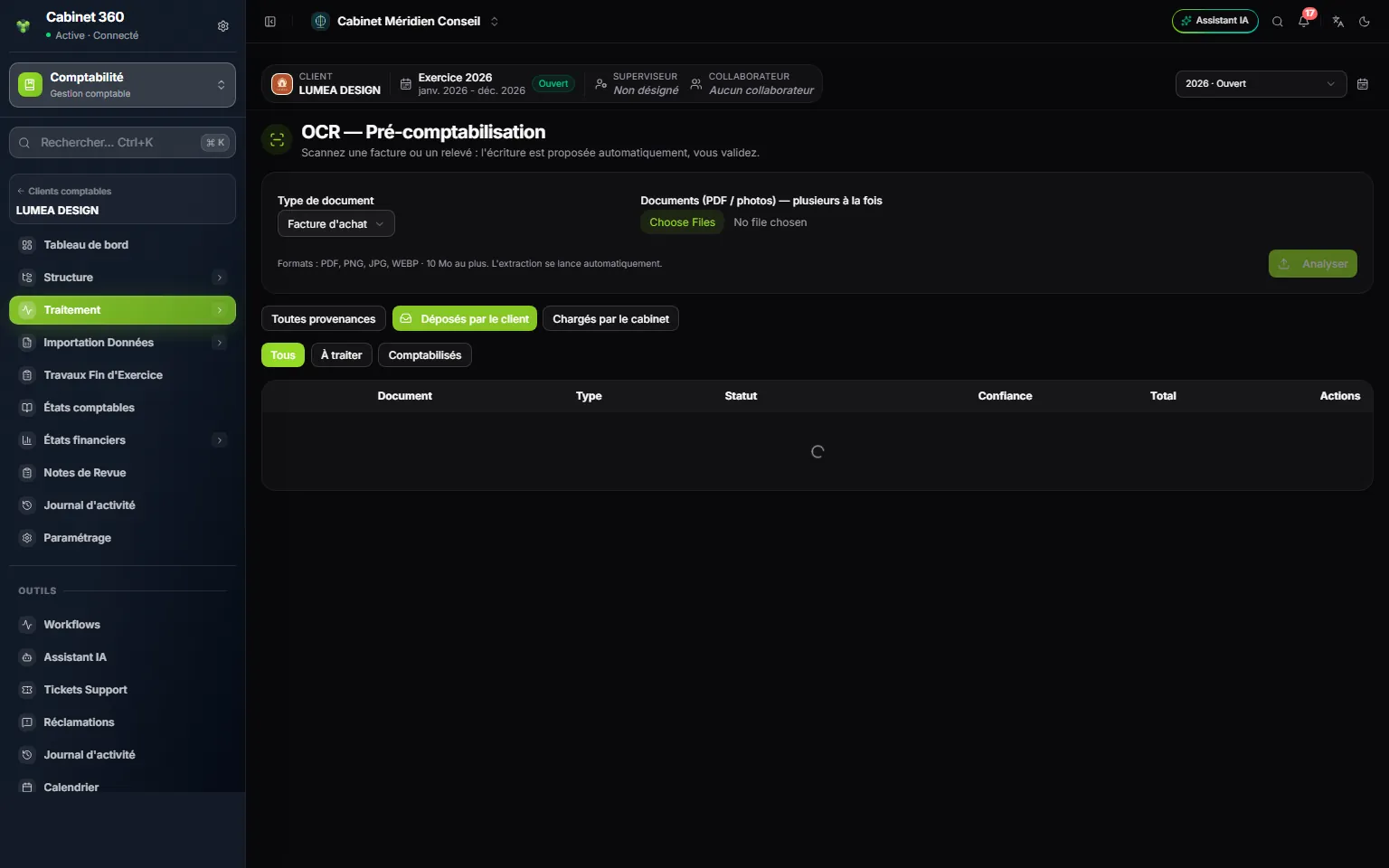
- 1. The client's file: the OCR inbox is that of their accounting file.
- 2. Submitted by the client: only the portal's submissions.
- 3. All, To handle, Posted: how far processing has gone.
- 4. The financial year and the file's team.
To read the inbox, you need the Accounting module and the View right on the OCR (Pre-accounting) screen; to request information, set aside or post, the Create right. You also need to be in the file's team (or an owner, or an administrator).
Who is told
When a client submits, the file's team members who can read the inbox receive a notification of documents submitted by the client in the bell; without a team, the owners and administrators do. One notification per person while the previous one, less than 12 hours old, is unread: not one per file: a client who submits twenty invoices at once does not fill your bell. A click on the notification opens the inbox, already filtered.
The « Submitted by the client » panel
In the list, each submission carries the Submitted by the client badge, with its author and date. A click opens it: at the top of the review page, the Submitted by the client card brings together:
- the Client's comment, if they wrote one;
- What the client sees: the status as shown on their portal;
- the Exchanges with the client (visible to the client);
- the Internal log, the submission's history, never visible to the client.
You then process the submission like a scan: you read the proposed entry, you correct it, then you click Post entries. The client reads Processed and Entry validated as soon as the entry exists.
Requesting information or another document
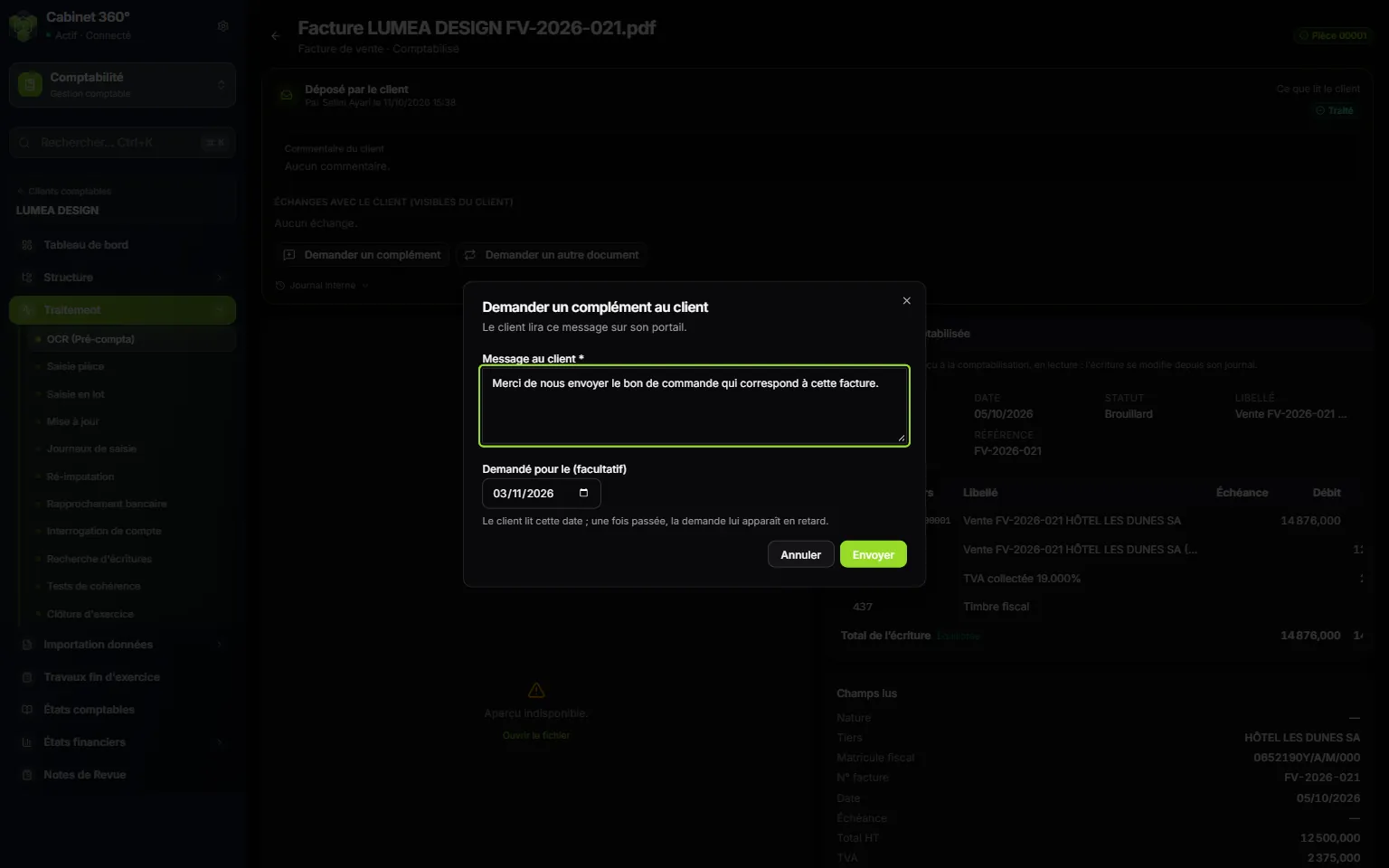
- 1. Two requests: Request information (a detail) or Request another document.
- 2. Message to the client: required; the client reads it on their portal.
- 3. Requested by (optional): the date by which you expect the answer.
- 4. Send: the client moves to Action needed.
- On the submission's card, click Request information or Request another document.
- Write the Message to the client, for example « the total incl. tax is unreadable, please send a better scan ».
- If you expect the answer by a given date, choose Requested by (optional): not before today, not more than a year ahead.
- Click Send. The message « Request sent to the client. » appears. The client reads Action needed; your row shows Information requested.
If your firm has the Tasks module, the request also goes into the My day of whoever made it, with its date as the deadline. Once the date has passed, it shows there as late, and the client also reads it as late.
When the client replies, the author of the request receives a notification. A text is added to the exchanges. A replacement document arrives as a new submission, with its own analysis; the old one becomes Replaced by the client.
To cancel a request that is no longer needed, click Withdraw request.
Setting a submission aside
A duplicate, an invoice that does not belong to this file, an off-topic document: click Not retained and give the reason the client will read. The document and its history remain; nothing is posted.
No double posting
IntegraSys keeps four locks between the client and your entries:
| Situation | What happens |
|---|---|
| The client submits the same file twice | A single submission; the client reads Already submitted. |
| You had already loaded this file | The submission is linked to it, with no second analysis and no possible second entry. |
| The submission is Replaced or Not retained | Post entries is refused. |
| You are waiting for a replacement, or the replacement replaces a document already posted | Post entries is refused while the request runs, or while the first document's entry exists. |
When Post entries is refused, an orange box, Posting blocked, says why. No entry is changed automatically: you delete or correct the first one, then post the replacement.
A submission whose analysis failed
Open it and restart the analysis: the client sees their status change. A client whose account was disabled after their submission does not stop your team from processing what is already in the inbox.