
On the client's side: the bell
At the top of every portal page, the bell counts unread notifications. A click shows the five latest; View all notifications opens the Notifications page.
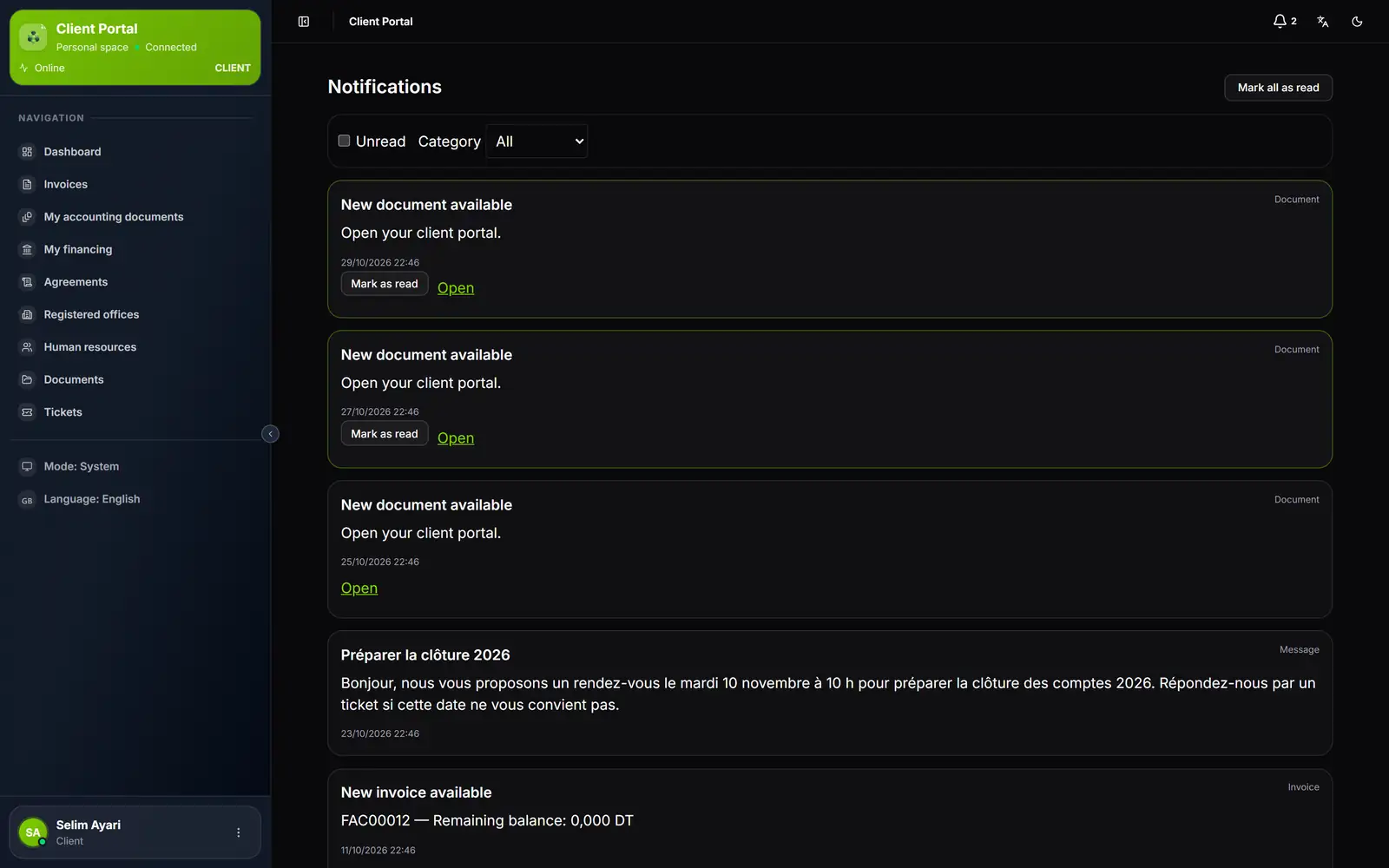
- 1. The bell and its unread counter.
- 2. Unread and Category: Message, Invoice, Document, Reminder.
- 3. Mark all as read.
- 4. A notification: its title, text, date and category.
- 5. Mark as read and View, which opens the invoice or the document.
Each notification carries its title, category, text and date. Mark as read removes it from the counter; View, when the notification points to an invoice or a document, opens it directly. The bell updates by itself.
Automatic notifications
Once the service is open and turned on, three notifications go out with nobody writing them, in the language of the client's account (French, Arabic or English):
| Notification | When it goes out | Setting |
|---|---|---|
| « New invoice available » | When an invoice of the client is issued for the first time | Notify new issued invoices |
| « New document available » | When a file is saved in one of the client's folders | Notify new documents |
| « Invoice reminder » | Before the due date, on the day or after, for an invoice that has a due date and is still to pay | Enable invoice reminders and the chosen days |
A request for information or for another document on an accounting document submission, and marking a submission Not retained, also send the client a message, with the Requested by date if there is one (chapter 12).
Writing a message
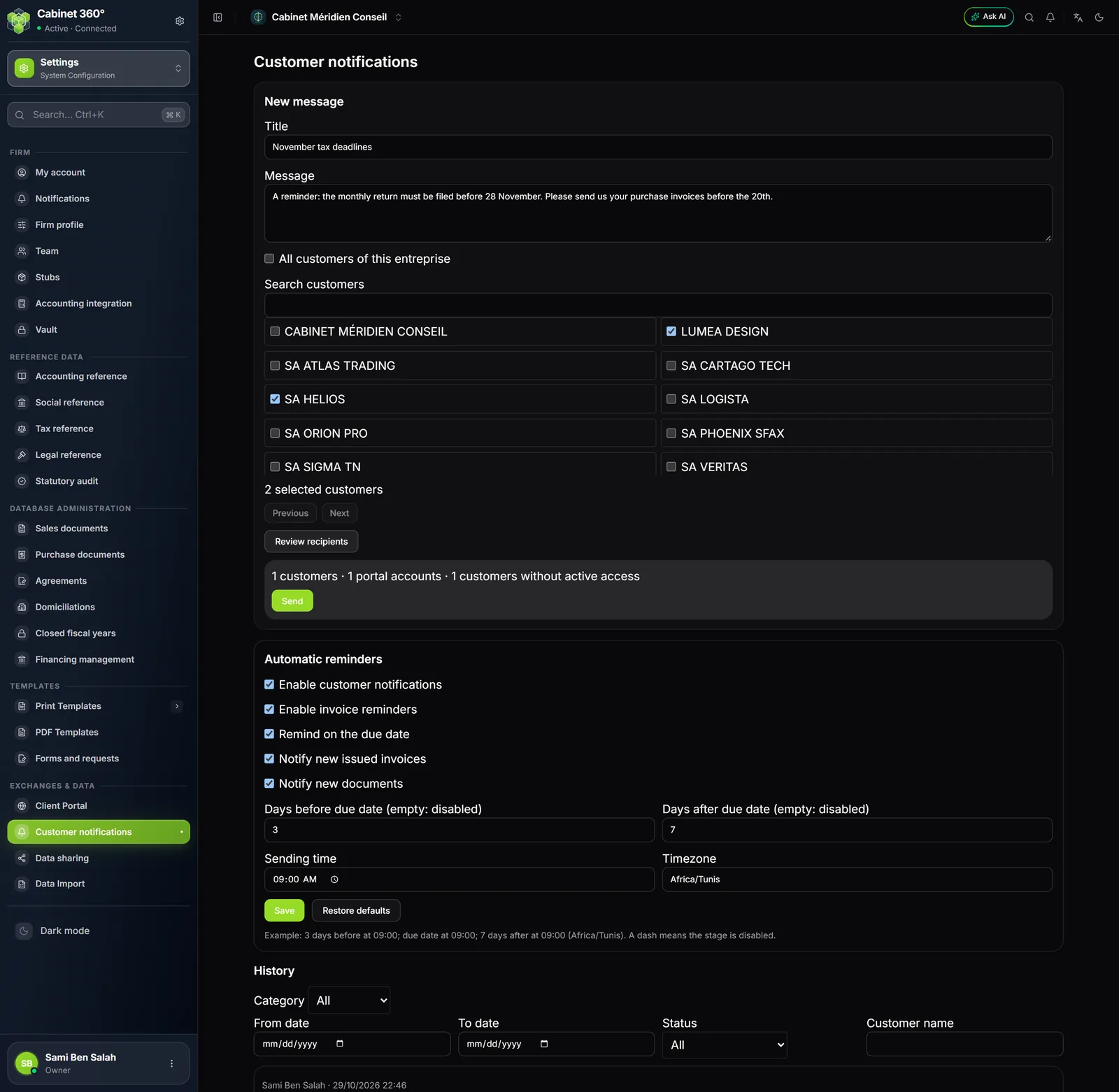
- In New message, enter the Title (255 characters at most) and the Message (5,000 at most).
- Choose the recipients: All customers of this entreprise, or the clients ticked after Search for a client.
- For a single client, you can add an Optional link: No link, an Invoice or a Document of this client. The client will open it with View.
- Click Review recipients: the screen counts the clients, the portal accounts that will receive the message and the clients without an active access, left aside.
- Click Send: « Message sent ». The message arrives exactly as you wrote it, in the Message category.
A client whose file is Inactive receives nothing. The Review recipients summary is valid for a quarter of an hour: after that, run it again before sending.
The settings
The Automatic reminders section sets the whole service:
- Enable customer notifications: the main switch;
- Notify new issued invoices, Notify new documents;
- Enable invoice reminders, with the days before the due date (3 by default), the reminder on the due date and the days after it (7 by default); an empty box turns that step off;
- the sending time (09:00 by default) and the Timezone (Africa/Tunis);
- Default values restores the original settings, Save keeps them.
The history
History lists every sending, filtered by Category, by period, by Status and by Customer name. Each sending gives its author, or Automatic, then the number of recipients and reads; Recipients shows, client by client, who has read it.
What the service needs
| Condition | Who meets it |
|---|---|
| The Client Portal and Operations modules in the subscription | The firm |
| The service opened for the firm by IntegraSys; otherwise the screen says « This service will be available after IntegraSys activates it. » | IntegraSys |
| Enable customer notifications ticked | The firm's owner |
| For alerts on the phone: the Android app, its Notifications on this phone switch, and the alert service opened by IntegraSys | The client, then IntegraSys |