
When the entry appears
The Human resources entry only appears in the portal menu if the Human resources service is ticked on the client file. The pages also need the HR module in your firm's subscription, and your firm to have opened that company's HR file; otherwise the page tells the client that the firm has not opened an HR file for their company yet.
The portal pages are the employer's pages: the client records for their employees, not for themselves. The employees offered are those of their company's HR file.
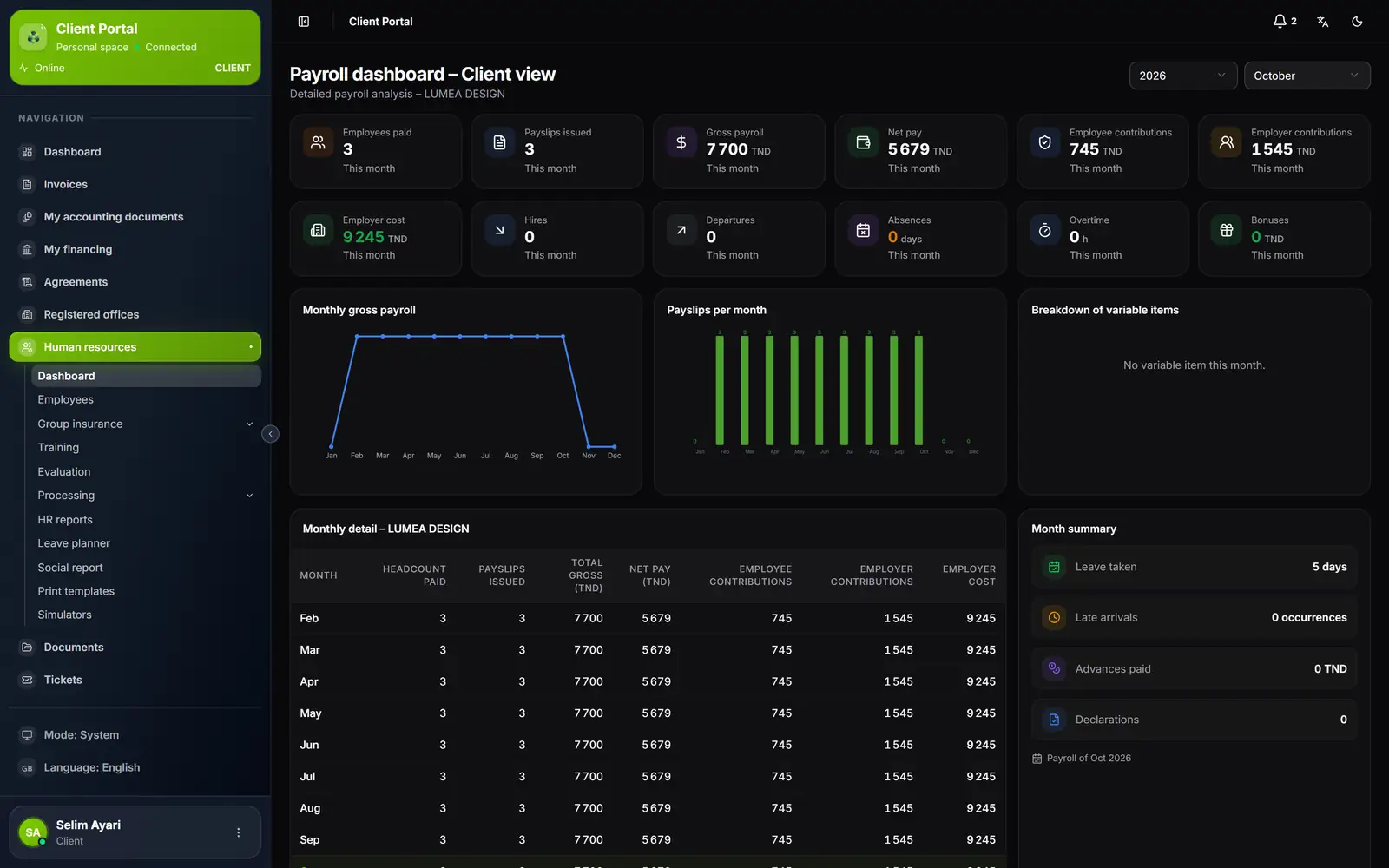
- 1. Human resources: its menu opens underneath.
- 2. Processing: the ten entry sections, leave included.
- 3. The payroll figures: those of the payslips your firm has generated.
- 4. Year and month: the client chooses the period.
Leave, from the request to the leave permit
- The client clicks New request, chooses the Employee (they can type their name, employee number or position), the type and the period of the leave, then saves. The message « Record created » appears.
- The request takes a number from the DC series (for example DC260001) and the In progress status. While it is in progress, the client can edit or delete it.
- When they approve it as employer, they choose Turn into a leave permit in the row's ⋯ menu, then confirm. The request becomes a Leave permit, numbered in the TC series (TC260001…), with the Validated status. It can no longer be edited.
- If the leave exceeds the employee's balance, a Negative leave balance window asks for confirmation: Yes validates it, No leaves it in progress.
- The leave permit counts against the employee's leave balance, in full in the month it starts, and your firm is notified.
Print downloads the request or the leave permit as a PDF, to be signed by the employer and the employee.
Leave has four statuses: In progress (a request), Validated (a leave permit), Rejected and Cancelled.
The other entries
The Processing section has ten entries: Leave, Absences, Salary advances, Loans, Salary deductions, Promotions, Bonuses, Overtime, Sanctions and Mission order. Each one opens with the button at the top right of its page.
| Entry | Button | What happens next |
|---|---|---|
| Absence | Record absence (or Batch entry) | Pending until the firm decides |
| Advance | Enter advances | Granted as soon as it is saved; goes into payroll |
| Loan | Loan contract | Approved as soon as it is saved; deducted from payroll from its first instalment |
| Salary deduction | New deduction | Pending until the firm decides |
| Promotion | New promotion | Taken into account in the payroll of the month of its effective date |
| Bonus | New bonus | Pending until the firm decides |
| Overtime | Declare overtime (or Batch entry) | Pending until the firm decides |
| Sanction | New sanction | Pending until the firm decides |
| Mission order | New mission order | Approved as soon as it is saved; goes into the payroll of the month of departure |
The Status column follows the decision: Pending, then Approved or Rejected. Payroll only counts an entry with the Approved status; a rejected entry never goes into it. Your firm is notified of each entry and finds it in the company's HR file.
A Pending entry, and an advance, a loan, a mission order or a promotion entered by the client, can be edited or deleted from the row's ⋯ menu as long as their month is neither generated nor closed (for a loan, as long as no instalment has been deducted). A locked row shows a padlock: the reason (already processed, payroll period closed, month's payroll already generated by the firm) appears on hover, and the eye opens the detail.
What the firm does
Your team sees each portal entry in the company's HR file, with its status. It approves or rejects absences, bonuses, overtime, salary deductions and sanctions, then generates the month's payroll. The « HR & Payroll » book describes these screens.
The client's HR space in brief
Around Processing, the portal's Human resources menu mirrors the company's HR file, without the payroll calculation screens:
- Dashboard: employees paid, gross payroll, net pay, contributions and employer cost, month by month;
- Employees: the list and the employee files, adding an employee or an import;
- Group insurance (Enrolment, Claim form), Training, Evaluation;
- HR reports: payslips, payroll ledger, transfer order and other reports of a generated month;
- Leave planner, Social report, Print templates and Simulators.