
What the list shows
The My Invoices page lists the invoices and credit notes your firm has issued to the client's company: validated, sent, partly paid, paid or covered by a credit note, and validated credit notes.
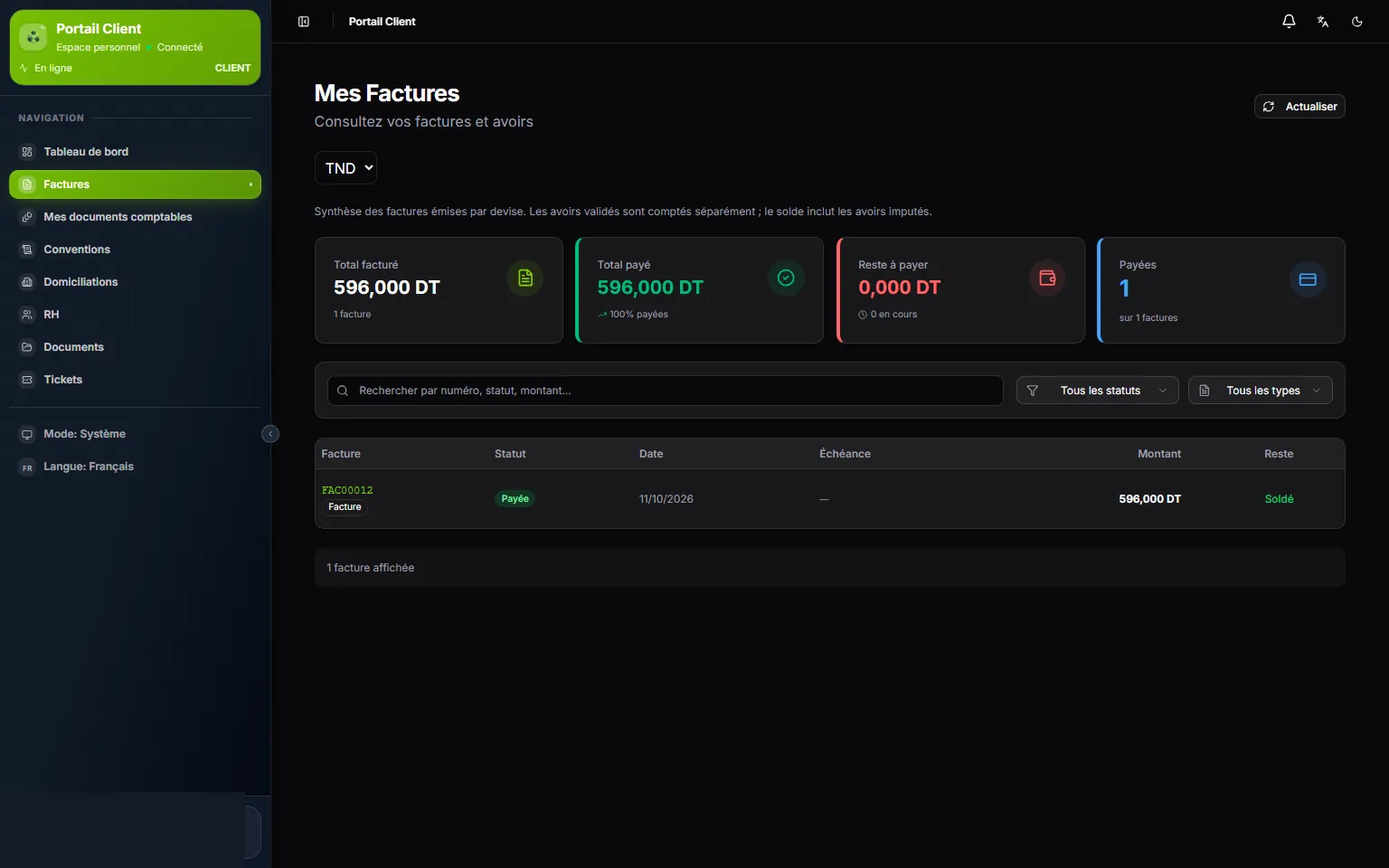
- 1. The currency: the counters read currency by currency.
- 2. Four counters: total invoiced, total paid, remaining to pay, paid invoices.
- 3. Search and filters: a number, a status, a type.
- 4. One invoice per row: its number opens the detail.
- 5. Remaining: the amount due in red, or Settled.
Each row gives the Invoice (number and type), its Status, its Date, its Due date, its Amount and its Remaining. The row menu offers View details, Download PDF and Print.
Searching and filtering
- The search finds an invoice by its number.
- The status filter: All statuses, In progress (an invoice with something left to pay), Paid, Partial.
- The type filter: All types, Invoice, Credit note.
- Clear resets the filters.
An invoice in detail
A click on the number opens the invoice. The header gives its number, type, status, date and due date; on the right, Print, PDF and Refresh.
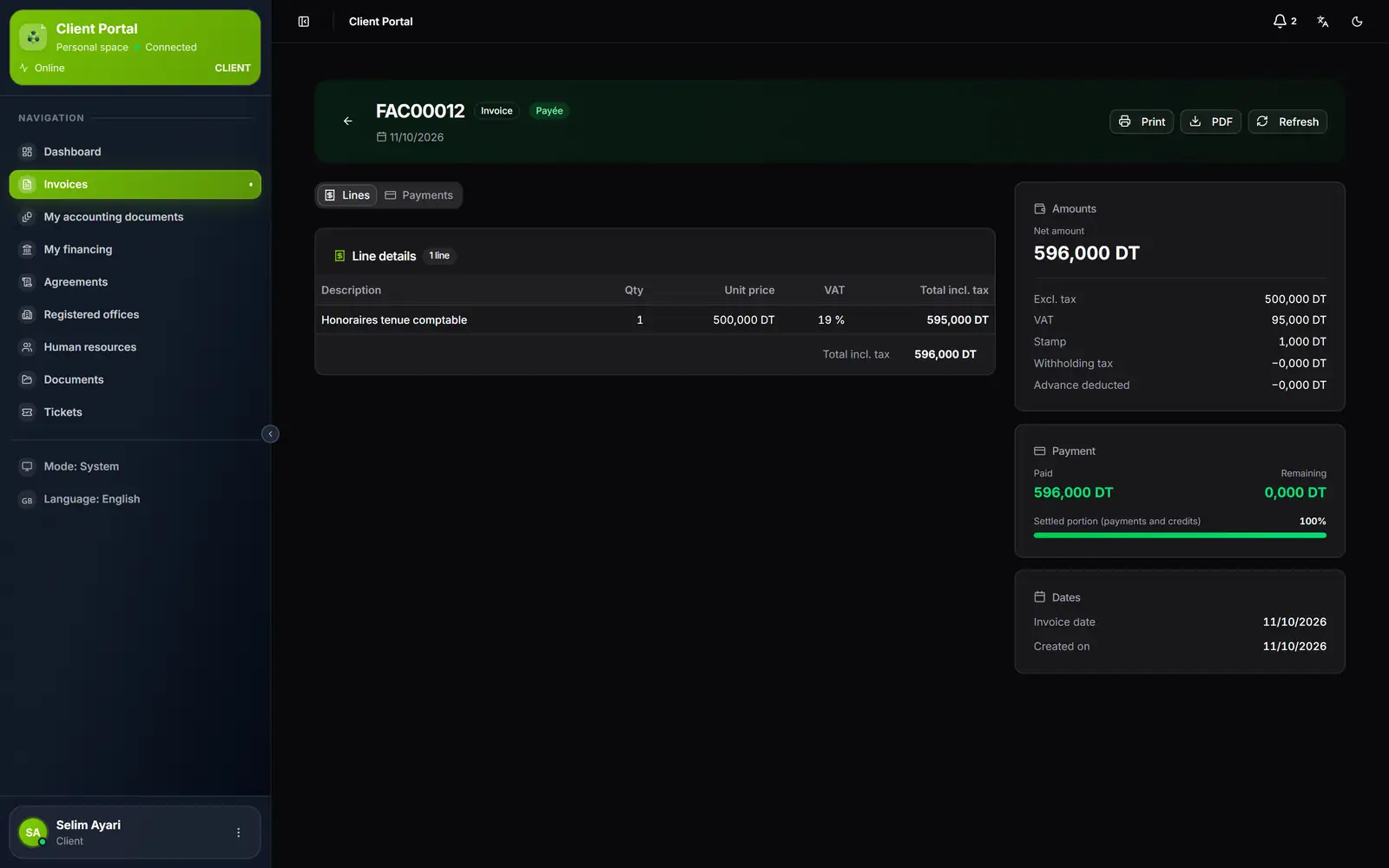
- 1. Number, type and status of the invoice, and its date.
- 2. Print, PDF, Refresh.
- 3. Two tabs: Lines and Payments.
- 4. Line details: description, quantity, unit price, VAT rate, total incl. tax.
- 5. Amounts: net amount, excl. tax, VAT, stamp, withholding tax, advance deducted.
- 6. Payment: paid, remaining, and the portion settled by payments and credit notes.
The cards on the right detail the amounts:
| Card | What it gives |
|---|---|
| Amounts | The Net amount, then excl. tax, VAT, Stamp (if any), Withholding tax and Advance deducted |
| Payment | Paid, Remaining, the Applied credit notes if any, and the Settled portion (payments and credits) as a percentage |
| Dates | Invoice date, Due date, Created on |
The Payments tab appears as soon as a payment is recorded: for each one, its date, its method (cash, cheque, transfer…), its reference and its amount.
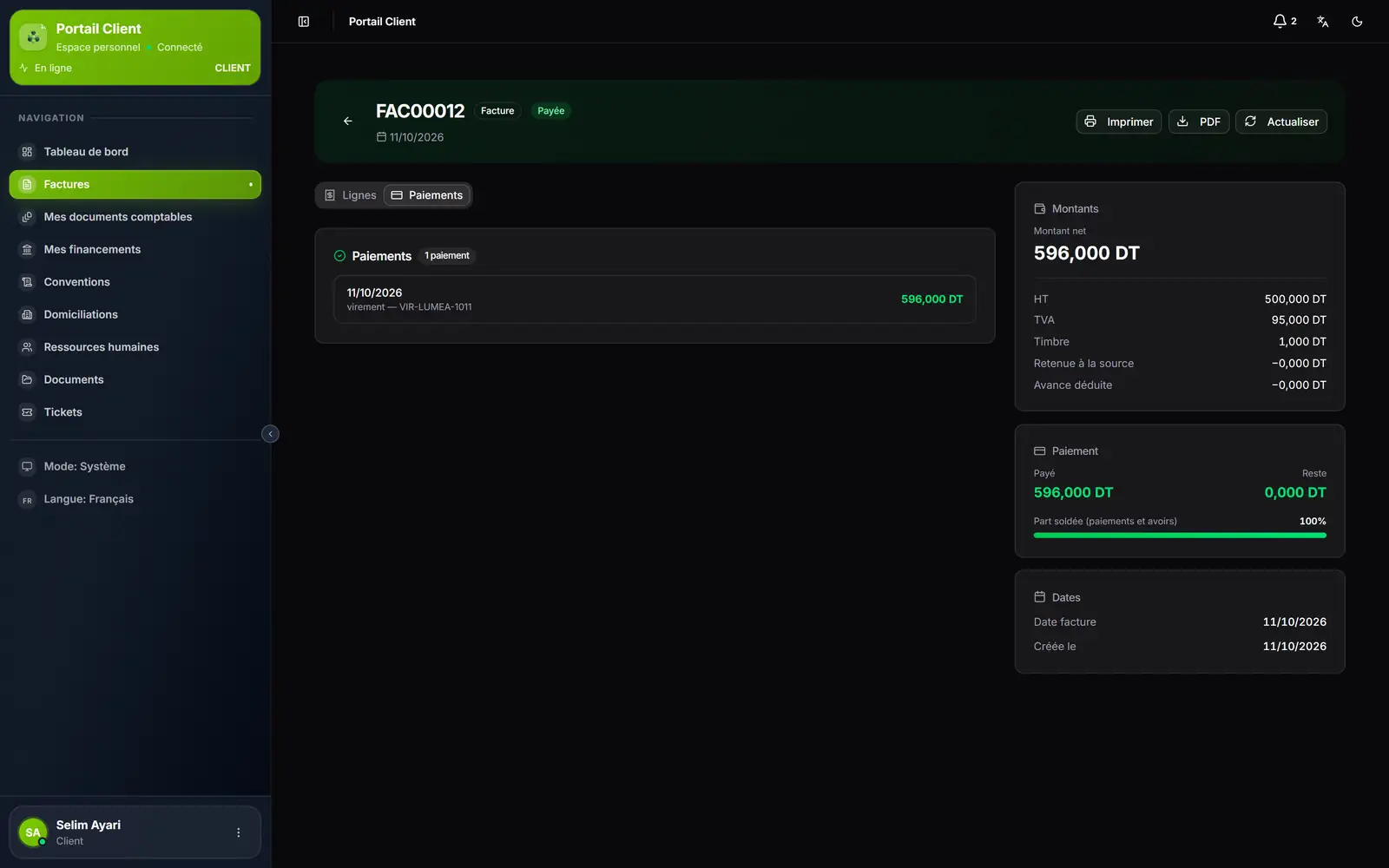
- 1. A payment: date, method and reference.
- 2. The amount received.
Downloading and printing
PDF downloads the invoice, on your firm's template and without its internal notes; Print opens it for printing. Both actions also sit in the menu of each row of the list.
What the client sees when you act
| You, in the ERP | The client, on their portal |
|---|---|
| You validate an invoice | It appears in Invoices; depending on your settings, a « New invoice » notification announces it (chapter 10) |
| You record a payment | The Payments tab shows it; Paid, Remaining and the status follow |
| You issue a credit note | It appears as a Credit note row; once applied, it reduces the amount remaining |
| You cancel an invoice | It disappears from the portal |