
The client's list
The My Tickets page opens on four counters (Total tickets, Open, Resolved, Urgent), then the client's tickets, each with its number, subject, Status, Priority, Category and creation date.
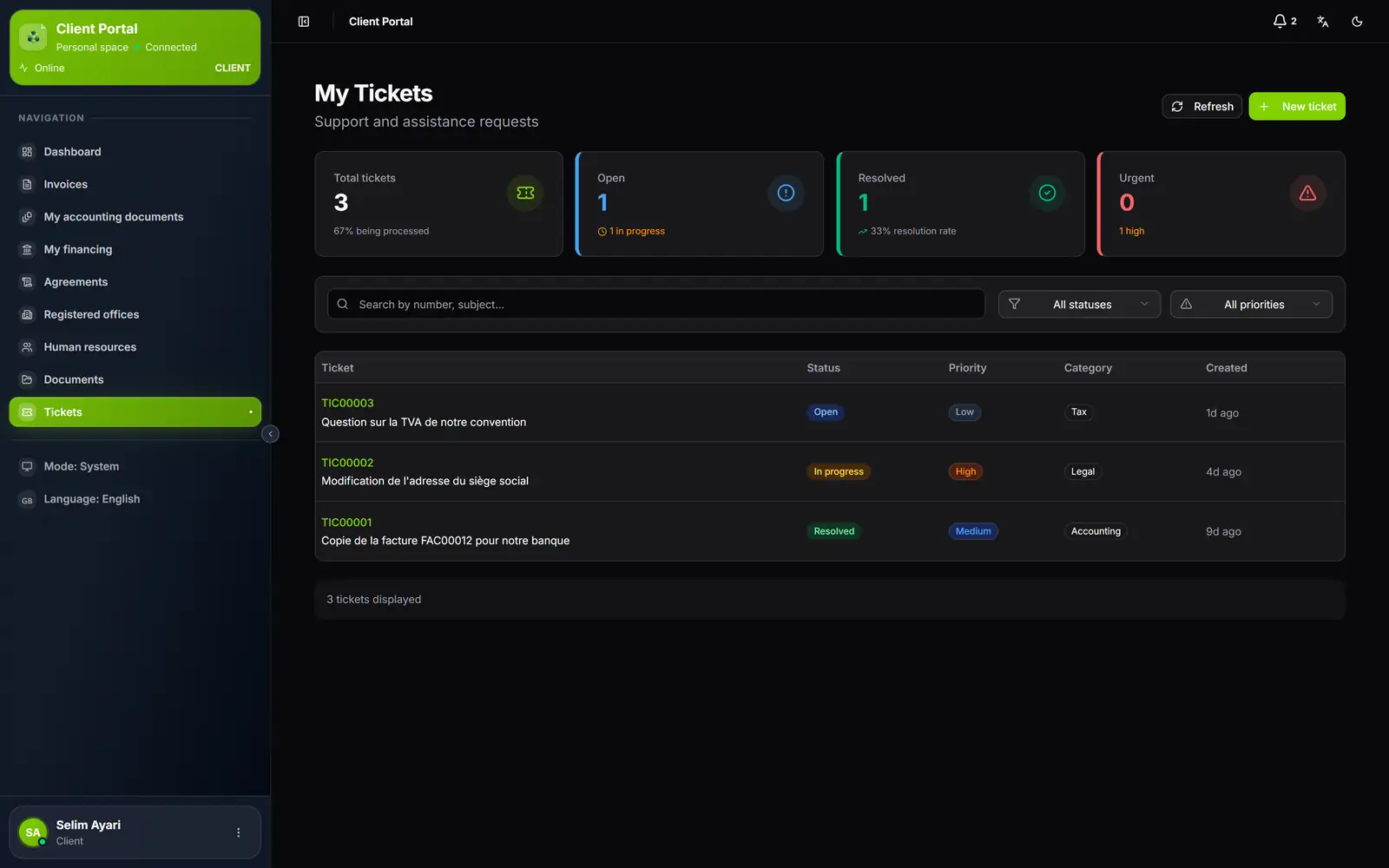
- 1. New ticket: a new question to the firm.
- 2. Four counters: total, open, resolved, urgent.
- 3. Search and filters: a number or a subject, a status, a priority.
- 4. One ticket per row: its number opens the conversation.
Opening a ticket
- The client clicks New ticket.
- They enter the Subject and the Description, both required.
- They choose the Category (Legal, suggested by default, Tax, Social, Accounting, Administrative or Other) and the Priority (Low, Normal, suggested by default, High or Urgent).
- They click Send. The ticket opens with its number (TIC00001, TIC00002…).
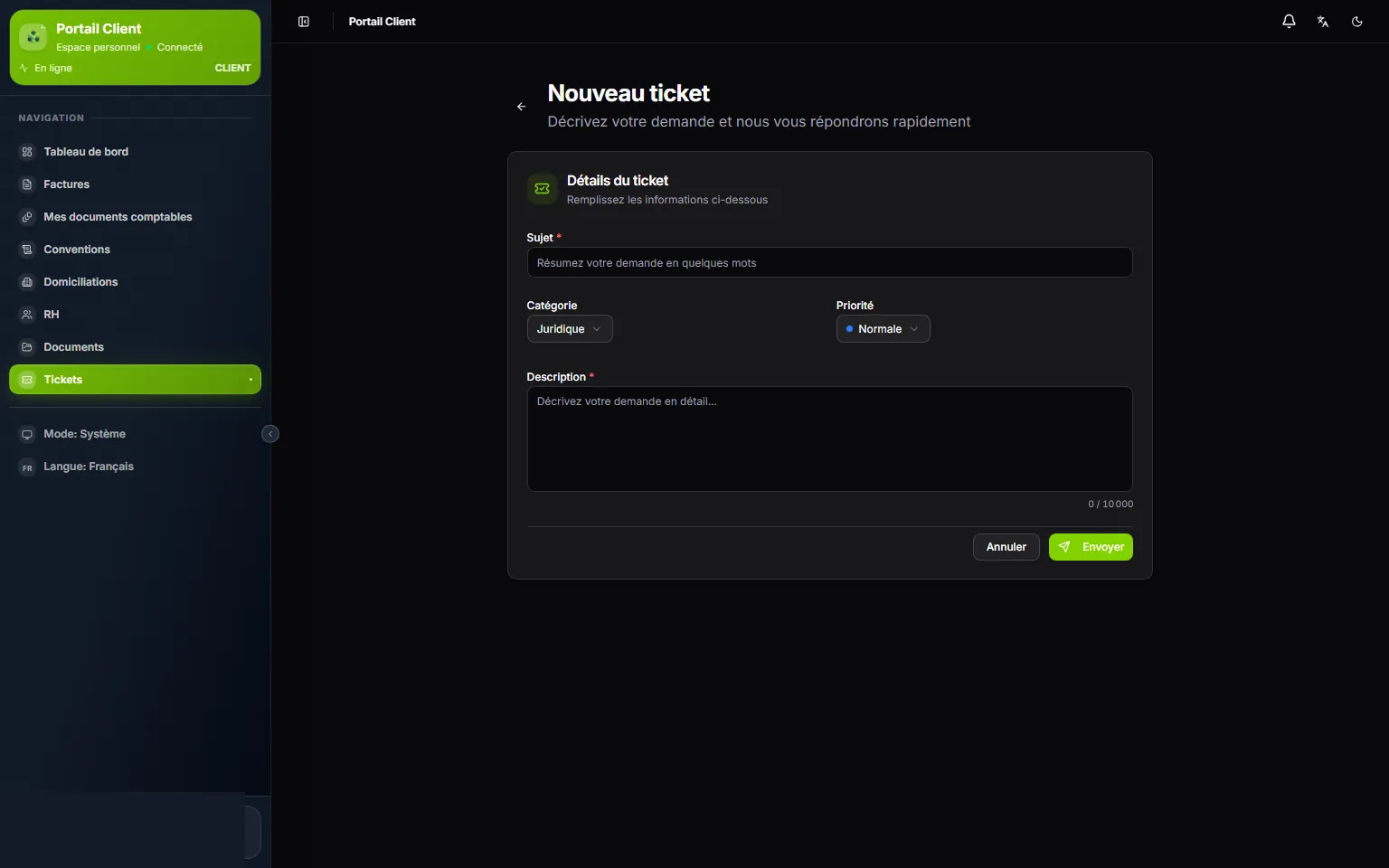
- 1. Subject: the request in a few words.
- 2. Category: Legal is suggested by default.
- 3. Priority.
- 4. Description: the details of the request.
- 5. Send.
The creation form takes no file: the client attaches their document afterwards, in the conversation.
The conversation
A ticket's page has two tabs: Details recalls the client's description; Comments holds the conversation. On the right, the Information (status, priority, category), Dates and Activity cards.
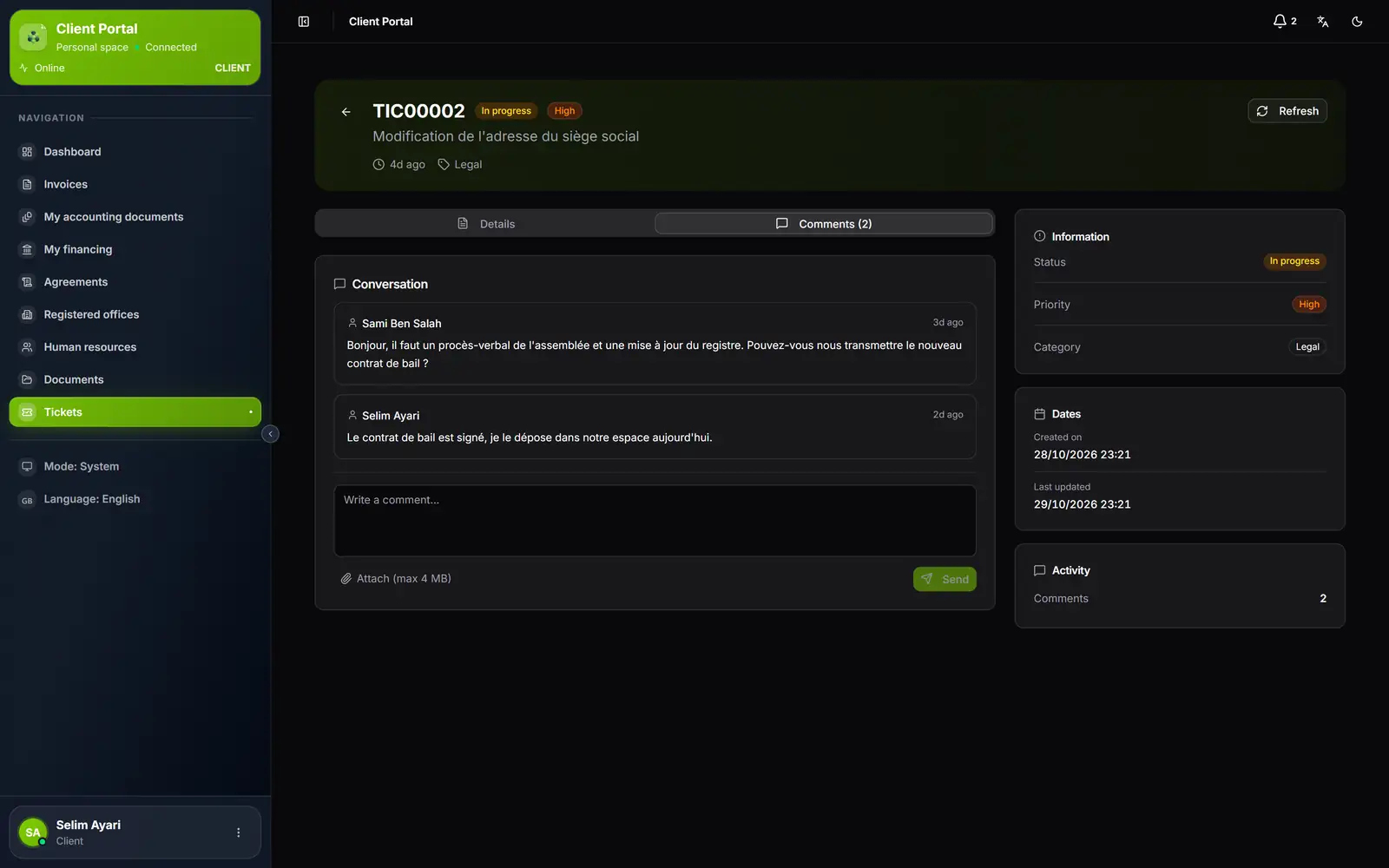
- 1. The ticket: its number, status, priority and subject.
- 2. Comments: the conversation, with the number of messages.
- 3. Each message carries its author's name: your team member or the client.
- 4. Write a comment: the client's reply.
- 5. Attach (max 4 MB): a file goes with the message.
- To reply, the client opens Comments, writes their message, then clicks Send.
- To attach a file, they click Attach (max 4 MB), choose it, then click Send: the file goes with the message.
- The firm's replies are added to the conversation, and the page updates by itself. A click on an attached file's name downloads it.
An attached file can be a PDF, an image, a Word or Excel document, a text file or a ZIP or RAR archive, of 4 MB at most for now. A heavier file is refused as soon as the client chooses it, and their message stays in the form.
On the firm's side
Clients' tickets arrive in the ERP's Support Tickets screen, with the Open status; your team receives a new-ticket notification (an urgent-ticket one when the priority is urgent). Your team member reads the request and replies from the ticket's Comments tab. Each comment is marked Visible or Internal note: an internal note and its attachments never show on the client's side.
When you are waiting for information from the client, set the ticket to Awaiting client. As soon as the client replies, with a message or a file, the ticket goes back to In progress and the firm receives a client-reply notification; only one while it is unread.
The statuses
The firm changes the status: the client adds messages, they neither edit nor close their ticket. When the firm has dealt with the request, the ticket moves to Resolved or Closed and the reply form is replaced by a sentence saying the ticket is resolved (or closed) and can no longer be answered. For a new question, the client opens a new ticket.
In the Android app, tickets are called Requests: a badge counts those waiting for the client's reply (chapter 14).