
What the client does, and what they don't
The client submits files: one invoice per file. They never give an account, a journal or an entry line. Submitting posts nothing: your firm reads each invoice, prepares the entry, checks it and validates it (chapter 12).
The section keeps the two directions apart. Invoices gathers what you invoice the client; My accounting documents gathers what the client sends you: their suppliers' invoices (Purchase) and the ones they issue to their own customers (Sales).
Who may submit, who may read
The section appears in the menu as soon as submission is open for this company (chapter 2). Submitting needs all of the following:
- an active portal account;
- the Client Portal and Accounting modules in your firm's subscription;
- an active client, with the Bookkeeping service;
- an accounting file open for this client;
- your permission, the Document submission switch.
If you withdraw the permission, untick the service or delete the accounting file, the client no longer submits or replies, but they keep their history: a Document submission unavailable box tells them why, and their documents already submitted remain available. A disabled account or an expired subscription closes everything.
Submitting an upload
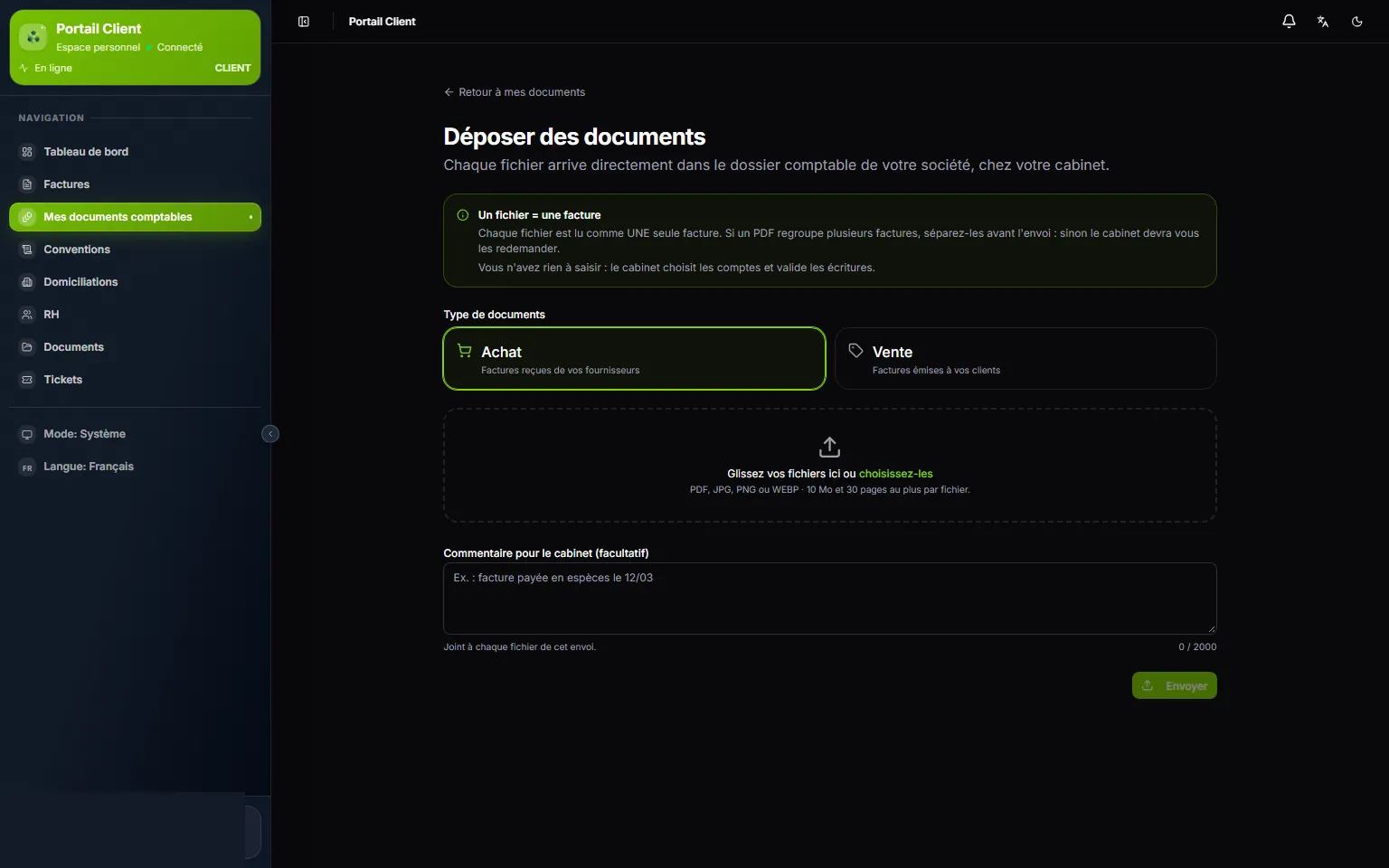
- 1. One file = one invoice: a PDF holding several invoices is split before sending.
- 2. Document type: Purchase or Sales. One upload carries one type.
- 3. The drop zone: drop the files, or click to choose them. It shows the formats and the current maximum size.
- 4. Comment for the firm (optional): attached to every file of the upload, 2,000 characters at most.
- 5. Send: the button counts the files ready.
- In My accounting documents, the client clicks Submit documents.
- They choose the Document type: Purchase (invoices received from their suppliers) or Sales (invoices issued to their customers).
- They drop their files into the zone, or click browse. On a phone, the whole zone opens the file picker. Each file shows Ready to send; the cross removes it.
- If needed, they write a Comment for the firm (optional), for example « invoice paid in cash on 12/03 ».
- They click Send N files. Each file gets its outcome: Received, Already submitted or Rejected, with the reason underneath.
| Outcome | What it means |
|---|---|
| Received | Your firm received it; the analysis is starting. If you had already loaded this same file into the accounting file, the submission is linked to it, with no second analysis. |
| Already submitted | The client had already submitted this file: the existing submission is kept. |
| Rejected | Unsupported format, file too heavy or unreadable, password-protected PDF, document too long… The reason is written under the row. |
A PDF of several pages is read as one invoice. The screen warns before sending: « This PDF has N pages: if it contains several invoices, submit them separately. »
Following the processing
The My accounting documents list gives, for each file, its Type, its Status, the Submitted on date and its author (By). The client searches a file by name, filters by type, by status and by submission period (Submitted from … to). The list updates by itself while an analysis is running.
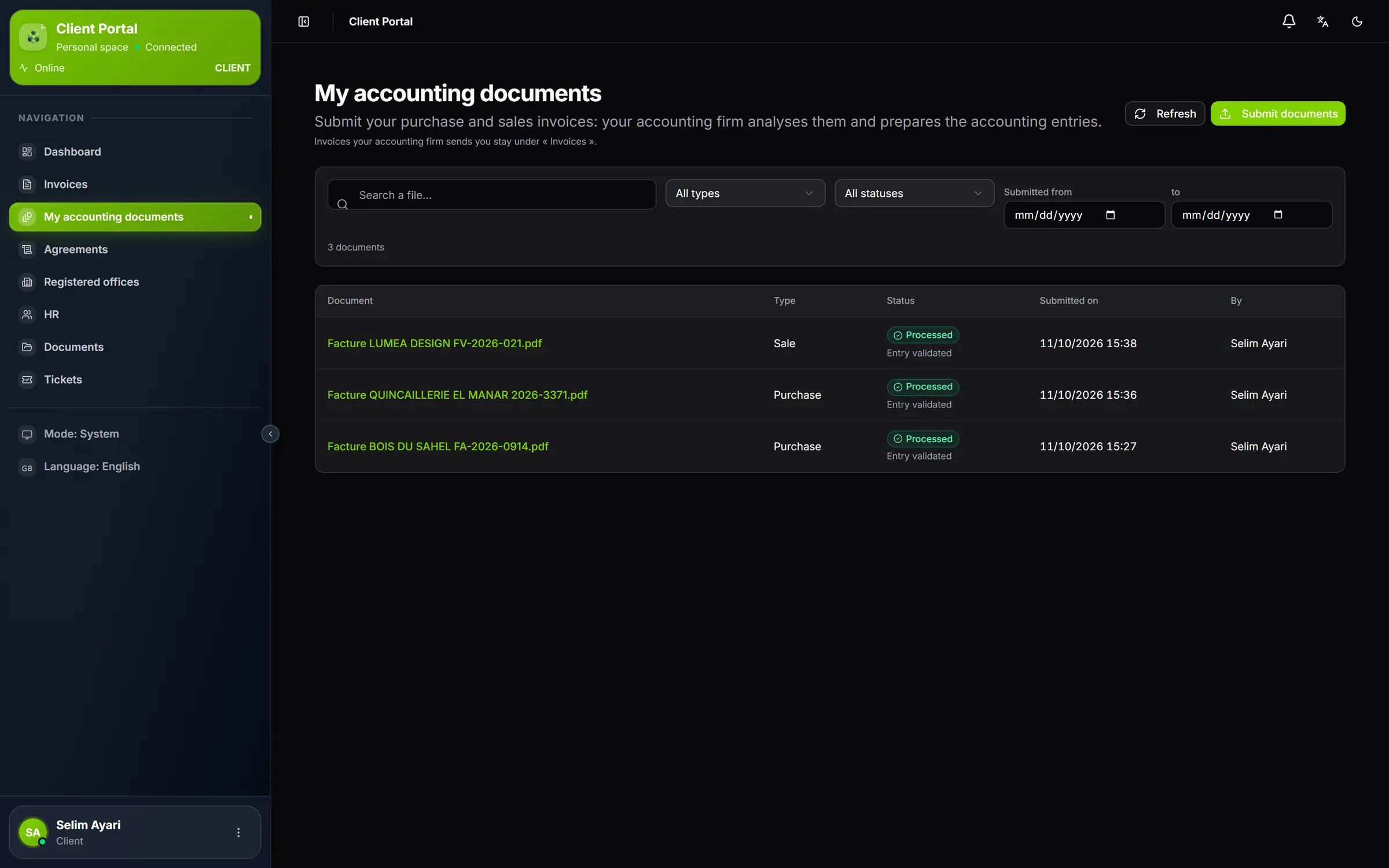
- 1. Submit documents: a new upload.
- 2. The filters: file name, type, status, submission period.
- 3. The status and, under it, Entry validated once processed.
- 4. The file name: it opens the document's page.
| Status | What the client understands |
|---|---|
| Received | Your document has arrived; its analysis is about to start. |
| Being analysed | The document is being read automatically. |
| To be checked by the firm | The analysis is complete: the firm is checking the proposed entry. |
| Action needed | The firm needs information or another document from them. |
| Processed | The firm has recorded and validated the accounting entry (Entry validated). |
| Analysis failed | Automatic reading failed; the firm sees it in its OCR inbox. |
| Replaced | The document was replaced by a new version. |
| Not retained | The firm did not retain this document; its reason is on the document's page. |
The status is worked out at each reading from your own processing: it can never lag behind your work. If you delete the entry of a processed document, it goes back to To be checked by the firm.
A document's page
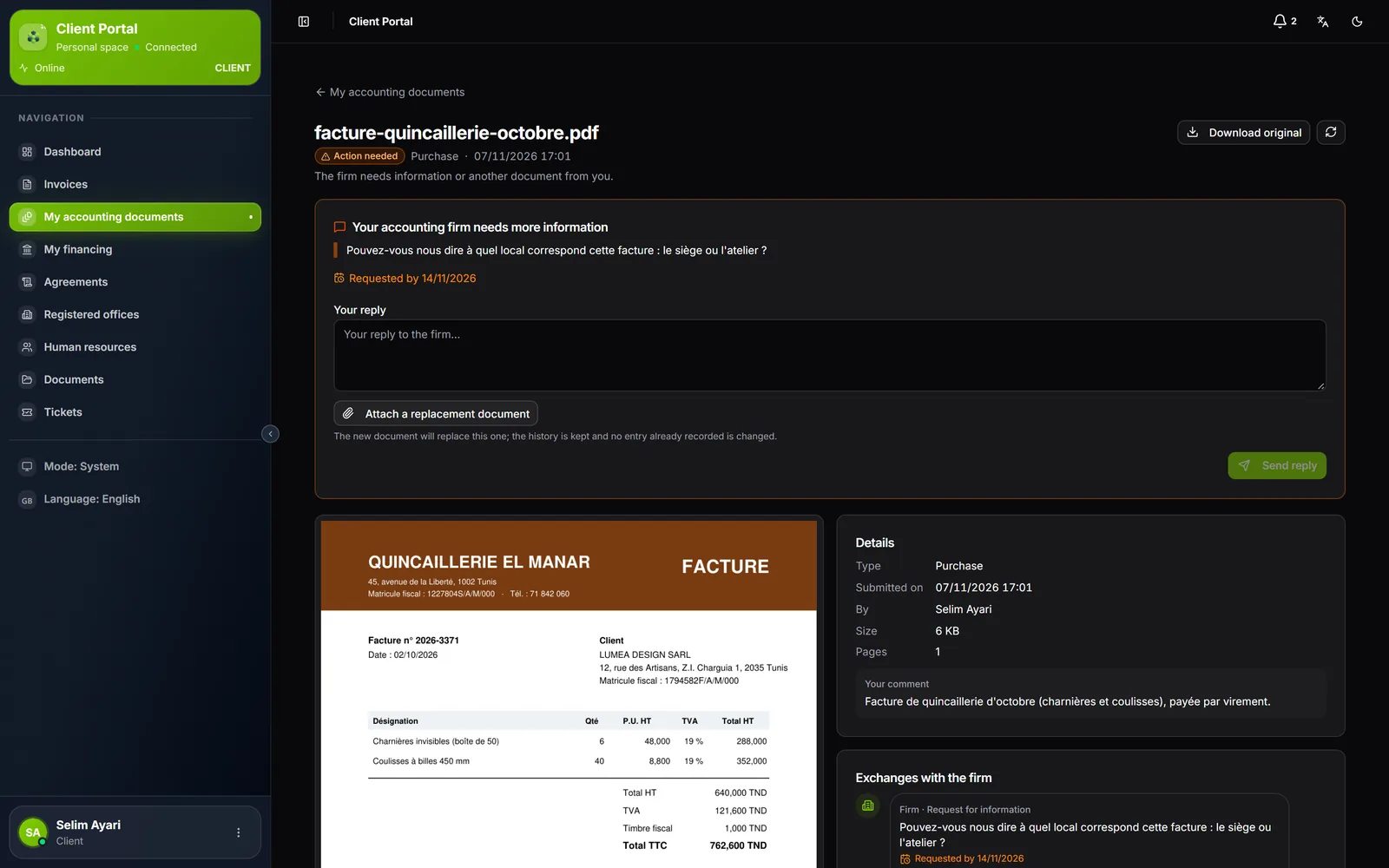
A click on the file name opens its page: the preview (page by page) and Download original, its information (type, date, author, size, pages, entry), Your comment and the Exchanges with the firm.
Answering a request
When you request information, the document moves to Action needed and the row may read Requested by dd/mm/yyyy, the date by which you expect the answer; once it has passed, it shows Past due. On the document's page, a box quotes your message: « Your accounting firm needs more information » or « Your accounting firm needs another document ».
- The client writes Your reply, or clicks Attach a replacement document, or both.
- They click Send reply. The message « Reply sent to the firm. » appears, or « Replacement document sent. » if they attached a file; the author of the request receives a notification.
A replacement document is a new submission, with its own analysis. The old one becomes Replaced and stays available; no entry already posted is changed.
After a failed analysis
The page gives the reason for the failure. For a passing outage (the analysis service briefly unavailable, a technical error), the Restart analysis button appears: three times at most. For an unreadable or too long document, the client submits a better version, one invoice per file.