
What the portal does
The client portal is an online space your firm opens to each of its clients. The client signs in with an email address and a password that you give them. There they find, for their company only:
- the invoices and credit notes you have issued to them, their payments and what is still due;
- their agreements and registered office contracts;
- the documents you file in their folders;
- their tickets: the questions they ask you and your answers;
- their notifications: new invoice, new document, reminder, message from the firm.
If you open them, three more sections appear: My accounting documents, to send you their purchase and sales invoices; My financing, to follow their loans; and Human resources, to record the leave and other movements of their employees.
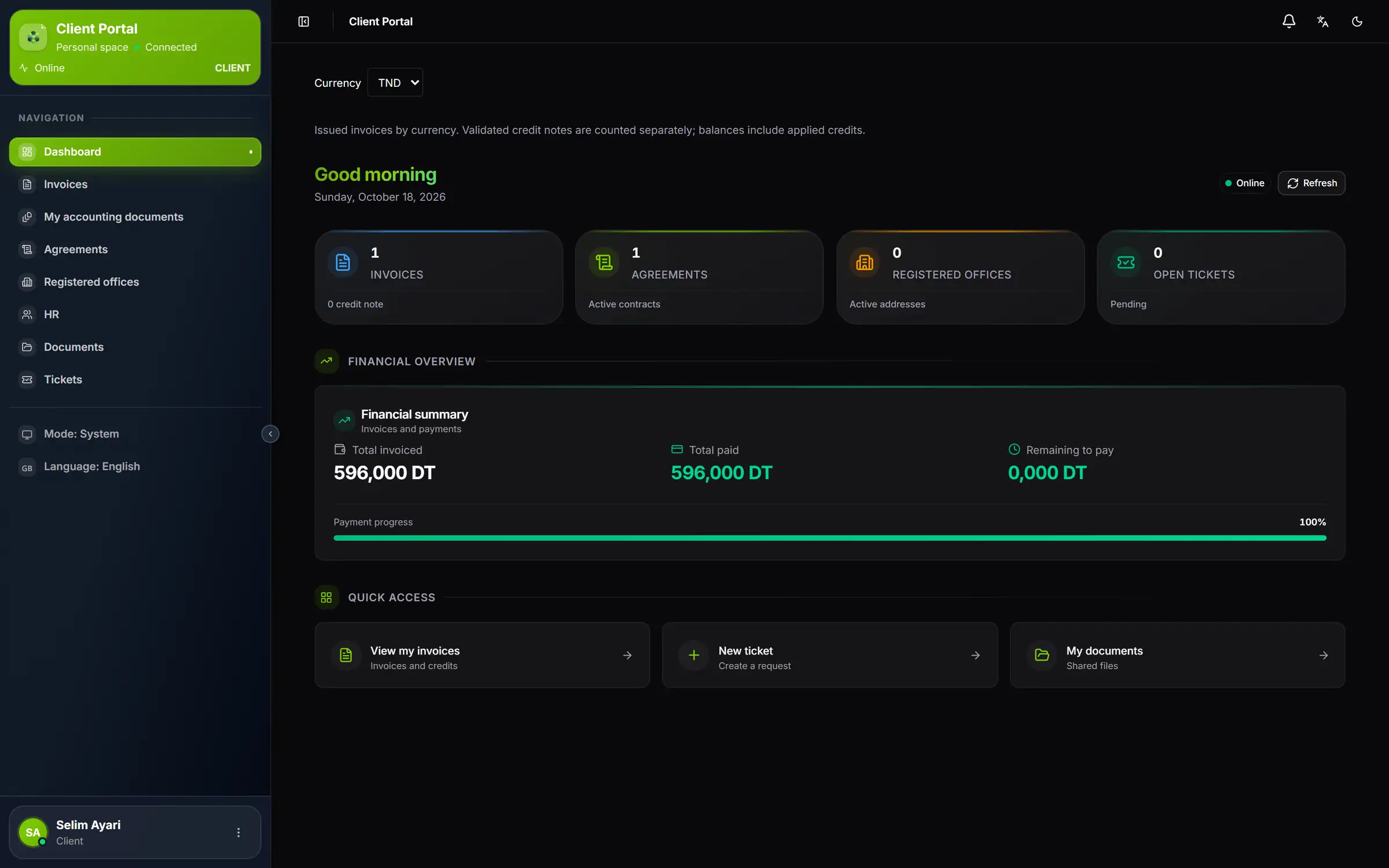
- 1. The client's menu: it only shows what you have opened for their company.
- 2. Four counters: invoices, agreements, registered offices and open tickets.
- 3. Financial overview: total invoiced, total paid and remaining to pay, in the chosen currency.
- 4. Quick access: their invoices, a new ticket, their documents.
- 5. Mode and Language: the portal language, and the colours of the menu; the appearance of the whole page is set at the top right.
The two sides of the portal
The portal has two sides, and this book follows both.
| Side | Who | Where | What happens there |
|---|---|---|---|
| The firm | Your team | Settings › Client Portal, the client file, the OCR (Pre-accounting) inbox, Support Tickets | Create accesses, open document submission, answer tickets, process submissions, send notifications |
| The client | The person you invited | Their portal, on the web or in the Android app | Read, download, ask a question, submit, reply |
The client reads: they never change an invoice, a contract or an address. To change any information, they write to you in a ticket. The only things they create are their tickets, their accounting document submissions, their HR entries, their employees' files and, in My financing, their own loans and the payments they report to you.
The client's menu
The portal menu always keeps the same order. Six entries are there for every client; three appear only if your firm has opened them.
| Entry | What the client finds there | When it appears |
|---|---|---|
| Dashboard | Their counters and financial overview | Always |
| Invoices | The invoices and credit notes issued by the firm | Always |
| My accounting documents | Their purchase and sales invoice submissions | When submission is open and operative, or once they have already submitted (chapter 2) |
| My financing | Their loans and leases | When you keep their accounts: Accounting module, Bookkeeping service, accounting file open (chapter 7) |
| Agreements | Their agreements | Always |
| Registered offices | Their registered office contracts | Always |
| Human resources | Their employees' HR entries | When the HR service is ticked on their client file (chapter 13) |
| Documents | The folders you file for them | Always |
| Tickets | Their questions and your answers | Always |
At the top of every page, the bell counts their unread notifications. At the bottom of the menu, their card opens My account and Logout.
On a phone
The web portal adapts to a phone screen: the menu tucks behind the button at the top left, and the counters line up two per row.
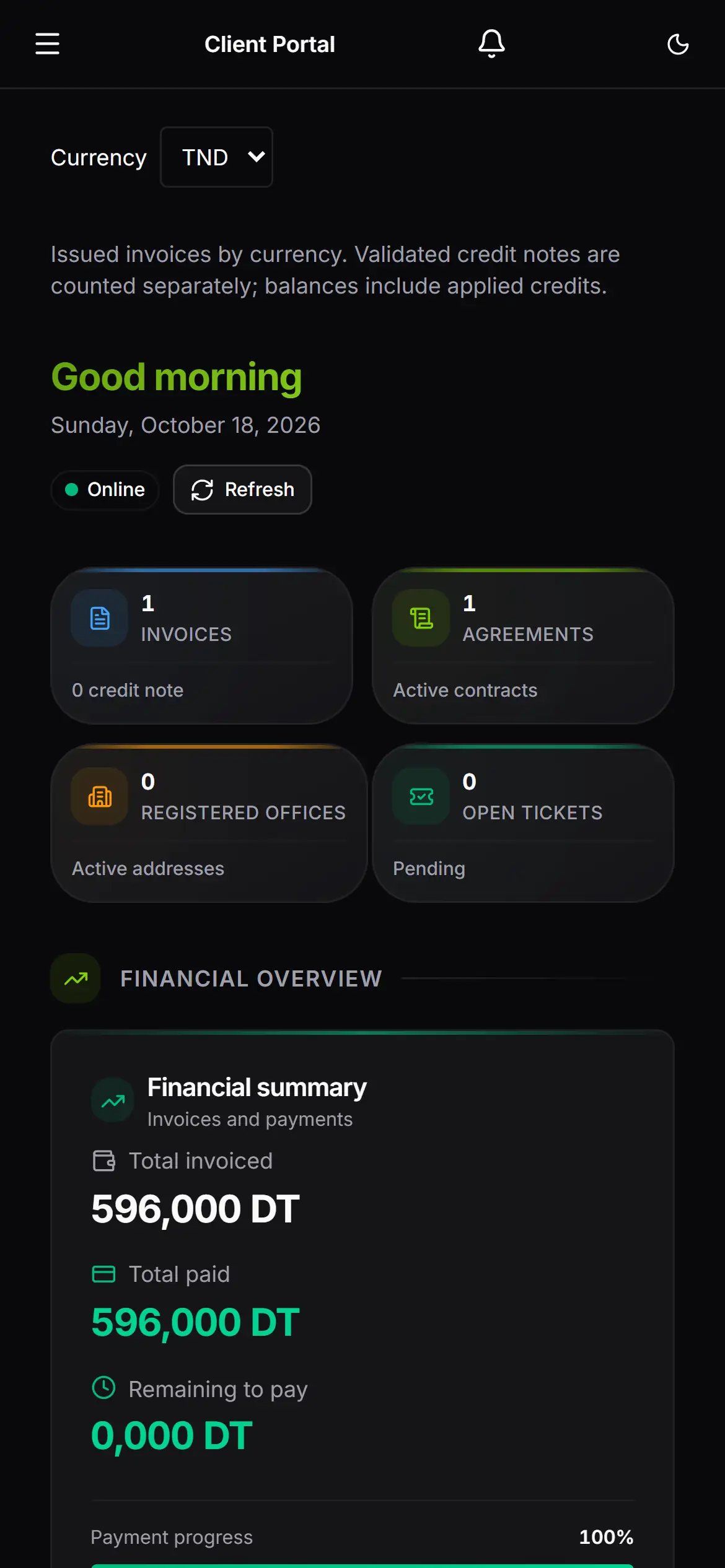
- 1. The menu: this button opens it.
- 2. The bell: the client's notifications.
- 3. The counters, two per row.
For Android there is also an app, IntegraSys, which carries the essentials of the portal (chapter 14).
What you need to start
- The Client Portal module in your firm's subscription, with Operations for invoices, contracts and documents.
- The client, created in Operations › Structure › Clients, with the Active or In progress status: only Inactive closes the portal.
- A team member allowed to open accesses: owner, administrator, or a role that ticks the Settings › Client Portal screen (chapter 2).
- For accounting document submission, also: the Accounting module, the Bookkeeping service ticked on the client file, and the client's accounting file open.