
Where the folders come from
The portal's Documents section shows the folders and files your firm files for the client's company. The client sees its sub-folders, for example Comptabilité, Fiscal, Juridique or Social & Paie (the names your firm gives them), with the number of files each one holds.
To share a document with a client, file it in a folder of their company. They have nothing to ask for: the file is there on their next visit.
Browsing their folders
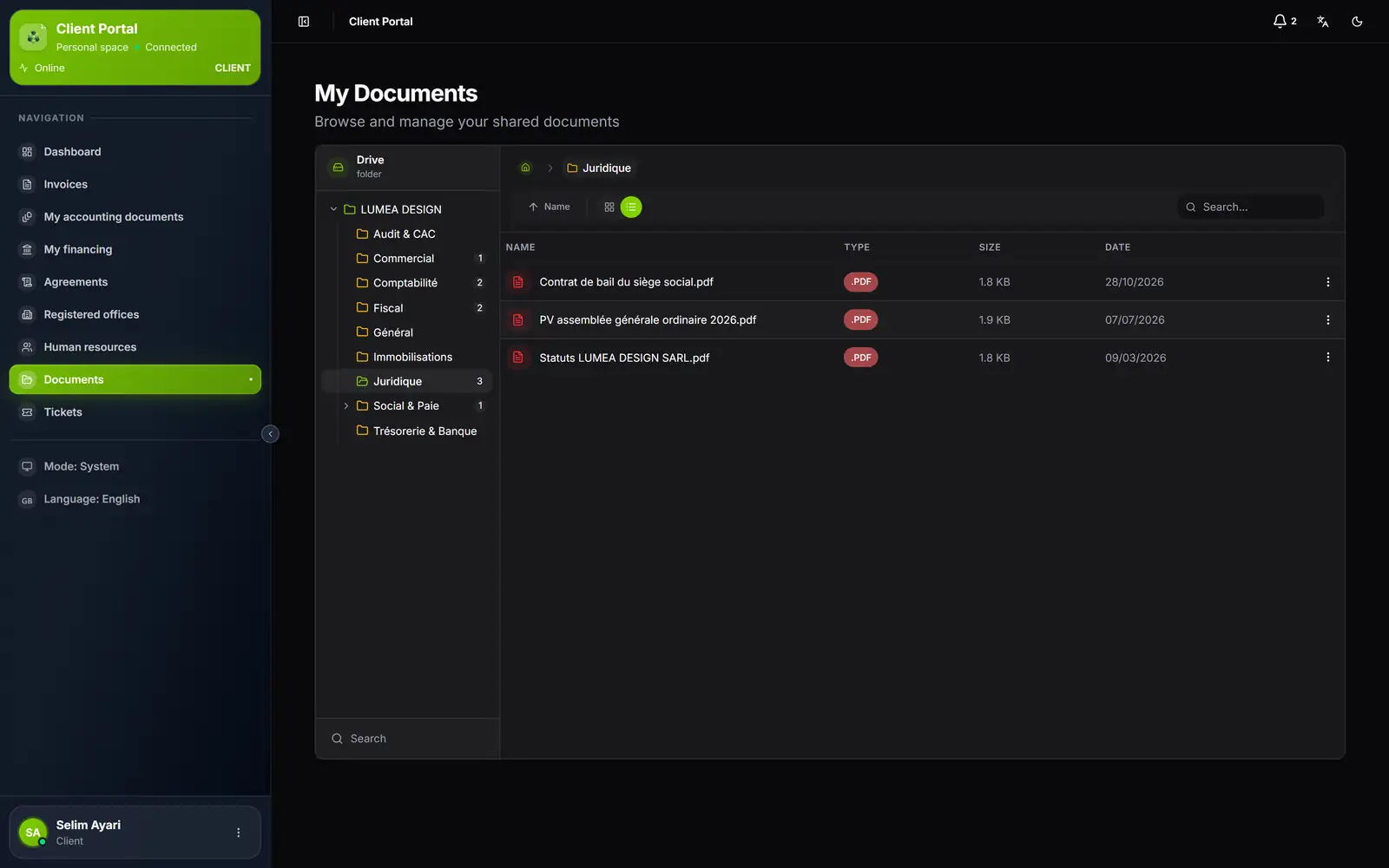
- 1. The company's folders: a click jumps straight to one of them.
- 2. The path: it takes you back.
- 3. Sorting and display: by name, date or size; grid view or list view.
- 4. Search...: in the open folder.
- 5. One file per row: a double click opens its preview.
- 6. Search: in every folder at once.
- A click on a tile or on a folder in the left-hand list opens it.
- Search..., at the top, searches the open folder; the Search button, at the bottom of the folder list, searches every folder: the client types the word, then presses Enter.
- Sorting is by Name, Date or Size; a second click reverses the order. Grid view and List view change the display.
- On a small screen, the folder list is hidden: the client then searches the open folder.
Opening, printing, downloading
A click on a file opens its preview; in list view, a double click on the row, or its ⋮ menu then Preview. Images, PDFs, videos and sounds are shown; the arrows move to the next file in the folder, and the printer prints a PDF.
Download, in the preview or in the ⋮ menu, saves the file. Word and Excel files and archives have no preview: the window only offers Download.
The client files nothing here
The portal does not let the client send a file into Documents. To send you a document:
| What the client sends | The way |
|---|---|
| A purchase or sales invoice | My accounting documents, if you have opened it (chapter 11) |
| Any other document | A ticket, with the file attached (chapter 9) |
A submitted invoice is followed in My accounting documents, not in Documents.
In the Android app, the Documents tab shows the same folders (chapter 14).