
Who can open accesses
The screen has its own right, separate from the clients' right: Settings › Client Portal. Each action is granted separately, by ticking the screen in a role.
| Action | Right to tick |
|---|---|
| See the accesses and the submission status | View |
| Create an access | Create |
| Disable or reactivate an access, open or close document submission | Edit |
| Delete an access | Delete |
The firm's owners and administrators have all these actions. A member who already managed users through an older role keeps them too. Everyone else gets them only through a role that ticks the screen: these rights are restricted and never come automatically with a basic role.
A member who lacks an action does not see it: Create access and the bin are missing, the switch is greyed out, and a line tells them where these actions are granted. Without View, the entry is not in their menu, nor is the Portal tab on the client file.
The Client Portal page
The entry sits in the Exchanges & data section of the Settings menu.
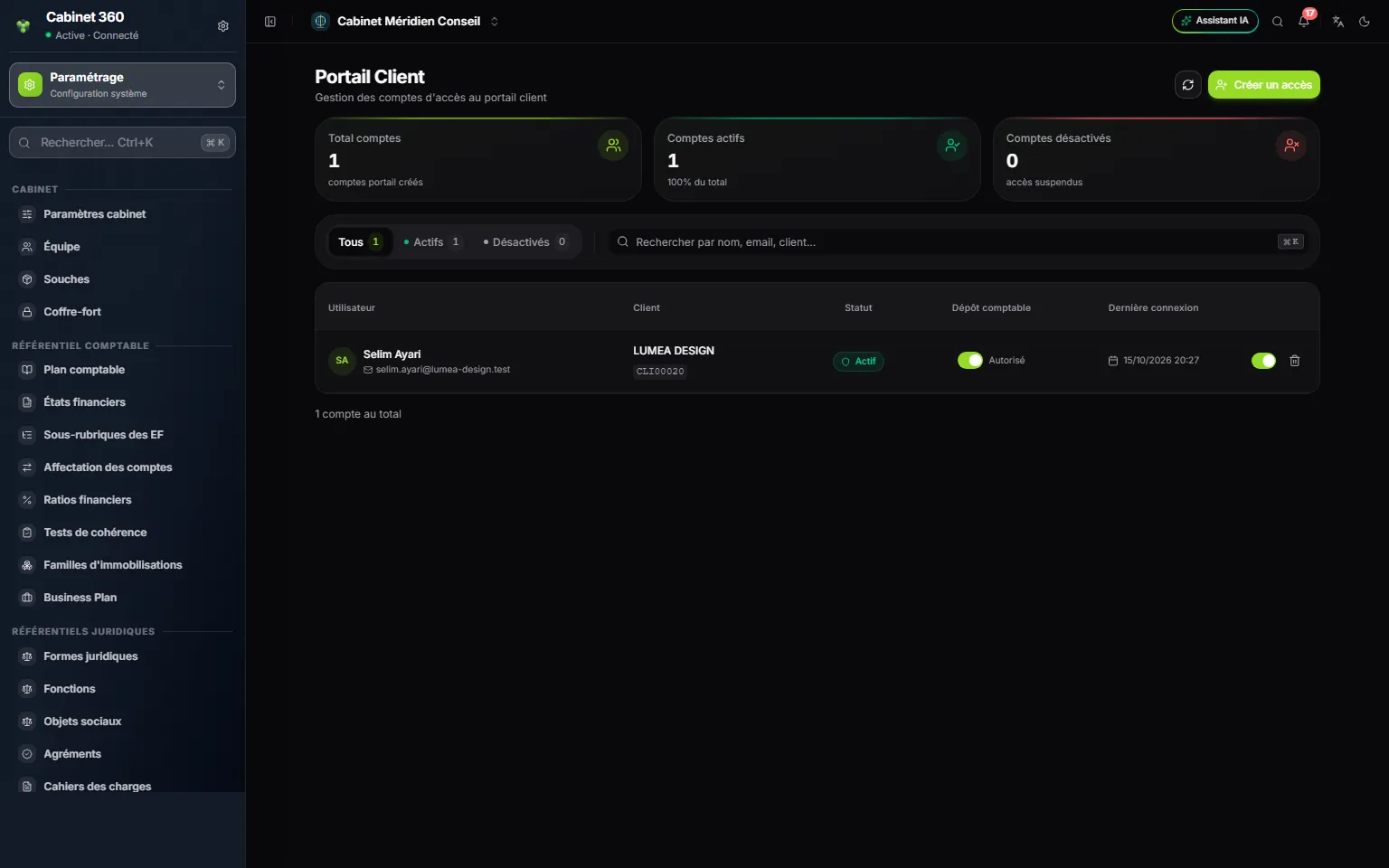
- 1. Create access: a new portal account.
- 2. Three counters: total, active, disabled; they count every account, whatever the filters.
- 3. All, Active, Disabled, and the search by name, email or client.
- 4. Document submission: the submission status for this client, with its switch.
- 5. The access switch and the bin.
Each row gives the User (name and email), the Client (name and number, which open the client file), the Status (Active or Disabled), the Document submission and the Last login, or « Never connected ». The search finds an account by email, first name, last name, or the client's name and number; Ctrl+K puts the cursor there.
Creating an access
- Click Create access.
- Choose the Client. If the client file has an email address, it fills the Email field.
- Enter the First name and Last name of the person who will sign in, and check the Email. All fields are required.
- The Password is already filled in: 14 characters, with capitals, lower-case letters, digits and symbols. Generate suggests another one; the eye hides or shows it, the copy icon copies it.
- Copy the password now: it will not be shown again.
- Click Create account. The row appears with the Active status.
The server refuses an access in four cases:
- the email address is already used by another account, of the firm or of a client;
- the password has fewer than 8 characters, or lacks a capital, a lower-case letter, a digit or a symbol;
- the password is too common, or resembles the name or the email address;
- the client already has an account: a client has only one portal account, so delete the old one first.
From the client file
Open the client file, then its Portal tab. It brings together the same actions for this one client: the Portal Access card with Create access (no client to choose), the access switch, the bin, the creation date and the last login, then the document submission block.
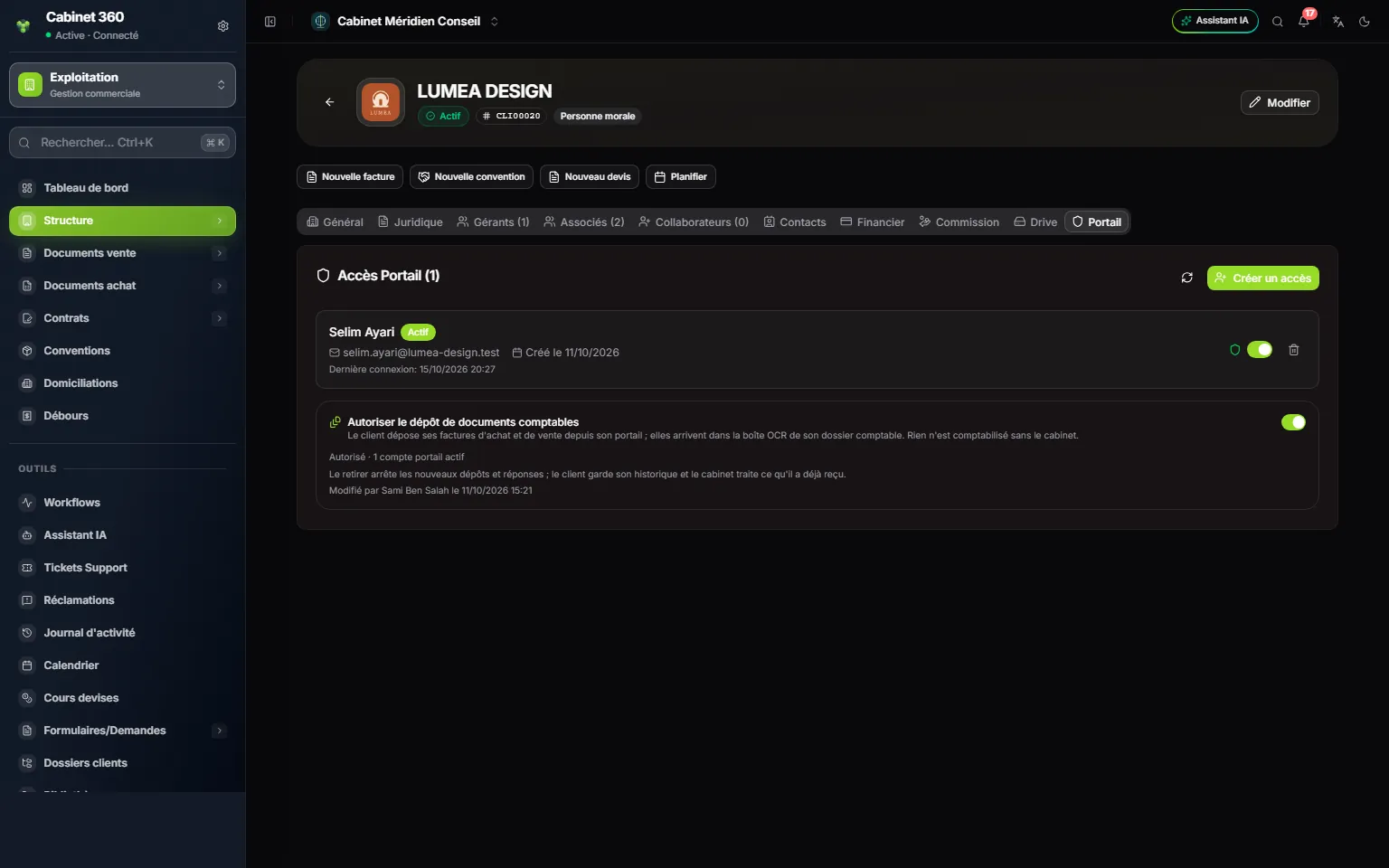
- 1. Portal: the tab of the client file.
- 2. Create access for this client.
- 3. The account: its status, email, creation date, last login.
- 4. Allow accounting document submission: the switch.
- 5. The submission status: the number of active accounts, and who changed it, when.
Opening accounting document submission
Submission is open to no client by default. For a client to send you their purchase and sales invoices (chapter 11), turn on the switch in the Document submission column, or Allow accounting document submission on their file. The permission applies to every portal account of this client.
The switch only turns on when everything is in place. Otherwise the reason shows on hover, or in orange under the switch on the client file:
| Reason shown | What to do |
|---|---|
| « Client portal » subscription required. | Add the module to the firm's subscription |
| « Accounting » subscription required. | Add the Accounting module |
| Inactive client. | Set the client file back to Active |
| « Bookkeeping » service not selected on the client file. | Tick Bookkeeping on the client file |
| No accounting file open for this client. | Open their file in the Accounting module |
| Status | What it means |
|---|---|
| Not allowed | The switch is off: the client submits nothing. |
| Allowed | The client submits their invoices. |
| Allowed but not operative | You allowed it, but a condition has gone since (a module, the service, the accounting file): submission stays closed while it is missing. |
Closing it is always possible: « Revoking it stops new submissions and replies; the client keeps its history and the firm processes what it already received. »
Suspending, reactivating, deleting
| Action | What happens |
|---|---|
| The row's switch, to the left | The access is Disabled: the client is signed out at once, on all their devices, and can no longer sign in. |
| The same switch, to the right | The access is Active again, with the same password. Nothing is sent to the client. |
| The bin | After confirmation, the account is deleted for good: the client is signed out and can no longer sign in. Their ticket history is kept. |
| The client file set to Inactive | The portal closes at once: the client is told their portal access has been revoked. Set back to Active or In progress, the file reopens the same account. |
Lost password
The client clicks Forgot? on the sign-in page and renews their password themselves. You have nothing to do.