
Before you start
- The agent is Online (chapter 2).
- Have at hand the SQL server's address as seen from the agent's computer, its port or instance, and a read account. The client's Sage reseller or IT person knows them.
Add the server
Click Add a server. The form opens with the name « Serveur comptable », port 1433 and the ODBC Driver 18 for SQL Server driver already filled in.
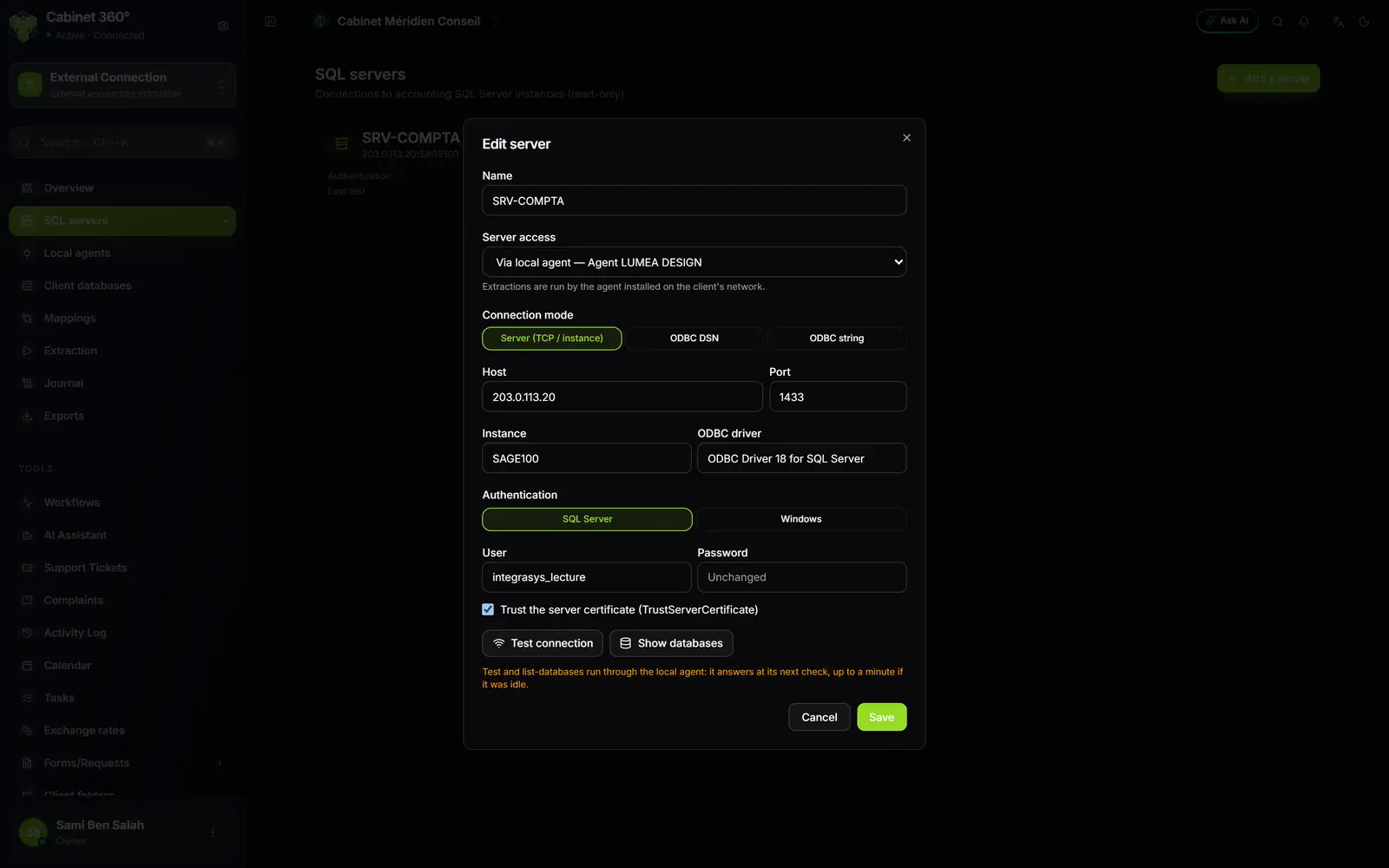
- 1. Server access: « Via local agent — » followed by your agent's name, or Direct (from the cloud).
- 2. Connection mode: a server and its port, a DSN, or an ODBC string.
- 3. Host, Port, Instance and ODBC driver: where to find SQL Server, as seen from the agent.
- 4. Authentication: a SQL Server account, or the agent's Windows account.
- 5. Test connection and Show databases go through the agent: the orange note says so.
- 6. Password: « Unchanged » until you type it again.
- 7. Save: to do before the first test of a server linked to an agent.
- Keep or change the Name, for example « SRV-COMPTA ».
- Under Server access, choose your agent: its entry starts with « Via local agent — ».
- Leave Connection mode on Server (TCP / instance). Under Host, type the SQL server's address, or « localhost » if the agent runs on the server itself.
- Keep Port 1433. If the server has a named instance, fill in Instance (for example SQLEXPRESS): it replaces the port.
- Under Authentication, choose SQL Server and type the User and Password, or choose Windows: the agent then connects with the Windows account it runs under.
- Leave Trust the server certificate (TrustServerCertificate) ticked: most Sage servers have no recognised certificate.
- Click Save: « Server saved » appears and the server's card shows up.
Direct or via the agent?
| Server access | When to choose it | Who connects |
|---|---|---|
| Via local agent — … | The server is on the client's private network: the normal case | The agent, on site |
| Direct (from the cloud) | The server can be reached from the internet | IntegraSys, from its servers |
Under the list, a sentence recalls your choice: « Extractions are run by the agent installed on the client's network. » or « IntegraSys connects directly to the server (server reachable from the internet). ».
The three connection modes
- Server (TCP / instance): the host, the port or the instance, and the driver. This is the usual mode.
- ODBC DSN: the name of a data source already set up on the agent's computer (the Windows « ODBC Data Sources » tool). Type its name under DSN.
- ODBC string: the full connection string, for an IT person. In this mode, authentication is part of the string.
The ODBC driver must exist on the agent's computer. The form proposes ODBC Driver 18 for SQL Server; if another driver is installed there, type its exact name.
Test the connection
Open the server again: hover over its card and click the pencil. The Edit server window opens.
- Test connection checks that IntegraSys reaches the SQL server and logs in with this account. « Connection successful » shows in green; otherwise, the server's error message shows in red. Access to one particular database is checked under Client databases (chapter 4).
- Show databases lists the server's databases, SQL Server's system databases left out. Each Sage company has its own.
For a server linked to an agent, both buttons go through it. The agent picks up the request at its next check: up to a minute if it was idle. While you wait, the screen shows « Request sent to the local agent: it answers at its next check, within about a minute. ».
With no answer after 90 seconds, the screen shows: « The local agent did not answer within 90 seconds. Check in « Local agents » that it is Online, then try again. ».
The server's card
Each server has its card: its name, where it is (host and instance, or host and port), its Authentication and its Last test.
- Last test: OK in green, Failed in red, or a dash if it was never tested. It follows the Test connection button and the list of databases made by the agent.
- For a direct-access server already saved, the test uses the saved password. If you changed the form without saving it, the test covers what you typed and does not change the Last test: save first to test the server as it will be used.
Delete a server
The bin on the card deletes the server, after confirmation: « The associated client databases will also be removed. This action is irreversible. ». With these databases go their extractions, their files and the memory of the vouchers already taken over: never delete a server already synced (chapter 4).