
What the module does
In IntegraSys, the Sage connection lives in the External Connection space. It reads a client's Sage database and gives you three things:
- files: the chart of accounts, the third parties, the journals and the entries, as Excel, CSV, PDF or FEC;
- the client's accounting in IntegraSys: Sync to Accounting files their entries into their accounting file, year by year, as validated vouchers;
- their payroll in IntegraSys: for a Sage Paie database, Import into the HR file brings in the employees, the payroll months, the payroll plan and the leaves.
How IntegraSys reaches the Sage database
The Sage database sits on a server in your client's office, on their private network. The internet cannot see it, and that is how it should be. To read it, you install a small Windows program at the client's: the local agent.
The agent runs on a computer of the client's network, most simply on the Sage server itself. It regularly asks IntegraSys whether there is work. When you run an extraction, it reads the database on site, then sends the result to IntegraSys. It only ever calls out to IntegraSys: nothing has to be opened in the client's firewall.
The journey in six steps
| Step | Screen | What you do |
|---|---|---|
| 1 | Local agents | Create the agent, then install and start it at the client's |
| 2 | SQL servers | Declare Sage's server, linked to the agent, and test it |
| 3 | Client databases | Assign each Sage database to an IntegraSys client |
| 4 | Mappings | Check the Sage tables and columns that are read |
| 5 | Extraction | Choose the years and the data, run, read the check |
| 6 | Extraction | Sync to Accounting, or import into the HR file |
Steps 1 to 4 are done once per client. After that, each takeover comes down to steps 5 and 6.
Before you start
- The module. External Connection must be part of your subscription, and your role must open its screens (see the book « Firm setup »).
- The right Sage. The database must be a Sage 100 or Sage Paie database in the SQL Server edition, not the file edition. In the Windows list of applications, its name ends with « pour SQL Server ». If in doubt, ask the client's Sage reseller.
- A computer at the client's. A Windows PC on the client's network, which sees Sage's SQL server and stays on during extractions. It needs the Microsoft ODBC Driver 18 for SQL Server.
- A read account. A read-only SQL Server account on the Sage database, or a Windows account with access to it.
- For accounting. The Accounting module, the right to create entries, and an accounting file open for the client.
- For payroll. The Human Resources module, the right to create employees, and an HR file open for the client.
Some words on these screens come from the server and stay in French whatever your language: the names of the data sets (Plan comptable, Écritures comptables…), the software names, most error messages, and the whole agent window. This book quotes them as they appear, with their meaning.
The External Connection menu
| Menu entry | What it is for |
|---|---|
| Overview | The module's counters and the latest extractions |
| SQL servers | The servers hosting your clients' Sage databases |
| Local agents | The agents installed at your clients', and their state |
| Client databases | Each Sage database, assigned to a client |
| Mappings | The tables and columns read in each software |
| Extraction | Run an extraction, follow it, sync or import |
| Journal | The history of every extraction |
| Exports | Every file produced, ready to download |
This book follows the order of the work. So it starts with Local agents, before SQL servers: a server is declared with its agent.
The Overview
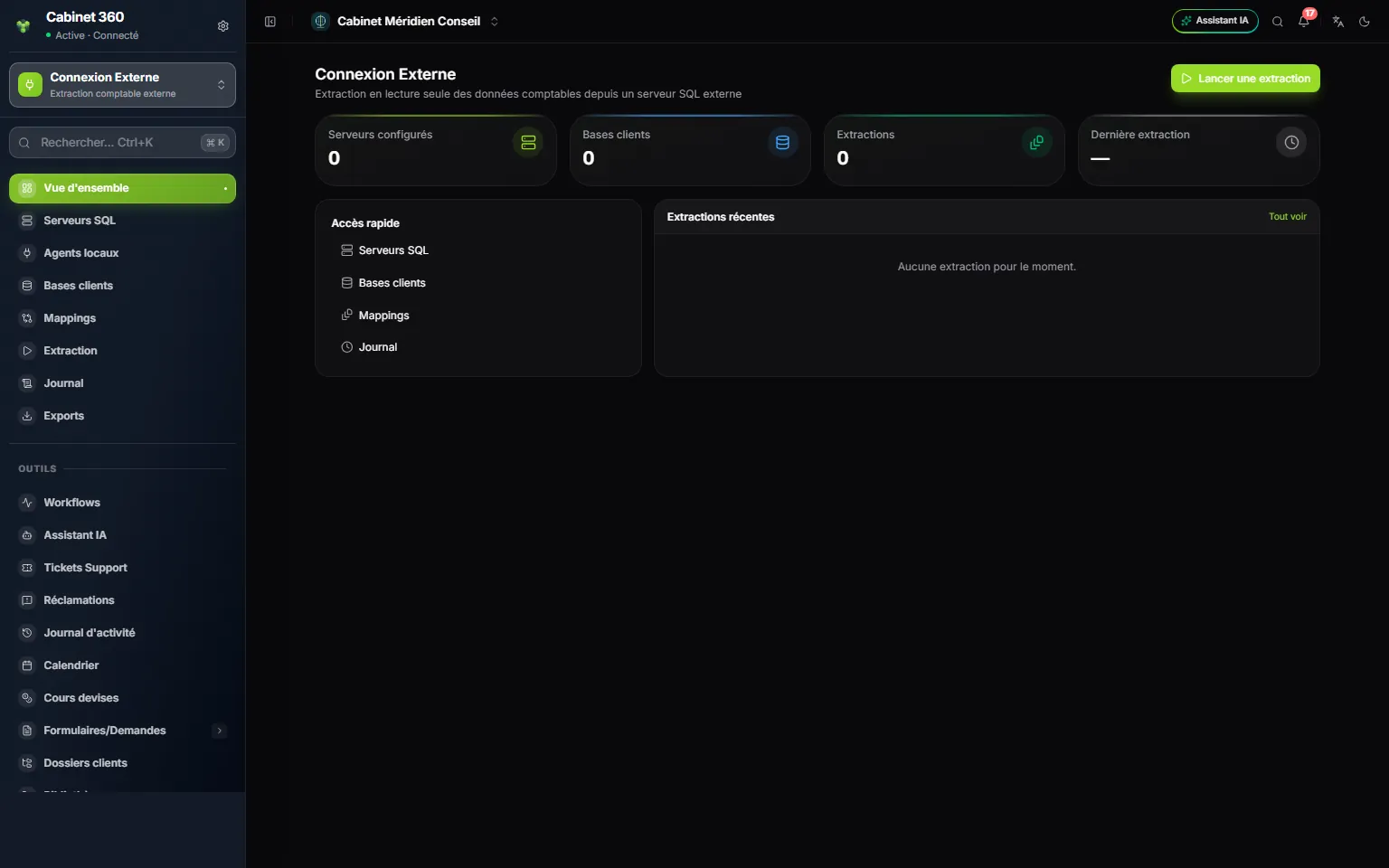
- 1. Four counters: configured servers, client databases, extractions, and the date of the last extraction.
- 2. Run an extraction opens the Extraction screen straight away.
- 3. Quick access to SQL servers, Client databases, Mappings and Journal.
- 4. Recent extractions: client, database, date and state. See all opens the Journal.
For a firm that is just starting, the counters are at zero, as here. Each recent extraction shows its state: Succeeded, Incomplete, Running, Failed or Pending (see chapter 6).