
Before you start
- The External Connection and Human Resources modules, and the right to create employees.
- The client's HR file is open (book « HR & Payroll »).
- The database is assigned to the client with the source software Sage Paie (SQL Server) (chapter 4), and its mappings are checked, the employee form especially (chapter 5).
- The agent is version 1.12 or later.
Extract the payroll
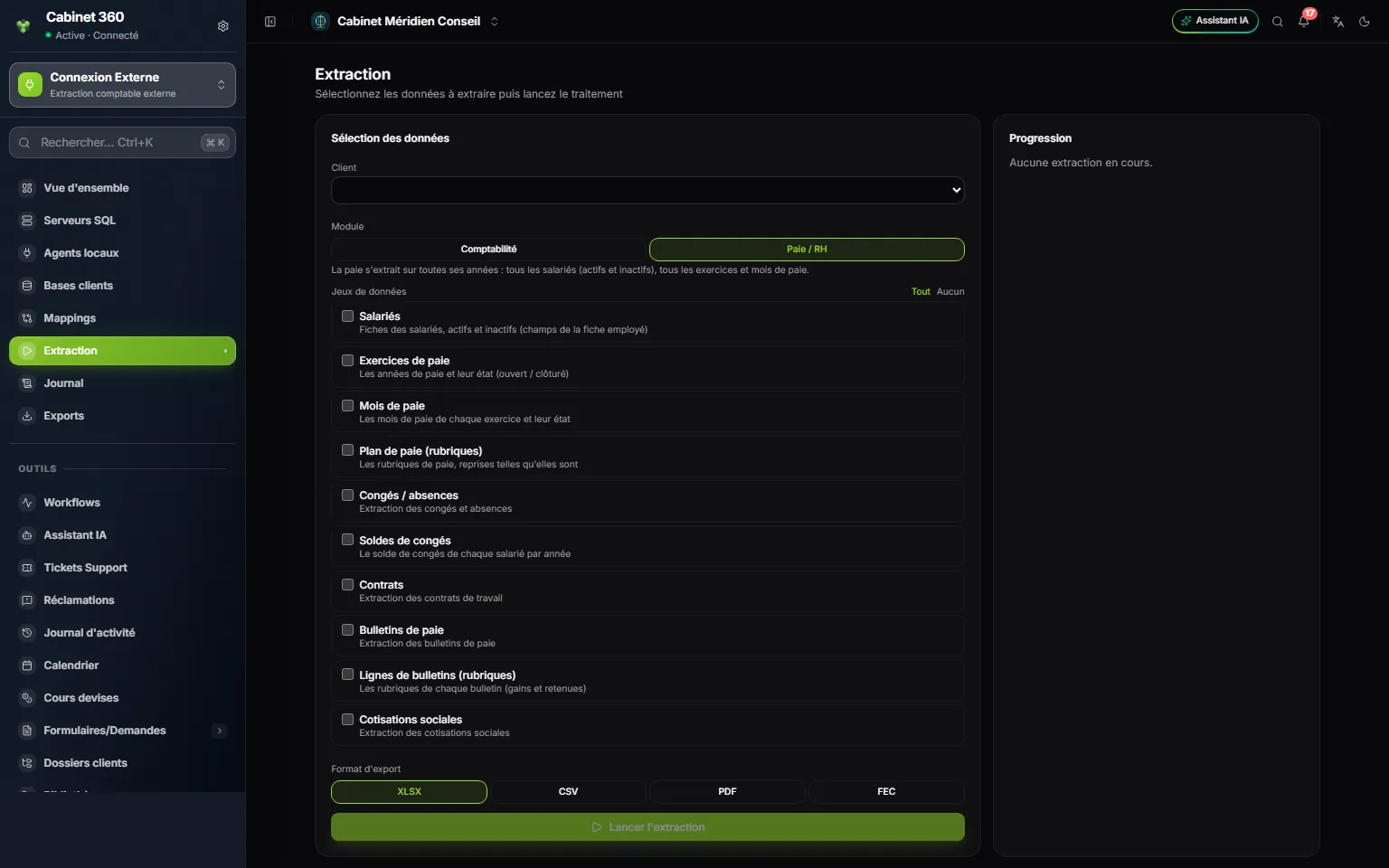
- 1. Payroll / HR: chosen by itself for a Sage Paie database.
- 2. No choice of years: payroll is extracted over all its years.
- 3. The six data sets taken into the HR file.
- 4. The other four are only for the export files.
- Under Client, choose the Sage Paie database: Module switches to Payroll / HR. Otherwise, click that button.
- The choice of years disappears: « Payroll is extracted over all its years: every employee (active and inactive), every payroll year and month. ».
- Tick the six data sets taken over: Salariés (employees), Exercices de paie (payroll years), Mois de paie (payroll months), Plan de paie (rubriques) (payroll plan), Congés / absences (leaves) and Soldes de congés (leave balances).
- Choose the format, then click Run extraction.
The other four data sets, Contrats, Bulletins de paie, Lignes de bulletins (rubriques) and Cotisations sociales (contracts, payslips, payslip lines, social contributions), go into the files, but are not imported into the HR file.
Import into the HR file
When the extraction has Succeeded, the Import into the HR file block appears under the files, instead of the sync button.
- Under HR file, check the file. The database's client comes first, marked « client of the database »; the list shows all the firm's HR files.
- Click Simulate. The summary starts with « Simulation — nothing was written: »: it is the exact result of the import, without saving anything.
- Read the summary, then the refusals and the warnings (below).
- When the summary suits you, click Import. The same summary comes back, preceded by « Import done: ».
Read the summary
The summary has one line per topic:
- Payroll plan: the items created, and those already in the firm's items;
- Years and Payroll months: created, and closed;
- Employees: created, updated, and how many active and inactive;
- Leaves: created, and already present;
- Leave balances: the employees updated.
« Nothing new to import. » only appears if the import created, updated and closed nothing. A new import counts each recognised employee and each balance as « updated » again, even unchanged.
Refusals. A refused line is not imported; the others are. Open « … lines refused »: each refusal gives its topic, its line, the reference and the reason, in French, for example « Matricule : vide. » (payroll number empty), or « Salarié « … » absent du dossier. » (employee missing from the file) for a leave.
Warnings. Open « … warnings »: the line is imported, but a detail deserves a look.
What is taken over, and how
- Employees, active and inactive, are recognised by their payroll number. An existing record is updated with the fields Sage fills in; an empty value in Sage changes nothing in the record.
- Payroll years and months arrive with their state. What is closed in Sage arrives closed; nothing is ever reopened.
- The payroll plan goes into the firm's pay items, as it is: Sage's code and name. Only new items are created; an item already there is not rewritten. They then serve all your files.
- Leaves arrive approved, since they were taken or entered in Sage. A leave already present (same employee, same type, same dates) is not duplicated.
- Balances: the balance of the last known year becomes the record's Prior-year leave balance (days).
What is not taken over: Sage's payslips and each employee's item amounts. Payroll in IntegraSys starts again from the catalogue of pay items. Only the record's base salary is taken over, if it is mapped in Mappings.
Where to find what was taken over
In the client's HR file: employees under Employees, months under Payroll months. New pay items are in Settings › Social reference, Pay items tab.
If the import does not start
- « This extraction carries no importable payroll data… »: none of the six data sets taken over was ticked, or the agent is too old. Take an up-to-date agent (1.12 or later) and run the extraction again.
- « No HR file in the firm: first open the client's HR file. ».
- « Aucun jeu de données n'a pu être extrait. » (no data set could be extracted) on the first extraction: a Sage Paie table with an unexpected name is the likely cause. Correct its Source table in Mappings, then run again.