
One agent per network
An agent serves one network, not one client. If a Sage server hosts the databases of several companies, one agent reads them all. Two clients on two different networks need two agents.
The agent's computer must stay on during extractions. The simplest is the Sage server itself.
Create the agent in IntegraSys
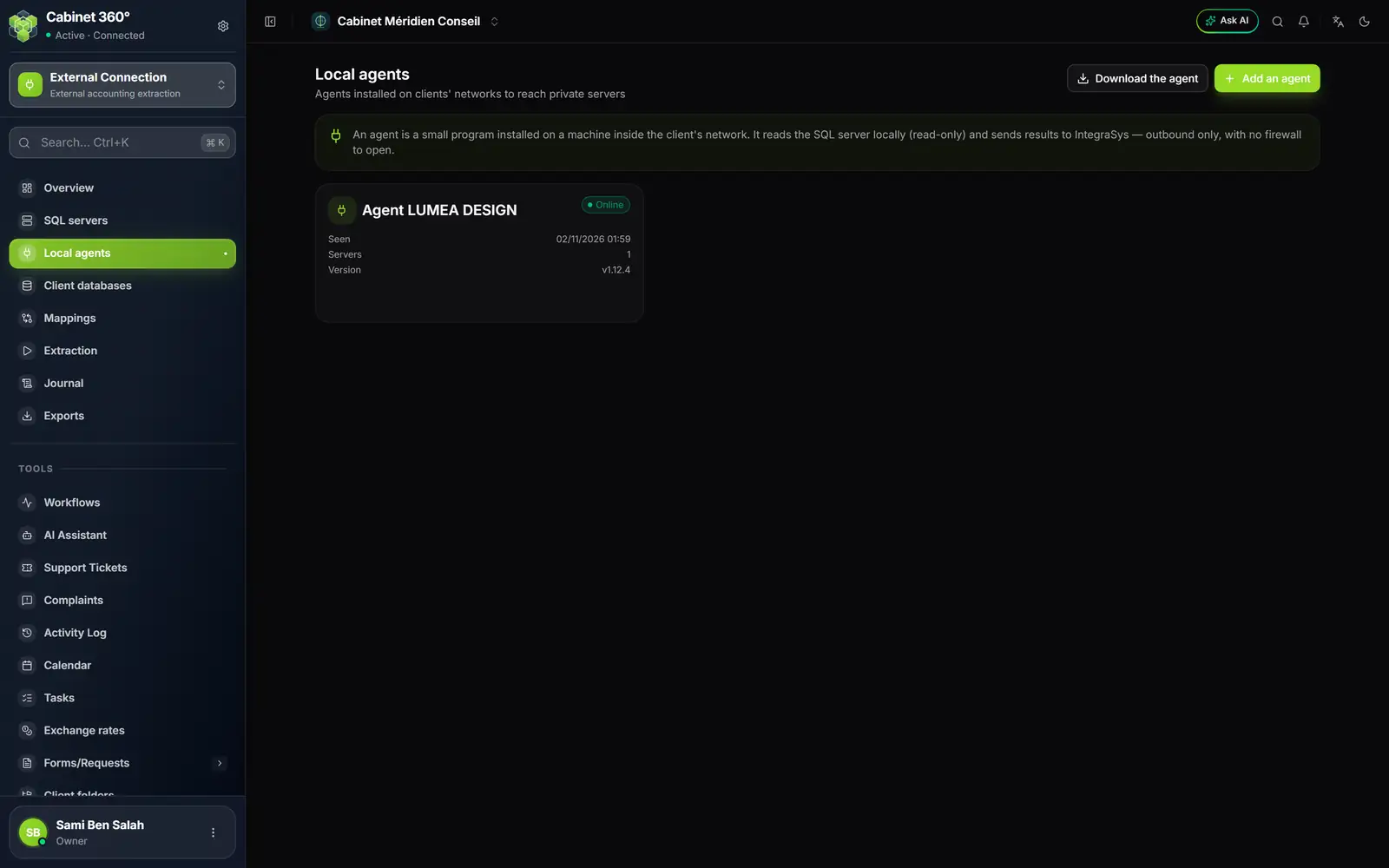
- 1. What an agent is, recalled at the top of the page: it reads the SQL server on site, read-only, and only sends outwards.
- 2. Download the agent: the program to install at the client's, agent-setup.exe.
- 3. Add an agent: creates the agent and shows its token, once.
- 4. Online: the agent called IntegraSys less than three minutes ago.
- 5. Seen, Servers and Version: its last call, the servers that go through it, the installed version.
- Click Add an agent.
- Type the Agent name, for example « Agent LUMEA DESIGN », then click Create agent.
- The Agent created — copy the token window opens. With the button at the end of each line, copy the Server address — enter it in the agent window and the Agent token.
- Keep them for the installation, then click Done.
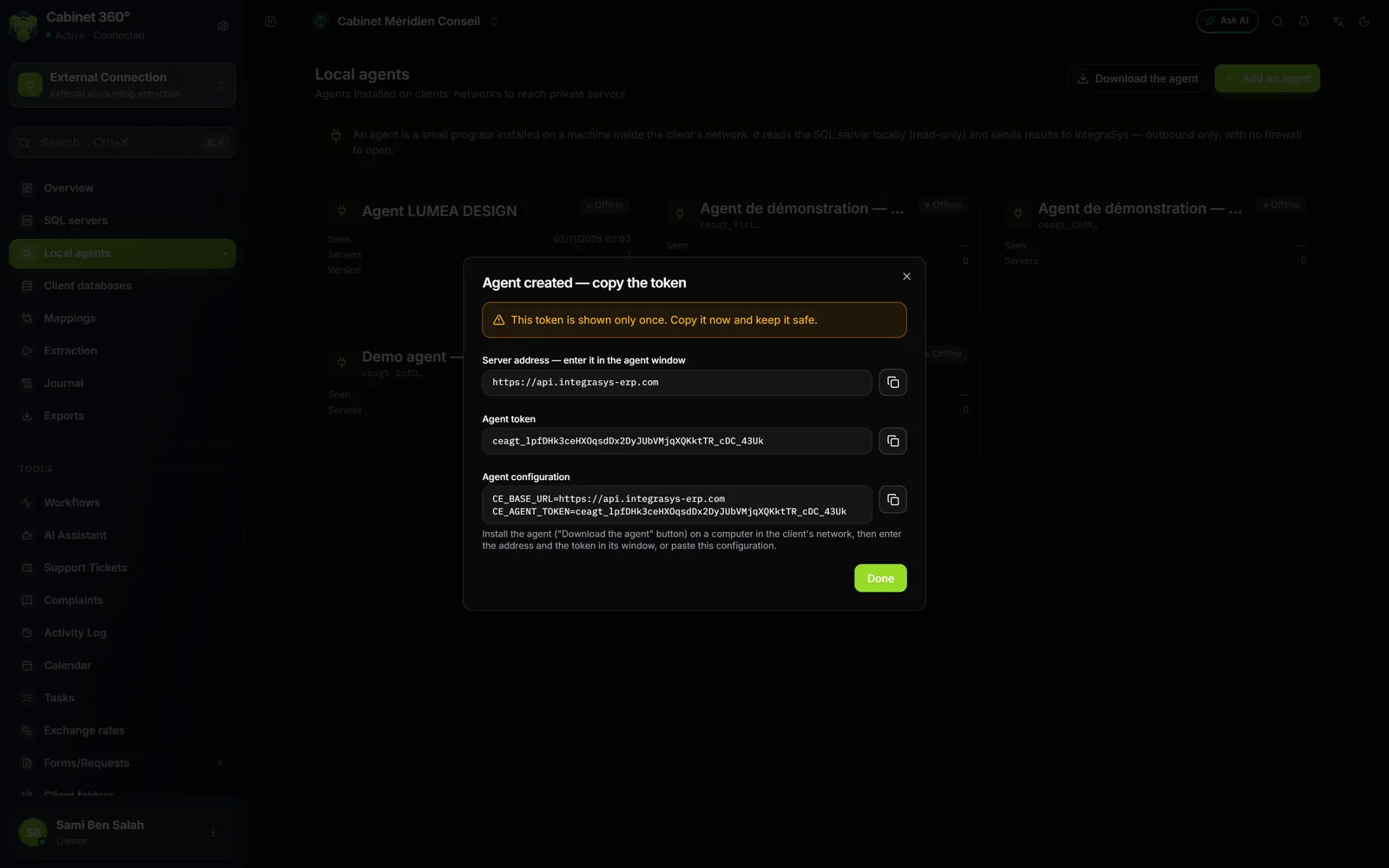
The same window shows an Agent configuration block: two lines carrying the address and the token. They are for an IT person installing the agent without its window. For an ordinary installation, the address and the token are enough.
Download and start the agent at the client's
- Click Download the agent: the file agent-setup.exe downloads.
- Copy it onto the client's computer, into a folder that will stay put. Its settings are saved next to it (config.ini), as is its history (agent.log).
- Double-click agent-setup.exe. If Windows shows « Windows protected your PC », click More info, then Run anyway.
- In the IntegraSys — Agent Connexion Externe window, check that URL IntegraSys holds the address you copied, then paste the token into Jeton de l'agent (agent token). The Afficher (show) box makes the token readable.
- Tick Démarrer automatiquement avec Windows (start with Windows) so that the agent restarts each time a Windows session opens: after a reboot, someone must therefore open a session.
- Click Démarrer (start). The light turns green: « En ligne — en attente de travail » (online, waiting for work).
The agent window
The window is in French, whatever the language of IntegraSys. It has three areas: Connexion (connection: the address, the token, auto-start), a status line with its light, and Activité (activity), which logs every event with its time.
| Light and text | What it means |
|---|---|
| Orange — « Connexion à IntegraSys… » | The agent is starting and introducing itself |
| Green — « En ligne — en attente de travail » | All is well: it is waiting for an extraction |
| Blue — « Extraction en cours… » | It is reading the Sage database and sending the result |
| Orange — « IntegraSys injoignable — nouvelle tentative… » | No internet, or IntegraSys is not answering: it retries by itself |
| Grey — « Arrêté » (stopped), with under Activité the red line « Jeton refusé (401). Vérifiez le jeton de l'agent. » (token refused) | The token is mistyped, or the agent was revoked: the agent stopped by itself. Paste the token again, then click Démarrer |
- The address corrects itself. If someone types the website's address (integrasys-erp.com), the agent replaces it with the server's and writes under Activité: « Adresse corrigée : … » (address corrected).
- Closing the window stops the agent. The agent asks first: « L'agent est en cours d'exécution. Le fermer arrêtera la synchronisation avec IntegraSys. Quitter quand même ? » (the agent is running; closing it stops the sync with IntegraSys; quit anyway?). Answer Non (no): the window is minimised and the agent keeps running.
- Once set up, the agent connects by itself each time it starts: no need to click Démarrer any more.
- Auto-start relaunches the agent, minimised, each time a Windows session opens. It needs administrator rights: if Activité shows « Échec de l'activation du démarrage automatique » (auto-start failed), close the agent, right-click agent-setup.exe and choose Run as administrator. The agent, already set up, starts by itself: click Arrêter (stop), tick Démarrer automatiquement avec Windows again, then click Démarrer. Activité confirms: « Démarrage automatique activé (tâche « ConnexionExterneAgent ») » (auto-start enabled).
Follow the agent in IntegraSys
Each agent has its card on the Local agents page: its name, the start of its token, and its state.
- Online: it called IntegraSys less than three minutes ago.
- Offline: it has not called for longer. The computer is off, the window closed, or the internet down.
- Revoked: its token no longer works.
As long as the agent is not Online, an extraction that goes through it stays Pending.
Revoke or delete an agent
Hover over the agent's card: two buttons appear.
- Revoke cuts its token at once: « The token stops working immediately. The agent can no longer claim jobs. » The card stays, greyed out, marked Revoked. A revoked agent is no longer offered in a server's form.
- The bin deletes the agent, for good. The servers that went through it lose their agent and fall back to direct access: first choose another agent for them under SQL servers.
Update the agent
A recent agent brings the new features: version 1.12 or later is needed for the entries check (chapter 7) and for Sage Paie (chapter 11). The agent's card shows its Version.
To update it, click Arrêter in its window and close it, download agent-setup.exe again, replace the old file in the same folder, then start it again. Its settings, saved next to it, are kept as they are.