
Open the Extraction screen
Three paths lead there: the menu; the Run an extraction button of the Overview; the Extract button of a Client databases row, which opens the screen with that database already chosen.
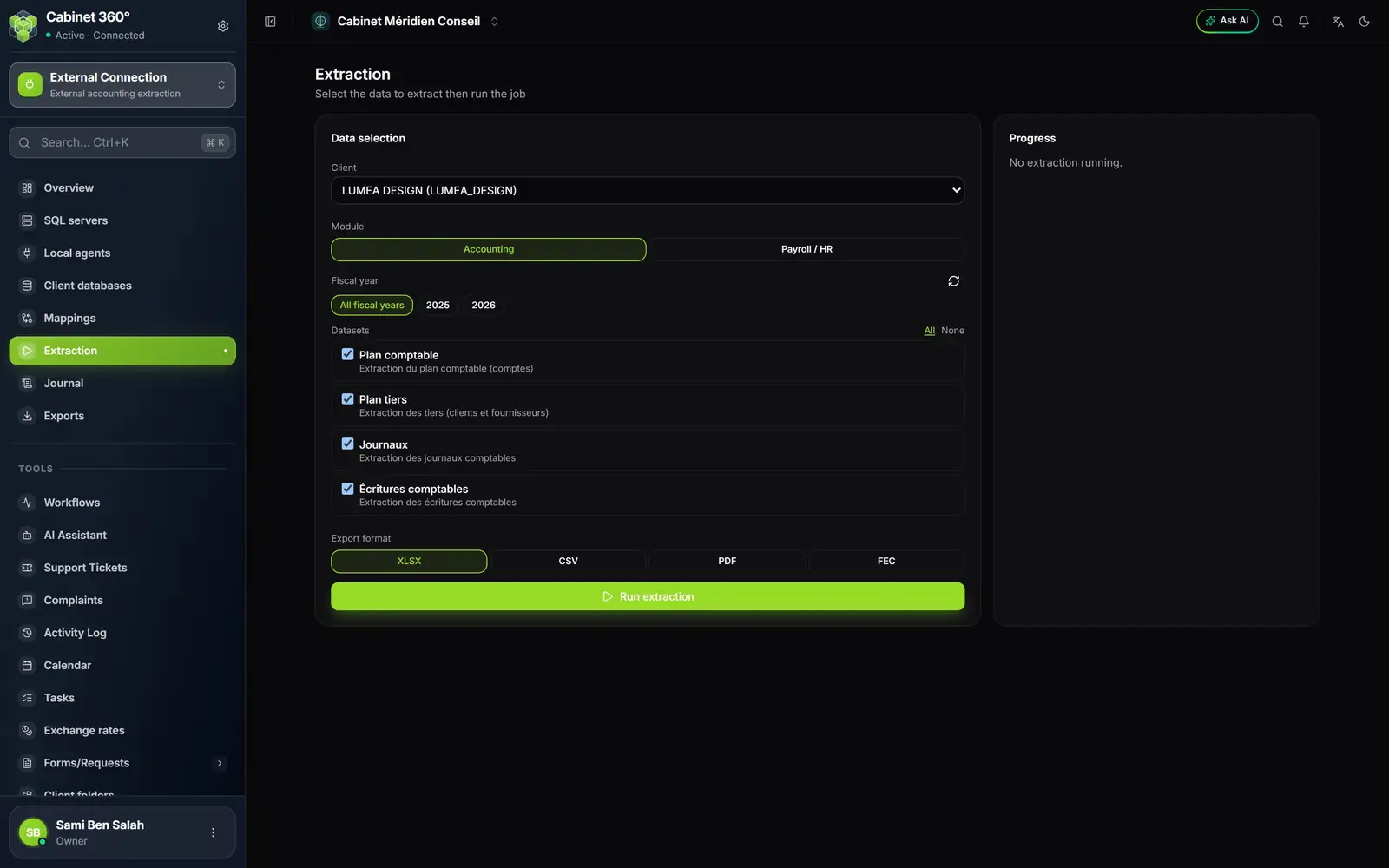
- 1. Client: the client, then their Sage database in brackets.
- 2. Module: Accounting, or Payroll / HR for a Sage Paie database.
- 3. Fiscal year: All fiscal years, or one or more years.
- 4. Datasets: what is extracted. All and None tick or untick them at once.
- 5. Export format of the files: XLSX, CSV, PDF or FEC.
- 6. Run extraction, greyed out while no data set is ticked.
- 7. Progress: « No extraction running. » while no extraction is followed.
Choose what to extract
- Under Client, choose the database. The list only shows databases assigned to a client (chapter 4).
- Leave Module on Accounting. A Sage Paie database switches to Payroll / HR by itself (chapter 11).
- Under Fiscal year, keep All fiscal years, or click one or more years: they light up and their list is written underneath. The database's years load by themselves when you choose the client; the refresh icon reads them again.
- Under Datasets, tick Plan comptable (chart of accounts), Plan tiers (third parties), Journaux (journals) and Écritures comptables (accounting entries), or click All.
- Choose the Export format: XLSX, CSV, PDF or FEC (chapter 12).
- Click Run extraction.
One extraction covers one module: accounting or payroll, never both at once.
Follow the extraction
The Progress card, on the right, follows the extraction while it runs, then keeps its result.
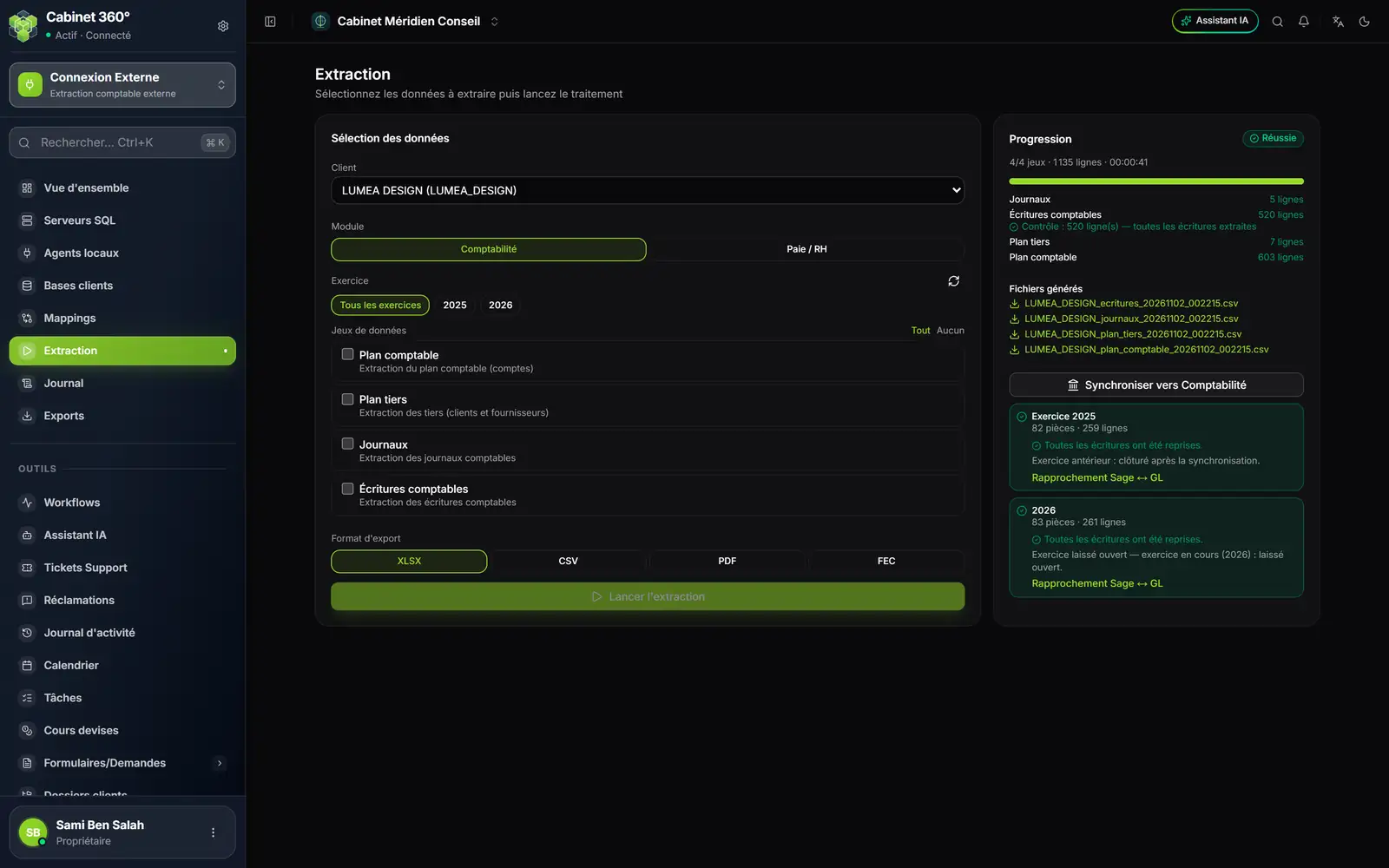
- 1. The state of the extraction, here Succeeded, then the sets processed, the rows and the duration: « 4/4 sets · 1 135 rows · 00:00:41 ».
- 2. One line per data set and its number of rows; under the entries, the check (chapter 7).
- 3. Generated files: click a name to download it.
- 4. Sync to Accounting appears once the extraction is over (chapter 8).
| State | What it means |
|---|---|
| Pending | The extraction is waiting to be picked up: by the agent, if it is online, within seconds |
| Running | The database is being read, then the files sent |
| Succeeded | Every data set came through and the entries check found nothing wrong |
| Incomplete | A data set failed, or entries are missing (chapter 7) |
| Failed | No data set came through, or the extraction was interrupted |
A failed data set shows in red, with its cause under its name: « Reason: … ». It is the SQL server's text, sometimes technical, but it is the real reason: a table missing from the database, a missing right on the server. An orange box sums up: « 1 data set(s) failed: the extraction is incomplete. Run it again for the failed sets. ».
Leave the screen without losing the follow-up
The page address keeps the extraction you are following, and its sync. You can open another screen and come back with the browser's Back button, or from the Journal by clicking the client's name (chapter 12): Progress picks up where it was.
The extraction, for its part, carries on without you: it runs at the agent's, not in your browser.
An extraction that stays Pending or Running
- Pending for long: the agent is not Online. Open Local agents and look at its card (chapter 2).
- Running without moving: if the agent gives no news for about half an hour, IntegraSys puts the extraction back to Pending, so the agent picks it up again. If that keeps happening, restart the agent on the client's computer. An extraction the agent drops three times before it has started becomes Failed: « Interrompu : l'agent n'a pas terminé le travail (plusieurs tentatives). » (interrupted: the agent did not finish the job, several attempts).
A long but living extraction is never interrupted: the agent regularly reports that it is working.
Very large volumes
An up-to-date agent (version 1.11 or later) sends its files straight to IntegraSys's storage, piece by piece: a big Sage year gets through, up to 2 GB per file. The data prepared for the accounting travels compressed, and the agent writes the Excel workbook and that data as it reads, without holding a whole year in memory.
Through the agent, in an Excel workbook, an entries sheet stops at one million rows: the year continues on a second sheet, for example « Écritures 2023 (2) ».