
The OECT scale, in plain words
The scale takes three criteria into account, each priced separately, then added together:
| Criterion | What you enter | First bracket |
|---|---|---|
| Balance sheet | The gross balance sheet total, plus 20 % of the off-balance-sheet commitments | 700,000 DT as soon as the criterion is above zero |
| Revenue | The gross revenue total | 500,000 DT |
| Headcount | The number of employees | 800,000 DT |
Beyond the first bracket, each band adds its rate, applied to the part of the figure that falls within the band: an amount per 1 000 DT for the balance sheet and the revenue, an amount per employee for the headcount. A criterion left empty adds nothing, not even its first bracket.
| Balance sheet, in thousands of DT | Per 1 000 DT |
|---|---|
| from 0 to 300 | 700,000 DT in total |
| from 300 to 1 000 | 1,5456 DT |
| from 1 000 to 3 000 | 0,7728 DT |
| from 3 000 to 7 000 | 0,3864 DT |
| from 7 000 to 15 000 | 0,15456 DT |
| from 15 000 to 35 000 | 0,11604 DT |
| from 35 000 to 80 000 | 0,07728 DT |
| from 80 000 to 200 000 | 0,03876 DT |
| from 200 000 to 500 000 | 0,01548 DT |
| from 500 000 to 1 000 000 | 0,01164 DT |
| above 1 000 000 | 0,0078 DT |
| Revenue, in thousands of DT | Per 1 000 DT |
|---|---|
| from 0 to 100 | 500,000 DT in total |
| from 100 to 300 | 3,4776 DT |
| from 300 to 700 | 2,3184 DT |
| from 700 to 1 500 | 1,5456 DT |
| from 1 500 to 3 000 | 0,7728 DT |
| from 3 000 to 7 500 | 0,3864 DT |
| from 7 500 to 20 000 | 0,19332 DT |
| from 20 000 to 50 000 | 0,15456 DT |
| from 50 000 to 120 000 | 0,07728 DT |
| from 120 000 to 350 000 | 0,03876 DT |
| above 350 000 | 0,0193 DT |
| Headcount | Per employee |
|---|---|
| from 0 to 50 | 800,000 DT in total |
| from 50 to 150 | 13,1376 DT |
| from 150 to 500 | 7,7280 DT |
| from 500 to 1 200 | 3,8640 DT |
| from 1 200 to 3 000 | 1,9320 DT |
| from 3 000 to 7 000 | 1,5456 DT |
| above 7 000 | 1,1592 DT |
The sum of the three criteria gives the fees before tax. The invoice then adds VAT at 19 % (suspended if the client holds a suspension authorisation valid at the invoice date), withholds 3 % at source on the amount including tax, stamp excluded, and carries the fiscal stamp according to the client's record.
Generating the invoice from the mission
The Invoicing entry is in the menu of every mission type.
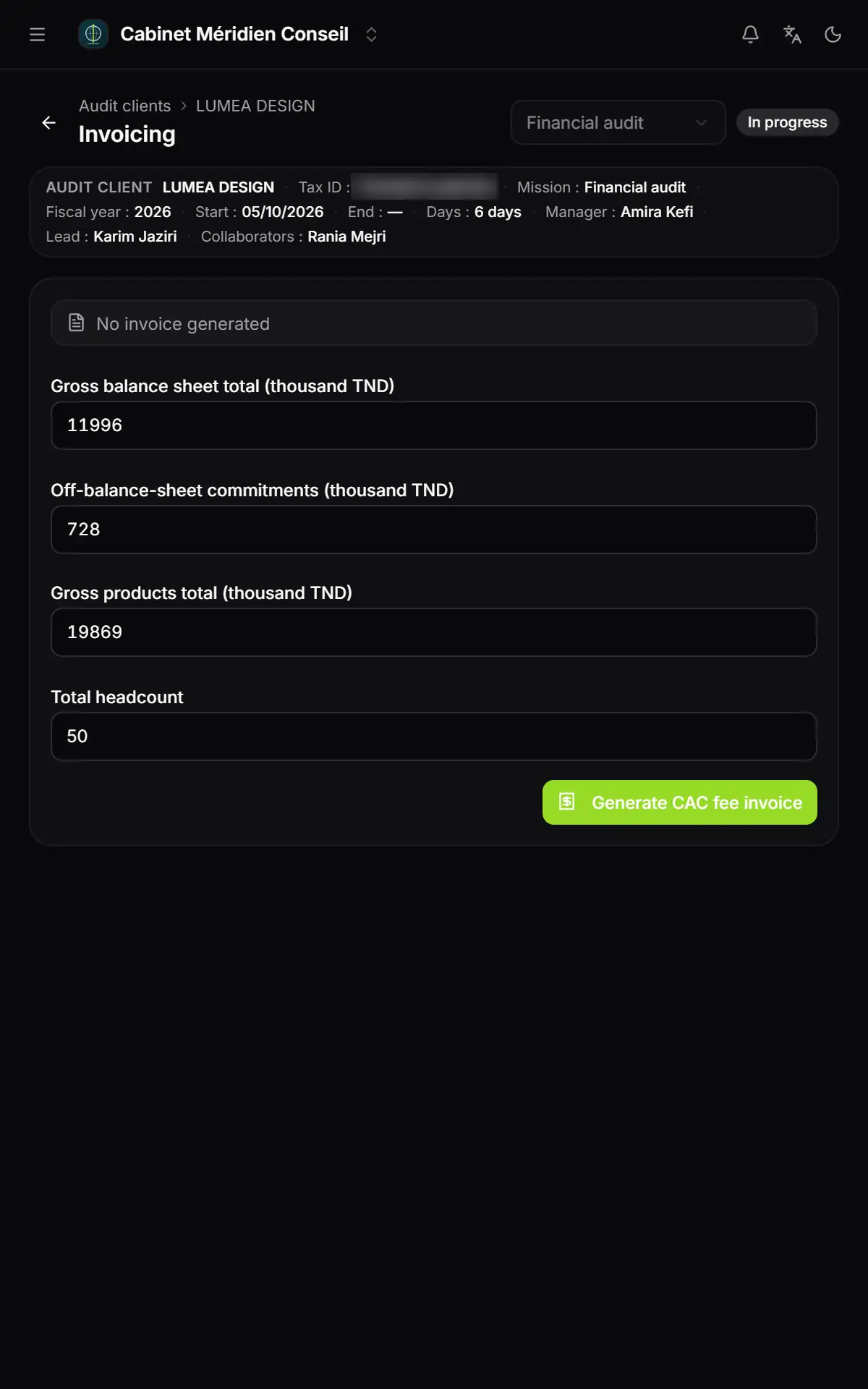
- 1. No invoice generated: the mission does not have an invoice yet.
- 2. Gross balance sheet total, in thousands of dinars.
- 3. Off-balance-sheet commitments, in thousands of dinars.
- 4. Gross products total, in thousands of dinars.
- 5. Total headcount: a number of employees.
- 6. Generate CAC fee invoice.
- Check that the Invoice sequence is set up. Otherwise a reminder says so, with the Set up the "Invoice" sequence button (Firm setup book).
- Enter Gross balance sheet total (thousand TND), Off-balance-sheet commitments (thousand TND), Gross products total (thousand TND) and Total headcount. The three amounts are written in thousands of dinars, as on the scale: 11996 for 11 996 000 DT.
- Click Generate CAC fee invoice. The message « Facture CAC générée » (CAC invoice generated) appears.
- The banner becomes Linked invoice, with a Draft link to the invoice.
At least one criterion above zero is needed among the balance sheet, the revenue and the headcount: all empty, the button stays greyed out; all at zero, the invoice is refused. The off-balance-sheet commitments only count with the balance sheet. When the mission has a co-auditor, a box recalls it: « Billed fees = schedule × 1.8 / 2 (OECT rule). No share to enter. »
The invoice created is a draft of the CAC type, in the name of the mission's client, in dinars. It carries a single line, « Honoraires Commissariat aux Comptes - Exercice … » (statutory audit fees, fiscal year …), at 19 % VAT, the 3 % withholding tax and the fiscal stamp that the client's record requires.
Validating, printing and following the invoice
The invoice then lives in Operations › Sales Documents › Invoices, with the CAC tab to find it. It gets its number and its date when validated, in the Invoice sequence, like every invoice of the firm. Sending it and collecting it follow the usual path (Operations and Finance & Cash Register books).
The PDF of a CAC invoice adds a « HONORAIRES COMMISSARIAT AUX COMPTES » box (statutory audit fees): the reference to the OECT scale, the table of criteria (in dinars) with the fees of each one, and the total. It also prints the firm's name and its Order registration number, if they were entered before 02/11/2026: no screen sets them today (chapter 2).
The OECT example
A client shows a balance sheet of 11 996 thousand DT, 728 thousand of off-balance-sheet commitments, 19 869 thousand of revenue and 50 employees.
| Amount | |
|---|---|
| Fees on the balance sheet (base 12 141 600 DT) | 5 667,806 DT |
| Fees on the revenue | 8 648,535 DT |
| Fees on the headcount | 800,000 DT |
| Fees before tax | 15 116,341 DT |
| VAT 19 % | + 2 872,105 DT |
| Withholding tax 3 % | − 539,653 DT |
| Fiscal stamp | + 1,000 DT |
| Net to pay | 17 449,793 DT |
In a joint audit, the same mission gives 13 604,707 DT before tax per auditor.
A CAC invoice without a mission
A CAC invoice can also be created directly, without a mission. In the new invoice, choose Statutory audit under Invoice type. The OECT scale criteria block asks for the same four figures, in thousands of dinars, and shows the Scale fees computed by the server. Calculation detail shows each bracket, criterion by criterion.
With no line entered, the fee line is generated by default. The 3 % withholding is set, and can still be changed; the stamp follows the client's record and cannot be changed. The joint audit cannot be chosen on this screen: only an invoice generated from a mission with two auditors carries it.
The mission's cost and profitability
The Mission page carries the Mission time budget & cost block (chapter 4):
- Calculated total cost: for each team member, their budget in days multiplied by their Daily cost in your firm;
- Contractual cost: the amount before tax of the invoice linked to the mission.
A member's daily cost is set in Settings › Team, on their member record; it applies to your firm only. A member with no daily cost counts as zero.
A mission of the Other type also has the Profitability screen: fees before tax, cost of the team members, profitability and margin as a percentage, with the detail per person.