
The mission's menu
An Internal control or Tax audit mission has a short menu:
| Processing entry | Chapter |
|---|---|
| Team assignment: the team, then the allocation of sections | this chapter |
| Pre-audit entries, if the client's books hold entries for the fiscal year | chapter 5 |
| Internal control tests: one entry per section of the questionnaire | this chapter |
| Document request | chapter 10 |
| Management letter | this chapter |
| Invoicing | chapter 12 |
The questionnaire follows the mission's type: 11 sections and 903 questions in internal control, 7 sections and 473 questions in tax audit.
Sharing out the sections
Under the team, the Allocation of sections block hands each section of the questionnaire to a member of the firm.
- Click Assign a section.
- Choose the Section, the Collaborator and the Time budget (days).
- Click Save: the section enters the table.
A section can only be assigned once per mission. Its days count in the mission's budget when the collaborator is also ticked in the team; as long as the team is not saved (chapter 4), they do not count.
The two-level review
Each row carries three switches, which are saved as soon as you click:
- The collaborator has finished: turn on Verified. If the mission has a mission lead or a manager, the Status moves from In progress to Under review.
- The mission lead has reviewed it: turn on Reviewed by lead.
- The manager has reviewed it: turn on Reviewed by manager. The status moves to Validated.
A missing review level does not count: a mission with neither a mission lead nor a manager moves to Validated as soon as Verified is on. The software does not check who uses each switch: any member who can edit the audit turns them on. The mission can only be closed when all its assigned sections, at least one, are Validated.
Answering the questionnaire
In the menu, Internal control tests unfolds into the sections of the questionnaire. Even when opened from a section of the menu, the screen opens with no section chosen: choose it in the Section list. All its questions are then shown, in code order, with the « … questions answered » counter.
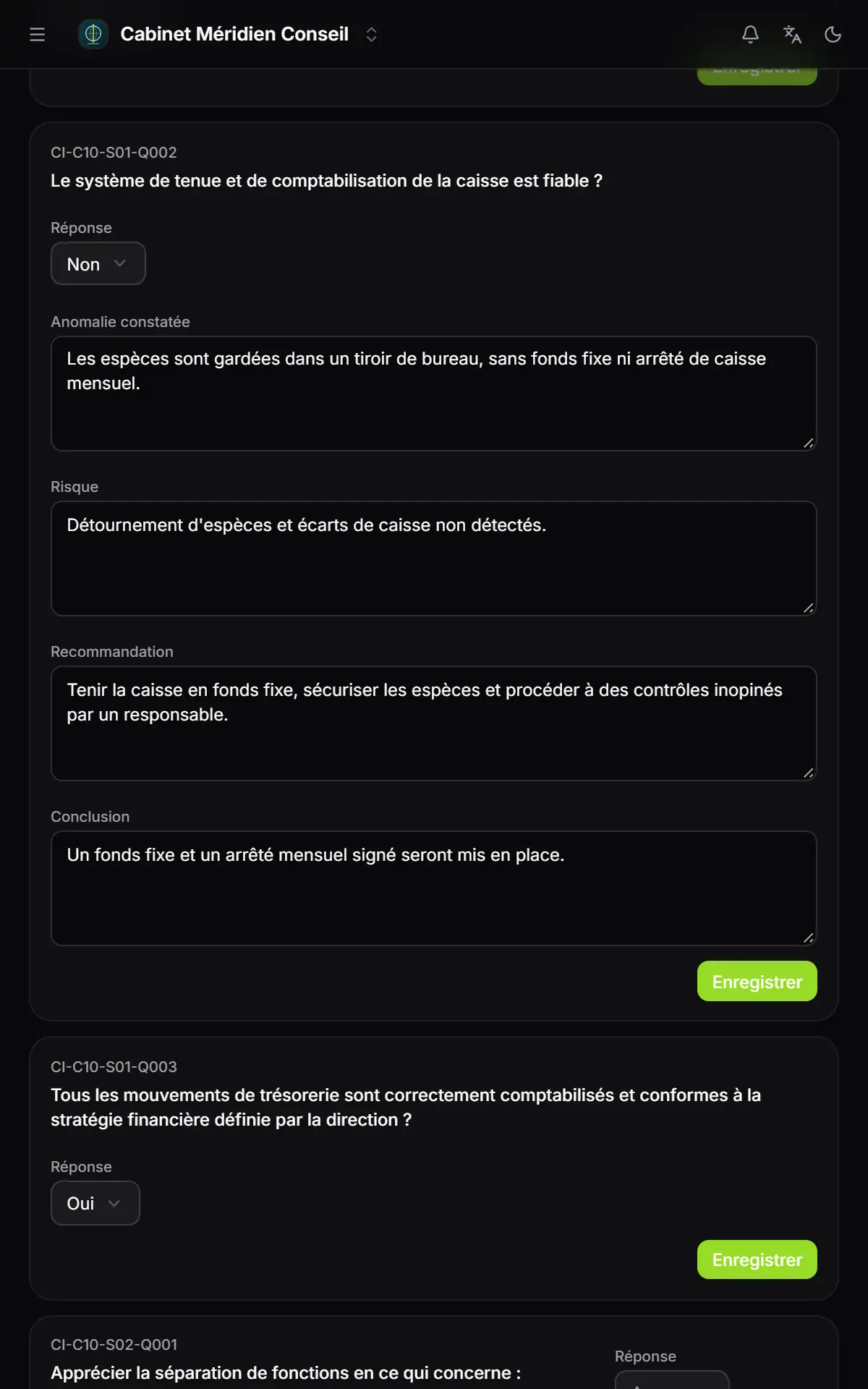
- 1. The code and the question, from the shared questionnaire.
- 2. Answer: Yes, No or N/A.
- 3. Anomaly found: what you saw.
- 4. Risk: offered by the questionnaire, can be changed.
- 5. Recommendation: offered too.
- 6. Conclusion: the follow-up agreed with the client.
- 7. Save: one answer at a time.
- Choose the Answer: Yes, No or N/A.
- For No, four boxes open: Anomaly found, Risk, Recommendation and Conclusion. The risk and the recommendation are offered by the questionnaire: adapt them.
- Click Save under the question. The button stays greyed out as long as no answer is chosen.
The management letter
The management letter gives the client, for each « No » answer, the question, its risk and your recommendation. The anomaly found is not included.
- Click Create mission: despite its name, this button creates the letter. Its Introduction and its Conclusion are written by default.
- Read the Findings table: it lists, in code order, each question the mission answered No, with its risk and its recommendation.
- Click Print / PDF, or « Exporter Word » (export to Word) to finish it in your word processor.
The printout uses the Subject as its title, the introduction, the table of findings and the conclusion, under the heading « [ Cabinet d'audit ] » (audit firm). As for the CAC report, it uses what is in the boxes at the moment of the click.
« Other » missions
The Other type cannot be chosen in the form. A mission of this type has a flat menu that brings together most of the working screens, including Internal control, FS & adjustments, Management letter and Profitability, but neither the data import, nor the financial statements before and after audit, nor the entries memo.