
Before audit, after audit
Two phrases come back throughout the module:
| What it contains | Where to read it | |
|---|---|---|
| Before audit | The client's books, without your audit entries | Pre-audit entries, Pre-audit statements |
| After audit | The same books, with your audit entries | Post-audit statements, and the financial statements of the Accounting module |
The gap between the two is made of the entries of your Entries memo. The notes and reclassifications of Accounting adjustments remain annotations: they change no amount.
Noting the proposed adjustments
The words of this page are shown in French, whatever the language of your screen.
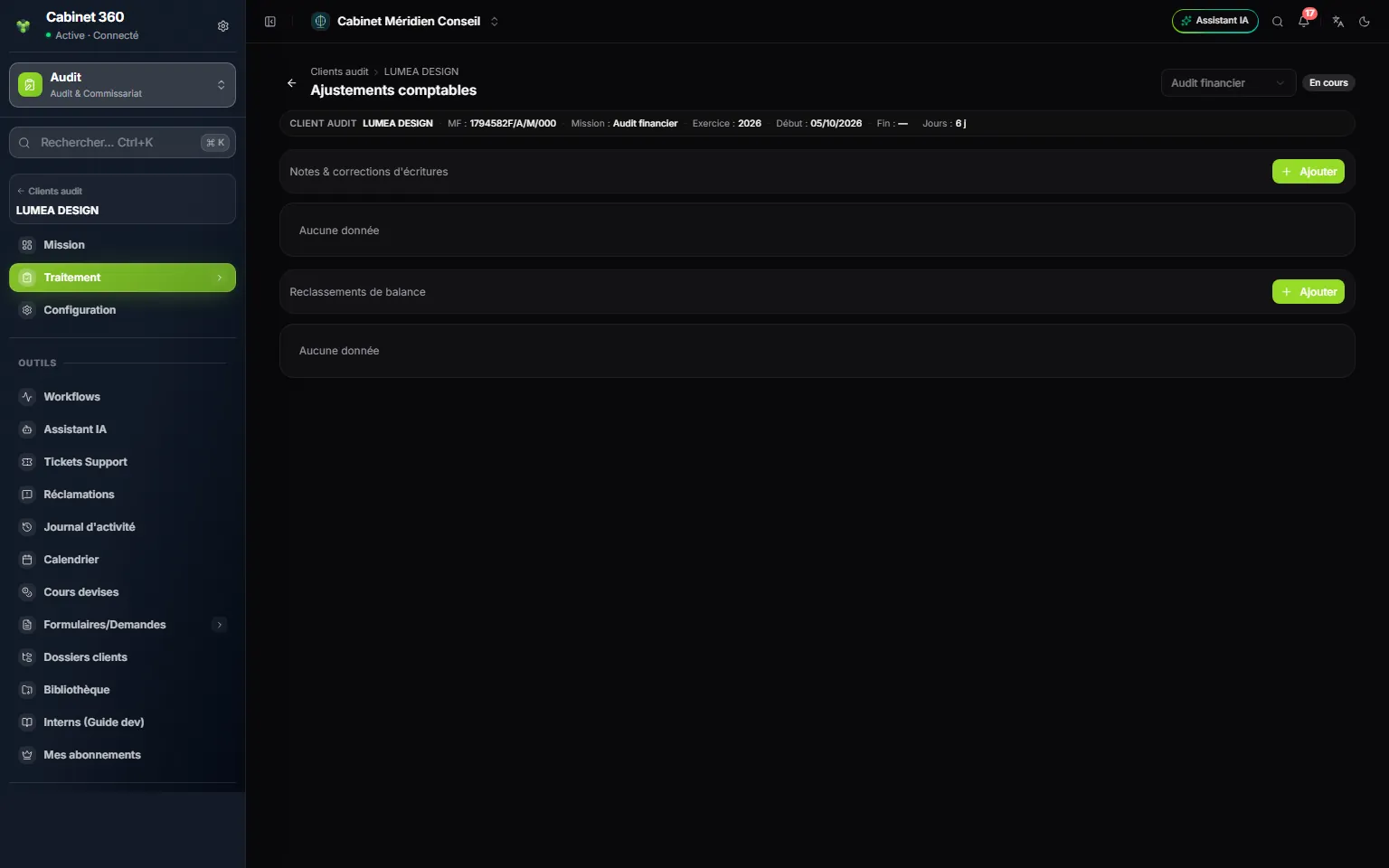
- 1. « Notes & corrections d'écritures » (notes and entry corrections): your remarks, account by account.
- 2. « Ajouter » (add) a note.
- 3. « Reclassements de balance » (balance reclassifications): the balances to reclassify or to confirm.
- 4. « Ajouter » a reclassification.
A note or a correction
- Click « Ajouter » above the first table.
- Enter the « Compte audité » (audited account) and the « Note d'audit » (audit note), required.
- Turn on « Correction » if the note proposes to correct an entry, and « Acceptée » (accepted) if the client agrees.
- Click « Ajouter ».
In the table, the « Acceptée » switch can be changed directly on the row. A note cannot be changed any other way: to rewrite it, delete it and add it again.
A reclassification
- Click « Ajouter » above the second table.
- In « Nature », type the exact word « generale », without an accent, for the trial balance, or « tiers » for the third-party balance.
- Enter the « Compte » (account): it is required, even though the button becomes active without it.
- Choose or type the « Sous-rubrique » (sub-heading) of the financial statements; the list offers those of your firm.
- Turn on « Circulariser » (send for confirmation) if the balance must be confirmed by the third party, then click « Ajouter ».
An account can only be reclassified once per nature. « Circulariser » is only a marker: it creates no letter (chapter 10).
Posting an audit entry
An audit entry is an ordinary entry of the client's books, linked to the mission. It follows the rules of accounting entry: its journal's number, the balance, the file's accounts, an open fiscal year. It is always validated: it is never a draft.
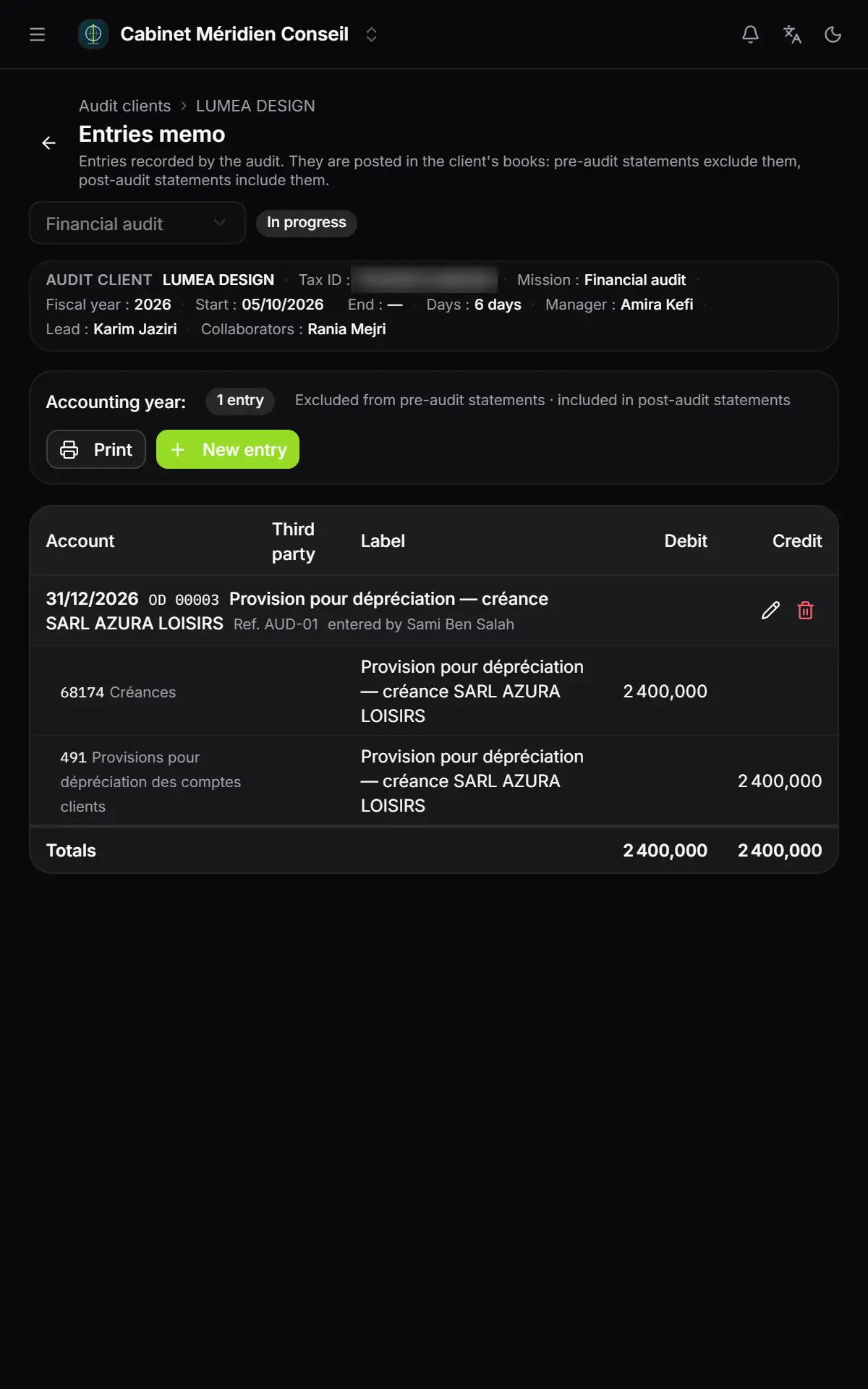
- 1. Accounting year, the number of audit entries, and the reminder: excluded from the pre-audit statements, included in the post-audit statements.
- 2. Print the memo, or New entry to post an entry in the client's books.
- 3. The entry: date, journal, number, label, reference and author; on the right, the pencil and the bin.
- 4. The totals of the memo, in debit and in credit.
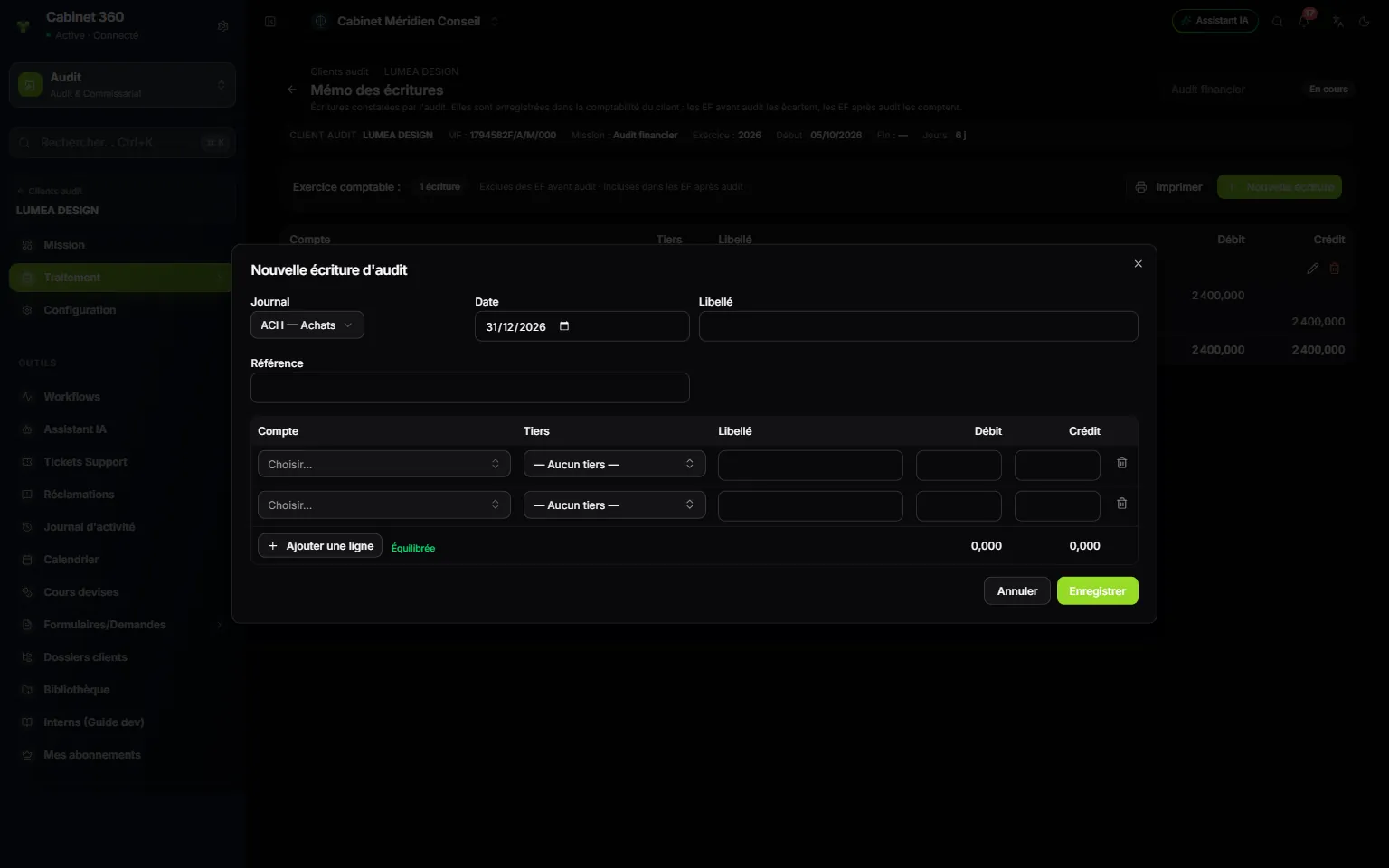
- 1. Journal: the file's first journal is offered; choose the right one.
- 2. Date: the last day of the fiscal year, offered by default.
- 3. Label of the entry, required.
- 4. Reference, optional.
- 5. The lines: account, third party, label, debit or credit.
- 6. Balanced when debit and credit are equal, even at zero.
- 7. Save the entry in the client's books.
- Click New entry. The New audit entry window opens.
- Choose the Journal: the window offers the file's first journal in code order, often the purchases journal; take the one that fits, usually the miscellaneous operations journal. Check the Date: it must fall within the audited fiscal year.
- Enter the Label and, if needed, the Reference.
- Fill in at least two lines: the Account, the Third party if the account requires one, then a Debit or a Credit, never both. A line label left empty takes the entry's label. Add a line adds one.
- When the totals are equal, « Balanced » appears. Click Save: « Entry 00001 posted in the client's books ».
When you click Save, what is missing shows in red under the lines, for example « Line 2: this account requires a third-party account. » or « The entry is not balanced (difference …). »
An entry is corrected with its pencil: the Edit entry … window opens, with the same journal, which can no longer change. The bin deletes it, after confirmation: it leaves the client's books and the post-audit statements. Print produces the memo in A4 landscape, under the firm's name, with the client, the fiscal year and the date.
When entry is closed
The memo needs a fiscal year on the mission, the Audit and Bookkeeping services on the client's record, an accounting file and an open fiscal year for the audited year; it does not need any prior entry. If a condition is missing, an orange banner says so under the title « No audit entry can be recorded for this engagement ». On a closed mission, its buttons are greyed out.
What the accounting module sees
Your audit entries enter the trial balances, the general ledgers and the financial statements of the Accounting module. Their vouchers carry the Audit badge there, and the voucher's page opens read only, with this reminder: « Entry recorded from the audit engagement: it can only be changed from the audit menu ("Entries memo"). »
The accounting module can neither change them, nor delete them, nor attach an image to them. Bulk re-postings leave them aside.
The financial statements after audit
This screen gives the number of Audit entries included, a See the entries memo link, then a preview of the post-audit statements in four blocks, whose titles are shown in French: « Bilan — Actifs » (balance sheet, assets), « Bilan — Capitaux & passifs » (balance sheet, equity and liabilities), « Résultat » (income statement) and « SIG » (intermediate management balances). Each block shows its first six lines.
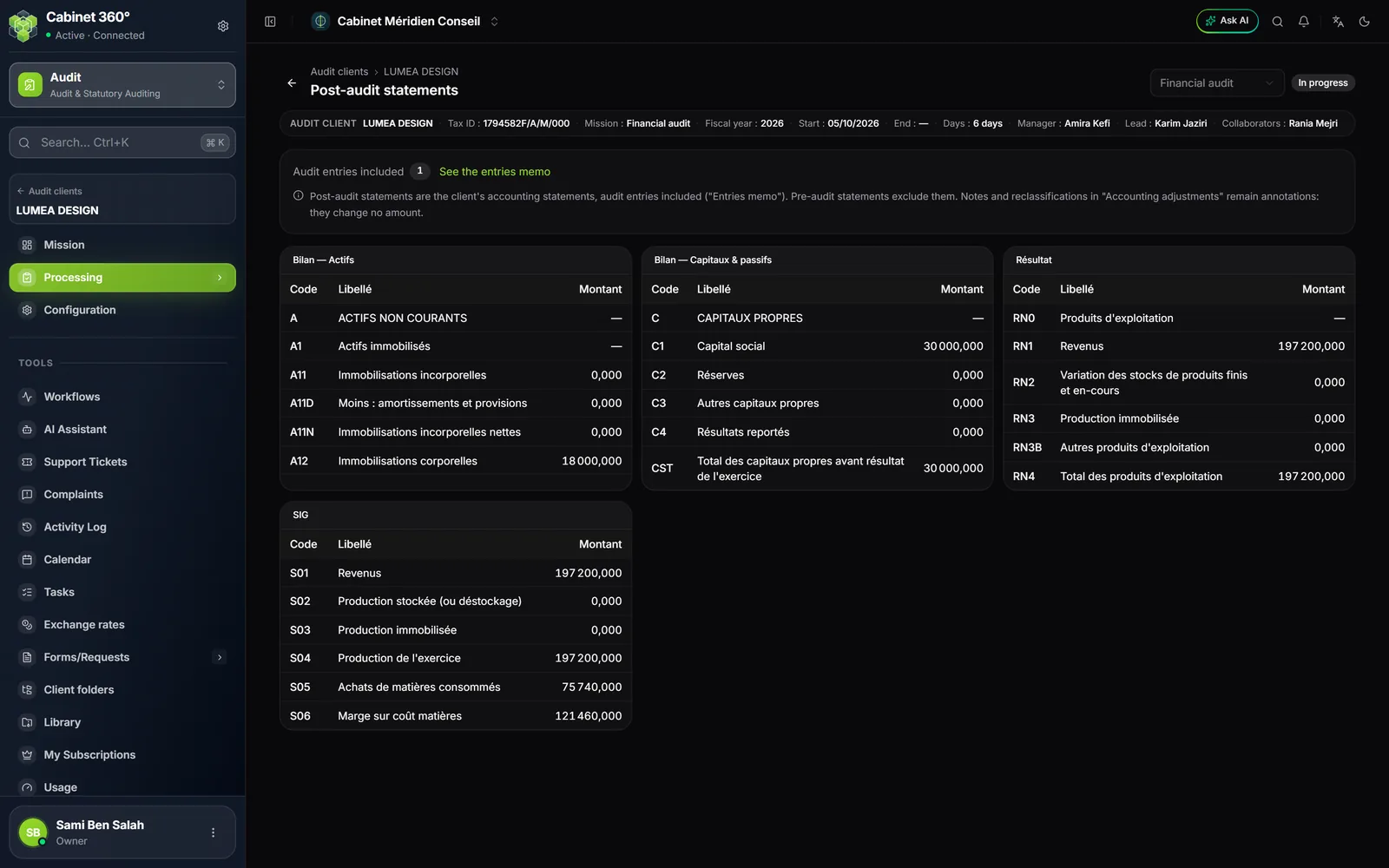
For the full post-audit statements, open the client's file in the Accounting module, then Financial statements › Generate financial statements: your audit entries count there, and the bundle is saved and printed there. If an audit entry changes the result after the bundle was saved, the accounting screen warns that the bundle no longer matches the entries: save it again before printing it.