
The analytical review
The analytical review sets an account's balance for the audited fiscal year against its balance for the previous one.
- Click Add. The Analytical review line window opens.
- Enter the Account and the Label, required.
- Enter the Balance N and the Balance N-1, then your Comment.
- Click Add.
The table sorts the lines by account and shows the account, the label and the two balances. The balances are entered by hand: the screen does not take them from the accounting. The comment is kept with the line, without being shown in the table.
The materiality threshold
The screen is a working paper, a single one per mission. You enter bases and rates, it computes a proposal, then you note the thresholds you retain. Its rows carry the mission's years: for fiscal year 2026, Data 2025, Data 2026 and Budget 2026.
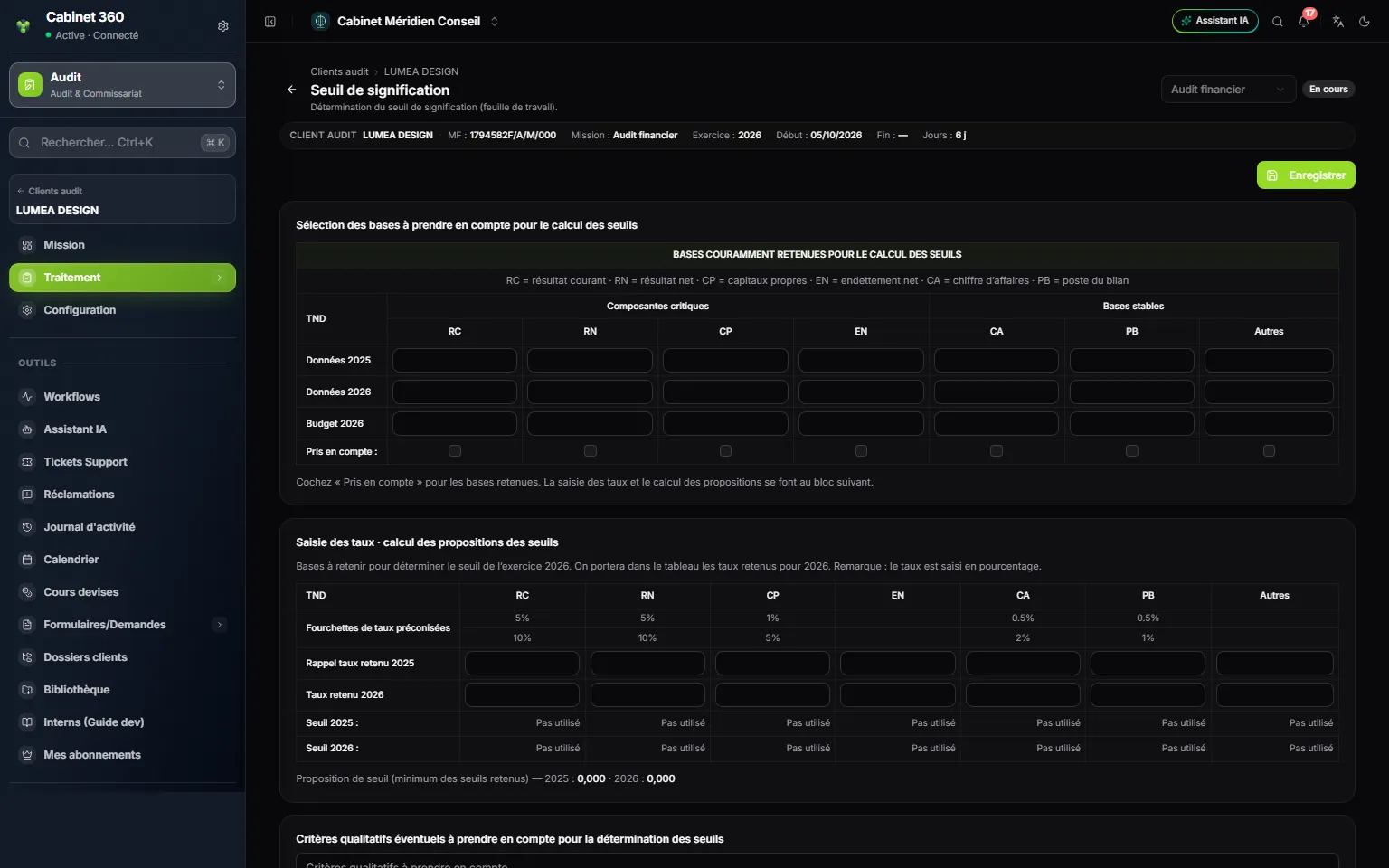
- 1. Save keeps the whole sheet.
- 2. The bases: current result, net result, equity, net debt, turnover, balance sheet item, other.
- 3. Taken into account: tick the bases you retain.
- 4. Recommended rate ranges for RC, RN, CP, CA and PB; none for EN and Other.
- 5. Threshold 2025 and Threshold 2026: base × rate, or « Not used ».
- 6. The proposal: the smallest of the computed thresholds.
- In Selection of the bases used to calculate the thresholds, enter the amount of each base in TND: RC (current result), RN (net result), CP (equity), EN (net debt), CA (turnover), PB (balance sheet item) and Other.
- Tick Taken into account under each base you retain.
- In Rate entry · calculation of the proposed thresholds, enter the rates as a percentage, 5 for 5 %, on the Reminder: rate used row for N-1 and the Rate used row for N.
- Read the computed thresholds and the Proposed threshold (lowest of the retained thresholds).
- Note your Any qualitative criteria to take into account in determining the thresholds.
- In Determination of the thresholds, enter the thresholds retained for N-1 and N, choose the overall audit risk (Low, Medium or High), then the threshold set for carrying out the work and the threshold for reporting anomalies.
- Click Save: « Enregistré » (saved), then « Mis à jour » (updated) the following times.
The recommended ranges are: current result and net result from 5 to 10 %, equity from 1 to 5 %, turnover from 0,5 to 2 %, balance sheet item from 0,5 to 1 %. For a ticked base, the threshold is data × rate ÷ 100; a base that is not ticked shows « Not used ». The proposal is the smallest threshold above zero.
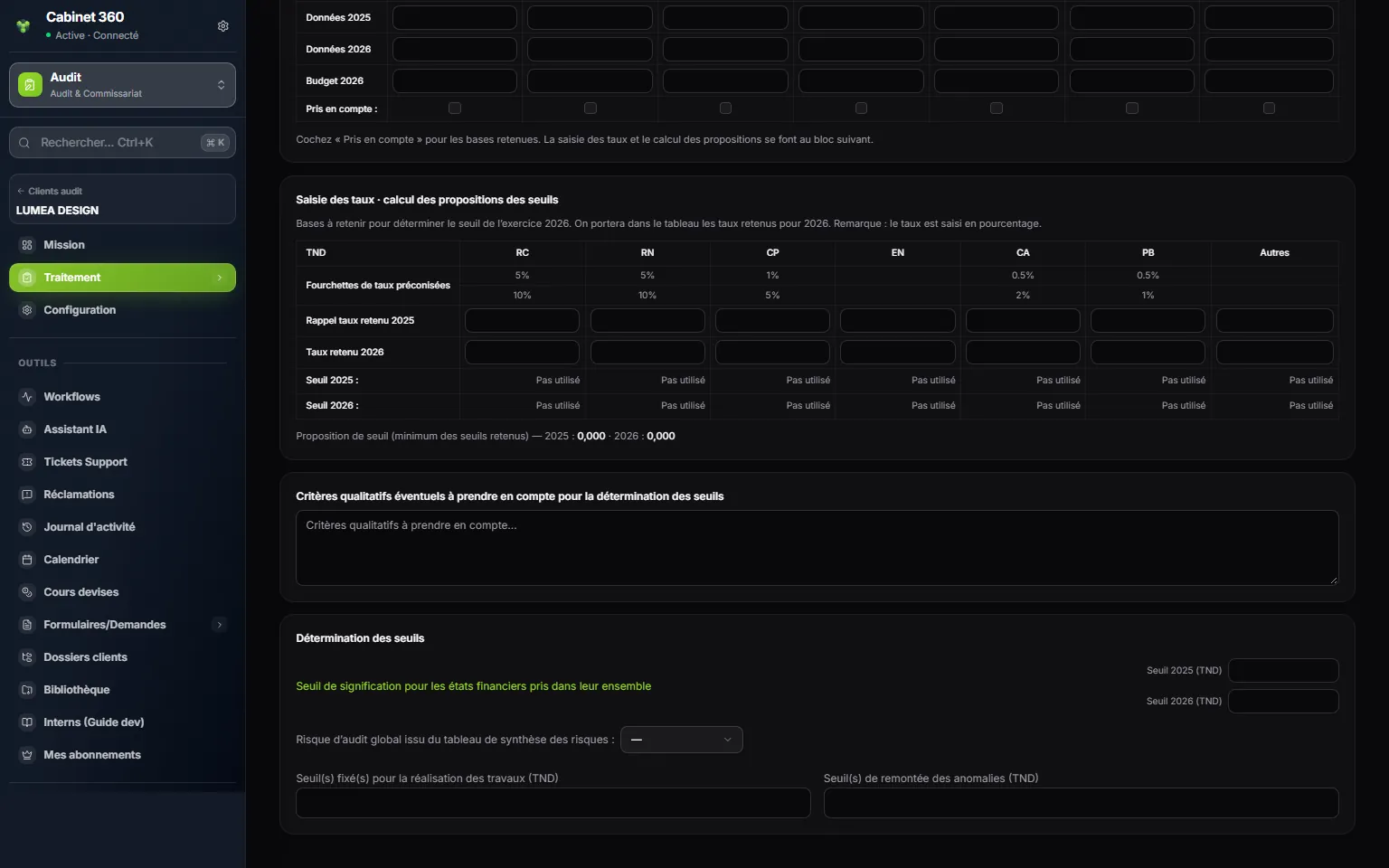
- 1. Qualitative criteria: your judgement, in free text.
- 2. The retained thresholds for N-1 and N, for the financial statements as a whole.
- 3. The overall audit risk: low, medium or high.
- 4. The working thresholds and the thresholds for reporting anomalies.
Circularization
The screen keeps the register of the confirmation requests sent to third parties: customers, suppliers, banks, lawyers… IntegraSys neither prints nor sends the letter: you draft it and send it, then you record it here.
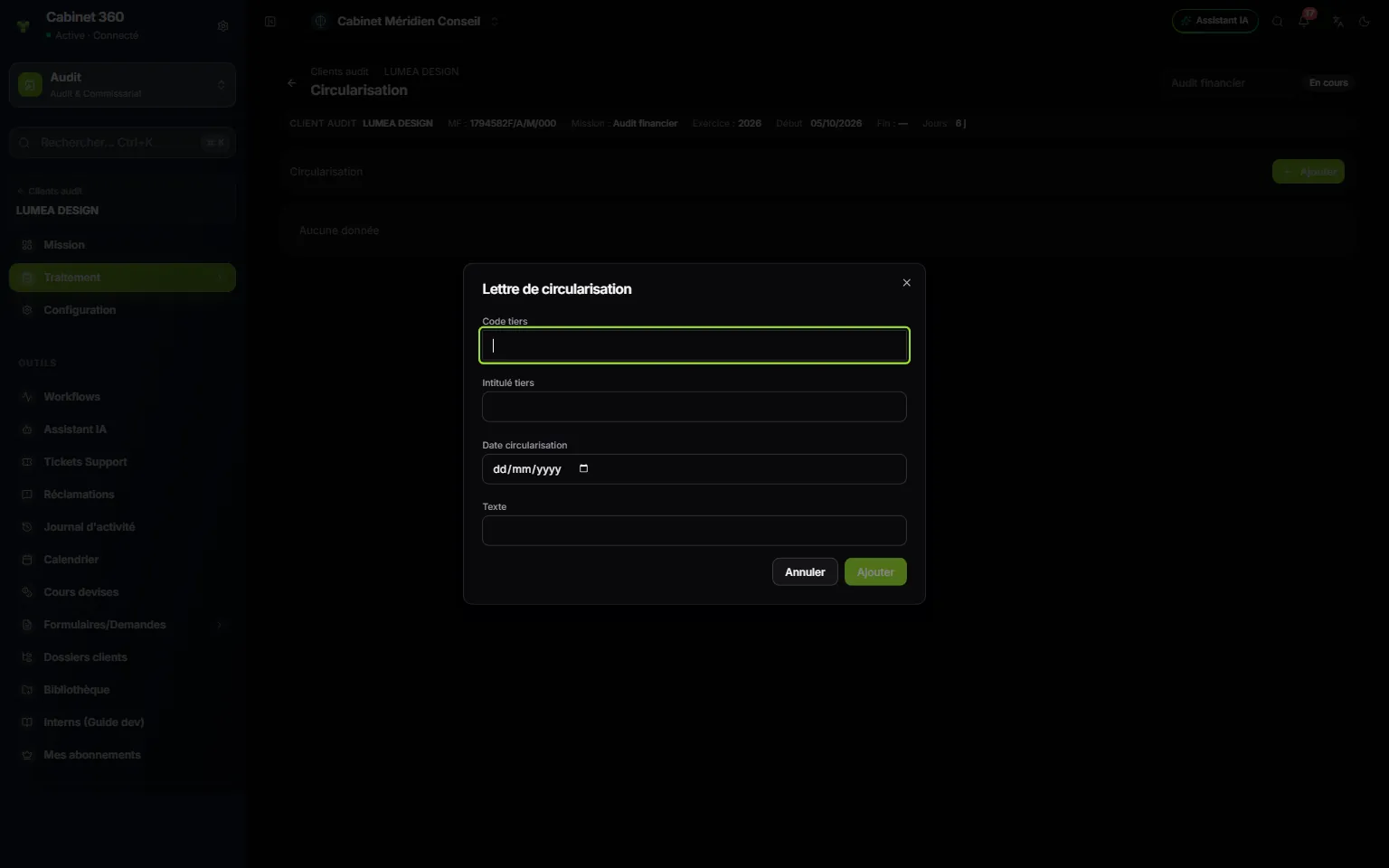
- 1. Third-party code: the third party's account, required.
- 2. Third-party name: its name, required.
- 3. Confirmation date: the day it is sent.
- 4. Text: one line of comment.
- 5. Add enters the letter in the register.
- List the third parties to confirm, for example in Data import › Third-party accounts.
- Click Add. The Third-party confirmation letter window opens.
- Enter the Third-party code and the Third-party name, choose the Confirmation date and, if needed, a Text.
- Click Add: « Enregistré » (saved).
The table shows the code, the name and the date, the most recent first; a letter with no date is sorted at the top. A line cannot be changed: delete it and add it again. The screen has no box for the third party's reply.
The document request
The screen has two tabs.
Document requests keeps the list of what you expect from the client: each request is a title. Click « Ajouter » (add), enter the Title, then Save.
Case files (drive) files the documents the client hands over:
- Click « Ajouter ».
- Choose the Folder: Permanent file for what holds from one fiscal year to the next (articles of association, contracts), Annual file for what only holds for the fiscal year.
- Enter the Line, which saving requires, and a Label.
- Choose the File, of 4 MB at most, then click Upload.
A row's arrow opens the file; its bin deletes it. The tab shows the documents filed from this mission.